AWS Schedule Stop RDS A Guide To Automating Savings
Scheduling your AWS RDS instances to stop and start is one of the quickest wins for cutting down your cloud spend. Most organizations turn to services like AWS EventBridge Scheduler or custom AWS Lambda functions to automate shutting down databases during evenings and weekends. This single action stops you from paying for compute capacity when your development, staging, or quality assurance databases are just sitting idle and unused. It's a foundational FinOps practice that delivers immediate and measurable results on your AWS bill.
Contents
Ready to Slash Your AWS Costs?
Stop paying for idle resources. Server Scheduler automatically turns off your non-production servers when you're not using them.
The Real Cost Of Idle RDS Instances
Non-production databases running 24/7 are a silent drain on your AWS budget. It is easy to overlook, but the cost of leaving development, staging, and QA instances active outside of business hours adds up with surprising speed. Every hour that an instance is idle is an hour you are paying for compute power that is delivering zero value to your business. This is one of the most common and easily fixable sources of cloud waste. The good news is that a simple scheduling strategy is one of the most effective FinOps moves you can make for immediate savings.

In a typical development environment, an Amazon RDS database is only actively needed for about eight hours a day during a standard work week. This leaves it sitting idle for the other 16 hours on weekdays, plus the entire weekend, quietly racking up charges since AWS bills by the hour for DB instance usage. When an RDS instance is stopped, you are only charged for storage and backups, which often accounts for just 20-30% of the total running cost. By shutting it down when it's not needed, you can slash compute expenses by up to 70%. You can discover more insights about RDS scheduling on the official AWS blog. This is the cloud equivalent of turning off the lights when you leave a room, allowing you to reclaim that budget for more important initiatives.
To make this tangible, let's break down the potential savings for a common RDS instance. The following table compares the monthly cost of running a database 24/7 versus operating on a standard 40-hour work week schedule. This is a core concept we explore in our guide to AWS cost optimization best practices.
Cost Savings Breakdown: Scheduled vs. 24/7 RDS Instance
| Metric | Running 24/7 (720 hours/month) | Scheduled (160 hours/month) | Monthly Savings |
|---|---|---|---|
| Compute Cost | $250.00 | $55.56 | $194.44 |
| Storage Cost | $20.00 | $20.00 | $0.00 |
| Total Monthly Cost | $270.00 | $75.56 | $194.44 (72%) |
By setting up an aws schedule stop rds strategy, you shift your non-production environments from a fixed cost to a variable one that accurately reflects when your team is working. It’s a fundamentally smarter way to manage your cloud spend.
Automating RDS Schedules With Native AWS Tools
If you're ready to stop paying for idle databases, the most direct path is often using the tools already built into your AWS account. You can build a solid and effective aws schedule stop rds solution without needing any third-party software, giving you complete control over the implementation. This home-grown approach hinges on two powerful services: AWS EventBridge and AWS Lambda. By combining them, you can create anything from simple on/off timers to a sophisticated, tag-based system that manages your entire fleet of non-production databases.
The most straightforward method is using Amazon EventBridge Scheduler. Think of it as a serverless cron job manager that can directly invoke AWS APIs. You can simply set up one schedule to stop an instance and another to start it back up, all defined with familiar cron expressions. This method is perfect for teams with just a handful of databases and predictable schedules. It's quick, requires zero custom code, and is managed entirely within the AWS console, making it a great first step into RDS automation.
While direct API calls from EventBridge are great for one or two instances, this approach becomes cumbersome when you have dozens. This is where combining AWS Lambda with EventBridge really shines. Instead of making a schedule for each database, you create a single Lambda function that intelligently manages all of them based on resource tags. The workflow is simple but incredibly effective: an EventBridge rule triggers on a cron schedule, which invokes your Lambda function. The function then scans your account for all RDS instances with a specific tag, like Schedule: office-hours, and calls the appropriate start or stop API for each one. This approach is massively scalable and mirrors how many teams automatically start and stop EC2 instances, creating a consistent pattern for managing all your non-production resources.
For this to work, your Lambda function needs the right permissions to communicate with RDS. You achieve this by attaching an IAM role to the function with a policy granting access to specific actions. This adheres to the security principle of least privilege, ensuring the function can only do exactly what it needs to.
Essential IAM Permissions for Lambda
| Permission | Description |
|---|---|
rds:DescribeDBInstances |
Lets the function list all your RDS instances so it can find the ones with your schedule tag. |
rds:StartDBInstance |
Grants the ability to start a stopped database. |
rds:StopDBInstance |
Grants the ability to stop a running database. |
logs:PutLogEvents |
Permits the function to write logs to CloudWatch, which is non-negotiable for debugging and monitoring. |
By building this tag-based solution, you create a centralized, low-maintenance system for your aws schedule stop rds needs and lay a solid foundation for smarter cloud cost management.
Using The AWS Instance Scheduler Solution
If you're looking for a standardized, AWS-native way to handle RDS and EC2 schedules, the AWS Instance Scheduler is a solid choice. Instead of rolling your own Lambda function from the ground up, this method leverages a pre-built CloudFormation template provided by AWS. This template automatically provisions all the necessary resources for you—a Lambda function, a DynamoDB table for schedule definitions, and the CloudWatch Event rules to tie it all together. This solution shines in organizations that want to centralize scheduling logic without the headache of maintaining custom code. It’s built for scale, with multi-account and multi-region deployments supported from the get-go.
Under the hood, the AWS Instance Scheduler uses a simple but effective tag-based system. When you deploy the CloudFormation stack, it creates a DynamoDB table which becomes the single source of truth for all your schedule definitions. For example, you might create a schedule in that table called uk-office-hours that defines a start time of 9:00 AM and a stop time of 5:00 PM, Monday through Friday. To apply this schedule, you simply tag an RDS instance with the key Schedule and the value uk-office-hours. A Lambda function, triggered by a CloudWatch rule every few minutes, scans for these tags, looks up the corresponding schedule in DynamoDB, and executes the appropriate start or stop command. While we're focused on RDS here, this tool is just as handy for managing EC2, as detailed in our complete EC2 Instance Scheduler guide.
Deploying the solution begins by launching the official CloudFormation template from the AWS Solutions Library. During the stack creation wizard, you will configure a handful of key parameters that define the scheduler's behavior. This infrastructure-as-code approach provides an auditable and consistent method for enforcing your aws schedule stop rds policies across the entire organization.
A No-Code Approach To RDS Scheduling
While the native AWS tools are powerful, they often feel like they were built for seasoned DevOps engineers. Writing Lambda functions, wrestling with IAM roles, or deploying complex CloudFormation stacks isn't always the right fit, especially for teams that just want to get a simple start/stop schedule running quickly. This is precisely where visual, no-code scheduling tools come in, offering a much simpler path to the same significant cost savings by allowing you to set up an aws schedule stop rds plan without touching a single line of code.
These platforms are built for one thing: speed and simplicity. Instead of navigating the maze of the AWS console, you get a straightforward, point-and-click interface. This empowers anyone on the team—from a DevOps professional to a project manager—to define and apply schedules in minutes, completely lowering the barrier to entry for effective cloud cost optimization. One of the biggest wins with this approach is having a single dashboard to manage schedules for all your different AWS services. A good no-code tool puts all your schedulable resources, such as EC2 instances and RDS databases, in one place. This centralized view eliminates the context-switching that slows teams down and makes it simple to standardize how your organization handles non-production environments.
 Navigating The Nuances Of RDS Automation
Putting an aws schedule stop rds strategy in place is more involved than just setting up a simple on/off switch. To get it right, you must build a resilient automation workflow that respects the specific rules of the AWS ecosystem. One of the first details that trips people up is the seven-day auto-start limit. If you leave an RDS instance stopped for seven consecutive days, AWS will automatically start it to perform mandatory maintenance. Your scheduling logic must account for this; otherwise, you will find databases running unexpectedly and incurring costs.
Things get even more complex when dealing with advanced setups like Read Replicas or Multi-AZ deployments. These features demand a specific sequence for shutdown and startup. For Read Replicas, you must stop the replicas before you stop the primary database. When starting them, the primary instance must be available before you bring the replicas online. For Multi-AZ configurations in non-production, the best practice for cost savings is often to convert the instance to Single-AZ before putting it on a schedule, as stopping a Multi-AZ instance is intended for short-term maintenance, not routine cost-saving schedules.
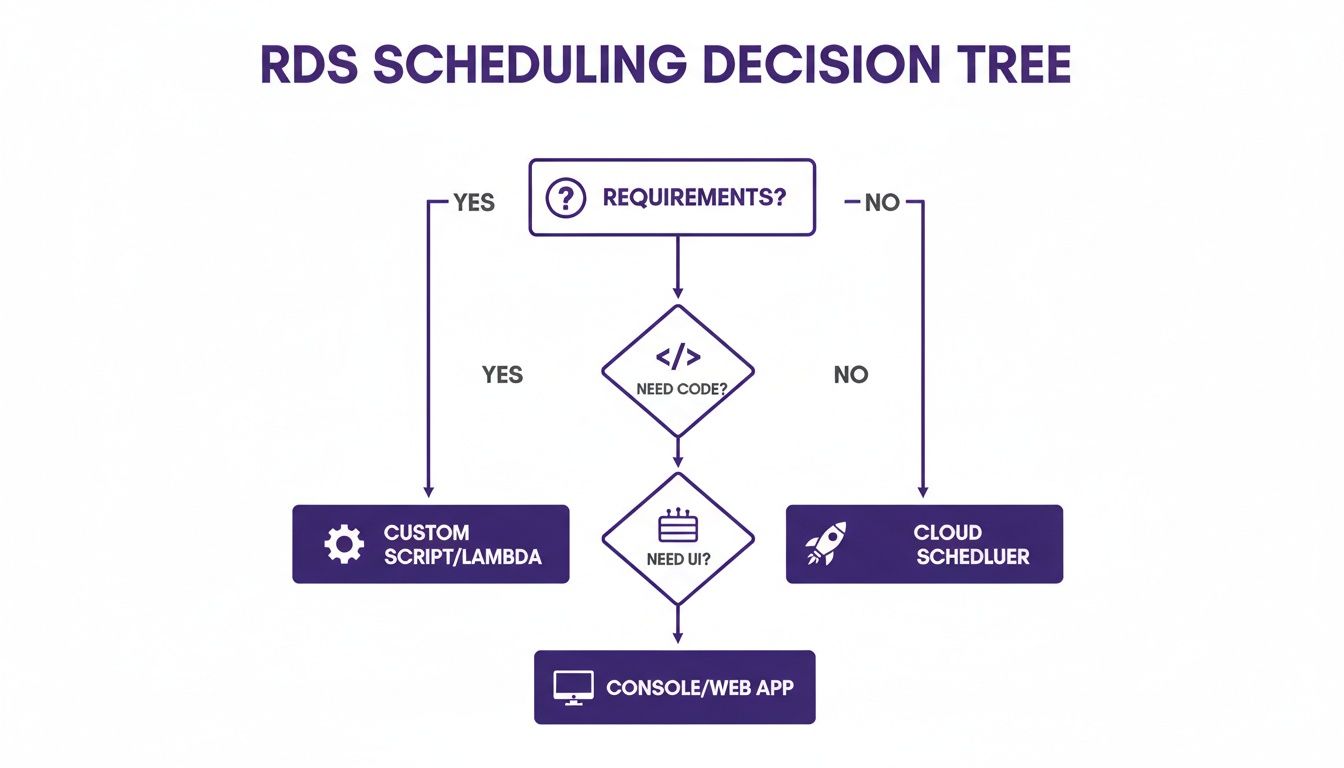
Choosing the right tool for the job can make all the difference. This table breaks down the main methods to help you decide which one best fits your team and infrastructure.
Comparison Of RDS Scheduling Methods
| Method | Ease of Use | Flexibility | Maintenance Overhead | Best For |
|---|---|---|---|---|
| EventBridge Scheduler | Moderate | High | Low | Simple, single-account schedules and one-off tasks. |
| Instance Scheduler | Low | Moderate | High | Large organizations with existing tag-based policies. |
| Lambda + EventBridge | Low | Very High | High | Teams needing fully custom logic and programmatic control. |
| Server Scheduler | Very High | High | Very Low | Teams wanting a fast, no-code solution without ongoing maintenance. |
Finally, don’t forget about your application. When an RDS instance restarts, its underlying private IP address can change. Your applications must be built to handle this gracefully by reconnecting using the stable DNS endpoint, not a cached IP. Implementing connection pooling and solid retry logic is key. For more on this, see our guide on how to properly restart RDS instances with minimal impact.
Common Questions About RDS Scheduling
Even when your automation is running perfectly, a few questions often arise. Getting the details right on how you schedule RDS stops and starts can prevent surprises and ensure your cost-saving plan is effective. Here are some of the most common questions from teams implementing RDS schedules for the first time.
One classic "what if" scenario is forgetting to start an RDS instance. Thankfully, AWS has a built-in safety net: if an instance is stopped for seven consecutive days, AWS will automatically start it to perform essential maintenance. While this prevents the instance from becoming outdated, it also means any dependent application would be down for a week, which highlights the importance of reliable, automated scheduling.
Many users also ask if they can schedule RDS clusters like Amazon Aurora. The answer is yes, and it is a great way to maximize savings. The process is slightly different, as you stop and start the entire cluster as a single unit using the StopDBCluster and StartDBCluster API calls, rather than targeting individual instances.
A common concern is whether stopping an RDS instance affects its IP address. The DNS endpoint for your RDS instance remains the same after a stop/start cycle, which is critical for application stability. While the underlying private IP address might change, AWS manages this transparently, so applications connecting via the DNS endpoint will not require configuration changes.
Finally, it's important to remember that you are still charged for some resources while an RDS instance is stopped. While you stop paying for the compute hours, charges for provisioned storage, provisioned IOPS, and automated backups will continue. Even with these ongoing costs, the savings from eliminating hourly compute charges are almost always substantial.