Master Amazon EC2 Scheduled Start Stop: Cut Costs & Boost Efficiency
Leaving your Amazon EC2 instances running 24/7 is one of the fastest ways to burn through your cloud budget. This is especially true for non-production environments like development, staging, or QA. Setting up an Amazon EC2 scheduled start stop process is the most direct and effective way to get those costs under control. It’s a simple concept: only pay for compute when you’re actually using it.
Ready to stop wasting money on idle servers? Server Scheduler offers a simple, point-and-click tool to automate your EC2 and RDS schedules, helping you cut cloud costs by up to 70% without any complex code. Start saving with Server Scheduler today.
Automating your EC2 schedules is more than just a clever technical trick; it's a fundamental financial strategy. By simply powering down instances during off-hours, weekends, and holidays, you can slash waste and free up that cash for things that actually matter.
Contents
- Why Automating EC2 Schedules Is A Financial Game Changer
- Building a Custom EC2 Scheduler with Lambda and EventBridge
- Deploying the AWS Instance Scheduler Solution
- Using Systems Manager for Simple Scheduling
- Essential Practices for Managing EC2 Schedules
- Frequently Asked Questions About EC2 Scheduling
Ready to Slash Your AWS Costs?
Stop paying for idle resources. Server Scheduler automatically turns off your non-production servers when you're not using them.
Why Automating EC2 Schedules Is A Financial Game Changer
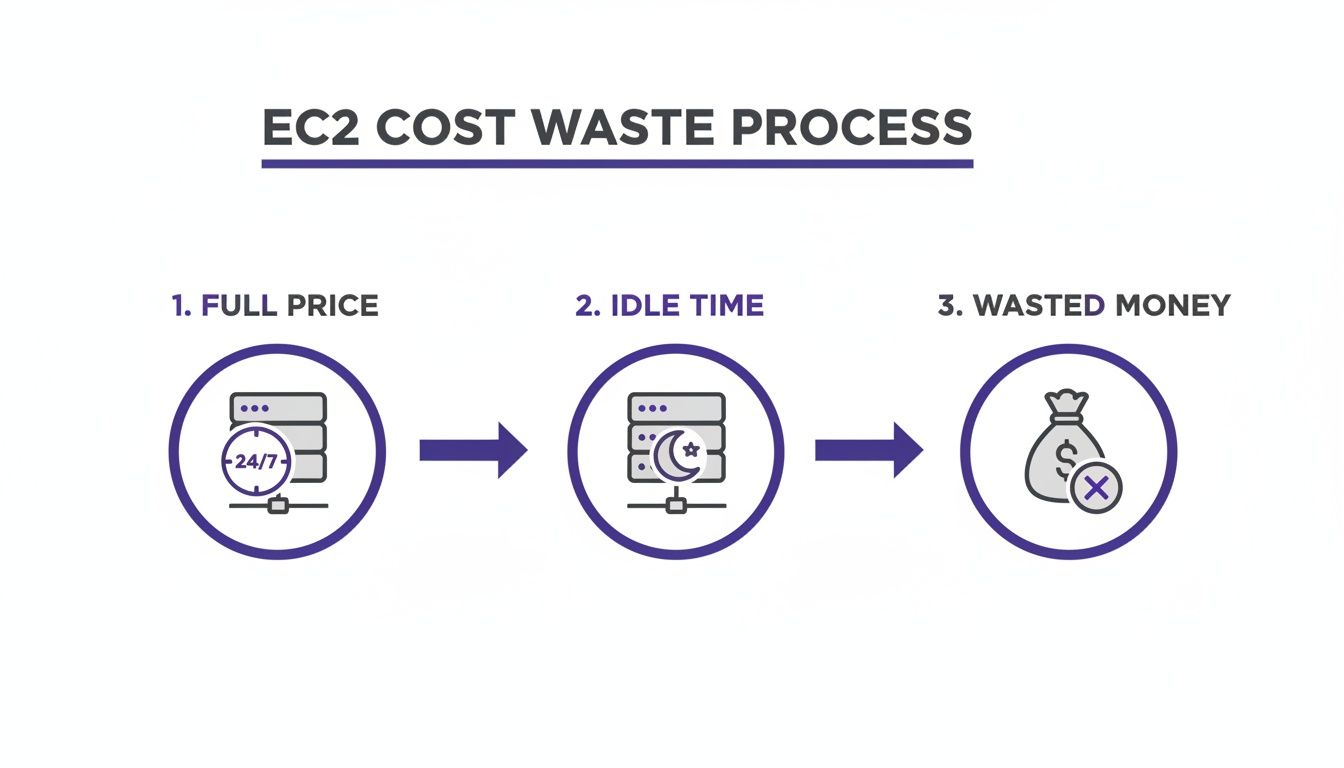
Let's be real—idle EC2 instances are a silent drain on your cloud budget. Automating start and stop times isn't just a neat feature; it’s a core practice for anyone serious about cloud cost management. Think about a typical development team. They have a fleet of EC2 instances they rely on every day, usually from around 9 AM to 6 PM. But what happens overnight? Or on weekends? Without an automated schedule, those instances keep running, racking up charges for all 168 hours in a week, even if they’re only being used for maybe 40-50 of them. That oversight translates directly into wasted money.
The logic is simple: if a server isn't being used, it shouldn't be running. Shutting down EC2 instances on a schedule is a cost optimization powerhouse. For instance, just scheduling a 12-hour daily shutdown can cut the cost of that instance nearly in half. An instance costing a mere $0.10/hour saves you $438 a year. Now, scale that across 100 instances, and you’re suddenly looking at $43,800 in annual savings. The impact is immediate and significant. The table below highlights the clear return on this simple effort.
| Instance Type (Example) | Hourly On-Demand Cost | Annual Cost (Running 24/7) | Annual Cost (10hrs/day, 5 days/week) | Annual Savings |
|---|---|---|---|---|
| t3.medium | $0.0416 | $364.42 | $108.16 | $256.26 |
| m5.large | $0.096 | $840.96 | $249.60 | $591.36 |
| c5.xlarge | $0.17 | $1,489.20 | $442.00 | $1,047.20 |
As you can see, even for smaller instances, the savings add up quickly. Beyond the obvious financial wins, scheduling brings great operational perks. It enforces a more disciplined approach to how your team manages resources and can even tighten up your security posture by reducing the attack surface of non-essential instances when they’re powered down. Making scheduling a standard practice is a sign of a mature cloud operations model. Our guide on AWS cost optimization best practices dives deeper into this and other must-have strategies.
Building a Custom EC2 Scheduler with Lambda and EventBridge
If you have in-house expertise and require total control, building a custom solution is a powerful approach. This method pairs AWS Lambda for serverless logic with Amazon EventBridge for timing, creating an effective scheduler within your AWS environment. This serverless setup is a huge win, as you aren't managing extra servers just to run the scheduler, and you only pay for the few milliseconds it takes for the Lambda function to execute. It's incredibly efficient and gives you complete authority over which instances to target.
Security is paramount. Before a Lambda function can interact with EC2 instances, it needs the right permissions. Adhering to the principle of least privilege, a dedicated IAM (Identity and Access Management) role should be created. This role should grant only the necessary permissions: ec2:StartInstances, ec2:StopInstances, and ec2:DescribeInstances. This tight permission set prevents the function from affecting other resources, a critical step for secure automation.
Pro Tip: A common pitfall is to grant overly broad permissions like
ec2:*. Always spell out the exact actions. A well-defined IAM role is non-negotiable for secure cloud operations.
With the Lambda function and IAM role in place, the final piece is EventBridge, which uses cron expressions for precise timing. For a deeper dive, check out our guide on how to turn an EC2 instance on and off. A typical "office hours" schedule in EventBridge might involve one rule to stop instances at 7 PM UTC on weekdays and another to start them at 8 AM UTC. This ensures instances run only when needed, translating directly into cost savings. Consistent tagging (e.g., Schedule:OfficeHours) is key to making the system scalable and easy to manage.
Deploying the AWS Instance Scheduler Solution
When a simple script won't cut it for a large, sprawling fleet of EC2 instances, you need to bring in the heavy machinery. The AWS Instance Scheduler Solution is Amazon's official, enterprise-grade tool for automating the start and stop of both EC2 and RDS instances, deployed neatly via a CloudFormation stack. Instead of wrestling with scattered cron jobs or custom scripts, you get a powerful, centralized hub. The architecture leverages DynamoDB to store schedule rules and a Lambda function to perform the actions. It's the perfect setup for any organization needing a standardized, auditable, and scalable way to manage their Amazon EC2 scheduled start stop strategy across multiple accounts and regions.
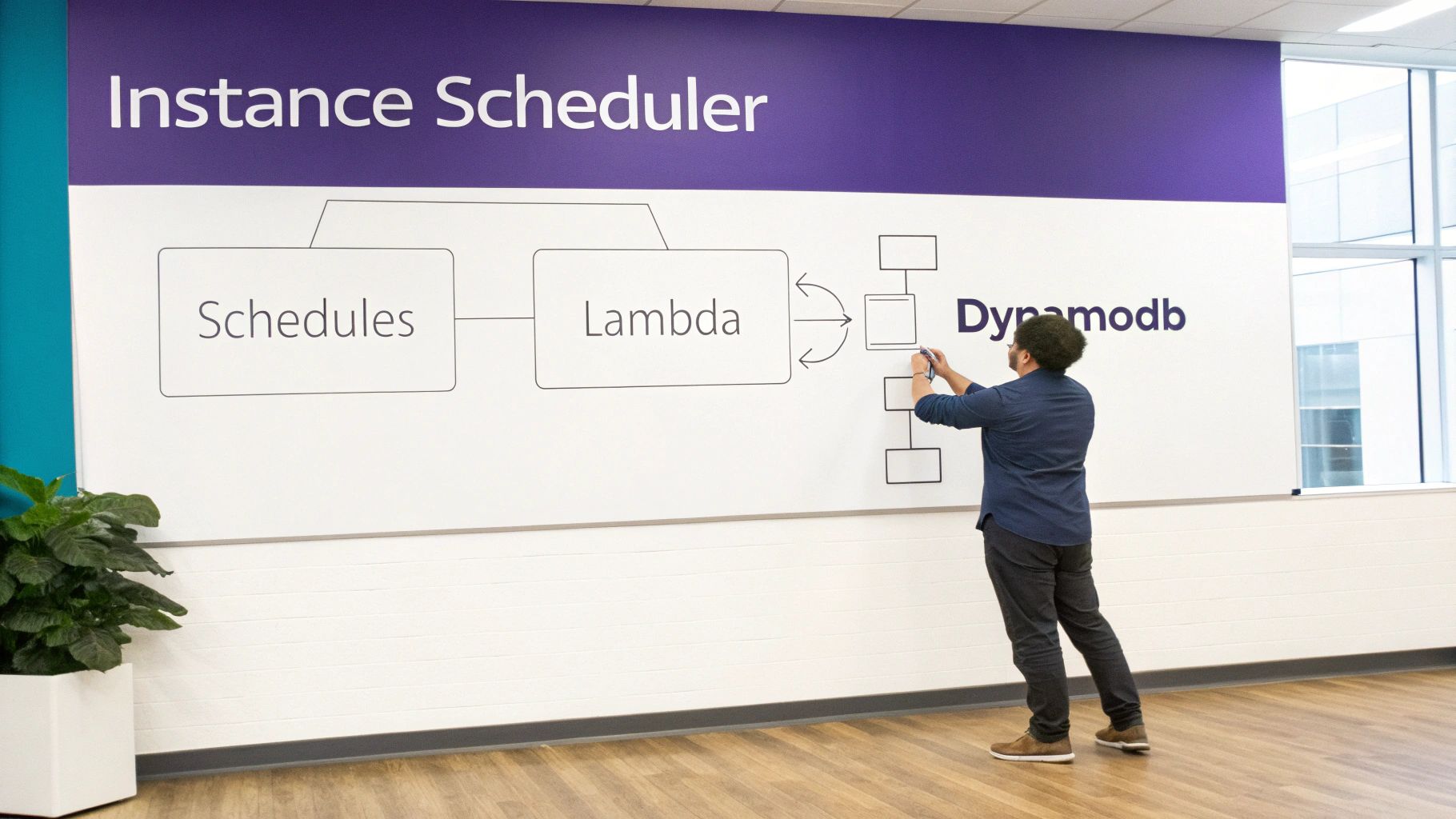
The real beauty of the AWS Instance Scheduler is its serverless design, meaning there are no servers for you to patch or manage. The core of the solution is a Lambda function that runs on a timer, queries a DynamoDB table with your custom schedules, and executes the start or stop actions. Getting this running involves deploying the official AWS CloudFormation template, which provisions everything you need. Once deployed, the system is driven entirely by tags. You apply a specific tag (e.g., Schedule=uk-office-hours) to any EC2 instance you want to control, and the value of that tag must match a schedule name defined in your DynamoDB table. This tagging approach is incredibly flexible, allowing you to manage thousands of instances with dozens of unique schedules effortlessly. You can find more detailed examples in our comprehensive guide to the EC2 Instance Scheduler.
Using Systems Manager for Simple Scheduling
If you want a quick, no-code way to schedule your EC2 instances, there's a fantastic native AWS tool that often gets overlooked: AWS Systems Manager Quick Setup. For teams that need something simple that works right now, without messing with Lambda code or CloudFormation templates, this is your ticket. It's a completely GUI-driven process built for speed, making it the fastest way to solve common scheduling needs, like shutting down development servers after hours. You get a simple, visual interface right in the AWS console to set up your schedules.
The biggest selling point is its ease of use. You don’t need to be a Lambda wizard to get a schedule up and running. The entire process is handled with a few clicks in the AWS Management Console, which is perfect for smaller teams. You define a schedule name, frequency, start/stop times, and target resources via tags. The cost benefits are immediate; a simple 10-hour business day schedule slashes runtime by over 70% compared to running 24/7. While its simplicity is its greatest strength, it's also where you'll find its limits. Systems Manager Quick Setup isn't built for complex, multi-account scheduling. If your organization needs intricate rules or a single dashboard to manage schedules across your entire AWS Organization, you'll find this tool restrictive. For straightforward needs within a single account, however, you can't beat its efficiency.
Essential Practices for Managing EC2 Schedules
Getting an Amazon EC2 scheduled start stop system running is a great first step, but keeping it running smoothly is where the real work begins. To make your automation truly bulletproof, you need to build it on a foundation of solid operational habits. A disciplined tagging strategy is non-negotiable. Your automation is completely useless without it. You must establish a clear, consistent tagging convention (e.g., a single tag key like Schedule with specific values) and ensure everyone sticks to it. This precision is the bedrock of a scalable system.
When teams are scattered across different continents, timezones can become a real headache. Always define schedules in the local timezone of the team using the resources. This simple step prevents instances from shutting down mid-workday. Another common "gotcha" involves data persistence. Data on EBS volumes is safe when an instance is stopped, but data on instance store volumes is wiped clean. Never schedule shutdowns for instances relying on instance store volumes for important data. Also, remember that a public IP address is released when an instance stops; use an Elastic IP (EIP) for services that need a consistent address. Finally, never "set it and forget it." Monitor your scheduler with Amazon CloudWatch Alarms to catch failures before they turn into a nasty surprise on your next AWS bill.
Frequently Asked Questions About EC2 Scheduling
Jumping into an Amazon EC2 scheduled start stop plan always kicks up a few practical questions. Getting straight answers is key to building your automation with confidence. When you stop an EC2 instance, you are not billed for compute usage, which is the core of how you save money. However, you will still pay for any attached Amazon EBS (Elastic Block Store) volumes. Think of it like this: the computer is off, but its hard drive is still on the shelf, taking up space you pay for.
Data on your EBS volumes remains perfectly safe when an instance is stopped. When you restart it, all data volumes are reattached as you left them. The danger lies with instance store volumes, which are ephemeral; their data is completely wiped when the instance stops. You will always have critical instances that should never be shut down automatically. An "opt-out" tagging system works great here. Apply a specific tag, like Auto-Stop:False, to these instances and ensure your scheduling logic is built to explicitly skip any resource with that tag. It's a simple but incredibly effective safety net. Sometimes automation scripts hit permission walls; if that happens, our guide on fixing "access is denied" errors is a good place to start troubleshooting.
Ready to take control of your cloud costs without writing a single line of code? Server Scheduler provides a simple, visual interface to automate your EC2 and RDS schedules, helping you save up to 70% on your AWS bill. Get started with Server Scheduler today.