Fixing "Access Is Denied" Errors in Cloud Operations
That dreaded "access is denied" error is more than just a random glitch—it's a hard stop. It's the cloud's way of telling you that whatever you’re trying to do, you don't have the green light. The user, service, or automated task making the request simply lacks the right permissions to perform an action on a specific resource. It could be a wonky IAM role, a policy that's a bit too strict, or even a flat-out "no" coming from higher up the chain.
Tired of permission errors derailing your automated tasks? Let Server Scheduler handle the complexity. Our platform simplifies cross-account and cross-cloud scheduling, ensuring your jobs run with the right permissions, every time.
Contents
Ready to Slash Your AWS Costs?
Stop paying for idle resources. Server Scheduler automatically turns off your non-production servers when you're not using them.
Understanding Why "Access Is Denied" Errors Happen
When an automated task fails with an "access is denied" message, it's almost never a single point of failure. It's usually a sign of a permissions clash somewhere in the complex, layered world of your cloud infrastructure. Getting a handle on these layers is the first step to figuring out what’s wrong. To understand the core message of these errors, you can think of the visual symbol of 'Access Denied', which is often shown as a locked shield. These errors aren't just an operational headache; they're a security signal. With the constant threat of data breaches from unauthorized access, getting permissions right is non-negotiable. A recent report found at least 49 publicly disclosed cyber attacks in a single month, with many of them exploiting weak access controls. That number alone shows why even a "denied" message on a legitimate task needs a proper look.
Permissions in cloud platforms like AWS are checked in a specific order, creating layers of control that all have to agree. The key thing to remember is that an explicit Deny at any layer will always trump an Allow from another. This diagram breaks down the typical hierarchy, from the big-picture organizational rules down to the policies attached to individual resources.
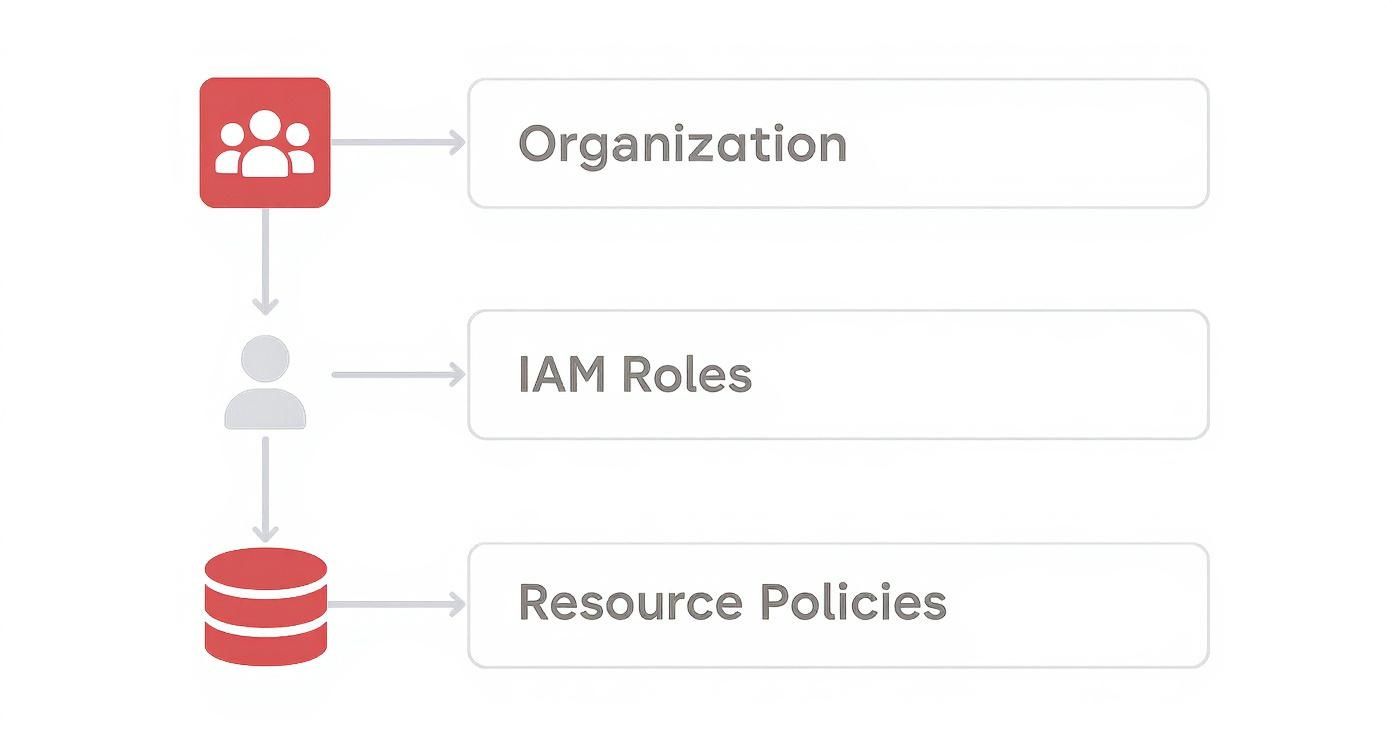
As you can see, an organization-level Service Control Policy (SCP) can block an action even if an IAM role explicitly allows it. It’s a top-down system, and the top always wins. One of the most common tripwires is the distinction between identity-based policies and resource-based policies. They both control access, but from different angles. Identity-based policies are attached to an identity (like a user or a role) and define what that identity is allowed to do. For example, the IAM role you use for Server Scheduler might have a policy letting it perform ec2:StartInstances. Resource-based policies are attached directly to a resource (like an S3 bucket or a KMS key) and define who is allowed to access that specific resource. For instance, an S3 bucket policy could grant read access to a specific IAM role, even one from a different AWS account. For any action to succeed, both policy types must give it the thumbs-up. This dual-check system is a powerful security feature, but it can also be a frustrating source of access issues—not unlike the kind of permission problems you run into with a database-specific MySQL error 1045.
Using CloudTrail and CloudWatch for Diagnosis
When you hit an "Access is denied" wall, your first instinct might be to start randomly tweaking IAM policies. But let's be honest, guessing which permission is missing is a slow, frustrating game that can easily make things worse. Instead of guessing, let's get a definitive answer straight from the source. This is where AWS CloudTrail and Amazon CloudWatch become your best friends. Think of CloudTrail as the security camera for your AWS account—it records every single API call. CloudWatch then collects and monitors all the logs, letting you search for the exact moment something went wrong. Together, they tell you precisely what failed and why.
 eventName that corresponds to the API call. Once you find the failed event, you can click into it to see the JSON event record. This record is a goldmine. It will have a clear
 errorCode like "AccessDenied" and, more importantly, an errorMessage that often spells out exactly which permission is missing for which resource.
| Field Name | What It Tells You |
|---|---|
eventTime |
The exact UTC timestamp of the failed API call. |
userIdentity |
Details on who made the call, including the IAM role ARN. |
eventName |
The specific API action that was attempted (e.g., ec2:RebootInstances). |
errorCode |
The error code, confirming it was an "AccessDenied" event. |
errorMessage |
The reason for the denial, often with the required permission. |
By carefully reading the
errorMessage, you can go from a vague "access is denied" problem to a specific, actionable insight, like "User is not authorized to perform ec2:StartInstances on resource..."
While CloudTrail is great for digging into a problem after it happens, CloudWatch Log Insights lets you get ahead of them. You can write simple queries to hunt for patterns of access denials over time, helping you spot bigger issues. This kind of proactive log analysis is a core skill, just like knowing the fundamentals of Linux network traffic monitoring. You can even build a CloudWatch dashboard with widgets that graph the frequency of "AccessDenied" errors, turning a frustrating error into a solvable puzzle.
Fixing Common IAM Role and Policy Issues
So, you've combed through the logs and pinpointed the source of that pesky "access is denied" error. More often than not, the trail leads straight back to an Identity and Access Management (IAM) role or policy. These configurations are the bedrock of cloud security, but even a tiny mistake can bring your automated tasks to a dead stop. Misconfigurations don't just break workflows; they open the door to serious security risks. With the average data breach now costing a staggering $4.44 million per incident, it's clear that weak access controls are an expensive problem to have.
One of the most common tripwires I see with IAM-related access is denied messages is a broken trust relationship. Every IAM role has two sides: the permissions policy (what it can do) and the trust policy (who can use it). If that trust policy is off, nothing else matters. For a service like Server Scheduler to do its job, the target IAM role must explicitly trust our execution role. This means digging into the trust policy to ensure the sts:AssumeRole action is allowed and that the principal (the entity assuming the role) is correctly identified.
 run PowerShell scripts via a scheduler, because the script inherits all the permissions of the role that executes it. Editing IAM policies in a production environment can feel like defusing a bomb. That's precisely why the AWS IAM Policy Simulator is such an essential tool. It lets you test your policy changes against specific actions and resources without ever deploying them, giving you a clear "allowed" or "denied" verdict.
Navigating Resource Policies and SCPs
So you've perfected your IAM policies, but your scheduled tasks are still hitting that dreaded access is denied wall. What gives? Your identity policies are just one piece of the puzzle. These roadblocks often come from two other powerful layers: resource-based policies and organizational guardrails known as Service Control Policies (SCPs). If any single one of these layers issues an explicit denial, it's game over for your operation. An IAM role might have a green light to perform an action, but an SCP at the AWS Organizations level can act as a hard stop, overriding any Allow statement.
SCPs are the ultimate safety net for your organization, but they can also be a sneaky source of access denials. They don't actually grant permissions. Instead, they set the maximum permissions an account is allowed to have. An explicit Deny in an SCP always wins, no matter what your IAM roles permit. For any action to succeed, it needs a green light from both the SCP and the relevant IAM policy. Beyond organization-wide rules, you have policies attached directly to the resources themselves. These are another frequent culprit, especially when you're working across different accounts. An explicit Deny in a resource policy will always override an Allow in an IAM policy. For example, a job's IAM role might have s3:PutObject permission, but if the S3 bucket policy doesn't grant that role access—or worse, explicitly denies it—the write operation will fail. The same logic applies to AWS KMS keys, which require permissions on both the IAM role and the key policy itself.
Solving OS and File-Level Permission Conflicts
Not every access is denied error comes from the cloud's IAM plane. Sometimes, the problem is much closer to home—right on the virtual machine or container running your scheduled task. Even with perfect cloud permissions, if the OS itself blocks access to a critical file or directory, your job will fail just the same. These OS-level conflicts are a classic headache when scheduled jobs need to run scripts or write log files. The user account running the job simply might not have the read, write, or execute permissions it needs on the filesystem.
On Linux systems, this often means the scheduler's user doesn't have execute (x) permissions on the script file itself. The chmod and chown commands are your best friends here. Getting file ownership and modes right is fundamental for reliable automation, especially when file systems behave differently, as discussed in our guide comparing XFS vs ZFS. In the Windows world, permissions are managed by Access Control Lists (ACLs). An access is denied error here usually points to a missing Access Control Entry (ACE) for the account running your scheduled task. The icacls command-line tool can be used to view and grant the necessary permissions.
 Building a Proactive Permission Strategy
Fixing errors after they pop up is just playing defense. A truly strategic approach means preventing them from ever happening in the first place. This all starts with a mental shift: stop granting broad access and start enforcing the principle of least privilege from day one. Adopting this proactive mindset is much easier when you use Infrastructure as Code (IaC) tools like Terraform or CloudFormation. When you define policies in code, they become version-controlled and peer-reviewed, dramatically cutting down on manual mistakes.
Another huge piece of the puzzle is using automated tools to hunt down and fix unintended access before it causes a real problem. Services like AWS IAM Access Analyzer continuously monitor your resource policies for anything that grants public or cross-account access and flags potential risks. This kind of proactive auditing, paired with using policy simulators during development, makes sure your permissions are both secure and functional. Honestly, it's just as vital as knowing how to correctly generate a self-signed certificate using OpenSSL for your internal services.
Frequently Asked Questions
Even with a solid troubleshooting process, a few common questions about the access is denied error seem to pop up time and again. Here are some quick answers to the most frequent head-scratchers we see from users setting up scheduled cloud tasks.
Why Do I Get Access Is Denied With An IAM Allow Policy?
This is a classic permissions puzzle. If you have an Allow policy but still get denied, it's almost always because an explicit Deny statement somewhere else is overriding it. This sneaky denial could be hiding in another policy attached to the same IAM role, a resource-based policy, a restrictive permissions boundary, or a Service Control Policy (SCP). In the AWS policy evaluation logic, an explicit Deny always wins.
How Can I Safely Test IAM Policy Changes? The safest way to validate changes is to use the AWS IAM Policy Simulator. This tool lets you pick a user or role, specify the exact action you want to test, and point it at the target resource. The simulator then crunches all the applicable policies and tells you flat out whether the action would be allowed or denied. It's a critical step to take before you deploy any changes.
What Is The Difference Between An IAM Role And User? An IAM user has permanent credentials and usually represents a specific person. An IAM role, on the other hand, is an identity that another trusted entity can temporarily assume to gain a specific set of permissions. Roles are the security best practice for applications because they rely on temporary, auto-rotating credentials, which dramatically shrinks your security risk.
Stop wrestling with permissions and start automating with confidence. Server Scheduler simplifies your cloud operations so you can focus on what matters. Explore our plans and start your free trial today.