AWS EC2 Reboot vs Stop Start: The Definitive Guide
When you're managing Amazon EC2 instances, you will frequently encounter two fundamental options: reboot and stop/start. At first glance, they might seem similar, but they are fundamentally different operations with significant implications for your costs, network configuration, and data persistence. Understanding the distinction and knowing when to use each is a core skill for anyone working with AWS. A reboot is a simple operating system restart, akin to restarting your personal computer. It is a quick process that keeps the instance's underlying hardware and network configuration intact. In contrast, a stop/start is a complete power cycle. This action shuts down the instance, de-allocates the physical hardware it was running on, and has major consequences for billing, networking, and the durability of certain types of data.
Ready to cut your AWS bill without complex scripts? Server Scheduler helps you automate instance stop/start schedules with a simple, visual interface, often reducing non-production costs by up to 70%.
Contents
Ready to Slash Your AWS Costs?
Stop paying for idle resources. Server Scheduler automatically turns off your non-production servers when you're not using them.
Understanding the Core Differences
The choice between an EC2 reboot and a stop/start cycle ultimately depends on your objective. Are you applying a quick software patch that requires a restart, or are you shutting down a development server for the weekend to save money? The correct answer is entirely situational because the impact of each action on your instance's state and your monthly AWS bill could not be more different. A reboot is the less dramatic of the two. It simply restarts the operating system while the virtual machine remains on the same physical host. This process is fast and maintains all network settings, including the public and private IP addresses. It is the preferred choice for routine maintenance, such as applying security updates or finalizing a software installation.
, which is typically the largest portion of its cost.
Once an instance enters the stopped state, the meter for its compute resources stops. This is transformative for non-production environments like development, staging, and QA, which often sit idle outside of business hours. Reclaiming these unused compute hours can drastically reduce cloud expenditure. However, it's crucial to remember that stopping an instance does not eliminate all associated charges. Even when stopped, some resources continue to accrue costs. The most significant is for attached Amazon EBS volumes. Since EBS provides persistent storage independent of the instance's lifecycle, AWS continues to charge for the provisioned capacity. Elastic IP addresses also have billing implications; if an Elastic IP is not associated with any running instance, AWS charges a small hourly fee.

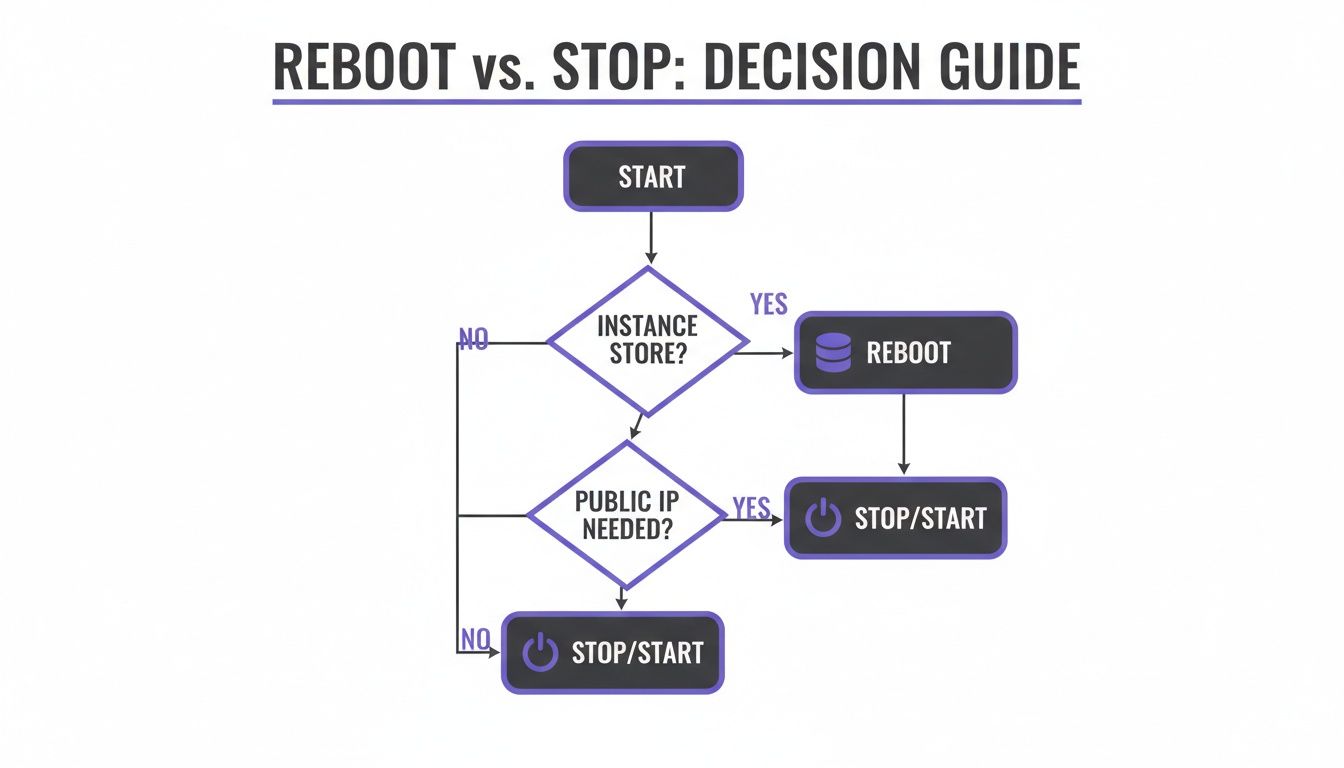
With a reboot, your instance’s network configuration remains unchanged. The private IP, public IP, and any attached Elastic IP all stay the same. This makes it a predictable and safe option for routine maintenance, as it avoids the need to update DNS records or firewall rules. A stop/start cycle is entirely different. While the private IP address is preserved, the public IP address is released back into the AWS pool. When you restart the instance, it is assigned a brand new public IP address. This can break DNS, security group rules, and any service pointing to the old IP. The only way to guarantee a consistent public IP address through this cycle is by using an Elastic IP.
Data Persistence Warning: The most critical difference lies in storage handling. Data on EBS (Elastic Block Store) volumes is safe with either action. However, data on an instance store volume is permanently deleted during a stop/start cycle. These volumes are physically tied to the host server, so when you stop the instance and the hardware is de-allocated, the data is lost forever. A reboot leaves instance store data untouched.
Practical Scenarios: When to Use Each Action
Knowing the technical differences between an EC2 reboot and a stop/start cycle is one thing, but applying this knowledge in real-world scenarios is where effective infrastructure management begins. Each action has a distinct purpose, and selecting the appropriate one is crucial for maintaining operational stability and controlling costs. A reboot is your go-to for routine, low-impact maintenance. It is the fastest and safest way to refresh the operating system with minimal disruption. You should use a reboot for tasks like applying OS patches that require a system restart, implementing software configuration changes, or resolving minor software glitches by clearing memory leaks.
A stop/start cycle is a more substantial operational tool used for saving money and making deeper system changes that a simple reboot cannot address. It is the correct choice when you need to make fundamental changes to the instance itself or its environment. Key scenarios for a stop/start include cost savings by shutting down non-production instances during idle periods, changing the instance type (e.g., from t3.large to m5.large), or troubleshooting hardware issues by migrating the instance to fresh physical hardware. This migration can instantly solve problems caused by a degraded host machine.
 Automating EC2 State Management for Cost Savings
Manually managing EC2 instances is tedious, error-prone, and does not scale effectively. In the context of the aws ec2 reboot vs stop start discussion, true cost optimization is achieved through intelligent automation, specifically by scheduling instances to shut down when they are not in use. While you can build custom solutions using AWS Lambda scripts or cron jobs, these DIY approaches come with their own maintenance and security overhead. What starts as a simple script can quickly evolve into a significant operational burden, diverting engineering time that could be better spent on core product development.
A more efficient approach is to use a purpose-built scheduling tool. These platforms are designed to manage the lifecycle of cloud resources and offer significant advantages. They provide a visual interface for building complex schedules, maintain detailed audit trails for compliance, and reduce the overhead associated with custom automation. By using a dedicated tool like Server Scheduler, your team can implement a powerful cost-saving strategy with minimal effort and risk, ensuring you only pay for compute resources when you actually need them.
 Frequently Asked Questions
Understanding the nuances of aws ec2 reboot vs stop start helps prevent common and sometimes costly mistakes. Here are answers to some frequently asked questions.
Is a Reboot Faster Than a Stop and Start?
Yes, a reboot is significantly faster. It is an operating system-level restart that typically completes in a minute or two. A stop/start cycle is a more involved process where AWS must de-allocate and then re-allocate physical hardware, which can take several minutes depending on instance type and Availability Zone capacity.
Will I Lose My Data if I Reboot My Instance?
No, a reboot is completely safe for your data. Any data on your EBS volumes and instance store volumes will be preserved. The instance does not move from its physical host, so all attached storage remains intact.
Can I Change an Instance Type With Just a Reboot?
No, you cannot. To change an EC2 instance type, the instance must be in a stopped state. A reboot only cycles the operating system; it does not provide the necessary state to modify the underlying virtual hardware configuration.
What Happens to My Elastic IP During a Reboot or Stop Start?
An Elastic IP (EIP) remains associated with your instance through both operations. During a reboot, the EIP association is completely unaffected. During a stop/start, the EIP detaches when the instance stops and automatically re-attaches when it starts, ensuring your DNS records remain pointed to a stable endpoint.
Does a Stop Start Fix a Degraded Host?
Yes, it often does. If you suspect your EC2 instance's performance issues are due to the underlying physical hardware, a stop/start cycle is an effective troubleshooting step. It migrates your instance to a new, healthy host, which can resolve problems related to a degraded machine.
Ready to stop overpaying for idle EC2 instances? Server Scheduler provides a simple, visual interface to automate your start/stop schedules, helping teams cut cloud costs by up to 70% without writing a single script. Start saving with Server Scheduler.