A Practical Guide on How to Start and Stop EC2 Instances
 Discover how it works and start saving today.
Contents
Ready to Slash Your AWS Costs?
Stop paying for idle resources. Server Scheduler automatically turns off your non-production servers when you're not using them.
Why Mastering EC2 Instance Control Matters
Let's be honest, managing the lifecycle of your virtual servers is one of the most direct ways to control your AWS spending and tighten up security. We’ve all seen it: development and staging environments left running 24/7, even though they’re only needed during business hours. That simple oversight can easily double or triple their cost without adding a shred of value. Given that Amazon EC2 makes up nearly 90% of all compute usage in most AWS environments, this isn't a minor detail. The ability to shut down instances during idle periods has become a critical cost-saving move for any company running on AWS. You can dig into more of the latest numbers in these AWS compute usage insights.
When you move beyond just manually clicking around in the AWS Console, you unlock some serious efficiency gains. Imagine a DevOps team running a single command-line script to shut down dozens of servers tagged "QA" at the end of the day. When that simple action is automated, it prevents budget bleed and keeps everything in a consistent, predictable state. Mastering EC2 control is more than just learning the technical steps; it's about building smart operational habits. In fact, understanding the benefits of standard operating procedures for boosting business success helps put these technical tasks into a bigger, more strategic picture.
The core principle is simple: if a resource isn't actively providing value, it shouldn't be accumulating costs. This mindset is fundamental to building a cost-conscious and efficient cloud infrastructure.
Just look at the sheer variety of instance types AWS offers. Each one is built for a different kind of workload, which is why precise management is so important. Leaving a high-performance compute instance running overnight by mistake has a much bigger financial impact than forgetting about a tiny general-purpose one.
Your approach to starting and stopping instances really needs to match your environment's complexity. For a quick, one-off task, the AWS Console works just fine. But if you're managing dozens of instances or need to bake these controls into a CI/CD pipeline, the AWS CLI or an SDK like Boto3 gives you way more power. This guide will walk you through each of these methods, giving you practical advice to help you build the right strategy for your team.
Managing Instances with the AWS Management Console
If you're just getting started with AWS, the Management Console is your best friend. It's the most straightforward, visual way to get a feel for starting and stopping EC2 instances. The graphical interface lets you manage your virtual servers with a few clicks—no code required. This makes it the perfect launchpad for manual tasks or for teams that just prefer a visual workflow. Once you're in the EC2 dashboard, you get a full overview of your resources. From there, you can click on one or more instances and use the Instance state menu to start, stop, reboot, or even terminate them. It's all pretty intuitive and gives you instant feedback on what your instances are doing.
This is a big one. You absolutely need to understand the difference between stopping and terminating an instance, as it has huge implications for your data and your bill. Think of stopping an instance like shutting down your laptop. The attached Amazon EBS root volume sticks around, and you can fire it right back up later with all your data perfectly intact. Terminating, on the other hand, is permanent. It deletes the instance and, by default, the EBS root volume attached to it. There is no "undo" button. Once it's gone, it's gone for good, so use this option with extreme caution. If you're juggling different instance sizes, our guide on how to properly resize an EC2 instance has some useful tips.

Another critical detail to watch out for is how your storage type handles data when an instance is stopped. It all comes down to whether your instance is EBS-backed or instance store-backed. When you stop an instance that uses an EBS volume as its root device, all the data on that volume is safe and sound. You won't be charged for the instance's compute time while it's off, but you will still pay for the EBS storage. In contrast, data on instance store volumes is ephemeral, meaning it's temporary. If you stop an instance using this storage type, all data on its instance store volumes will be wiped clean. Always double-check your instance's root device type before stopping it to avoid accidental data loss.
Using the AWS CLI for Scalable Instance Control
Once you're managing more than just a handful of instances, clicking around the AWS Management Console gets old fast. It’s slow, repetitive, and just doesn't scale. This is exactly where the AWS Command Line Interface (CLI) becomes your best friend. It flips the script, turning manual clicks into powerful, scriptable commands perfect for automation. The true magic of the CLI is its raw speed and precision for repetitive tasks. Instead of hunting down instances in a web UI, you can fire off a single command to manage dozens—or even hundreds—of servers at once. Not only does this save a massive amount of time, but it also slashes the risk of human error.
First things first, you’ll need to get the AWS CLI installed and configured with the right IAM credentials. With that out of the way, the two commands you'll live by are start-instances and stop-instances. The basic syntax is dead simple—you just need to tell it which instance IDs to target. For example, aws ec2 stop-instances --instance-ids i-0123... i-0abc.... That's handy, but the real power comes from targeting instances dynamically using filters and tags. Picture this: it's 6 PM, and you need to shut down all non-production environments. With the CLI, you can build a command that grabs the IDs of all instances with a specific tag and feeds them straight into the stop-instances command, a task that would be incredibly tedious to perform manually.
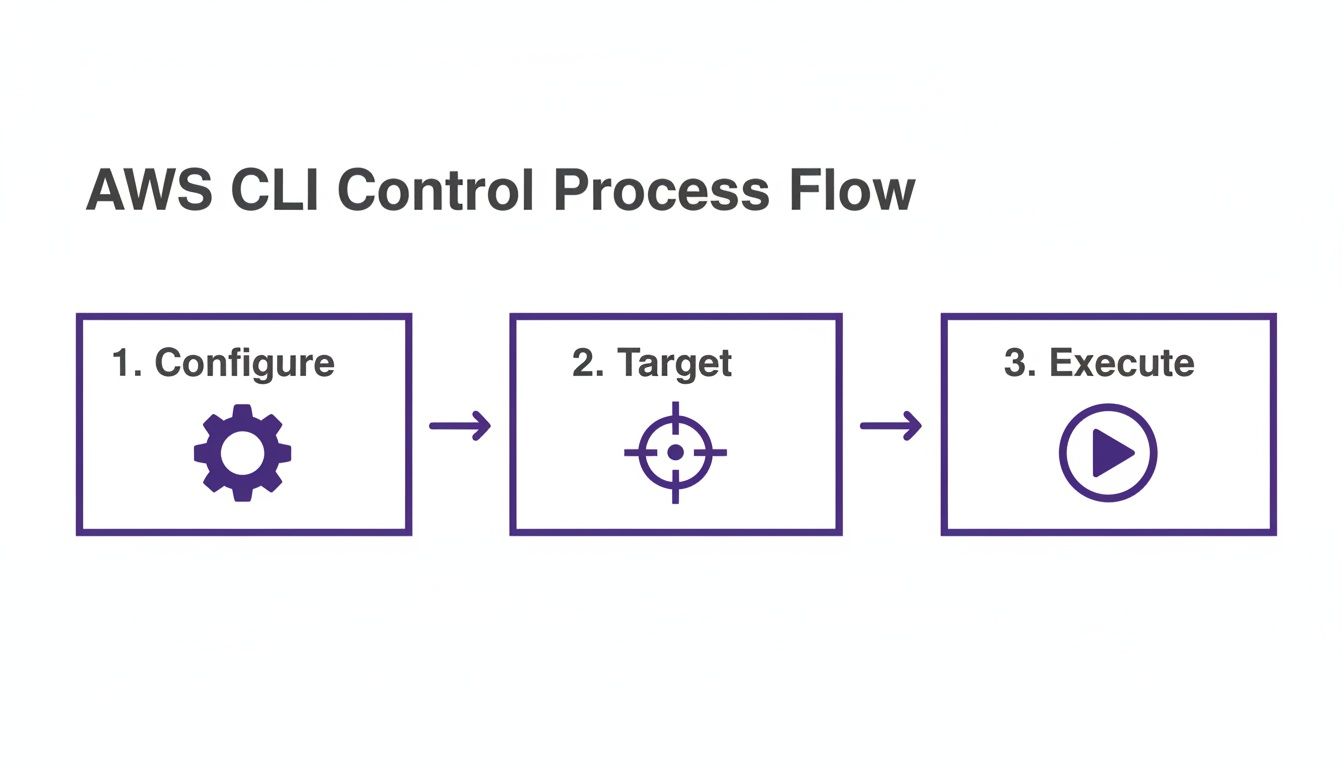
This approach is perfect for weaving automation directly into your daily operations. You can also wrap these commands in larger scripts for more complex jobs. A script could stop all staging servers, trigger snapshots of their volumes, and then ping you on Slack when it's all done. That kind of workflow is nearly impossible to pull off with the console alone. For more on this, our guide on how to restart an EC2 instance covers other useful CLI commands. By building these commands into your standard procedures, you’re creating a far more efficient, predictable, and cost-effective cloud setup.
Automating Schedules with EventBridge and Lambda
If you really want to optimize your cloud workflow, automation is the answer. This is where we move beyond on-demand scripting with the CLI and set up a completely hands-off system for managing your instances. For this, the serverless duo of Amazon EventBridge and AWS Lambda provides a powerful and modern way to get things done. With these two services working together, you can build event-driven workflows that start and stop instances on a fixed schedule. A classic example is automatically shutting down all your development environments overnight and spinning them back up before the team gets to work. This method is perfect for any workload that follows a predictable pattern, and it can lead to serious cost savings.
At the heart of this solution are two key AWS services. Amazon EventBridge is the scheduler. Think of it as a serverless event bus that triggers actions based on a schedule you define with a cron expression. Then you have AWS Lambda, the compute service that runs your code in response to those triggers. You’ll write a small function (Python is a popular choice) that tells AWS which instances to stop or start, and EventBridge makes sure it runs at exactly the right time. The beauty of this serverless model is that you don't have to manage any infrastructure. No servers to patch, scale, or maintain. You just supply the code and the schedule, and AWS handles everything else.
Putting this all together involves a few key moves. First, create an IAM role that gives your Lambda function the right permissions (ec2:StartInstances, ec2:StopInstances, and ec2:DescribeInstances). Next, write the Lambda function itself, which typically scans for EC2 instances with a specific tag, like Auto-Shutdown:True. Using tags is a really flexible approach because it lets you control which instances are on the schedule without ever needing to update your code. Once the function is ready, you create an EventBridge rule with a cron expression. A rule like cron(0 19 * * ? *) would trigger your function every day at 7 PM UTC. You can then set up a second rule with a different cron expression to start the instances back up in the morning.
Adopting Best Practices for Cost and Security
Knowing the commands to start and stop EC2 instances is one thing, but turning those actions into a strategic advantage is where the real value is. Moving your cloud management from just functional to truly efficient comes down to adopting a few key best practices for cost and security. When it comes to cost, the single most powerful habit you can build is implementing a strict, consistent tagging policy. Think of tags as metadata labels that let you categorize resources, making it dead simple to identify which instances are safe to shut down automatically.

A classic strategy is to tag all non-production environments and schedule them to power down outside of business hours. Just by stopping these instances on nights and weekends, you can slash their compute costs by over 65%. This simple move is a cornerstone of smart cloud financial management, a concept central to FinOps best practices. Without clear tags, any attempt at automation is a gamble. On the security side, the principle of least privilege is non-negotiable. You should never grant teams or services sweeping permissions. The goal is to craft fine-grained IAM policies that give them just enough access to do their jobs. This means locking down the ec2:StartInstances and ec2:StopInstances actions to only the specific resources they're responsible for, often by using tag-based conditions in IAM policies. To keep a constant watch on these configurations, effective Cloud Security Posture Management (CSPM) is essential.
Common Questions About EC2 Management
Once you've got the commands down, the real world always throws a few curveballs. Here are the straight answers to the questions we hear most often about how EC2 instances actually behave day-to-day. Getting these right can save you a lot of headaches and money.
You are not billed for the compute time when an instance is in the ‘stopped’ state. However, you are still paying for any attached Amazon EBS volumes. The only way to stop all charges is to terminate the instance, which permanently deletes it and usually its attached storage. Stopping is temporary, like shutting down a laptop, while terminating is permanent, like recycling it. Unfortunately, a terminated instance cannot be recovered, which is why enabling termination protection on critical instances is so important. As for how long it takes, starting or stopping an instance is usually quick, taking anywhere from a few seconds to a couple of minutes depending on its size and configuration. If you run into permission problems, our guide on what to do when you see an EC2 access is denied message can help.