How to reboot instance ec2: A Practical Guide for AWS Users

Rebooting an EC2 instance is a fundamental task for managing a healthy AWS environment, acting as your first line of defense for minor performance issues or applying system updates. It's the cloud equivalent of restarting a physical server—a quick, low-impact operation that refreshes the operating system without altering the instance's underlying hardware or network configuration. This makes it the ideal solution for resolving sluggishness caused by a runaway process, finalizing security patches, or waking up an unresponsive application, all while preserving your instance's IP addresses and any data stored on its instance store volumes.
Need to schedule routine EC2 reboots or stop/start cycles to save on your AWS bill? Server Scheduler helps teams automate these tasks across multiple accounts with a simple point-and-click interface—no scripts needed.
Contents
- Reboot vs. Stop and Start: The Key Differences
- Choosing Your Method for Rebooting an EC2 Instance
- Take Control of AWS Scheduled Maintenance with Proactive Reboots
- Troubleshooting Common EC2 Reboot Failures
- Automating EC2 Reboots for Cost and Operational Efficiency
- Rebooting EC2 Instances: Your Questions Answered
Ready to Slash Your AWS Costs?
Stop paying for idle resources. Server Scheduler automatically turns off your non-production servers when you're not using them.
Reboot vs. Stop and Start: The Key Differences
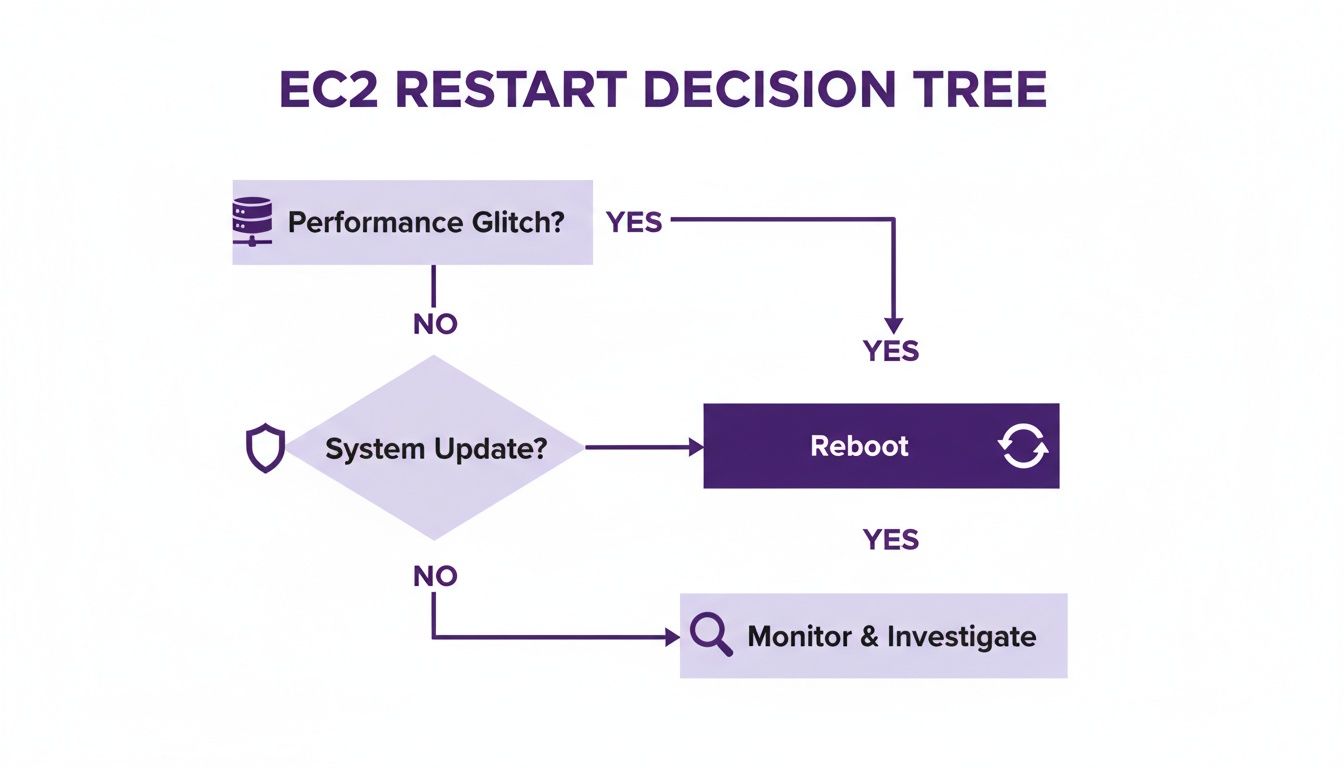
Understanding the distinction between rebooting an EC2 instance and performing a full stop/start cycle is critical, as each action has significantly different outcomes. A reboot is a soft restart that occurs on the same physical host machine. Because the underlying hardware doesn't change, the instance retains its public and private IP addresses, its instance store data, and its placement within a placement group. This makes it perfect for routine maintenance where network identity must remain constant.
In contrast, stopping and starting an instance is a much more significant operation. When an instance is stopped, AWS effectively releases the underlying host hardware. Upon starting again, it is often provisioned on an entirely new host. This process results in the assignment of a new public IP address (unless an Elastic IP is attached) and the complete erasure of all data on instance store volumes. A stop/start is necessary for tasks like changing the instance type, upgrading the kernel, or resolving issues tied directly to the underlying physical host.
This table provides a clear comparison to help you decide which action is appropriate for your needs.
| Attribute | Reboot Instance | Stop and Start Instance |
|---|---|---|
| Public IP Address | Preserved | A new IP is assigned (unless an Elastic IP is used) |
| Instance Store Data | Preserved | Erased permanently |
| Underlying Host | Remains on the same physical hardware | Migrates to a new host machine |
| Billing | Billing is continuous | Billing stops when the instance is stopped |
| Use Case | Applying updates, clearing memory, fixing software glitches | Changing instance type, addressing hardware issues |
If you are dealing with a software glitch, applying patches, or just need to clear out some memory, a simple reboot is almost always the correct and safest choice. It’s fast, straightforward, and keeps your configuration intact. However, if you suspect a deeper issue with the hardware, a stop/start cycle is required. For persistent performance problems, you may need to investigate further and learn how to find a memory leak to diagnose the root cause.
Choosing Your Method for Rebooting an EC2 Instance
When it comes to the task of rebooting an EC2 instance, AWS provides several methods tailored to different workflows and technical preferences. The best approach depends on whether you are addressing an immediate issue, performing routine maintenance, or integrating the action into a larger automated process. Your comfort with graphical interfaces versus command-line tools will likely guide your choice.
The AWS Management Console offers the most direct, visual path for manual reboots. It is ideal for one-off situations where you need to quickly restart a single server. For engineers who prefer working in the terminal and require speed and scriptability, the AWS Command Line Interface (CLI) is the tool of choice. For developers building custom applications, the AWS Software Development Kits (SDKs) for languages like Python, Java, and Node.js allow reboot logic to be embedded directly into their code.
 restart an EC2 instance from SSH. Ultimately, choosing the right method for how to reboot instance EC2 requires balancing speed, scale, and the integration needs of your specific task.
Take Control of AWS Scheduled Maintenance with Proactive Reboots
One of the most common triggers for an EC2 reboot is a notification for AWS Scheduled Maintenance. These alerts often indicate underlying hardware degradation or other issues on the host machine that require your instance to be migrated. Ignoring these warnings means AWS will eventually perform the maintenance for you, which can result in downtime at an inconvenient time for your services.
Instead of passively waiting for the deadline, the modern best practice is to perform a customer-initiated reboot migration. This proactive approach allows you to trigger the reboot as soon as you receive the maintenance alert, giving you full control over the timing. When you initiate the reboot yourself, AWS will typically migrate your instance to a fresh, healthy host, effectively resolving the scheduled event on your terms. This strategy is essential for maintaining high availability in production environments, as you can schedule the brief downtime for low-traffic periods to minimize user impact.
This process was significantly improved when AWS introduced customer-initiated reboot migrations for EC2 Scheduled Events, a feature that now resolves the underlying hardware issue approximately 95% of the time on the first try. You can learn more about how AWS improved this process. While manually rebooting an instance is feasible for a one-off event, it doesn't scale for managing dozens or hundreds of instances. This is where automation becomes crucial. Using an EC2 instance scheduler to define specific maintenance windows ensures all proactive reboots occur during planned off-peak hours, transforming a reactive, stressful task into a reliable, automated process.
Troubleshooting Common EC2 Reboot Failures
While an EC2 reboot is typically a smooth process, failures can occur. An instance might get stuck in the 'rebooting' state, fail its health checks upon restart, or become unresponsive. When this happens, knowing how to diagnose the problem quickly is essential. Your first diagnostic step should always be to check the EC2 Status Checks in the AWS Console.
These checks are divided into two crucial categories. System Status Checks monitor the underlying AWS infrastructure, including the hardware and network. A failure here indicates an issue on the AWS side, and the most common resolution is to stop and start the instance to move it to a new host. In contrast, Instance Status Checks monitor the virtual machine itself. A failure in this check points to a problem within the guest operating system, such as a misconfiguration, a corrupted file system, or a service failing during the boot sequence.
 Linux service restart commands. To understand why a reboot occurred, review AWS CloudTrail, which logs all API calls, including
 RebootInstances. This helps you identify whether the action was user-initiated, scripted, or triggered by AWS. If you encounter permission issues, our guide on troubleshooting 'access is denied' errors can provide additional guidance.
Automating EC2 Reboots for Cost and Operational Efficiency
Manual reboots are inefficient and prone to error, especially when managing a large number of instances. Automation transforms the simple act of rebooting into a strategic tool for enhancing reliability, security, and operational efficiency. By scheduling reboots, you can shift your team from a reactive to a proactive stance, systematically applying patches or clearing memory during planned, low-impact maintenance windows rather than scrambling to fix issues at inconvenient times.
Automated reboots are also a key component of a broader cost optimization strategy. While a reboot itself does not stop billing, the discipline of scheduled maintenance often complements scheduled uptime. For non-production environments like development, staging, and QA, instances do not need to run 24/7. By pairing a scheduled weekly reboot with a daily stop/start schedule, you can significantly reduce your AWS bill. Our guide on how to schedule EC2 instances to stop and start demonstrates how this approach can cut costs by up to 70%, making it one of the most effective cloud cost optimization strategies available.
While you can build your own automation using AWS-native tools like Lambda and Systems Manager, this often involves writing and maintaining scripts and wrestling with IAM roles. A simpler solution is a dedicated tool like Server Scheduler. It replaces this complexity with an intuitive, visual interface where you can define reboot, stop, and start schedules across multiple AWS accounts and regions without writing any code. This standardizes your maintenance processes, eliminates manual errors, and frees up your engineering team to focus on innovation rather than routine server management.
Rebooting EC2 Instances: Your Questions Answered
Even with a clear understanding of the process, several common questions often arise when managing EC2 instances. Addressing these points directly can help you perform reboots with confidence and avoid common pitfalls.
A primary concern is security and access control. To perform a reboot, a user or role must have the ec2:RebootInstances permission in their IAM policy. It is crucial to adhere to the principle of least privilege by only granting this permission to administrators or specific automated systems that require it. This prevents accidental or unauthorized reboots that could cause service disruptions.
Another frequent question relates to network identity. A standard reboot will not change the public IP address automatically assigned to your instance at launch. It also preserves any associated Elastic IP addresses. This is a key difference from a stop/start cycle, which will cause the instance to lose its public IP unless an Elastic IP is attached.
Finally, verifying the success of a reboot is straightforward. In the EC2 Console, the instance state will transition from 'running' to 'rebooting' and then back to 'running'. The definitive confirmation comes from the Status Checks tab, where two green 'passed' indicators for both System Status and Instance Status confirm that the instance is fully healthy and operational. A final check via SSH or RDP will confirm that your applications are back online.
Tired of manual, late-night maintenance? With Server Scheduler, you can define simple reboot, stop, and start schedules across all your AWS accounts in just a few clicks. Take control of your cloud operations and reduce costs by visiting https://serverscheduler.com.