AWS EC2 Resize Changes Host Name? Here's How to Fix It
It’s a common headache for any cloud engineer: you resize an EC2 instance, and suddenly scripts fail and monitoring alerts go off. This often happens because, by default, an AWS EC2 resize changes host name. This behavior is rooted in how AWS assigns names—the instance hostname is tied directly to its private IPv4 address, which can change during the stop/start cycle required for resizing.
Ready to stop hostname chaos for good? Server Scheduler lets you automate EC2 start, stop, and resize operations reliably, giving you predictable windows to manage configurations without the late-night stress. Schedule a demo today!
Contents
Ready to Slash Your AWS Costs?
Stop paying for idle resources. Server Scheduler automatically turns off your non-production servers when you're not using them.
Why Your EC2 Hostname Changes After a Resize
When you kick off an EC2 instance resize, you're doing more than just bumping up its CPU and memory. You’re triggering a sequence of events under the hood that often leads to a brand-new hostname. This is default behavior in AWS, but understanding the mechanics behind it is the first step toward preventing the operational mess it can cause. The core of the problem lies in the link between an instance's lifecycle and its network identity. A resize operation requires the instance to be stopped, its type modified, and then started again. This stop/start cycle is fundamentally different from a simple reboot. You can dig into the key differences between stopping and rebooting an EC2 instance in our detailed guide.
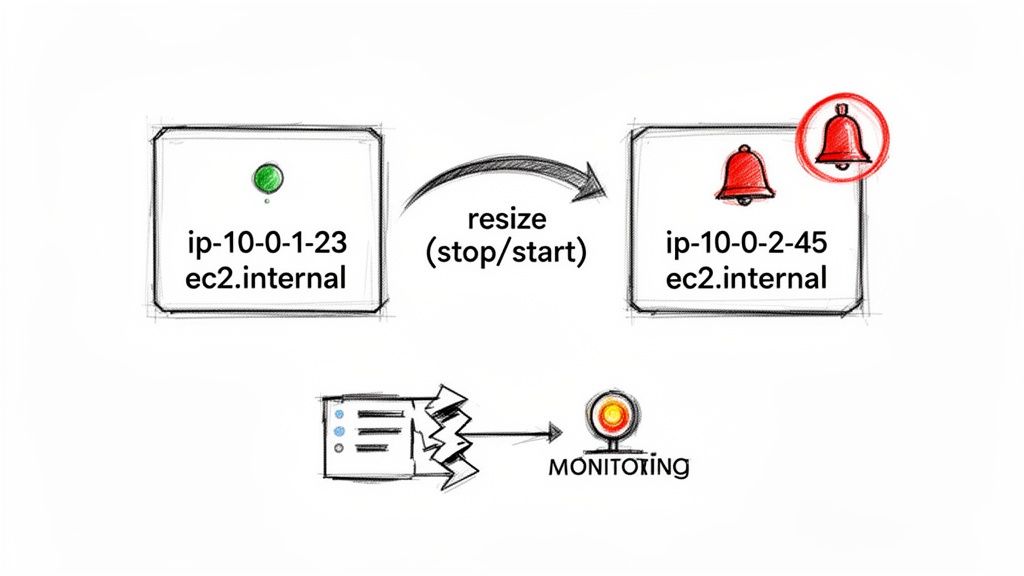
By default, an EC2 instance's hostname is dynamically generated based on its private IPv4 address. This is what's known as IP-based naming. The format usually looks something like ip-10-0-1-23.region.compute.internal. When an instance is stopped, AWS effectively releases its underlying hardware and private IP address back into a shared pool. Upon starting again, the instance is provisioned on new hardware and gets assigned a new private IP from the available pool in its subnet. Consequently, a new IP means a new hostname.
INFO: This automatic change is a feature, not a bug, designed for the dynamic nature of the cloud. However, it becomes a major problem for applications and tools that rely on stable hostnames for service discovery, configuration management, or logging.
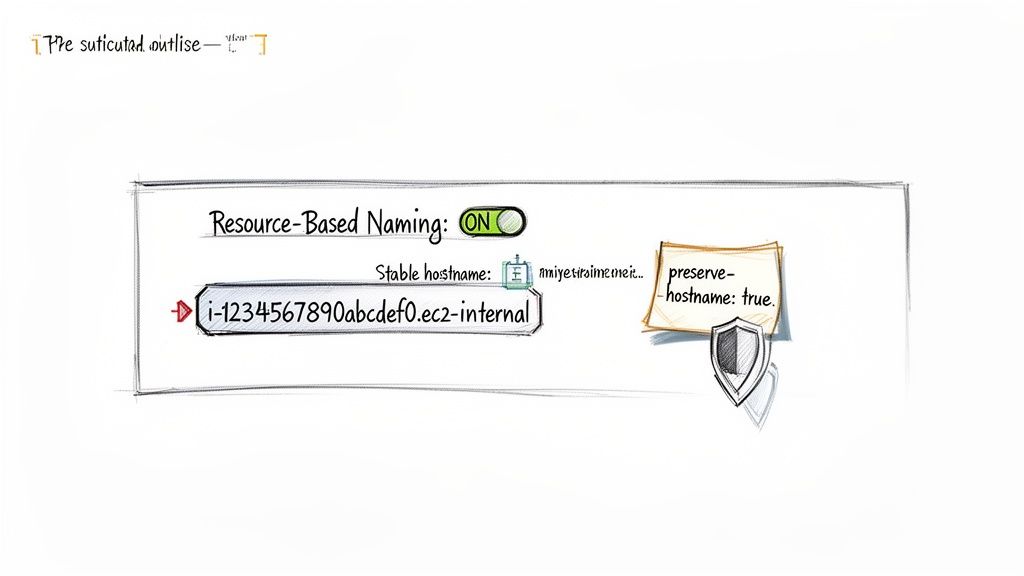
To counter this, AWS offers an alternative called Resource-based naming. When you enable this setting at the VPC level, it tells EC2 to generate hostnames based on the unique and permanent instance ID instead of the fleeting IP address. The format then becomes i-1234567890abcdef0.region.compute.internal. Because the instance ID never changes throughout the instance's lifecycle—even during a resize—the hostname remains constant. This simple configuration switch is often the most effective way to prevent the aws ec2 resize changes host name issue before it ever happens. You can learn more about hostname types from the official AWS documentation.
Setting Up Your VPC for Hostname Stability
Preventing a problem is always better than scrambling to fix one. When you're dealing with the aws ec2 resize changes host name headache, the most bulletproof solution is to set up your environment correctly from the get-go. A couple of proactive tweaks can ensure your instance hostnames stay stable, predictable, and immune to the chaos of stop/start cycles and resizes. The single most effective thing you can do is enable Resource-Based Naming in your Virtual Private Cloud (VPC) settings. This simple change tells AWS to generate hostnames from the permanent instance ID (like i-1234567890abcdef0.ec2.internal) instead of the temporary private IP address. Because the instance ID never changes, the hostname stays put no matter how many times you stop, resize, or restart the instance.
You can enable this setting for both new and existing VPCs directly from the AWS Management Console. For a running VPC, navigate to its settings and edit the "DNS hostnames" options. You'll see two checkboxes: "Enable resource name DNS A record on launch" and "Enable resource name DNS AAAA record on launch." Ticking these boxes ensures any new instances launched in that VPC will automatically get stable, resource-based names. It is important to remember this setting is not retroactive; it only applies to instances launched after you enable it.
For another layer of control, especially in automated provisioning workflows, you can use cloud-init. This tool handles the first-boot initialization of an instance, and you can pass it specific instructions via user data scripts. By adding preserve_hostname: true to your cloud-init config, you're telling the instance's operating system to hold onto its hostname across reboots, no matter what.
TIP: This is a fantastic safeguard. While the VPC setting controls how AWS assigns the DNS name,
preserve_hostnameensures the OS itself doesn’t get any funny ideas and try to overwrite it based on new network info it sees after a restart.
Combining these two proactive methods provides a rock-solid defense against unexpected hostname changes. The table below offers a quick comparison of these and other methods.
| Method | Type | Complexity | Best For |
|---|---|---|---|
| Resource-Based Naming | Proactive (VPC) | Low | All new environments; sets a stable foundation. |
| Cloud-Init Directive | Proactive (OS) | Low | Automated instance provisioning; Infrastructure as Code. |
| Elastic IP / ENI | Proactive (Network) | Medium | Instances needing a static private and/or public IP. |
Manual hostnamectl |
Reactive | Low | Quick fixes for a small number of instances. |
| SSM Run Command | Reactive | Medium | Automating fixes across a fleet of existing instances. |
These configurations are foundational for building stable infrastructure. For complex environments, especially those tied into Active Directory, understanding how instances join and leave a domain is critical. A misconfigured hostname can complicate things, and our guide on how to remove a computer from a domain provides useful context for managing machine identities cleanly.
How to Manually Fix a Hostname After a Resize
Sometimes you land in an environment where proactive measures were skipped, or an unexpected resize has already scrambled your instance hostnames. When the aws ec2 resize changes host name issue hits, you need a fast, reliable way to restore order. For most modern Linux distributions like Amazon Linux 2, Ubuntu, and RHEL, your best friend is the hostnamectl command. This utility provides a straightforward way to set the system's hostname so it persists through future reboots. For a deeper look at instance lifecycles, our guide on how to properly restart an EC2 server has some great insights.
Using hostnamectl is the recommended approach because it handles updating all necessary system files behind the scenes. To set a new static hostname, it’s just a single command. For example, to name your server app-server-01.yourdomain.local, SSH into the instance and run: sudo hostnamectl set-hostname app-server-01.yourdomain.local. This command instantly updates the current hostname and writes the new name to /etc/hostname, ensuring the change persists.
WARNING: Manually editing config files like
/etc/hostsor/etc/hostnameis risky. One small typo or formatting error can trigger networking issues or stop services from starting. Ifhostnamectlis available, always use it.
While logging into one or two machines is manageable, this manual approach doesn't scale. When a resize affects dozens or hundreds of servers, AWS Systems Manager (SSM) Run Command becomes a lifesaver. It lets you execute scripts securely across your entire fleet of instances without needing to open an SSH port. You can target instances using tags, making it easy to apply fixes precisely where they're needed. By wrapping the hostnamectl command in an SSM Document, you can turn a frantic, manual firefighting session into a controlled, automated process.
Automating EC2 Resizes Without The Headaches
Automating EC2 resizes is a massive cost-saving opportunity, but if not planned carefully, it can trigger the dreaded aws ec2 resize changes host name problem. The key is to turn resizing from a reactive, risky event into a controlled, predictable part of your infrastructure management. Instead of using brittle cron jobs or complex Lambda functions, modern scheduling tools allow you to define simple start, stop, and resize windows with a clear visual interface. This approach drastically cuts down on human error and provides a full audit trail.
A controlled, scheduled approach offers the perfect chance to manage hostname stability at scale. When you know an instance resize is scheduled for a specific maintenance window, you can automatically trigger the right remediation steps. The real power kicks in when you combine scheduling with your proactive and reactive fixes. A scheduled resize event can become the trigger for automated checks and corrections. For instance, you could set up automation to verify configurations before the resize, run remediation scripts right after, and validate service health once the instance is back online.
This systematic approach turns automation from a potential risk into a strategic advantage. Beyond the immediate fix, adopting strategies for automating EC2 resizes also contributes to the bigger picture of managing technical debt and risk control. By creating a predictable resize schedule, you give your team and your automation a clear, defined window to perform necessary maintenance. This eliminates the surprises and frantic firefighting that often accompany manual infrastructure changes, ensuring your cost optimization efforts don't accidentally destabilize your applications.
Building a Resilient Hostname Strategy at Scale
Fixing a single instance after an aws ec2 resize changes host name event is one thing, but building a scalable, resilient system to prevent the problem is a different challenge. When managing a large AWS footprint, you must move beyond one-off fixes and treat hostname management as a core pillar of your infrastructure design. A solid strategy starts by codifying your policies with Infrastructure as Code (IaC) tools like Terraform or CloudFormation. This enforces your desired hostname configurations on every resource from its creation, stamping out configuration drift.
An even more advanced approach is to reduce reliance on instance hostnames altogether. Instead of applications connecting directly to ephemeral names, they can connect to stable, human-readable DNS names that you control, like api.internal.yourcompany.com. This makes the underlying instance's hostname irrelevant. You can achieve this with patterns like service discovery using AWS Cloud Map or by creating Amazon Route 53 private hosted zones.
BEST PRACTICE: By abstracting away instance-level details, you decouple your services from the underlying infrastructure. A resize or even a complete instance replacement becomes a seamless, non-disruptive event for your applications.
To build a truly bulletproof approach, tie everything into established cloud governance best practices. This is where your tagging and documentation become non-negotiable lifelines. A consistent tagging strategy—using keys like Application, Environment, and Owner—allows you to quickly identify, troubleshoot, and automate fixes for affected resources. This disciplined approach is a cornerstone of any effective cloud cost optimization strategies and ensures that resizing EC2 instances remains a routine, low-risk task. You can find more details about these AWS resize patterns.
Common Questions About EC2 Hostname Changes
Even with a solid hostname strategy, some edge cases and tricky questions often arise. Let's tackle some of the most common ones. A simple reboot of an EC2 instance will not change its public or private hostname. The instance keeps its assigned private IP address through the reboot, and since the default hostname is based on that IP, the name remains stable. The aws ec2 resize changes host name issue is specifically tied to the stop/start cycle.
Assigning an Elastic IP (EIP) gives an instance a static public IPv4 address, which is great for services needing a fixed public entry point. However, an EIP only affects the public IP and public hostname. The private hostname is still generated from the instance's private IPv4 address, which can change during a stop/start. An EIP provides a stable public endpoint but doesn't solve the private hostname problem.
You can set a custom hostname that also resolves in DNS, but it requires additional configuration. Running hostnamectl only changes the name locally. To make a custom name resolvable across your VPC, you need a DNS service like Amazon Route 53. The standard practice is to set up a private hosted zone in Route 53 for an internal domain. Then, use a startup script or an EventBridge rule to automatically update a DNS record that points to the instance's current private IP every time it boots. This gives you stable, human-readable names decoupled from the default EC2 hostname.
Stop letting unpredictable hostname changes disrupt your automated workflows. With Server Scheduler, you can define reliable, visual schedules for your EC2 start, stop, and resize operations, giving you the perfect maintenance window to ensure configurations are always correct. Learn more at https://serverscheduler.com