How to Restart an EC2 Server: A Practical Guide

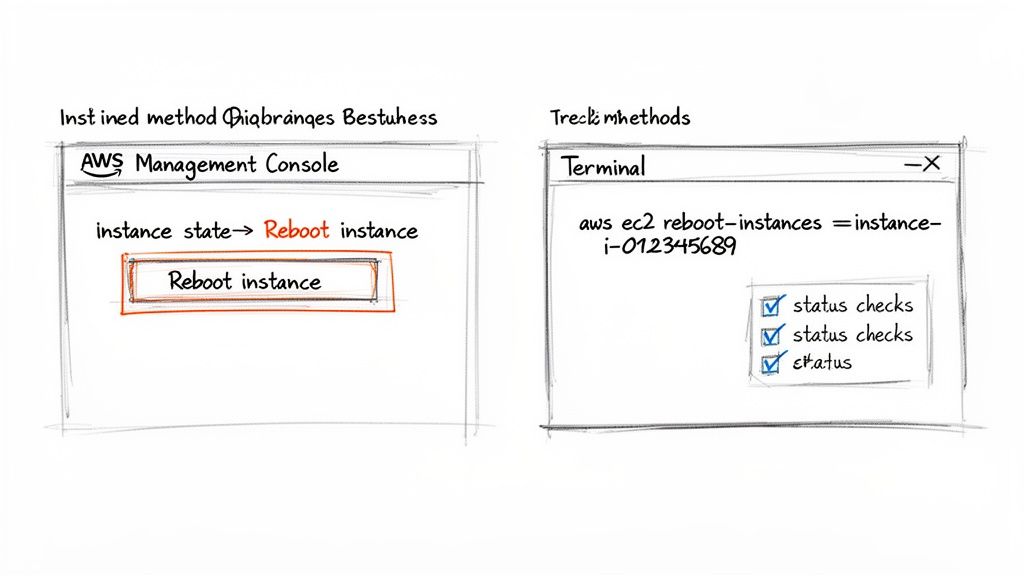
Restarting an Amazon EC2 instance is a fundamental task for any cloud administrator, often serving as the first step in troubleshooting or routine maintenance. While a quick fix is available directly from the AWS Management Console by selecting the instance, navigating to the 'Instance state' menu, and clicking 'Reboot instance', understanding the nuances behind this simple action is crucial. This OS-level restart is quick and efficient, preserving the underlying hardware assignment and public IP address, but it's not the only way to cycle an instance.
Tired of manual, late-night server restarts? Server Scheduler automates your AWS EC2 and RDS tasks with a simple, no-code visual scheduler. Start a free trial today and cut your cloud bill.
Contents
Ready to Slash Your AWS Costs?
Stop paying for idle resources. Server Scheduler automatically turns off your non-production servers when you're not using them.
Why Restarting an EC2 Server Is Necessary
Knowing how to restart an EC2 server is only half the battle; knowing why and when is what truly elevates your operational expertise. A restart is the go-to solution for a wide range of common issues, from applying critical updates to resolving unexpected performance degradation. Recognizing the scenarios that call for a restart allows you to maintain a healthy, responsive, and secure cloud environment. You'll often find yourself reaching for the restart button when an application becomes sluggish or unresponsive. It is often the fastest way to clear resource contention, terminate hung processes, or resolve issues stemming from memory exhaustion. While a restart can be a quick fix, it's also worth investigating the root cause, such as learning how to find a memory leak.
Another primary reason for restarting an instance is to apply system updates and security patches. Many operating system updates require a reboot to finalize their installation and take effect. Scheduling these restarts during planned maintenance windows is a best practice that prevents disruptions during peak business hours. Finally, when an instance becomes completely unreachable, failing its status checks or refusing SSH or RDP connections, a restart is often the necessary step to restore connectivity and begin troubleshooting the underlying problem.
Reboot vs. Stop and Start: A Deeper Dive
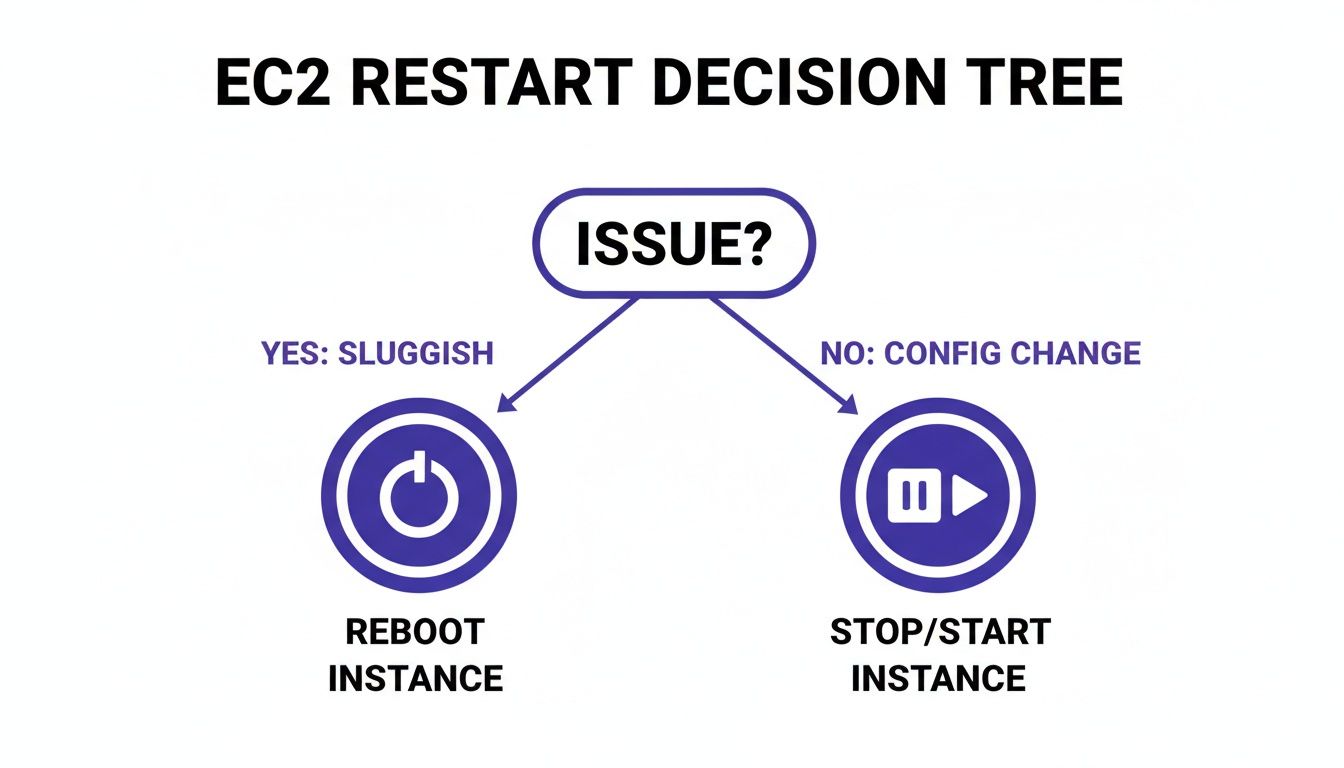
When you need to restart an EC2 server, AWS presents you with two distinct options: a reboot and a full stop/start cycle. While they might seem similar, their underlying mechanisms and consequences are vastly different. Making the right choice is critical, as it can affect your instance's public IP address, the persistence of its data, its physical host, and even your monthly AWS bill. Understanding this distinction is a cornerstone of effective EC2 management.
A reboot is the equivalent of a soft reset on a personal computer. The operating system is restarted, but the virtual machine remains on the same underlying physical host hardware. This process is fast, typically completing within a few minutes. Because the instance never truly powers down at the hardware level, it retains its public IP address (if it has one) and, crucially, any data stored on ephemeral instance store volumes. This makes it the ideal choice for applying software patches or resolving application-level issues without significant disruption.
In stark contrast, a stop/start cycle is a hard reset. When you stop an instance, the virtual machine is completely shut down, and AWS releases the underlying physical host. Upon starting it again, the instance is often provisioned on entirely new hardware. This process is necessary for certain configuration changes, such as modifying the instance type, but it comes with significant implications.
Critical Distinction: A reboot preserves all data on instance store volumes. A stop/start cycle, because it can move the instance to new hardware, will permanently wipe all data on any attached instance store volumes. Always ensure critical data resides on EBS volumes.
This table highlights the key operational differences between the two actions.
| Attribute | Reboot (Soft Restart) | Stop/Start (Hard Restart) |
|---|---|---|
| Action | Reboots the operating system. | Shuts down the VM and starts it again. |
| Public IP Address | Retained. | Released and a new one is assigned (unless using an Elastic IP). |
| Hardware | Stays on the same physical host machine. | May migrate to a new physical host. |
| Instance Store Data | Data is preserved. | Data is lost permanently. |
| Billing | Does not start a new billing hour. | Stops billing while stopped; starts a new billing hour on start. |
| Use Case | Applying software patches, fixing unresponsive apps. | Changing instance type, troubleshooting hardware issues. |
The choice also has financial implications. A reboot does not trigger a new billing hour, whereas a stop/start cycle pauses billing when the instance is stopped and begins a new billing period upon starting. For a more detailed breakdown of these differences, you can explore our detailed comparison of EC2 reboot vs stop/start actions.
Methods for Restarting an EC2 Server
With a clear understanding of the difference between rebooting and stopping/starting, the next step is to execute the chosen action. AWS provides two primary methods for managing your EC2 instances: the graphical AWS Management Console and the scriptable AWS Command Line Interface (CLI). The best method often depends on your personal preference, the number of instances you are managing, and whether you need to automate the task. For one-off restarts or users who prefer a visual interface, the AWS Management Console is the most straightforward approach.
To restart an instance using the console, you first navigate to the EC2 Dashboard and select "Instances" from the side menu. From the list, find and select the instance you wish to restart by checking the box next to it. With the instance selected, click the "Instance state" dropdown menu at the top. From here, you can choose "Reboot instance" for a soft restart. If you need to perform a hard restart, you would select "Stop instance," wait for its state to change to "stopped," and then select "Start instance" from the same menu. The console provides clear visual feedback on the instance's state throughout the process.
For engineers comfortable with the terminal or those needing to manage instances at scale, the AWS CLI is the more powerful and efficient tool. It allows you to script and automate restart procedures, saving significant time in large environments. To perform a soft reboot, you use the reboot-instances command, specifying the target instance ID. The command would look like aws ec2 reboot-instances --instance-ids i-0123456789abcdef0. For a hard restart, you must use two separate commands: stop-instances followed by start-instances. You would first run aws ec2 stop-instances --instance-ids i-0123456789abcdef0, and after confirming it has stopped, you would run aws ec2 start-instances --instance-ids i-0123456789abcdef0. For advanced users, it's also possible to learn how to restart an EC2 instance from SSH for direct, in-server control.
Automating EC2 Restarts for Better Operations
Manually restarting servers, especially in response to an unexpected issue, is an inefficient and error-prone process. Transitioning from a reactive, manual approach to a proactive, automated strategy is essential for modern cloud operations. Automation transforms restarts from a tedious chore into a planned component of your maintenance and cost-optimization strategy. By scheduling reboots for patching or performance tuning, you ensure they occur reliably within defined maintenance windows, minimizing disruption and freeing up valuable engineering time for more impactful work.
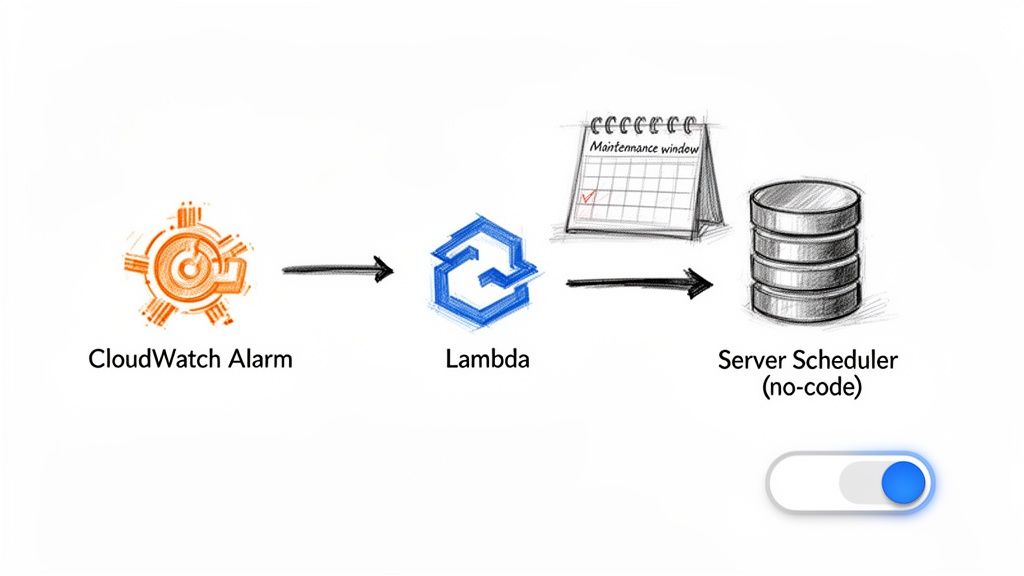
AWS provides native tools for building custom automation workflows. A common pattern involves using an Amazon CloudWatch Alarm to monitor a key metric, such as sustained high CPU utilization. When a threshold is breached, the alarm can trigger an AWS Lambda function—a small, serverless piece of code—that executes an API call to reboot the problematic EC2 instance. While this is effective for reactive troubleshooting, it requires writing, testing, and maintaining code, which can be a significant overhead for busy teams. A more powerful strategy is proactive scheduling, especially for non-production environments like development, staging, and QA. These instances often run 24/7, incurring costs even when they are not in use.
By implementing a simple start/stop schedule for development environments, teams can dramatically reduce their cloud spend. This aligns perfectly with FinOps principles, ensuring you only pay for resources when they are actively providing value.
While custom scripting with Lambda offers ultimate flexibility, no-code solutions like Server Scheduler provide a more efficient path for most teams. With a visual, point-and-click interface, you can create recurring schedules to shut down environments after business hours or define specific maintenance windows in minutes. This approach eliminates the need to manage custom code, increases visibility for the entire team, and delivers direct cost savings by automating the shutdown of idle resources. Implementing a robust AWS EC2 start/stop schedule becomes accessible to everyone, not just those who can write code.
Dealing With AWS Scheduled Maintenance Events
Periodically, AWS must perform maintenance on the physical hardware that underpins the EC2 service. These scheduled events are an unavoidable aspect of using the cloud, but AWS provides advance notice through the AWS Health Dashboard and email notifications. Ignoring these alerts is a common mistake that can lead to unexpected downtime, as AWS will eventually perform the required action at a time of their choosing. The key is to be proactive and manage the event on your own terms.
These notifications describe different types of events, such as an instance-reboot, where the instance is simply restarted on the same host, or a system-reboot, which involves migrating the instance to new hardware. The most critical is an instance-retirement, indicating that the underlying hardware is failing and must be evacuated. By understanding what each event means, you can respond appropriately. You can learn more about the specifics of these scheduled events directly from the AWS documentation. The best practice is to perform the required action—typically a reboot or a stop/start cycle—yourself during a planned maintenance window before the AWS deadline. This puts you in control, allowing you to schedule the restart for a low-traffic period, such as late at night or on a weekend, thus turning a potential emergency into a routine, managed task. This proactive mindset is essential for maintaining stability across all cloud services, similar to how knowing if an RDS reboot will change its IP address helps in planning database maintenance.
Common Questions About Restarting EC2 Servers
Even with a solid understanding of the procedures, specific questions often arise when managing EC2 instances. Key areas of concern typically involve data persistence, billing implications, and how to verify an instance's health post-restart. Addressing these common queries helps build confidence and prevent costly mistakes.
One of the most critical questions revolves around what happens to data during a restart. The answer depends entirely on the type of storage used. Data on EBS (Elastic Block Store) volumes is safe, as EBS is network-attached storage that persists independently of the instance's state. Whether you perform a reboot or a stop/start, your EBS data remains intact. However, instance store volumes are ephemeral, meaning the data is physically tied to the host hardware. A simple reboot preserves this data, but a stop/start cycle can migrate the instance to a new host, resulting in the permanent loss of all data on the instance store.
Billing is another area where the distinction matters. A simple reboot does not alter your billing; the instance is considered continuously running. In contrast, a stop/start cycle directly affects your bill. Billing pauses when the instance is stopped (though you still pay for attached EBS storage) and a new billing hour commences as soon as it is started again, subject to a one-minute minimum charge.
Finally, after initiating a restart, you must confirm the instance is healthy and operational. The AWS Management Console provides status checks that monitor both the underlying system and the instance itself. A "2/2 checks passed" status indicates that AWS considers the instance healthy. The final verification step should always be to attempt a connection via SSH or RDP to ensure the operating system and applications have returned to a normal state.
Ready to stop wasting money on idle servers and end late-night manual reboots? Server Scheduler gives you a simple, visual way to automate your EC2 and RDS instances, cutting cloud costs by up to 70%. Start your free trial at https://serverscheduler.com and see the savings for yourself.