A Guide to the AWS ElastiCache Reboot Process

An AWS ElastiCache reboot isn't just a simple restart; it’s a controlled operation, usually done to apply system updates or configuration changes from a parameter group. But here’s the critical part: for in-memory engines like Redis and Memcached, a reboot wipes the data on that specific node completely clean. This guide will show you how to handle this process without causing chaos.
Ready to automate routine maintenance like reboots and cut down on manual work? Server Scheduler can help you schedule ElastiCache operations in minutes, reducing costs and freeing up your engineering team. Try it for free today!
Contents
Ready to Slash Your AWS Costs?
Stop paying for idle resources. Server Scheduler automatically turns off your non-production servers when you're not using them.
Understanding the AWS ElastiCache Reboot
Let's cut right to it. An ElastiCache reboot is not a failover or a full node replacement. It's a direct, intentional restart of an existing cache node. While it sounds straightforward, the implications are huge, especially for applications that lean heavily on that in-memory data for speed. Unlike rebooting a persistent database server, the data tucked away in an ElastiCache node's memory is volatile. It doesn't survive a restart. This whole process is fundamentally different from other instance operations. For a deeper look at how restarts compare, our guide on the difference between EC2 stop, start, and reboot offers some great context that applies here too.
 Standard Operating Procedure template.
The second you issue a reboot command, the targeted node goes offline. This hits your application in two distinct ways: a temporary performance hit and data loss. All those requests that would have been zipping to the cache are now pounding your primary database. Expect higher latency and a heavier load on your backend systems. At the same time, every last key and value stored on that node is gone. Once the reboot is complete, the node comes back online totally empty, creating a "cold cache" scenario. Your application then has to begin the slow process of repopulating the cache, often called "cache warming." During this time, your cache hit rate will plummet, and your database load will stay high until the cache is sufficiently warm again. Understanding this is the first step to building a reboot strategy that doesn't bring your application to its knees.
Rebooting Redis vs Memcached Clusters
Not all ElastiCache reboots are created equal. The engine you choose—Redis or Memcached—fundamentally changes the game. When you kick off an AWS ElastiCache reboot, understanding the difference isn't just a technical detail; it’s the key to preventing unexpected downtime and data loss. The core distinction boils down to how each engine handles data persistence and replication. For a Redis cluster with Multi-AZ enabled, rebooting a primary node is often a surprisingly graceful event. AWS automatically triggers a failover to a read replica, promoting it to the new primary. This preserves your entire dataset and minimizes write downtime to just the brief failover period.
Memcached, however, tells a very different story. It's a pure in-memory cache with no native replication or failover capabilities. When you reboot a Memcached node, you're not just restarting a server; you're creating a temporary blind spot in your cache. The portion of data that lived on that node is gone until your application repopulates it.

When dealing with Redis, your first question should always be: "Is Multi-AZ enabled?" If the answer is yes, your life is significantly easier. The automated failover mechanism is designed to handle this exact scenario, making the reboot process much less risky for your application's availability. Still, even with Multi-AZ, a reboot isn't entirely without impact. During the failover, there will be a short window where write operations might fail. Your application should have retry logic built in to handle these momentary hiccups gracefully. For single-node Redis clusters or those without Multi-AZ, a reboot behaves much like Memcached—it results in a complete data wipe for that node. In these cases, your strategy must account for a cold cache and the subsequent load on your primary database.
The crucial difference is that Redis offers a safety net through replication. A properly configured Redis setup turns a potentially catastrophic reboot into a manageable, low-impact maintenance task.
With Memcached, there are no safety nets like Multi-AZ. A reboot guarantees data loss on the affected node. Your strategy must therefore be entirely application-focused, centering on how to manage the fallout of a temporarily diminished cache. The primary goal is to minimize the performance degradation that occurs when a slice of your cache suddenly vanishes. Your application will see a surge in cache misses, redirecting a flood of requests to your backend database. Regardless of the engine, successful recovery is measured by how quickly your cache returns to a healthy, "warm" state. Monitoring key metrics like cache hit rate and CPU utilization is essential to confirm that your cluster has stabilized after the event. More details can be found by exploring ElastiCache operations on tutorialsdojo.com.
A Visual Guide to Using the AWS Console
For those who prefer a hands-on approach, the AWS Management Console is the most direct way to kick off an AWS ElastiCache reboot. It’s perfect for one-off tasks, like applying a pending configuration change without having to fire up the command line. First things first, you need to find your ElastiCache resources. After logging into the AWS Management Console, just type "ElastiCache" into the main search bar and click it. That'll land you on the ElastiCache dashboard. In the left-hand navigation menu, you’ll see separate options for Redis and Memcached. Pick the engine that matches the cluster you need to reboot. AWS will then show you a list of all your clusters for that engine. The workflow feels pretty similar to other AWS services. If you've ever managed EC2, it'll feel familiar, much like the process in our guide on how to reboot an EC2 instance.
 exactly which nodes to restart. You can either reboot all nodes in the cluster at once or pick specific nodes from a list. After you confirm the reboot, the cluster's status will flip from available to rebooting. You can watch this change happen right in the cluster list. The process isn't instant; it can take a few minutes for each node. While a node is in the "rebooting" state, it's completely offline. Once it's done, the status will switch back to available. It's crucial to keep an eye on your own application-level metrics—things like cache hit rate and database load—to confirm your system has fully recovered. The AWS console tells you what happened, but your own metrics tell you the "so what."
Automating Reboots with the AWS CLI and API
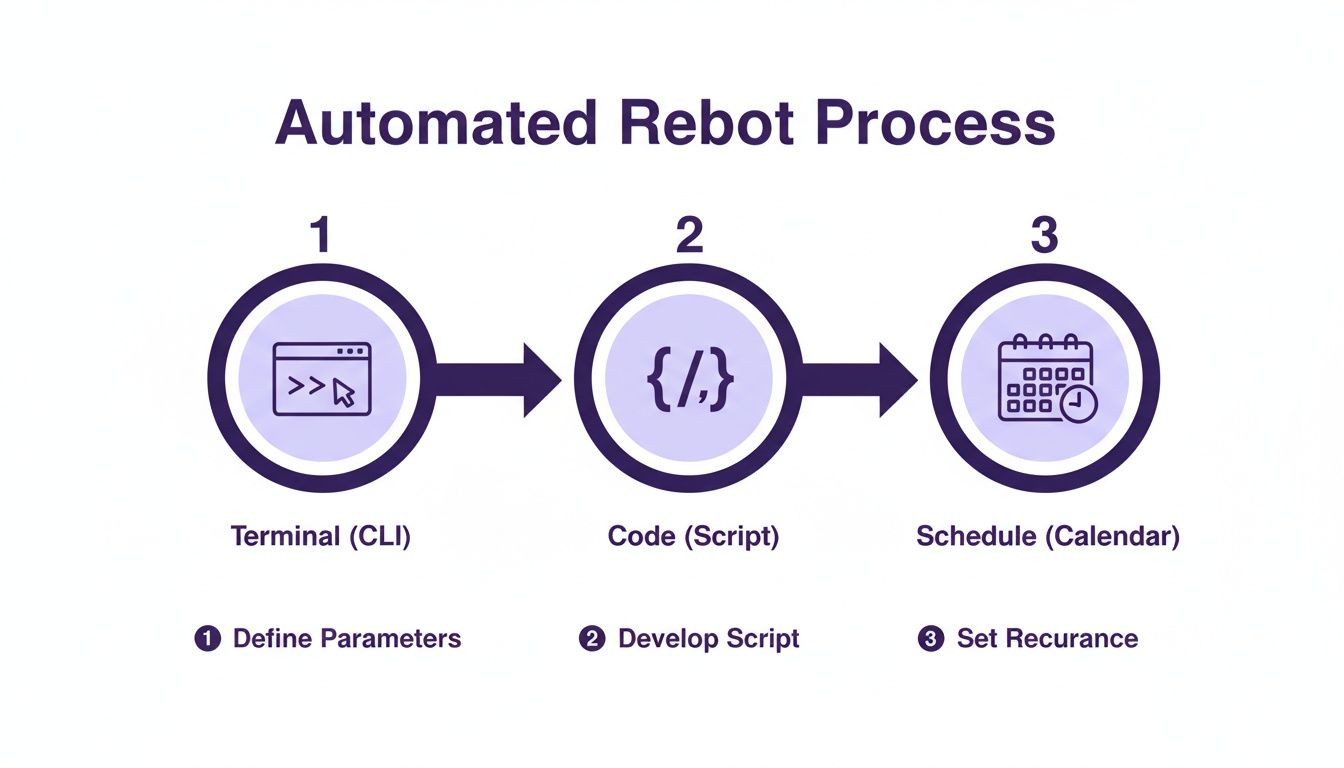
The AWS Console is perfectly fine for a one-off reboot, but it just doesn't scale. When you're managing a fleet of clusters or need to bake reboots into a CI/CD pipeline, the AWS Command Line Interface (CLI) and API become your best friends. This is how you turn a manual chore into a repeatable, reliable, and automated operation. For engineers who live in the terminal, scripting reboots offers surgical precision. It's about creating robust workflows that slot neatly into existing DevOps practices.
The core of your automation will be the aws elasticache reboot-cache-cluster command. In its simplest form, you just need to pass it the cluster's unique ID to reboot every node inside. But the real power comes from the --cache-node-ids-to-reboot parameter. This flag is a game-changer, letting you perform a targeted reboot on specific nodes. It’s invaluable for things like rolling updates or troubleshooting an individual node. For more examples, you can always check out the official AWS documentation on rebooting cache clusters. Stepping beyond the CLI, you can weave reboot logic directly into your applications and infrastructure-as-code pipelines with the AWS SDKs. For Python developers, the go-to library is Boto3. The API call you'll use is RebootCacheCluster, which mirrors the CLI command's functionality. You could easily embed this call into a larger Python script that first applies a new parameter group and then immediately triggers the reboot to make the changes live.
Kicking off a reboot is just the first step. You have to make sure it actually finishes successfully. Your automation script needs to be smarter than just "fire and forget." It should periodically poll the cluster's status using describe-cache-clusters, waiting for the status to flip back to 'available'. Only then can you be sure the job is done. It's also a good idea to build in timeouts and error handling. You don't want your script hanging indefinitely if a node gets stuck in a reboot loop. A well-written script will handle these edge cases gracefully, log the error, and alert your team. This follows the same principles as orchestrating other automated tasks, like those we cover in our guide to scheduling EC2 start and stop times.
How To Minimize Downtime and Risk
Knowing the steps to reboot an ElastiCache node is just the beginning. The real trick is doing it without your users ever noticing. The core idea is to treat every reboot as a controlled, communicated, and validated procedure. The simplest, most effective way to cut down risk is timing. Never reboot a production cluster during peak hours. Dig into your application's usage data and find a low-traffic window to schedule the maintenance. Once you’ve picked a time, spread the word to your team so everyone is prepared.
For Redis clusters, enabling Multi-AZ is your best defense against downtime. When you reboot the primary node in a Multi-AZ replication group, AWS automatically fails over to a healthy read replica. Your application can keep writing data with only a tiny blip during the switch. This process is incredibly effective, but your application needs to be built to handle that brief failover window with solid connection retry logic.
Your application shouldn't just sit there and take the hit when a cache node goes down. Implementing patterns like the circuit breaker helps your application gracefully handle a temporary cache outage by sending requests directly to the primary database, preventing a cascade of errors. This is especially vital for Memcached clusters where a reboot means guaranteed data loss. These principles aren't just for caches; they apply to other services too, as we cover in our guide on how to restart an RDS instance. Following solid Infrastructure as Code best practices is essential for building these maintenance workflows.
Your job isn't over when the node's status flips back to "available." You must confirm the cluster is healthy and performing as expected. Jump straight into Amazon CloudWatch and check key metrics like Cache Hit Rate, CPU Utilization, and Latency. Only after these metrics return to their normal baseline can you call the reboot a success.
| Phase | Action Item | Why It Matters |
|---|---|---|
| Pre-Reboot | Identify a low-traffic maintenance window. | Minimizes user impact by performing the reboot when the fewest people are active. |
| Pre-Reboot | Communicate the plan to all stakeholders. | Ensures the entire team is aware and prepared for the maintenance. |
| Pre-Reboot | Verify Multi-AZ is enabled and healthy (for Redis). | Confirms that your automatic failover mechanism is ready to go. |
| Post-Reboot | Monitor Cache Hit Rate in CloudWatch. | The most direct indicator of cache health; it should return to its baseline. |
| Post-Reboot | Watch CPU Utilization on your primary database. | A spike is normal, but it should decrease as the cache warms up. |
Automating Reboots for Cost and Time Savings
Manually performing an AWS ElastiCache reboot across dozens of clusters is more than just a chore—it’s a surefire way to burn through engineering hours and invite human error. A smarter, automated approach saves both time and money. While a DIY setup using AWS Lambda and Amazon EventBridge works, it comes with the overhead of script maintenance and managing permissions. A dedicated tool like Server Scheduler can automate these tasks without any code. This approach helps sidestep the high error rate of manual CLI reboots, which you can read more about in the Boto3 documentation.
The real magic of automation isn't just about getting tasks done; it's about building a solid FinOps strategy. While you can't "stop" an ElastiCache cluster, you can pair scheduled reboots with scheduled shutdowns of the EC2 instances that rely on the cache. By scheduling your non-production environments to power down overnight and on weekends, you stop paying for idle resources. This "on/off" scheduling is one of the most effective cloud cost optimization strategies you can implement. Non-production environments often sit unused for more than 120 hours a week. By automating their shutdown, teams consistently slash the compute portion of their cloud bill by up to 70%.
Turning a routine reboot into part of a broader on/off schedule transforms a simple maintenance task into a major, recurring cost-saving measure. It’s a practical way to connect operational needs with financial smarts.
Ultimately, automating your AWS ElastiCache reboot process is the first step toward smarter, more cost-effective cloud management. It frees your engineers from repetitive work and gives you a clear path to cutting unnecessary costs.
Related Articles
- How to Reboot an Instance in EC2 The Right Way
- A Practical Guide on How to Restart an RDS Instance
- EC2 Stop vs Reboot What's the Difference and When to Use Each
Common Questions About ElastiCache Reboots
To wrap things up, let's run through some of the questions that pop up all the time when engineers are dealing with an AWS ElastiCache reboot. For in-memory engines like Redis and Memcached, the answer is a hard yes—rebooting a node wipes its data clean. However, if you're running a Redis cluster with Multi-AZ enabled, rebooting the primary node triggers a failover to a replica, which preserves your dataset. A typical reboot usually wraps up within a few minutes per node, but this can vary. You can monitor the status in the AWS console as it shifts from available to rebooting and back again. Finally, remember that once you kick off an ElastiCache reboot, it is locked in and cannot be canceled. This is why pre-reboot checks and careful scheduling are so critical for any production environment.
Stop wasting time on manual reboots and start saving on your cloud bill. Server Scheduler lets you automate ElastiCache operations with a simple, visual interface, helping teams cut AWS costs by up to 70%. Schedule your reboots and shutdowns today.