Your Ultimate Bash Scripting Cheat Sheet for DevOps
Welcome to the ultimate Bash scripting cheat sheet, built from the ground up for DevOps and platform engineers. This guide gets straight to the point, giving you the essential syntax and commands you need to get your automation work done. Think of it as your go-to toolkit for everything from simple file operations to managing complex CI/CD pipelines.
CTA: Ready to write cleaner, more effective scripts? Download our exclusive, printable Bash cheat sheet PDF to keep these core commands right where you need them.
Contents
- Your Go-To Bash Reference for Everyday Automation
- Mastering Core Script Syntax and Variables
- Processing Script Inputs and Arguments
- Implementing Conditional Logic and Flow Control
- Unlocking Text Processing with Grep Sed and Awk
- Managing Filesystems and Permissions
- Controlling Processes and System Jobs
- Common Questions About Bash Scripting
Ready to Slash Your AWS Costs?
Stop paying for idle resources. Server Scheduler automatically turns off your non-production servers when you're not using them.
Your Go-To Bash Reference for Everyday Automation
This guide is structured for quick lookups, allowing you to find what you need and get back to your terminal without missing a beat. The goal is simple: help you write more reliable Bash scripts, cut down on manual work, and save yourself serious time. Whether you're debugging a deployment script or spinning up a new automation workflow, you'll find the answers here. Bash scripting is no longer just a "nice-to-have"—it's a critical skill for anyone in DevOps or cloud infrastructure. For anyone serious about boosting their productivity, mastering Bash is a game-changer for automating repetitive tasks. Good automation doesn't just save time; it slashes the risk of human error in critical operations.
Here’s the official logo for the Bash shell, a tool that's become a cornerstone of modern system administration.
Mastering Core Script Syntax and Variables
Every solid Bash script starts with a solid foundation, and that means getting the syntax and variable handling right from the get-go. The first line you'll type is arguably the most important: the shebang, #!/bin/bash. This little line tells the system to use the Bash interpreter, ensuring your script runs as expected no matter how it’s launched. With the shebang in place, the next step is managing data with variables. Declaring a variable in Bash is refreshingly simple—no special keywords needed. To create a variable, the syntax is simply VARIABLE_NAME="value". A common trip-up for beginners is putting spaces around the equals sign—don't do it! To use the variable, you just prefix its name with a dollar sign, like $VARIABLE_NAME. Always wrap your variable references in double quotes (e.g., echo "$FILENAME") to prevent the shell from getting confused by spaces or special characters.
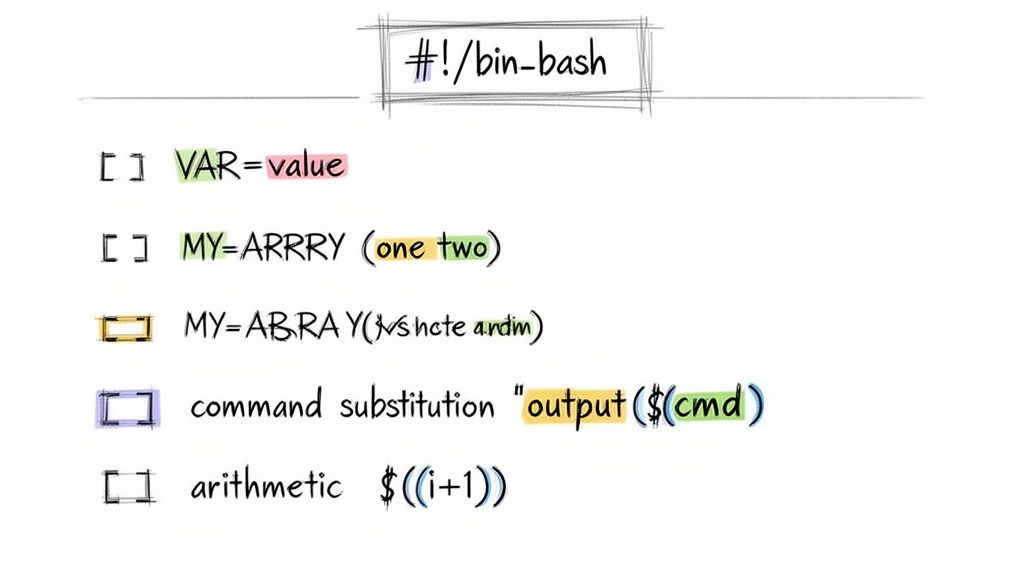
Beyond just storing static values, Bash lets you do some powerful things on the fly. Two of the most common operations you'll use day-to-day are command substitution and arithmetic expansion. These let you capture command output or perform quick calculations right inside your script. Getting comfortable with these operations is what separates a static script from a dynamic one. It’s how your scripts can react to the system's state or crunch numbers without calling out to external tools.
| Operation | Syntax | Example | Description |
|---|---|---|---|
| Command Substitution | $(command) |
CURRENT_DATE=$(date +%F) |
Runs the command and captures its standard output into a variable. |
| Arithmetic Expansion | $((expression)) |
TOTAL=$((5 + 3)) |
Performs integer math and gives you back the result. |
| Variable Assignment | VAR="value" |
SERVER_NAME="web01" |
Assigns a simple string value to the variable VAR. |
Processing Script Inputs and Arguments
Truly powerful scripts are flexible. They adapt to different situations without needing constant code changes. This is where handling command-line arguments and user input comes in. The most direct way to get information into a script is through positional parameters. When you run your script, Bash automatically assigns any arguments you provide to special variables based on their order. The first argument becomes $1, the second is $2, and so on. Beyond individual arguments, Bash gives you special variables that describe the whole set of arguments. These are fundamental for writing scripts that can handle a variable number of inputs. When you need to loop over arguments, always use "$@" instead of $*, as it correctly handles arguments that contain spaces or special characters.
| Variable | Description |
|---|---|
$0 |
The name of the script itself. |
$1, $2, ... |
The first, second, and subsequent arguments. |
$# |
The total number of arguments passed to the script. |
| *`$`** | All arguments treated as a single string. |
$@ |
All arguments as separate, individually quoted strings. |
Implementing Conditional Logic and Flow Control
To get beyond simple, one-track scripts, you need a way to make decisions. That’s where conditional logic and flow control come in, turning a basic command sequence into a smart piece of automation. The core of Bash logic is built on if, elif, and else statements. These let your script run specific chunks of code only when a condition is true. For example, you could check if a file exists before trying to read it. When you write an if statement, you have to wrap your test in brackets. Bash gives you two options: the old-school single brackets [ and the modern double brackets [[. Double brackets [[ are almost always the better choice. They’re a newer Bash feature that sidesteps a lot of common pitfalls with word splitting and filename expansion, making your conditions safer and easier to write.

Loops are your best friend for automating repetitive jobs. Bash has a few different flavors: for loops are the go-to choice when you're iterating over a known list of items; while loops are perfect for running code as long as a condition stays true, like polling a service until it's healthy; until loops are the opposite, running as long as a condition is false. For complex multi-choice situations, a case statement offers a much cleaner and more readable way to handle checks against a single variable.
Unlocking Text Processing with Grep Sed and Awk
So much of a DevOps engineer's life revolves around wrangling text, from digging through logs to updating config files. This is where the classic command-line trio of grep, sed, and awk really shines. Getting good with these tools is a non-negotiable part of any serious bash scripting cheat sheet. At its heart, grep (Global Regular Expression Print) is your best friend for finding lines that match a certain pattern. It's incredibly fast, perfect for tearing through massive log files. When you need to do a find-and-replace, sed (the Stream Editor) is the tool you reach for. It works on streams of data or directly on files, making it perfect for configuration changes. For structured, column-based data, awk is the master. It treats each line as a record and each word as a field, letting you pull out and work with specific columns of information with ease.

Managing Filesystems and Permissions
Just about every script you'll ever write will need to touch the filesystem at some point, making file management a non-negotiable, core skill. This section of our bash scripting cheat sheet gives you a rundown of the commands for creating, moving, copying, and deleting files and directories. The basic commands are straightforward: touch to create an empty file, mkdir for a new directory, cp for copying, mv for moving or renaming, and rm for deleting. When writing automation, it's always a good idea to use options that make these operations safer. For instance, mkdir -p lets you create parent directories on the fly without an error, which is key for making your scripts idempotent. On the flip side, rm -f will force-delete files without a prompt, which is almost always what you want in a non-interactive script.
Pro Tip: For setting permissions quickly and consistently, get comfortable with octal notation. A command like
chmod 755 script.shis the classic way to make a script executable for yourself while letting everyone else read and run it.
Controlling who can read, write, and execute files is fundamental to system security and making sure your scripts run reliably. The chmod command is your go-to tool for this job. You can use symbolic mode (chmod u+x script.sh) or octal mode (chmod 755 script.sh), where octal is often preferred for its brevity in scripts.
Controlling Processes and System Jobs
Any serious script eventually needs to wrestle with system processes and juggle background tasks. This chunk of our Bash scripting cheat sheet gets into the essential commands for process control, a must-have skill for building stable and reliable automation. A classic example is checking if a service is already running before your script tries to start it again. The ps command is your go-to for getting a snapshot of all running processes, but pgrep is way more efficient for finding a specific process ID (PID). Once you've got that PID, the kill command is how you send signals to tell it to shut down. Sometimes you need to kick off a long-running task without locking up your terminal. Just add an ampersand (&) to the end of your command, and you've sent it to the background. You can then use the jobs command to see a list of everything you've backgrounded, fg to bring a job to the foreground, and bg to resume a stopped background job.
Common Questions About Bash Scripting
As you get deeper into automating your workflow, some questions come up again and again. Getting quotes right is fundamental. Double quotes (") are "weak" and allow for expansion, meaning the shell will replace variables like $VAR. In contrast, single quotes (') are "strong" and treat every character literally. To instantly level up your scripts, start every one with set -euo pipefail. Think of it as an "unofficial strict mode" for catching errors early. This is a classic "right tool for the job" question. Bash is king when it comes to gluing other command-line tools together. It's perfect for simple automation and file manipulation. Python makes more sense when your script needs complex logic or data structures. If your script is creeping past 100-200 lines, consider switching to Python.