Crontab Not Working A Real-World Troubleshooting Guide

When a critical backup script or data processing job doesn't run, "crontab not working" is a uniquely frustrating problem. The real headache is its silent nature—there's often no loud error message or immediate alert. You might only discover the failure hours, or even days, later.
Contents
- Why Your Cron Jobs Are Silently Failing
- Starting Your Diagnosis With System and Cron Logs
- Fixing Common Syntax and Environment Issues
- Solving Permission Ownership and Execution Problems
- Troubleshooting Mid-Execution Failures and Timeouts
- Moving Beyond Cron for Modern Cloud Automation
- Common Crontab Questions
Ready to Slash Your AWS Costs?
Stop paying for idle resources. Server Scheduler automatically turns off your non-production servers when you're not using them.
Why Your Cron Jobs Are Silently Failing
The fundamental misunderstanding that trips up even experienced developers is that cron does not run your commands in the same environment you do. When you SSH into a server, your shell (bash, zsh, etc.) loads profile scripts that set up a rich, user-friendly environment. A big part of that is the PATH variable, which tells your terminal where to find common executables like python, node, or mysqldump. Cron, on the other hand, wakes up in a stripped-down, minimal environment with almost nothing in its PATH. This mismatch is the root cause of countless silent failures. A script that runs perfectly when you execute it by hand will fail instantly in cron because it simply can't find the programs it needs to run. The resulting "command not found" error doesn't pop up on your screen; it gets emailed to a local system user you probably never check, effectively disappearing into the void.
Beyond the environment gap, a few other subtle problems can trip up your cron jobs. Permission denials are a frequent issue, where the user running the cron job lacks the rights to execute the script or access the files and directories it depends on. Incorrect syntax, such as a misplaced asterisk (*) or a forgotten space in your schedule definition, will stop the job from ever being triggered. Scripts often use relative paths (like ../data/file.csv), which break because cron's working directory is usually the user's home folder, not your script's location. Lastly, if you don't explicitly capture standard output and standard error, you have zero logs to look at when things go wrong. The real danger here isn't just that a task fails—it's that it fails silently, leaving no clues unless you know where to look.
Starting Your Diagnosis With System and Cron Logs
When a cron job goes rogue, the gut reaction is to dive straight into the crontab entry or the script itself. Before you start tweaking code, a much more effective first step is confirming that the cron service—often called the cron daemon—is even running. On most modern Linux distros using systemd, you can check its pulse with a quick command like systemctl status cron or systemctl status crond. If it's inactive, you've found your culprit without ever looking at a log file. Once you know the daemon is alive, your next stop should be the system logs, typically found in /var/log/syslog (Debian/Ubuntu) or /var/log/cron (CentOS/RHEL). Using a command like grep CRON /var/log/syslog filters the noise and shows only cron-related entries. You're looking for lines containing CMD, which confirms cron attempted to run your command. If you don't see that entry at the scheduled time, the problem is likely your crontab syntax.
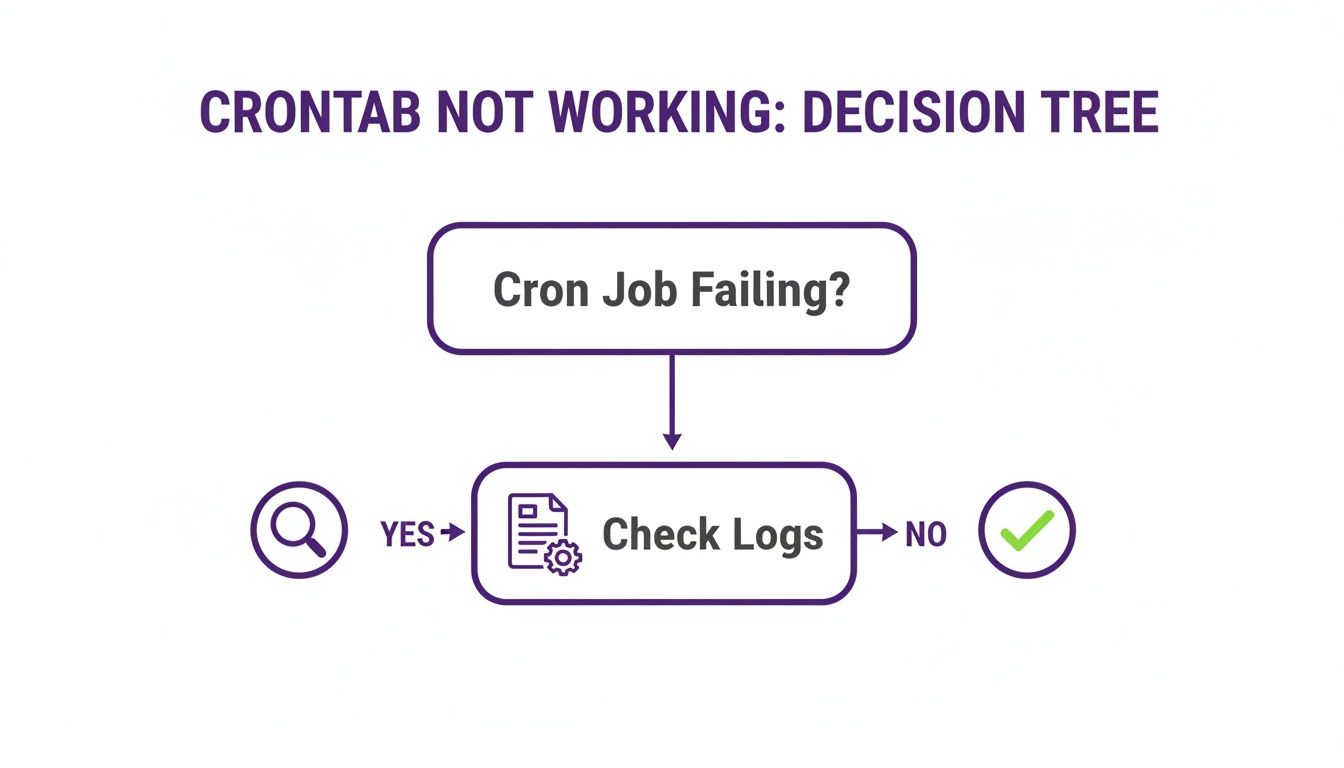
System logs only tell you if cron started the job, not what happened inside your script. To capture that, you need to create your own logs by appending >> /var/log/myjob.log 2>&1 to your crontab command. This redirects both standard output and errors into a file you control. A recent analysis revealed that 65% of DevOps engineers deal with crontab failures monthly, often due to poor logging. This simple change turns a mysterious failure into a documented, solvable problem.
Pro Tip: Always use absolute paths for everything in your crontab, including the script and log file. Cron's minimal environment and default working directory can cause relative paths to fail in confusing ways. Full paths eliminate that ambiguity completely.
Fixing Common Syntax and Environment Issues
When a crontab job fails, the detective work often leads back to two common culprits: a simple mistake in the schedule syntax or a misunderstanding of cron's environment. A misplaced asterisk (*) is a classic "fat-finger" error that can prevent a job from ever being scheduled. This isn't just anecdotal; a study of data engineers found that 39% of cron job failures were traced back to simple syntax mistakes, which you can read about in the data engineering research on DataCamp.com. Before debugging a script, validate your schedule using a tool like Crontab.guru. It translates the syntax into plain English, confirming exactly when your job is set to run.
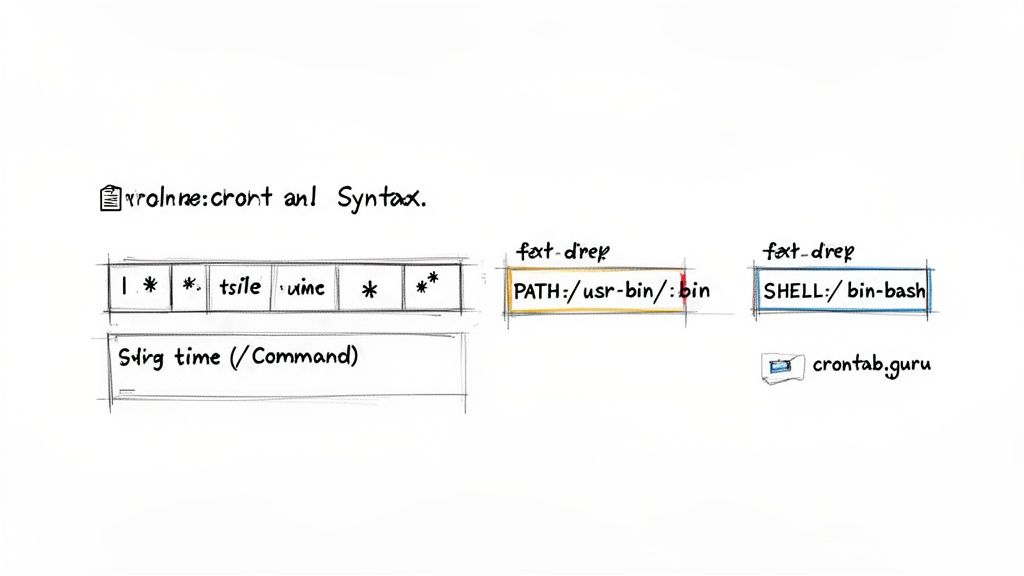
Even with perfect syntax, your job can fail if it relies on an environment that doesn't exist when cron executes it. Your interactive terminal is loaded with helpful environment variables, especially the PATH variable, which tells your shell where to find programs. Cron's environment is the opposite—it's almost empty, with a barebones PATH like /usr/bin:/bin. If your script calls a program in /usr/local/bin, cron won't find it. The solution is to explicitly define the environment inside your crontab file by adding VARIABLE=VALUE lines at the top. The two most important variables are SHELL=/bin/bash and a complete PATH copied from your interactive terminal (echo $PATH).
| Variable | Purpose | Example Value |
|---|---|---|
| SHELL | Specifies the shell to use for executing commands. | SHELL=/bin/bash |
| PATH | Defines the directories to search for executables. | PATH=/usr/local/sbin:/usr/local/bin:/usr/sbin:/usr/bin:/sbin:/bin |
| MAILTO | Sets the email address for sending cron output and errors. | MAILTO="[email protected]" |
Solving Permission Ownership and Execution Problems
One of the most common culprits behind a failing cron job is permissions. A script that runs perfectly from your terminal can fall flat when automated because the user account running the cron job lacks the rights to read, write, or execute the necessary files. This "user context" is a fundamental piece of the puzzle. Every job in a crontab is owned by a specific user and inherits their permissions. If your script, running as user ubuntu, needs to write a log file into a directory owned by root, it will fail with a "Permission denied" error. To run system-level tasks, you often need to schedule them in the root crontab using sudo crontab -e. For application-specific tasks, such as clearing a web cache, it's best to run the job as the application's user, like www-data, using sudo crontab -e -u www-data. Aligning the job's user context with file ownership is critical for success.
You won't see "Permission denied" errors unless you're logging your job's output. When you do see one, use ls -l to check the ownership and permissions of your script and any files it accesses. The mismatch is often obvious. Beyond ownership, a script must be executable to run. This specific permission bit is easy to forget. If your script file doesn't have this right, cron can't run it, even with the correct user context. The fix is simple: chmod +x /path/to/your/script.sh. Forgetting this is a top reason cron jobs fail to start. You can dive deeper into these issues in our guide on troubleshooting "Access is Denied" errors.
Troubleshooting Mid-Execution Failures and Timeouts
Sometimes, a cron job starts correctly but gives up halfway through. These mid-execution failures are tricky because initial logs may look fine. The problem is often tied to resource limits or network dependencies. Long-running scripts, like massive database exports, can consume too much memory and be terminated by the kernel's Out-of-Memory (OOM) killer. They might also hit an application-level limit, like PHP's max_execution_time, and halt without a clear error. If your logs show a job starting but never finishing, it's time to investigate resources and external dependencies. A script calling an external API or database could hang if the remote service becomes slow or unresponsive. An analysis of over 10,000 cron jobs found that 52% of 'crontab not working' problems were caused by timeout failures, as detailed in these common cron job failures on help.whmcs.com.
Network issues, such as a connection drop or a firewall rule, can also leave your script hanging. A great defensive move is to wrap critical commands with the timeout utility, like timeout 300 /path/to/script.sh, which kills the script if it runs for more than 5 minutes. Furthermore, designing scripts to be idempotent is crucial for reliability. An idempotent script can be run multiple times with the same starting point and always produce the same result. This prevents issues like double-charging customers if a payment script fails mid-process and is re-run. Building in checks to see if a step has already been completed allows the script to safely pick up where it left off, a core principle of enterprise-grade automation.
Moving Beyond Cron for Modern Cloud Automation
After wrestling with a broken crontab, its limitations in a modern cloud setup become apparent. While solid for single-server automation, cron's decentralized nature is a headache at scale. A "crontab not working" issue on one server is an annoyance; the same problem across dozens is an operational nightmare. The core problems are a lack of central management, weak error handling, and zero built-in observability. Every server has its own crontab, leading to configuration drift and making it nearly impossible to get a high-level view of all scheduled jobs. When managing infrastructure on platforms like AWS, these shortcomings are magnified by the complexities of auto-scaling groups and IAM permissions, areas where dedicated cloud infrastructure automation tools excel.
This is why we built Server Scheduler. Instead of fighting cryptic syntax and SSHing into servers to check logs, you can build your schedules on a simple, visual time grid. It provides a clear, centralized dashboard for all scheduled tasks, eliminating the guesswork of managing individual crontab files. This no-cron approach is designed for AWS, handling execution context and IAM roles for you. Every action is tracked in a central audit trail, so you always know what ran, when, and whether it worked. This shift offers a level of reliability and simplicity that cron cannot match, freeing up engineers to focus on more important work. For those looking to explore further, modern workflow automation platforms offer even more advanced capabilities.
Common Crontab Questions
Even with a solid troubleshooting plan, some cron issues remain stubborn. Here are answers to a few common questions. One of the most frequent is why a script runs manually but not in cron. This is almost always due to the environment. Your interactive shell has a full PATH, but cron's is minimal. The fix is to define the PATH variable at the top of your crontab or use absolute paths for every command. To see output or errors, redirect them to a log file by appending >> /var/log/myjob.log 2>&1 to your command. This captures everything and is the single best way to debug a failing job.
Another common point of confusion is the difference between * * * * * and @reboot. The five asterisks define a recurring schedule based on time, while @reboot is a special keyword to run a command only once after the system boots up. Use it for startup tasks, and stick to the time-based format for periodic jobs. Finally, it's important to remember that cron does not adjust for time zones; it runs based on the system's local time. For servers in different regions, you must either set the system time zone to UTC or manually calculate the correct local time offset in your schedule. If you're tired of these headaches, Try Server Scheduler today for a simpler, more reliable way to automate your AWS tasks.