Does Changing RDS Parameter Need Reboot? A Practical Guide

Reading time: 5 minutes
Contents
Ready to Slash Your AWS Costs?
Stop paying for idle resources. Server Scheduler automatically turns off your non-production servers when you're not using them.
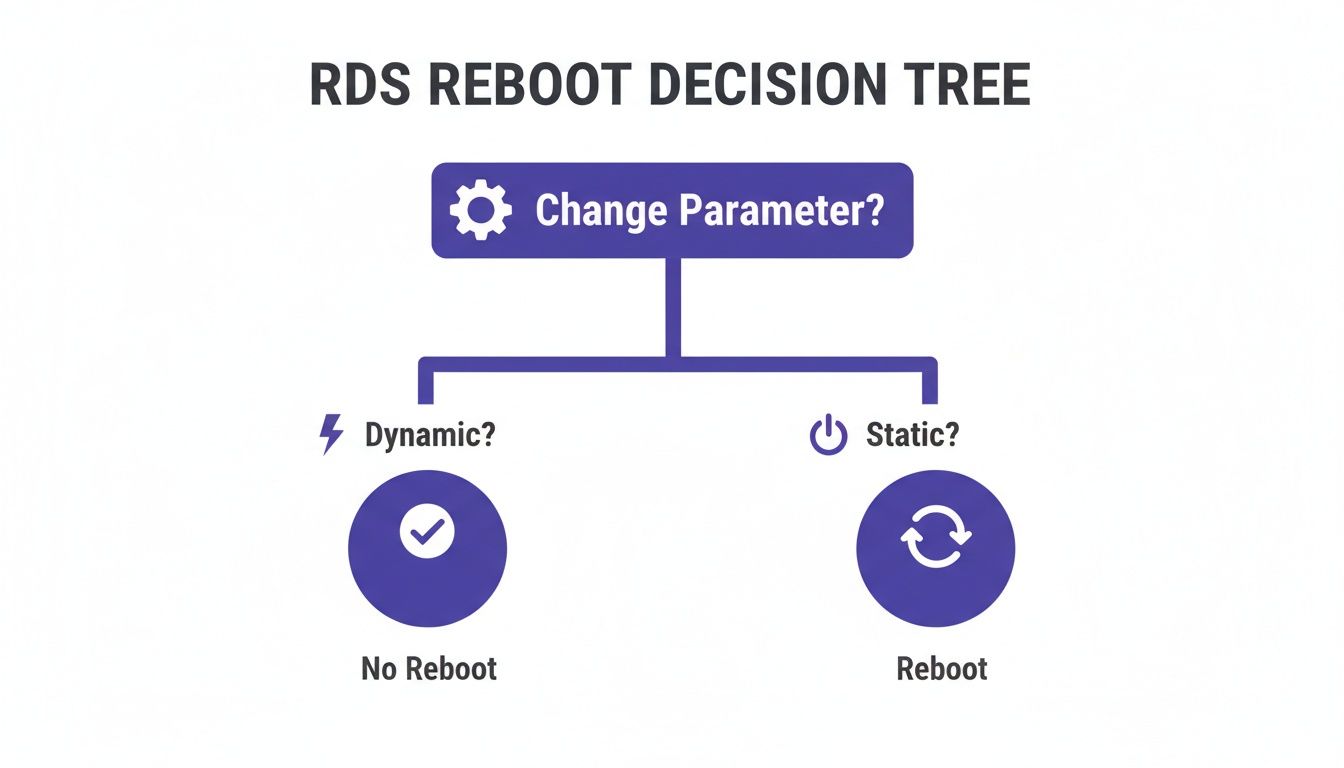
If you've ever managed an Amazon RDS database, you've likely asked the critical question: does changing an RDS parameter need a reboot? The answer isn't a simple yes or no; it entirely depends on whether the parameter you're modifying is dynamic or static. Understanding this distinction is fundamental to avoiding unexpected downtime and maintaining a stable production environment. A misstep here can turn a routine configuration tweak into a service-disrupting outage.
Tired of manual RDS maintenance? Server Scheduler provides a simple, visual way to schedule reboots and resizes, turning risky manual jobs into a reliable, set-and-forget process. Try it for free!
Understanding RDS Parameter Types: Static vs. Dynamic
The core principle behind RDS parameter updates lies in the difference between static and dynamic settings. Think of your RDS instance as a car. Some adjustments, like changing the radio station or adjusting the air conditioning, can be done while the car is running without affecting its core operation. These are analogous to dynamic parameters. They can be applied on-the-fly, and the changes take effect almost immediately without any service interruption. This makes them ideal for real-time performance tuning, such as enabling query logging to diagnose an issue.
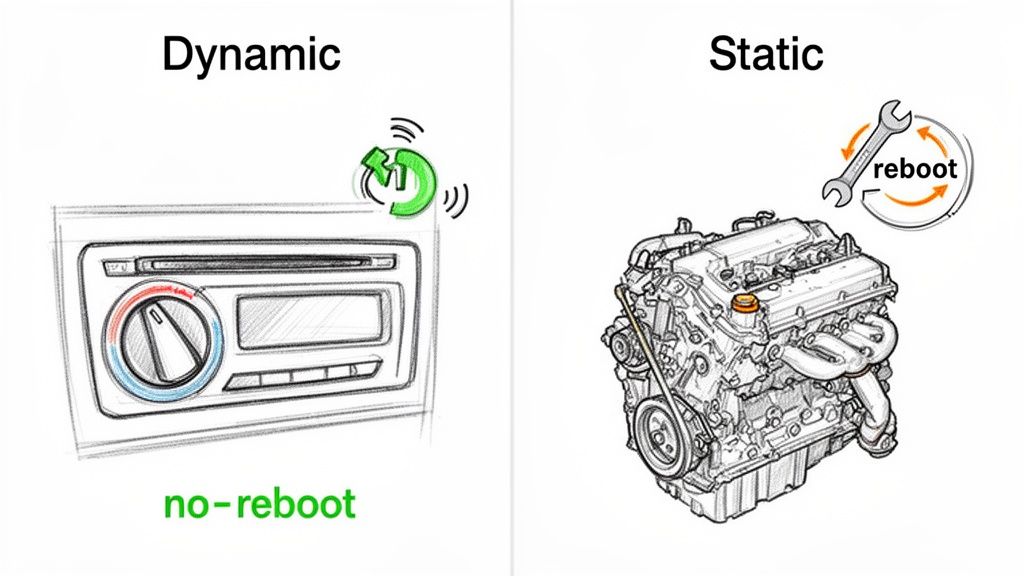
On the other hand, certain changes are more fundamental, like swapping out the engine's spark plugs. You must stop the car to perform this maintenance safely. These are your static parameters. They control foundational aspects of the database engine, such as memory allocation (shared_buffers) or the maximum number of connections (max_connections). These values are read and loaded into memory only when the database instance starts. Consequently, any modification to a static parameter will not take effect until the instance is rebooted. When you change a static parameter, RDS flags the instance with a pending-reboot status, indicating the change is saved but not yet active.
| Parameter Type | How It's Applied | Reboot Required? | Real-World Analogy |
|---|---|---|---|
| Dynamic | Immediately, without interruption | No | Adjusting the volume on your car radio |
| Static | After the next scheduled reboot | Yes | Changing the engine oil in your car |
This distinction is crucial because a significant portion of commonly tuned parameters are static. Ignoring the need for a planned reboot can lead to configuration drift, where the running state of your database no longer matches its saved configuration, making troubleshooting and performance analysis incredibly difficult. If you want to offload this type of operational overhead, exploring broader AWS Managed Services can be a valuable step.
How to Check if a Parameter Change Needs a Reboot
Guesswork has no place in database administration. Before modifying any RDS parameter, you must verify whether it will require a reboot. Fortunately, AWS provides a clear indicator called the Apply Type for every parameter, removing any ambiguity. Checking this value is a mandatory pre-flight check that separates a smooth, controlled update from an unexpected production outage.
For users who prefer a graphical interface, the AWS Management Console is the most direct method. Navigate to the RDS dashboard, select Parameter Groups from the side menu, and click on the specific group you intend to modify. Inside, you will find a filterable list of all parameters. The key column to observe is Apply Type, which will explicitly state whether a parameter is dynamic or static. This information is your single source of truth for planning maintenance activities.
For those who operate primarily from the command line, the AWS CLI offers an efficient way to retrieve the same information. The describe-db-parameters command allows you to inspect the properties of a parameter group programmatically. By running this command and filtering the output, you can quickly identify all static parameters that will necessitate a reboot. This is particularly useful for scripting and automation, helping you build checklists or validation steps into your deployment pipelines. Understanding when you need to schedule an RDS reboot is a key part of the process.
The Dangers of Ignoring a Pending-Reboot Status
When an RDS instance enters a pending-reboot state, it's not merely a notification—it's a critical warning. This status signifies a divergence between the configuration saved on disk and the one currently running in memory. Your database is essentially in a state of limbo. This "configuration drift" is risky because your application may behave unexpectedly, as it operates on an outdated set of parameters while you assume the new settings are active.
 restart an RDS instance safely provides detailed steps for managing this process without causing chaos.
How to Apply Parameter Changes Safely
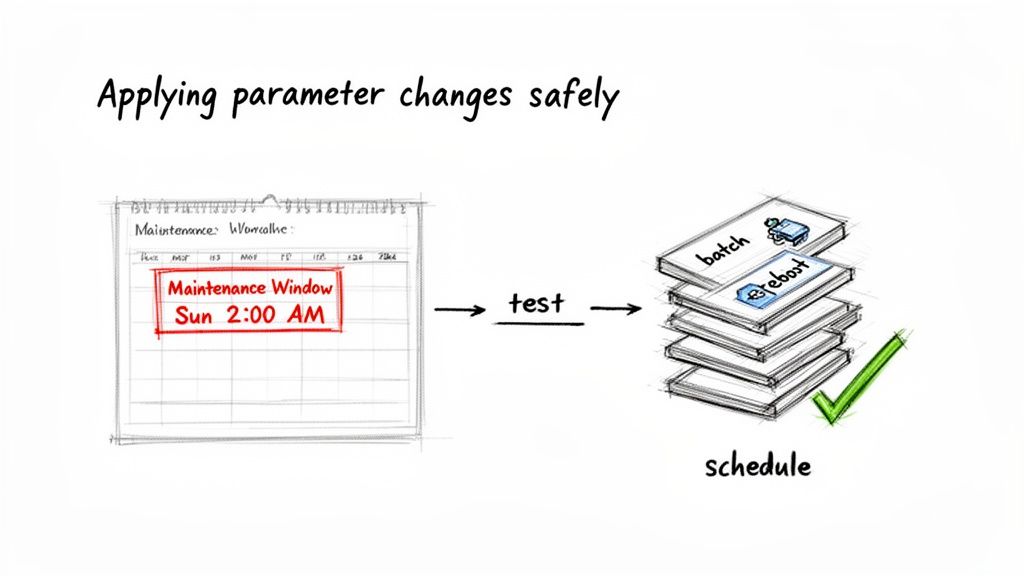
Knowing that a static parameter change requires a reboot is one thing; executing that reboot without disrupting your services is the real challenge. The goal is not to avoid reboots—they are often necessary for maintaining a healthy database—but to ensure they are predictable, controlled, and occur with minimal impact. The key to achieving this is scheduling. By performing reboots during a planned maintenance window, such as overnight or on a weekend, you can apply updates when user activity is at its lowest.
A best practice to minimize disruptions is to batch your changes. If you need to modify several static parameters, apply them all to your parameter group at once. This consolidates multiple changes into a single pending-reboot event, meaning you only need one coordinated restart to activate everything. This is far more efficient than applying changes one by one and rebooting each time. For more complex operations, understanding how to safely alter a table's column size follows similar principles of careful planning.
Automating this process is the ultimate solution. Tools that allow you to schedule AWS RDS stop and start times can be adapted to manage reboots, removing the risk of human error. A scheduled reboot is just routine maintenance; an unscheduled one is an emergency. For a deeper technical dive, you can always review the official AWS documentation on parameter modification. This principle also extends to other critical tasks, such as being able to schedule RDS instance resizing to manage costs and performance proactively.
Frequently Asked Questions About RDS Parameter Changes
Even with a solid understanding of static versus dynamic parameters, practical scenarios can raise new questions. Here are answers to some common situations you might encounter.
What happens if I apply a dynamic parameter change but choose the "pending-reboot" option? If you modify a dynamic parameter and select the option to apply it during the next maintenance window (or upon reboot), it will not take effect immediately. Instead, it is queued alongside any pending static changes. This can be a useful strategy for batching all configuration updates—both dynamic and static—to be deployed together in a single, controlled event, ensuring configuration consistency across your environment.
Do I need to reboot an RDS instance after restoring it from a snapshot?
Often, yes. If you restore an instance from a snapshot and associate it with a different parameter group than the original, the instance will likely start in a pending-reboot state. This occurs because the static parameters in the new group do not match the configuration that was saved within the snapshot. A manual reboot is required to align the instance with the new settings and ensure it operates as intended.
Can I automate the process of checking for a "pending-reboot" status?
Absolutely, and it is highly recommended. Manually checking numerous instances is inefficient and prone to error. You can create a simple script using the AWS CLI or SDK to call the describe-db-instances API endpoint. By parsing the response and checking the ParameterApplyStatus field, your script can identify any instances that require a reboot. This check can be scheduled to run periodically, with alerts sent to your team via email or Slack, ensuring that no instance is left in a risky, half-configured state.
Related Articles
- How to Restart an RDS Instance Safely
- How to Schedule AWS RDS Stop and Start Times
- A Guide to Scheduling RDS Instance Resizing
Stop worrying about manual reboots and late-night maintenance. Server Scheduler lets you visually schedule RDS reboots, resizes, and on/off times in just a few clicks. Take control of your maintenance windows and reduce cloud costs at https://serverscheduler.com.