A Practical Guide to Rebooting EC2 Instances Safely and Efficiently

When managing Amazon EC2 instances, a reboot is the cloud equivalent of restarting your computer. It is a fundamental operation used to apply operating system patches, resolve software glitches, or refresh an unresponsive application. A reboot effectively cycles the power of the virtual machine, allowing the operating system to start fresh while maintaining its core configuration, such as its IP address and attached storage. This process is a quick and effective first step in troubleshooting many common performance issues.
Tired of manual maintenance? Discover how Server Scheduler can simplify your cloud operations by automating reboots, starts, and stops with a visual interface, saving you time and reducing your AWS bill.
Contents
Ready to Slash Your AWS Costs?
Stop paying for idle resources. Server Scheduler automatically turns off your non-production servers when you're not using them.
Reboot vs Stop and Start
Deciding whether to reboot an EC2 instance or perform a full stop/start cycle might seem trivial, but the two actions have significant and distinct consequences for your application's state, the underlying hardware, and your monthly AWS bill. Understanding these differences is crucial for effective cloud infrastructure management. The correct choice depends entirely on the specific outcome you need to achieve, whether it's a minor software fix or a major hardware change.
A reboot is your go-to for software-level adjustments. Think of it as a soft reset, ideal for applying minor OS updates, clearing memory leaks, or resolving issues where an application has become sluggish or unresponsive. The primary advantage of a reboot is continuity. The instance retains its public and private IP addresses, its network configuration, and, most importantly, any data stored on its instance store volumes. This makes it a seamless operation for applications that rely on static IP addresses or temporary data.
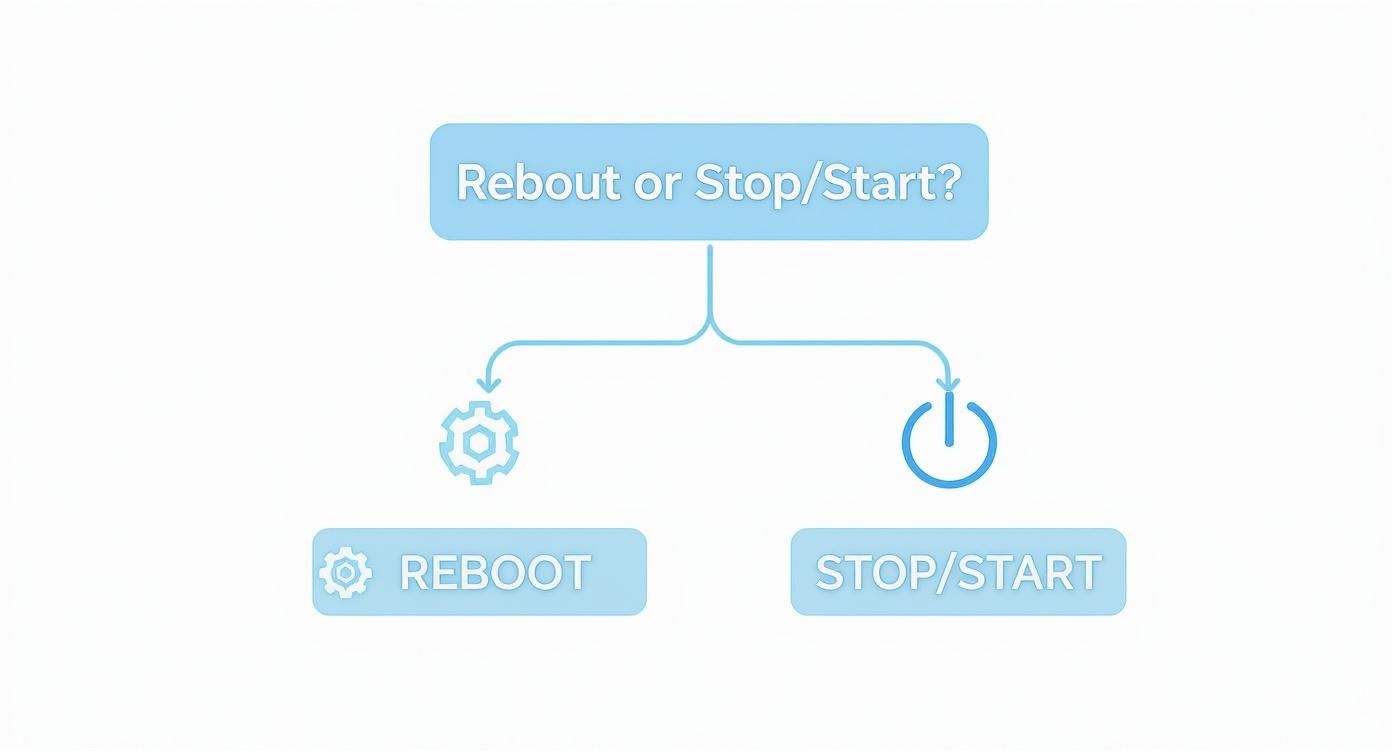
A stop/start, in contrast, is a much more profound action, akin to shutting down your server and moving it to a different rack in the data center. When you stop an instance, it completely shuts down and releases the physical host it was running on. Upon starting again, it is often provisioned on entirely new hardware. This process has several key implications: the instance will receive a new public IP address (unless an Elastic IP is attached), and any data on its instance store volumes will be permanently erased. Financially, billing for compute time pauses when an instance is stopped, making this a core strategy for cost optimization, such as shutting down development environments overnight. You can learn more about how to create a start stop EC2 instance schedule to leverage this for savings.
Key Distinction: A stop/start cycle will permanently wipe any data stored on instance store volumes, which are ephemeral by design. A reboot preserves this data.
To clarify the differences, this table compares the key attributes of each action.
| Attribute | Reboot Instance | Stop and Start Instance |
|---|---|---|
| Public IP Address | Retained | Changes (unless Elastic IP) |
| Private IP Address | Retained | Retained |
| Instance Store Data | Preserved | Wiped (Data is lost) |
| Billing Cycle | Continuous | Pauses when stopped |
| Underlying Host | Remains the same | May change to new hardware |
| Use Case | OS patches, app hangs | Resizing, cost savings, hardware changes |
How to Reboot EC2 Instances with the AWS Console and CLI
When you need to restart an EC2 instance, AWS provides two primary methods: the graphical AWS Management Console and the scriptable Command Line Interface (CLI). Both methods achieve the same result, but they cater to different workflows. The console is ideal for one-off tasks and visual confirmation, while the CLI excels at automation and managing multiple instances simultaneously.
Before proceeding, it is a best practice to initiate reboots using AWS-provided tools rather than logging into the instance and running a command like sudo reboot. Using the EC2 console, CLI, or API ensures a graceful shutdown process managed by AWS, which helps prevent a "hard reboot" that could lead to data corruption. Furthermore, every action taken via AWS tools is logged in CloudTrail, providing a crucial audit trail for security and compliance. You can learn more about these best practices from the official AWS documentation.
For those who prefer a visual workflow, the AWS Management Console makes rebooting an instance incredibly straightforward. After logging into your AWS account, navigate to the EC2 Dashboard and select "Instances" from the side menu. Locate the instance you wish to reboot, select it by ticking the checkbox next to its name, and then click the "Instance state" button in the top right. From the dropdown menu, choose "Reboot instance." A confirmation dialog will appear, and upon confirmation, AWS will initiate the reboot process. A good practice is to monitor the "Status check" column; a healthy instance will display "2/2 checks passed" after a few minutes.
For users comfortable with the command line, the AWS CLI offers a faster and more scalable method. The primary command is reboot-instances. To restart a single instance, you simply provide its unique instance ID. The command is clean and simple:
aws ec2 reboot-instances --instance-ids i-0123456789abcdef0
The true power of the CLI becomes apparent when managing multiple instances. Instead of repeating the process in the console, you can reboot several instances at once by providing a space-separated list of their IDs in a single command. This is invaluable for applying patches or updates across a fleet of servers. For those managing Windows environments, these CLI commands can be integrated into automation scripts. For more ideas, you can check out our guide on how to run PowerShell scripts.
Automating Reboots at Scale with the SDK and Systems Manager
Manually rebooting a handful of servers is manageable, but this approach becomes inefficient and error-prone when managing dozens or hundreds of instances. At scale, automation is not just a convenience—it's a necessity for maintaining a reliable and secure infrastructure. Two of the most powerful tools for this are the AWS SDK and AWS Systems Manager, which allow you to reboot EC2 instance fleets programmatically and safely.
The AWS Software Development Kit (SDK), particularly libraries like Boto3 for Python, provides a direct interface to the AWS API. This enables you to build custom logic for reboots directly into your applications or maintenance scripts. For example, you could develop a script that automatically reboots any server tagged with Environment: Staging during a predefined maintenance window. This level of programmatic control allows for complex, orchestrated workflows, such as patching a group of web servers and then rebooting them in a rolling sequence to avoid downtime. You can learn more about general strategies for automating repetitive tasks efficiently to apply to your AWS environment.
For centralized fleet management, AWS Systems Manager (SSM) is an indispensable tool. It provides a secure and unified interface for executing operational tasks across your AWS resources without requiring direct SSH access or bastion hosts. Its Run Command feature allows you to execute commands on instances using predefined SSM Documents. SSM includes a built-in document, AWS-RestartEC2Instance, designed specifically for this purpose. You can target a single instance, a resource group defined by tags, or your entire fleet with a single command, ensuring that reboots are performed consistently and securely, with every action logged for auditing.
Pro Tip: Systems Manager abstracts away the complexity of direct server access. By using pre-defined documents, you can ensure that reboots are performed consistently and securely across your entire environment, with every action logged for auditing.
Choosing between the SDK and Systems Manager depends on your specific use case. The SDK offers fine-grained programmatic control ideal for custom scripts and application integration, while Systems Manager excels at fleet-wide operations, scheduled maintenance, and secure command execution.
| Feature Comparison | AWS SDK (e.g., Boto3) | AWS Systems Manager |
|---|---|---|
| Primary Use Case | Custom scripts, application integration | Fleet-wide operations, secure command execution |
| Control Level | High (fine-grained programmatic control) | High (centralized, policy-driven control) |
| Security Model | Relies on IAM roles for the script's execution context | Uses the SSM Agent and IAM roles for instance access |
| Prerequisites | SDK library installed, configured AWS credentials | SSM Agent installed and running on instances |
| Best For | Triggering reboots based on application logic | Scheduled maintenance, patching, fleet management |
Understanding How a Reboot Impacts Your Architecture
Initiating an EC2 instance reboot may seem like a simple action, but it can have significant ripple effects across your cloud architecture. A resilient system is designed with the expectation of such events, ensuring that routine maintenance does not lead to a user-facing outage. This is where services like Elastic Load Balancing (ELB) and Auto Scaling Groups (ASG) become critical components of a highly available application.
Stop letting manual server tasks dictate your schedule. Let Server Scheduler automate your reboots and other tasks with a simple, visual interface and build a more resilient, hands-off infrastructure.
An Elastic Load Balancer acts as a traffic manager for your application. When an instance behind an ELB is rebooted, the ELB's health checks will quickly detect that the server is no longer responding to requests. The ELB then automatically stops sending new traffic to the rebooting instance and reroutes it to the remaining healthy instances in the pool. This process is seamless to the end-user. Once the instance has completed its reboot and begins passing health checks again, the ELB automatically brings it back into the rotation to serve traffic.
 System Status Checks, which monitor the underlying AWS hardware, and Instance Status Checks, which monitor the software and network configuration on your instance. A failure in the former suggests an AWS-side issue, while a failure in the latter points to a problem within your guest operating system. If an instance is stuck rebooting, it is almost always due to an OS-level issue, such as a misconfigured startup script, filesystem corruption, or a driver conflict preventing the boot process from completing.
To investigate further, use the instance screenshot feature to get a visual of the console output, which can reveal boot errors or kernel panics. For more detailed analysis, the EC2 Serial Console and system log output provide access to the full boot sequence and error messages. In situations where an instance is unresponsive, a forced stop and start can sometimes resolve the issue by migrating it to new underlying hardware. However, if the problem is within the OS, it will likely persist. If permissions are a suspected cause, our guide on how to fix "access is denied" errors may provide some solutions.
A key takeaway is to differentiate between an AWS-level issue and an OS-level one. If the system status checks are failing, it's likely an AWS problem. If only instance status checks are failing, the issue is almost certainly inside your virtual machine.
It is also important to understand the different types of reboots. Most are in-place, where the OS restarts on the same host. However, AWS sometimes performs maintenance that requires a "reboot with migration," moving your instance to a new host. This process takes longer and is important to account for in your maintenance plans. As of May 2025, AWS allows customers to initiate these migrations for scheduled events, offering more control. You can learn more about these customer-initiated reboot migrations. By following best practices, such as scheduling reboots during low-traffic periods and using automation, you can minimize the risk of disruptions.
Frequently Asked Questions About Rebooting EC2 Instances
The process of rebooting an EC2 instance is a common task, but it often raises questions about potential side effects on data, networking, and billing. Understanding the precise behavior of a reboot is essential for planning maintenance and avoiding unexpected issues. Here, we address some of the most common concerns.
Ready to take the guesswork out of maintenance? Schedule all your EC2 tasks with Server Scheduler and reclaim your time with reliable, automated workflows.
Will I lose data when I reboot an EC2 instance?
Whether data is lost during a reboot depends entirely on where it is stored. Data on an Amazon EBS (Elastic Block Store) volume is completely safe. EBS volumes function like network-attached drives and are persistent, meaning their state is independent of the instance's power cycle. All your files on an EBS volume will be intact after a reboot. In contrast, data on an instance store volume (ephemeral storage) is at risk. While a simple reboot preserves data on an instance store, a stop/start cycle will permanently erase it. Therefore, instance store should only be used for temporary data like caches or buffers, never for critical information. For more on protecting data, see our guide to backing up Linux systems.
What happens to my IP address after a reboot?
During a standard reboot, an EC2 instance retains its IP addresses. Both the private IPv4 address and any public IPv4 address assigned to the instance will remain the same. This consistency is a major advantage of rebooting for routine maintenance, as it avoids the need to update DNS records or firewall rules. The public IP is only lost if you perform a stop/start cycle. To ensure a permanent public IP that persists across all state changes, including stops and starts, you should assign an Elastic IP address to the instance.
Am I billed while an instance is rebooting?
Yes, billing continues uninterrupted while an EC2 instance is rebooting. From a billing perspective, AWS considers the instance to be in the running state throughout the entire process. You are charged for the full uptime as if the instance were actively serving traffic. This is a key distinction from stopping an instance, which immediately pauses the per-second billing for compute capacity. While an instance is stopped, you are not charged for its usage, though you will continue to be billed for any attached EBS volumes.