A Guide to Scheduling EC2 Instances and Slashing Cloud Costs
Scheduling EC2 instances is all about automating their start and stop times to match when you actually use them, a simple change that can dramatically slash your cloud costs. Instead of letting development, staging, or testing servers run 24/7, you configure them to operate only during business hours. This move alone stops you from paying for idle resources and is a foundational practice in smart cloud cost management.
Ready to stop overspending on idle resources? Server Scheduler offers a point-and-click solution to automate EC2 schedules in minutes, helping you save up to 70% on your AWS bill. Take control of your cloud costs today.
Contents
Ready to Slash Your AWS Costs?
Stop paying for idle resources. Server Scheduler automatically turns off your non-production servers when you're not using them.
Stop Paying for Idle Cloud Resources
Let's be honest—running non-production EC2 instances around the clock is like leaving the lights on in an empty office building. It’s one of the most common, and easily fixed, sources of wasted cloud spend. This isn't just a minor oversight; it's a significant financial drain that quietly inflates your AWS bill month after month. The whole point of scheduling is to align instance uptime with actual business hours, turning simple automation into tangible savings. Development, testing, and staging environments are the perfect place to start. These resources are typically only needed by your team during the workday, yet they often run continuously, racking up costs during evenings, weekends, and holidays when no one is even logged in.

| Instance Type (us-east-1) | 24/7 Monthly Cost (On-Demand) | Scheduled Monthly Cost (10hrs/day, Mon-Fri) | Estimated Monthly Savings |
|---|---|---|---|
t3.medium |
~$30.37 | ~$8.44 | ~$21.93 (72%) |
m5.large |
~$70.08 | ~$19.47 | ~$50.61 (72%) |
c5.xlarge |
~$124.10 | ~$34.47 | ~$89.63 (72%) |
Note: Prices are estimates based on the us-east-1 region and are subject to change.
As you can see, even on smaller instances, the savings add up quickly. When you apply this across dozens or hundreds of servers, the impact on your monthly AWS bill is massive. Your options range from simple manual controls, which are fine for small-scale operations, to powerful, set-and-forget automation that can manage hundreds of instances across multiple accounts. For a complete picture of how to slash your cloud bills, it's worth exploring the various AWS compute cost optimization strategies including Right Sizing, Reserved Instances, Savings Plans, and Spot Instances.
Quick Wins with Manual Scheduling
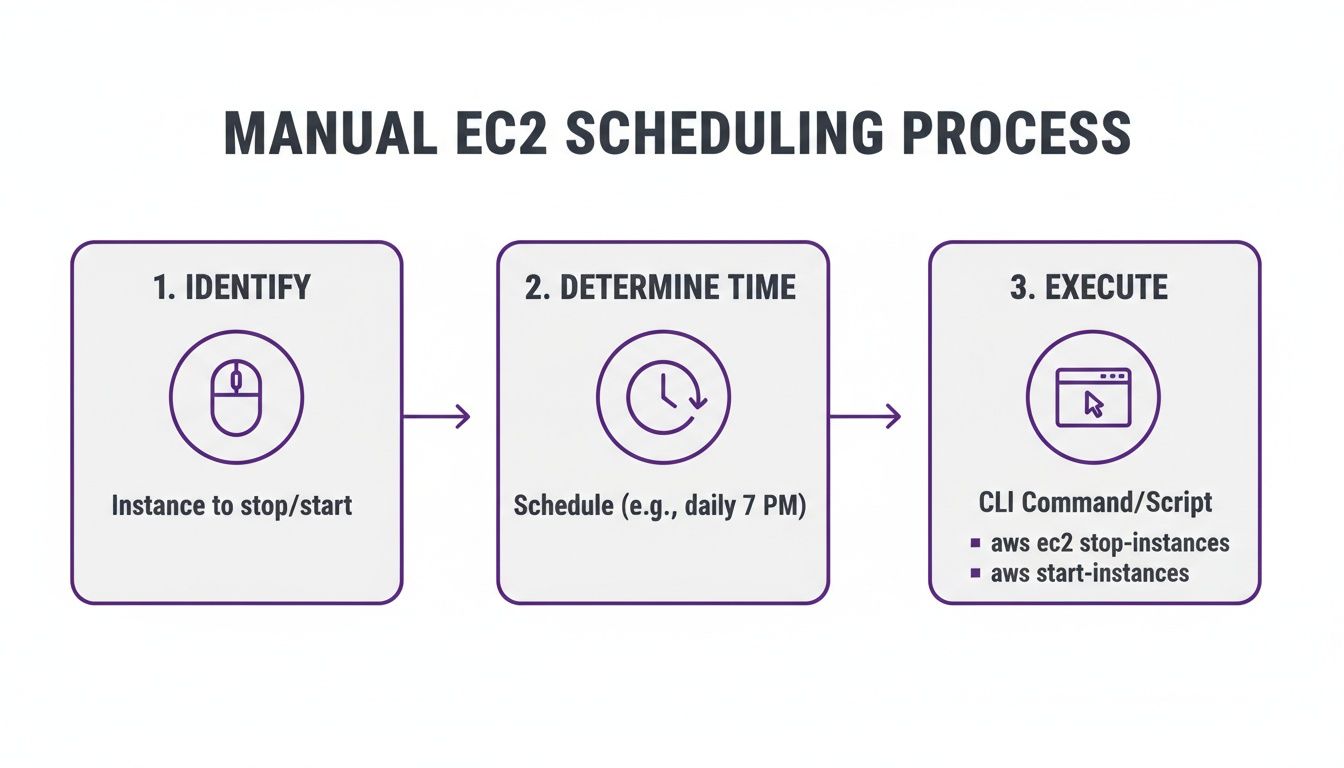
If you want the absolute fastest way to start scheduling EC2 instances and see an immediate drop in your AWS bill, manual methods are your go-to. These approaches don't require any fancy scripts, complex setups, or extra infrastructure—just you, a few clicks, and the AWS environment. They’re perfect for small teams or anyone just dipping their toes into cloud cost control. The most direct way to control your instances is right inside the AWS Management Console. It’s a simple, visual approach: stop an instance when you're done for the day and fire it back up when you need it. Just navigate to the EC2 Dashboard, find the instance you want to manage, and use the "Instance state" menu to hit "Stop instance" or "Start instance."
For those who live in the terminal, the AWS Command Line Interface (CLI) offers a much more efficient manual approach. Instead of clicking through a web UI, you can start or stop instances with a single command, like aws ec2 stop-instances --instance-ids i-0123456789abcdef0. This can be a real time-saver if you're juggling several instances. For more robust techniques, you can explore ways to automatically start and stop an EC2 instance using proper AWS services.
Callout: The Reality of Manual Scheduling Manual methods are fantastic for quick wins, but they have serious limitations. Their effectiveness hinges entirely on human memory, which doesn't scale. Forgetting to stop a single large instance over a weekend can completely wipe out any potential savings.
Ultimately, both of these manual methods serve as a valuable first step in your cost optimization journey. They prove the concept and deliver some initial savings, which helps build the business case for adopting more powerful, automated solutions that can handle real-world complexity without relying on someone remembering to flip a switch.
Building Set-and-Forget AWS Automation
When manual clicks don't cut it anymore, it’s time to build real automation using AWS's native tools. The combination of Amazon EventBridge and AWS Lambda is a classic one-two punch for serverless automation. The idea is simple: EventBridge is your trigger, and Lambda is your action. You create an EventBridge rule that fires on a schedule, which you define with a cron expression. When the time comes, that rule invokes a Lambda function. A classic example is setting up a "stop" rule with the cron expression cron(0 18 ? * MON-FRI *) to trigger every weekday at 6 PM UTC. This tag-based method is what makes the whole thing scalable and easy to manage down the line.
For teams that need a more feature-rich solution right out of the box, AWS offers the Instance Scheduler on AWS. This is a pre-packaged solution you deploy with a CloudFormation template. It sets up everything for you—Lambda functions, DynamoDB tables to store schedules, and CloudWatch rules. Its real power shines when you need to manage schedules across multiple AWS accounts and regions from one central place. According to AWS, a small deployment costs about $13.15 per month, and you can see the solution's cost model directly from AWS. For a closer look at this tool, check out our own deep dive into the EC2 Instance Scheduler.
A custom Lambda function gives you total control and is perfect for straightforward needs within a single AWS account. The AWS Instance Scheduler, on the other hand, is a powerful, managed framework built for enterprise-scale complexity, saving you a ton of development time if its features match your goals.
Where Scheduling Fits in Your FinOps Strategy
Scheduling EC2 instances isn't just a clever automation trick; it's a core pillar of any mature FinOps practice. To truly crush your AWS bill, you have to layer it with other approaches like rightsizing, Reserved Instances (RIs), and Savings Plans. It’s one of the most high-impact IT cost reduction strategies you can deploy, but only when you understand its place in the grand scheme of things. Smart FinOps teams follow a battle-tested sequence to avoid expensive mistakes.
The most effective approach is a logical, three-part process: first, rightsize to ensure your instances match their workloads. Second, schedule to eliminate idle time for non-production resources. Finally, commit to Savings Plans or RIs for your remaining, truly constant workloads. This sequence—Rightsize, Schedule, Commit—is fundamental to successful FinOps best practices. It prevents you from locking in long-term costs for resources that should have been turned off or shrunk in the first place.
The choice between scheduling and a long-term commitment comes down to the breakeven point. For example, a typical one-year Savings Plan might offer a 40% discount, meaning your breakeven point is 60% utilization. If an instance runs more than 60% of the time, the Savings Plan is the cheaper option. A dev server running 40 hours a week has a utilization of just 23.8%, making scheduling the clear winner. By layering these strategies, you create an incredibly efficient cost structure, locking in discounts for stable workloads while aggressively cutting costs on transient resources through scheduling. Our guide on how to properly resize an EC2 instance offers more tips on keeping things optimized.
Got Questions About EC2 Scheduling? We've Got Answers.
Once you start scheduling your EC2 instances, practical "what if" questions always pop up. One of the most common worries is what happens to instance data. When you stop an EC2 instance, any data on its attached Amazon EBS volumes is perfectly safe. The big exception is instance store volumes, where data is gone for good the moment you stop the instance. Another frequent question is about network identity. A standard Elastic IP address stays linked to your account, though AWS charges a tiny fee for Elastic IPs that are allocated but not associated with a running instance.
You can also schedule Auto Scaling Groups (ASGs), but the method is different. You create scheduled actions inside the ASG's configuration to scale its desired, minimum, and maximum capacity down to zero during off-hours and back up when needed. This effectively shuts down the whole group in a controlled way. For handling exceptions, like a developer needing an environment overnight, a good tagging strategy is your best friend. An "override" tag, such as Schedule-Override:True, allows your script to check for this tag and skip the stop action for that instance, for that one time. It’s a flexible, auditable way to handle one-offs without any manual babysitting.
Take the guesswork out of scheduling EC2 instances. With Server Scheduler, you can easily create, manage, and override schedules with a simple, visual interface. Start saving on your AWS bill today.
Related Articles
- A Deep Dive Into the EC2 Instance Scheduler
- How to Correctly Resize an EC2 Instance
- FinOps Best Practices You Need to Know