Amazon WorkSpaces Cost: A Complete Guide to VDI Pricing
Trying to get a handle on Amazon WorkSpaces cost can feel a bit like putting together a puzzle in the dark. The final price tag depends on a mix of hardware bundles, whether you pay monthly or hourly, the operating system you choose, and your storage setup. A standard Windows WorkSpace could run anywhere from $25 to over $160 per month. If you opt for a Linux-based desktop, you might see that starting price drop to around $21 per month. It's pretty clear that knowing how each piece affects your bill is essential. This guide will break it all down, turning that confusing puzzle into a predictable budget.
Ready to stop overpaying for idle cloud resources? Discover how Server Scheduler can cut your AWS bill by up to 70% by automatically stopping WorkSpaces when they're not in use.
Contents
Ready to Slash Your AWS Costs?
Stop paying for idle resources. Server Scheduler automatically turns off your non-production servers when you're not using them.
Decoding Your First Amazon WorkSpaces Bill
Amazon WorkSpaces delivers powerful cloud desktops, but your invoice reflects a series of choices you make along the way. Think of it like ordering a custom-built PC—every component you pick, from the CPU to the OS, adds to the final cost. To get your spending forecast right, you need to understand these core building blocks first. Your total Amazon WorkSpaces bill really comes down to four main decisions. Each one stacks on top of the last, directly impacting that final number on your invoice.
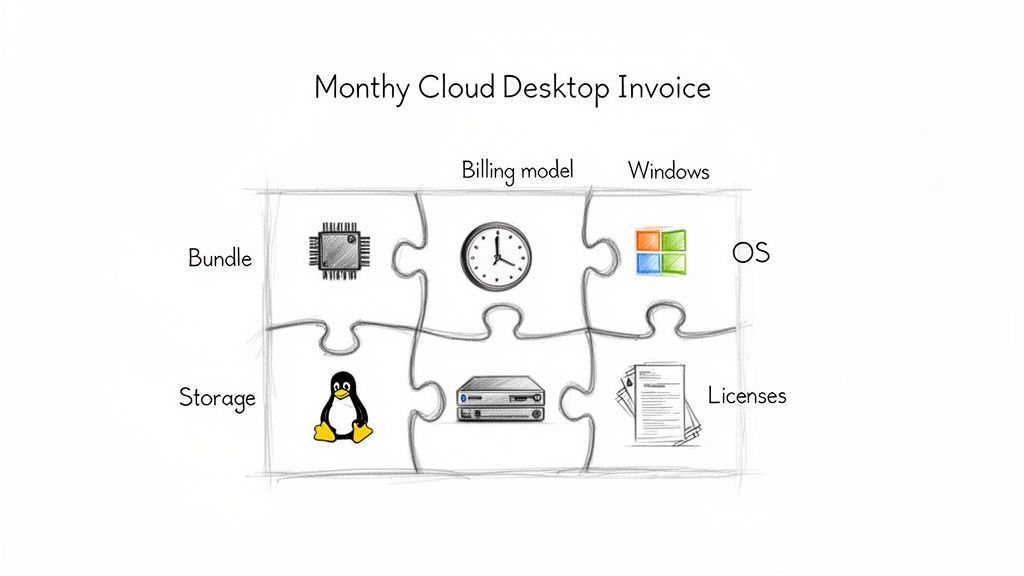
The first pillar is the hardware bundle, which is all about raw power—the virtual CPU, RAM, and GPU. AWS offers everything from basic "Value" bundles for light admin work to heavy-duty "GraphicsPro" machines for designers. Next are the billing models, where you choose between a flat monthly fee ("AlwaysOn") for users needing constant access, or a pay-as-you-go hourly model ("AutoStop") for part-time staff. The third factor is the operating system, as picking Windows includes Microsoft licensing fees, making it more expensive than the open-source Amazon Linux 2. Finally, every WorkSpace requires storage volumes for the OS and user files, and you pay for the amount you allocate. Getting these four elements right is the first step toward smart financial management in the cloud, a fundamental idea covered in many AWS cost management best practices.
Expert Insight: By bringing together automation and cost optimization, organizations can gain ultimate control and visibility over their virtual desktop infrastructure, ensuring they get the maximum return on their investment without over-provisioning resources.
Understanding the Core Pricing Components
The foundation of your Amazon WorkSpaces cost is built on its hardware bundles, your choice of operating system, and the storage you provision. Think of it like building a custom PC online—every component you select, from the processor to the memory, directly shapes the final price. Amazon offers a whole spectrum of these bundles, each tailored for a specific workload, and your choice here is the single biggest factor in your monthly bill.
Each hardware bundle comes pre-packaged with a set amount of virtual CPU (vCPU), memory (RAM), and in some cases, a dedicated graphics processing unit (GPU). The tiers range from lightweight options perfect for basic admin tasks all the way up to powerhouse machines built for data analysis and graphic design. Naturally, as you climb the ladder from Value to GraphicsPro, the costs jump up. A huge part of managing your budget is matching each user to the least expensive bundle that still meets their performance needs, a process often called "rightsizing." Keeping an eye on resource usage is critical here, and you can get a better handle on this by understanding key metrics like those we cover in our guide to CPU utilization in Linux.
Your choice of operating system (OS) is the next major piece of the pricing puzzle. The Windows option rolls the cost of the Microsoft Windows license directly into the bundle price, making it a more expensive choice upfront. In contrast, Amazon Linux 2 is open-source, which means you don't pay a licensing fee for it. This simple fact makes Linux bundles consistently cheaper than their Windows counterparts with the exact same hardware specs. If you want to dig deeper, Venn.com has more insights on WorkSpaces pricing models. Finally, every WorkSpace comes with two separate storage volumes: a root volume for the OS and applications, and a user volume for data. While the root volume size is fixed, you pay for whatever user volume storage you provision, so it’s important not to over-allocate.
Amazon WorkSpaces Bundle Cost Comparison: Windows vs. Linux
| Bundle Tier | vCPU / RAM | Root / User Volume | Monthly Cost (Windows) | Monthly Cost (Linux) |
|---|---|---|---|---|
| Value | 2 / 4 GB | 80 GB / 10 GB | $25 | $21 |
| Standard | 2 / 4 GB | 80 GB / 50 GB | $31 | $27 |
| Performance | 2 / 8 GB | 80 GB / 100 GB | $48 | $44 |
| Power | 4 / 16 GB | 80 GB / 100 GB | $78 | $74 |
Note: Prices are for the US East (N. Virginia) region and are subject to change.
Choosing Your Billing Model: Monthly vs. Hourly
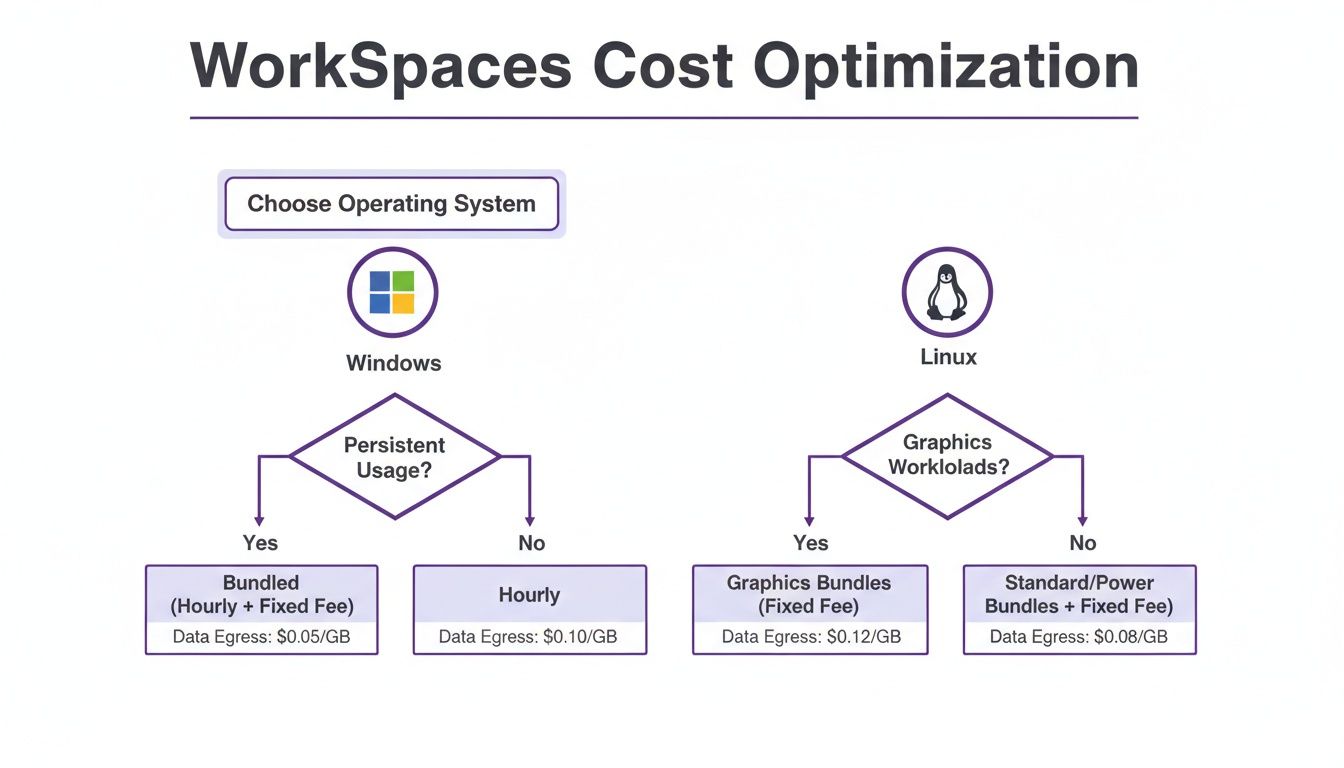
One of the first big decisions you'll make with Amazon WorkSpaces cost is whether to go with a fixed monthly plan or a flexible hourly one. It's a lot like picking a cell phone plan. Do you need an unlimited, flat-rate deal for a heavy user, or is a pay-as-you-go plan a smarter move for someone who only uses their phone occasionally? This choice between the "AlwaysOn" (monthly) and "AutoStop" (hourly) models will be a major factor in how much you spend.
 schedule stop and start for EC2 instances, and the exact same principles apply.
The decision comes down to the break-even point—the number of hours where the hourly plan costs the same as the monthly plan. For a Standard Windows bundle, this is roughly 85 hours per month. Use more than that, and AlwaysOn is cheaper. Use less, and AutoStop saves you money.
How To Calculate Your Total WorkSpaces Cost
Let's move from theory to reality. The best way to get a handle on WorkSpaces pricing is to build a real-world estimate for a hypothetical company. This step-by-step example will give you a clear blueprint you can adapt for your own team. First, resist the urge to use a one-size-fits-all approach. Your first move should be to break your team into distinct user groups based on what they do. For example, a company might have full-time staff, part-time designers, and offshore testers. Getting this segmentation right is critical to matching each group with the most cost-effective bundle and billing model.
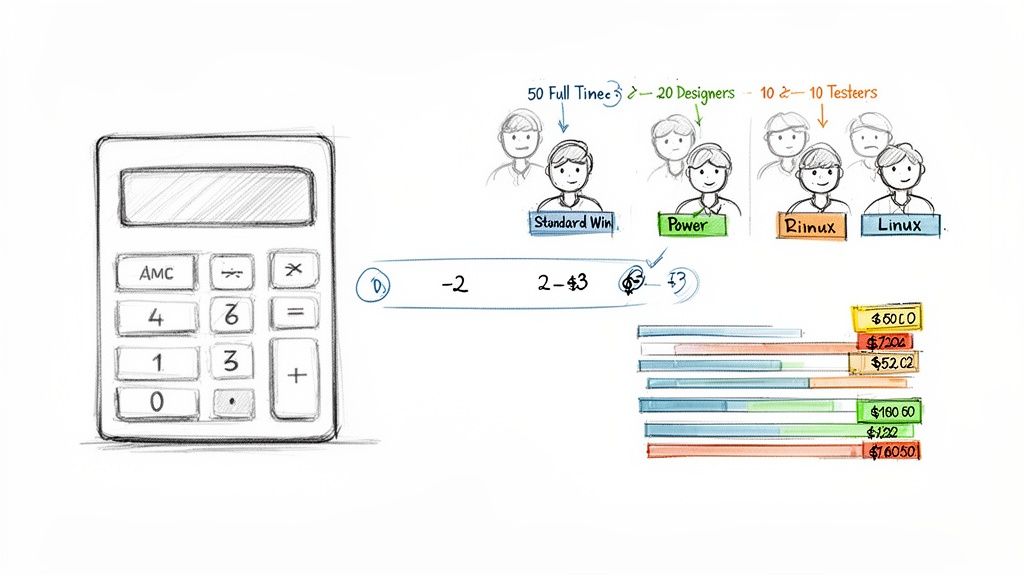
With groups defined, you can assign configurations and crunch the numbers. Full-time staff would likely get a Standard Windows bundle on the monthly (AlwaysOn) plan. Part-time designers might need a Power Windows bundle on the hourly (AutoStop) plan for their intermittent, high-demand work. The offshore testers could use a Standard Linux bundle, also on the hourly plan, to save on licensing fees. It is also crucial to factor in additional costs. The bundle price is just the starting line. You have to account for expenses like extra user storage for designers with large files or application licensing for software like Microsoft 365. These "hidden" costs can seriously inflate your bill if not included in your forecast.
Finally, aggregate all these individual calculations to get your total estimated monthly cost. This gives you a complete, comprehensive view of what the deployment will actually cost. By following this method, you can stop guessing and start making data-driven decisions, setting the stage for smart financial planning and helping you spot opportunities to trim the fat with the right AWS cost optimization tools.
Advanced Strategies for Cost Optimization
Picking the right bundles and billing is a great first step, but truly getting a handle on your Amazon WorkSpaces cost means moving into active, ongoing management. This is where you graduate from the initial setup and start using smart automation and continuous tweaking to unlock the biggest savings. Think of cost management less like a one-time decision and more like a dynamic, living process.
One of the most powerful strategies is mastering the AutoStop model with scheduling. While hourly billing is great, it often relies on users logging off or a default timer kicking in. Automation tools like Server Scheduler eliminate this weakness by enforcing start/stop schedules that match real working hours, guaranteeing you never pay for a minute of idle time. Another must-do tactic is rightsizing. This involves analyzing actual usage data to ensure every user has the right hardware bundle. It's common for users to be over-provisioned; periodically checking CPU and memory metrics in AWS CloudWatch and moving under-utilized users to a lower-cost tier cuts waste without impacting performance. For a broader look at managing tech expenses, you might find some useful ideas in discussions about effective cost management in IT projects.
Finally, if your organization is invested in the Microsoft ecosystem, the Bring Your Own License (BYOL) program offers a massive opportunity to cut costs. If you already own qualifying Microsoft licenses with active Software Assurance, the BYOL model lets you apply them to your WorkSpaces. This strips out the bundled license fee from AWS, which can reduce the cost of each Windows WorkSpace by a healthy margin. Putting these advanced tactics into practice is a hallmark of a mature cloud financial plan. By combining scheduling, rightsizing, and smart licensing, you can turn your WorkSpaces environment into a lean, cost-effective asset. These are just a few of the many cloud cost optimization strategies that can help you master your cloud budget.
Workspaces Pricing: Your Questions Answered
When you're digging into Amazon WorkSpaces cost, a few common questions always pop up. Getting these details straight is the key to managing your budget and avoiding surprises.
A frequent question is whether you can change billing models after launching a WorkSpace. The answer is yes. You can switch a WorkSpace between the AlwaysOn (monthly) and AutoStop (hourly) models whenever you need to. This flexibility is a huge win for cost optimization, as you can adapt to a user's changing work habits without having to tear down and rebuild their desktop.
Another common concern is what happens if a WorkSpace isn't used at all in a month. This is where your chosen billing model really matters. An AlwaysOn WorkSpace will incur the full flat monthly fee even if the user never logs in. However, with an AutoStop WorkSpace, you'll only be charged the small monthly base fee, as no hourly charges will accumulate. This makes AutoStop a much safer, low-cost bet for standby desktops.
Finally, people often wonder about hidden costs like data transfer fees. For the most part, WorkSpaces pricing is straightforward. Data transfer into your WorkSpaces from the internet is typically free. The cost comes from data transfer out of your WorkSpaces to the internet, which is billed at standard AWS rates. For most users, this is minimal, but it’s a potential cost to monitor for data-heavy workflows.
Final Takeaway: Ready to take control of your Amazon WorkSpaces costs? With Server Scheduler, you can automate start/stop schedules, eliminate payment for idle time, and cut your AWS bill by up to 70%. Start your free trial and see the savings today.