A Guide to the Docker Update Container Command
The docker update command is a seriously handy tool that lets you change the resource limits of a running container without having to stop and restart it. This is a game-changer for managing live applications, allowing you to tweak things like CPU shares and memory limits on the fly.
Ready to stop guessing and start controlling your cloud costs? Server Scheduler helps you automate AWS resource management to cut expenses by up to 70%.
Contents
Ready to Slash Your AWS Costs?
Stop paying for idle resources. Server Scheduler automatically turns off your non-production servers when you're not using them.
What Is Dynamic Container Management
At its core, dynamic container management is all about adapting to shifting workloads without downtime. The old way of doing things—like giving a slammed database more memory—meant a full container restart. You’d have to stop it, remove it, and then launch a brand new one with the updated settings. It works, but that service interruption is a non-starter in most production environments. The docker update command offers a much cleaner way to handle certain adjustments. It works by directly modifying the kernel-level control groups (cgroups) that police a container's resource usage. This means you can make immediate changes without touching the application running inside.

This on-the-fly capability is crucial for performance tuning, incident response, and cost optimization. Picture this: one of your web server containers gets hit with a surprise traffic spike. Its CPU usage goes through the roof, putting other critical services on the same machine at risk. Instead of a messy redeployment, you can instantly dial back its CPU shares with a single docker update command to contain "noisy neighbor" problems. This ability to make surgical changes to a live container is fundamental to keeping modern systems stable and responsive.
Key Takeaway: The
docker updatecommand closes the gap between static configurations and the unpredictable nature of real-world application demands, enabling live adjustments to resource constraints without service interruption.
It's really important to know what docker update can't do. This isn't a magic wand for changing every aspect of a container. Its scope is deliberately narrow, focused almost entirely on resource constraints like CPU and memory. You can't use it to change things that were baked in when the container was first created, such as environment variables or the container image itself. For a broader look at managing these kinds of changes across your entire infrastructure, check out our guide on automated infrastructure management. Understanding this distinction is the first step to truly mastering the container lifecycle.
What Can You Actually Do With docker update?
The docker update command is your go-to tool for tweaking the resource limits of a running container. Think of it as a live control panel, letting you adjust performance on the fly without having to stop and restart everything. It’s built for surgical precision, not for overhauling a container's entire setup. Understanding what this command can—and can't—do is key to using it right. You can dynamically change how much CPU a container gets, put a cap on its memory, or even alter its restart policy. These are incredibly useful for keeping a shared environment stable and performant.
Its power, however, is deliberately focused. You cannot use docker update to change things like environment variables, the container's image version, or network settings like port mappings. Those are locked in when the container is created, a core principle that keeps container behavior predictable. The main job of docker update is to manage how a container uses system resources, which is crucial for stopping a single "noisy neighbor" container from slowing down everything else on the same host. These adjustments are a lifesaver in production, where application loads can spike without warning. For example, you could give a critical database container more CPU power during peak hours and then dial it back down overnight, all without a restart.
| Parameter Flag | Description |
|---|---|
--cpus |
Sets a hard limit on how many CPU cores a container can use. |
--cpu-shares |
Adjusts the container's relative weight for CPU time. A higher value gets more. |
--memory |
Sets a hard limit on the memory the container can use. |
--memory-swap |
Defines the total memory (memory + swap) the container can use. |
--restart |
Changes the restart policy (e.g., no, on-failure, unless-stopped). |
For a deeper dive into monitoring processor usage, check out our guide on understanding CPU utilization in Linux. The reason you can't change environment variables or port mappings on a running container comes down to the concept of container immutability. A running container is supposed to be a predictable, self-contained unit defined by its initial configuration. This design choice pushes you toward better DevOps habits: instead of patching live containers, the proper workflow is to create a new, updated container and swap out the old one.
Real-World Scenarios for Resource Management
Talking theory is one thing, but the real power of docker update shines when you're in the trenches, managing a live system. Imagine you're running a user-facing web app, a database, and a non-essential background worker on the same Docker host. Suddenly, your web app gets hit with a massive traffic spike. Performance starts to degrade, and you need to act fast. This is a perfect job for docker update. Your immediate goal is to give the web app more CPU power. You can instantly increase its CPU shares, which tells the Docker daemon to give it a larger slice of CPU cycles.
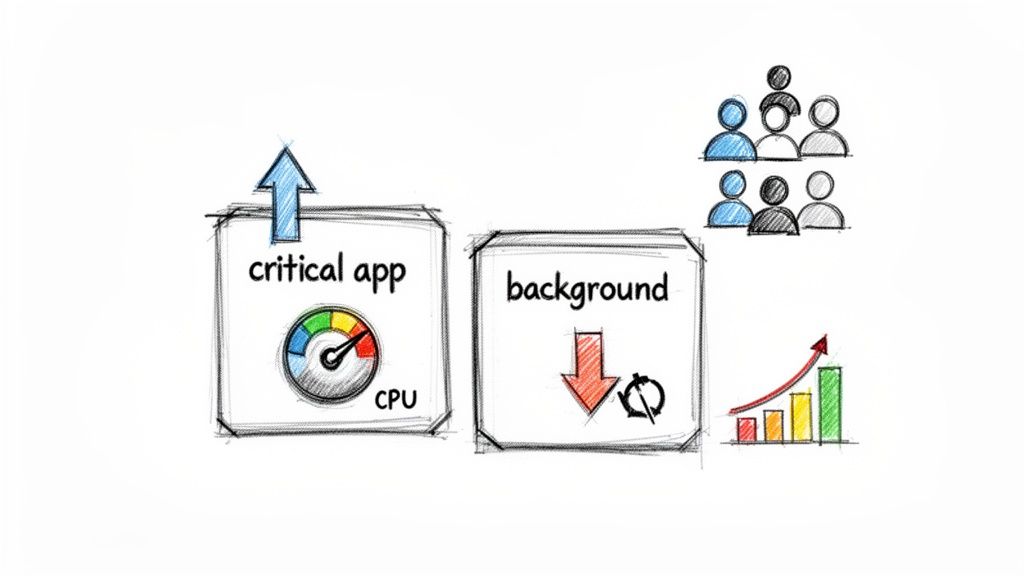
At the same time, you can dial back the resources for that background worker. By reducing its CPU shares, you ensure it doesn't starve your main application. This kind of dynamic reprioritization is a lifesaver for managing "noisy neighbor" problems. Another common fire to fight is a container creeping dangerously close to its memory limit. If you spot a service using more RAM than you expected but still running correctly, you can raise its memory cap on the fly with a command like docker update --memory 4g data-processor. This simple action can prevent an imminent crash, buying you precious time to investigate.
Restart policies are another area where live updates are crucial. In a development environment, you might set a container's restart policy to no for easier debugging. But in production, you need resilience. For a production container, you can switch its policy to ensure it always comes back online after a server reboot or crash with a command like docker update --restart unless-stopped prod-api. This tiny change makes a massive difference in availability. If you're managing cloud resources on AWS, improving availability while controlling costs is key. For more on that, check out our guide on EC2 cost optimization.
When Not to Use docker update
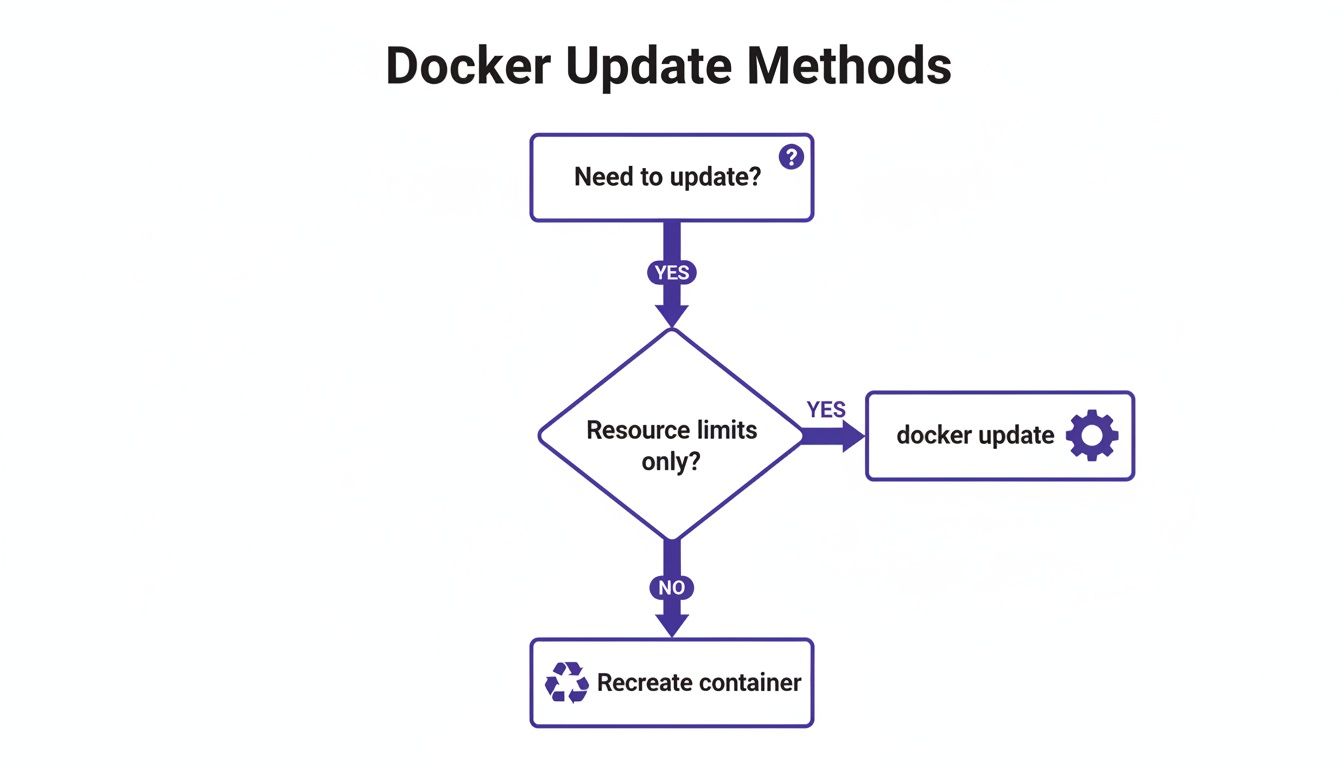
Knowing the limits of the docker update command is just as important as knowing how to use it. It's a brilliant tool for tuning resource constraints on the fly, but it's not a silver bullet for every change. The biggest misconception is trying to use it to update a container's image to a newer version. That’s simply not what it was designed for. At their core, containers are designed to be immutable. Once a container is created from an image, its fundamental configuration—the image itself, environment variables, network port mappings, and attached volumes—is locked in. This principle guarantees a container will behave predictably, no matter where it's running.
To update a container's image version, you must use the classic "recreate" pattern. This involves stopping and removing the old container, pulling the latest image, and then running a new container from it. This gives you a completely clean slate with the new image version. While you can do this by hand, it’s usually automated with scripts or a tool like Docker Compose, which can boil the entire process down to a single command. This recreate process is the cornerstone of reliable deployments.
When you move beyond a single Docker host into orchestrated environments like Docker Swarm or Kubernetes, the update process looks different again. In these systems, you aren't managing individual containers directly but rather declarative services. With Docker Swarm, you use docker service update to change the image for an entire service, and Swarm handles the rollout by gradually replacing old containers. In Kubernetes, you update the image tag in your Deployment's YAML file, and Kubernetes executes a rolling update. While this guide focuses on docker update, it's crucial to understand the broader landscape, including the differences between Docker vs Kubernetes for container management.
Best Practices and Common Pitfalls
Knowing the docker update syntax is one thing, but using it effectively in the wild is another. A critical best practice is to monitor before and after any changes. Never apply a resource update blindly. Before you change a memory or CPU limit, get a baseline by running docker stats to see what your container is actually using. After the update, keep an eye on docker stats to confirm the container stabilizes as expected. A sudden change without data is just a guess, and guessing in production is a recipe for an outage.
Another cornerstone of solid infrastructure management is making your actions repeatable. Instead of tapping out docker update commands by hand, wrap them in simple scripts. This practice, known as idempotency, guarantees that running the same script over and over will always produce the same system state. For anyone serious about automating container management, getting comfortable with scripting is non-negotiable. If you need a refresher, our comprehensive Bash scripting cheat sheet is a great place to start.
Most headaches with docker update come from a few common misunderstandings. The most frequent mistake is setting a memory limit that’s too low, which will cause the host's kernel to kill the container with an Out Of Memory (OOM) error. Another trap is misunderstanding CPU shares. The --cpu-shares flag is a relative weight, not a hard limit, and only has an effect when multiple containers are competing for CPU time. If an update command fails with an error like Cannot update a stopped container, the fix is simple: the container must be running for the command to work.
Docker Update FAQs
When managing containers, questions always pop up about what can and can't be changed on the fly. In short, no, you cannot update the image of a running container without restarting it. The concept of immutability is fundamental to how Docker works. To use a new image version, you must follow the standard "recreate" workflow: stop the current container, pull the new image, and launch a fresh container from it. This process is easily automated with tools like Docker Compose or simple shell scripts, minimizing downtime.
Similarly, you cannot change an environment variable for an existing container. Like the image, environment variables are baked in at creation time. If you need to tweak one, your only option is to recreate the container with the updated --env or --env-file flags. This separation is a good thing; it keeps runtime tweaks (like resource limits) separate from build-time configuration (like images and environment variables), which is what makes containers so reliable.
Warning: Be extremely careful when setting a memory limit lower than what a container is currently using. If you use
docker update --memoryto set a limit below current consumption, the host machine's kernel will likely kill your application instantly with an Out Of Memory (OOM) error to protect system stability.
While you can technically run docker update on a container managed by Docker Compose, your changes will not persist. Docker Compose treats your docker-compose.yml file as the source of truth. The next time you run a command like docker-compose up -d, Compose will notice the discrepancy and revert your manual update. To make a permanent resource change in a Compose setup, you must edit the YAML file itself and then redeploy the service.
Ready to take control of your cloud costs and eliminate manual server management? Server Scheduler provides a simple, visual way to automate start/stop schedules for your AWS resources, cutting bills by up to 70%. Start scheduling and saving today.