How to Find the Right Event Viewer ID for Reboot Scenarios
It’s a feeling every IT pro knows: that sudden jolt when you find out a critical server rebooted overnight. The questions start flying immediately. Was this planned maintenance, or did it crash? Who kicked it off? This is where you start digging for answers, and your first stop should always be the Windows Event Viewer. Knowing the correct event viewer id for reboot is crucial for diagnosing the cause, whether it's a routine update or a critical system failure.
Ready to take control of your server reboots? Server Scheduler allows you to automate restarts, shutdowns, and right-sizing for your cloud infrastructure, saving you time and money. Start scheduling with Server Scheduler today.
The key is knowing what to look for. For most reboot scenarios, you'll be hunting for Event ID 1074 (planned shutdowns), Event ID 41 (unexpected power loss), and Event ID 6008 (a dirty shutdown). Understanding these codes transforms the Event Viewer from an overwhelming sea of data into a powerful diagnostic tool. This guide will walk you through the most important event IDs, show you how to interpret them, and explain how to automate your analysis to keep your systems stable and predictable.
Contents
Ready to Slash Your AWS Costs?
Stop paying for idle resources. Server Scheduler automatically turns off your non-production servers when you're not using them.
Understanding Why Server Reboots Matter
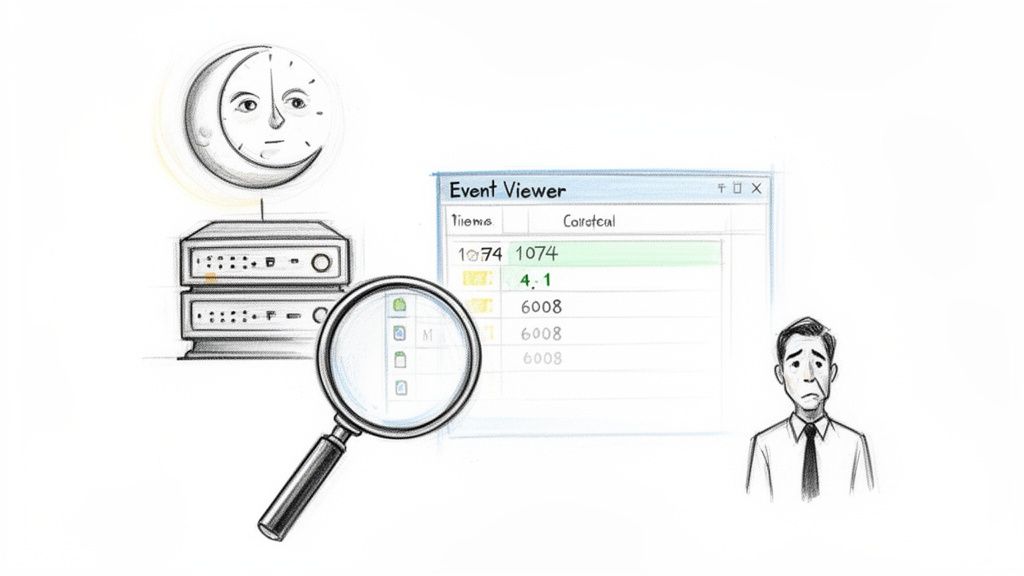
Figuring out the "why" behind a server restart isn't just a technical exercise; it's essential for maintaining system stability, ensuring compliance, and even managing your cloud spend. An unexpected reboot might point to failing hardware, a new security vulnerability, or a botched software update. On the other hand, a planned restart happening at the wrong time can cause major business disruptions and breach service-level agreements (SLAs). Without clear answers, you're just guessing. By mastering a few key event IDs, you can piece together the story behind any system restart and move from reactive firefighting to proactive management.
This knowledge is critical whether you're managing on-prem servers or virtual machines on AWS or Azure. You can stop wondering if a reboot was caused by a patch or a power failure and get definitive answers, fast. While investigating reboots after they happen is useful, preventing them in the first place is always the goal. For a deeper understanding of your system's health, it’s worth implementing effective Windows server monitoring strategies. A well-managed system also relies on predictable maintenance, a core idea behind automated infrastructure management, which helps standardize maintenance and cut down on manual work.
Quick Guide to Critical Reboot Event IDs This table is your cheat sheet for the most important Event Viewer IDs for diagnosing system restarts.
Event ID Log Name Meaning Reboot Type 1074 System User-initiated or application-triggered shutdown/restart. Planned 41 System The system rebooted without a clean shutdown. Unplanned (Crash) 6008 System The previous system shutdown was unexpected. Unplanned (Crash) 6005 System The Event Log service was started (marks a boot-up). System Start 6006 System The Event Log service was stopped (marks a clean shutdown). Planned
Tracing Planned Reboots with Event ID 1074
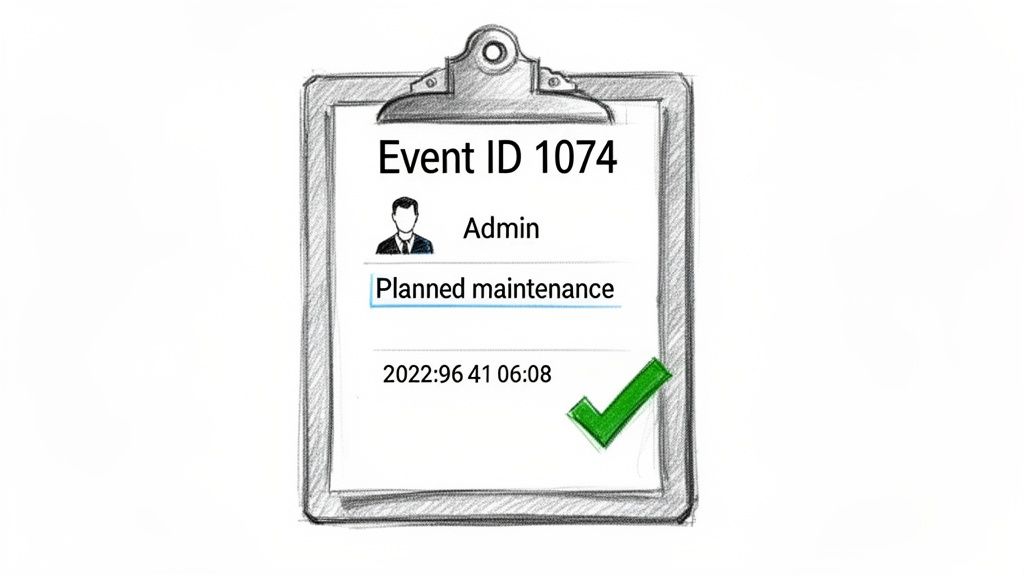
When a server reboots for a legitimate reason—think maintenance, updates, or a configuration change—Event ID 1074 is the log entry you’ll want to find. It’s the official record in the System log that tells you a user or an application intentionally triggered a shutdown. This specific event viewer id for reboot cuts through the noise and gives you the "who" and "why." This event is incredibly valuable because it provides context, not just a timestamp. Imagine discovering a production EC2 instance was restarted over the weekend. With ID 1074, you might trace it back to a specific admin account that was performing scheduled patching, complete with the reason they provided.
Finding this event is straightforward. Open Event Viewer, navigate to Windows Logs > System, and use the "Filter Current Log" action. By entering "1074" into the Event IDs field, you instantly isolate all planned shutdowns and restarts. The real value is in the event details, which include the user account, the process that initiated the shutdown (e.g., shutdown.exe), and the reason provided. This information provides a complete audit trail, establishing clear accountability and verifying that maintenance happens as planned. For those managing reboots via scripts, our guide on the command prompt shutdown process offers some extra context.
Investigating Unexpected Crashes with Event IDs 41 and 6008
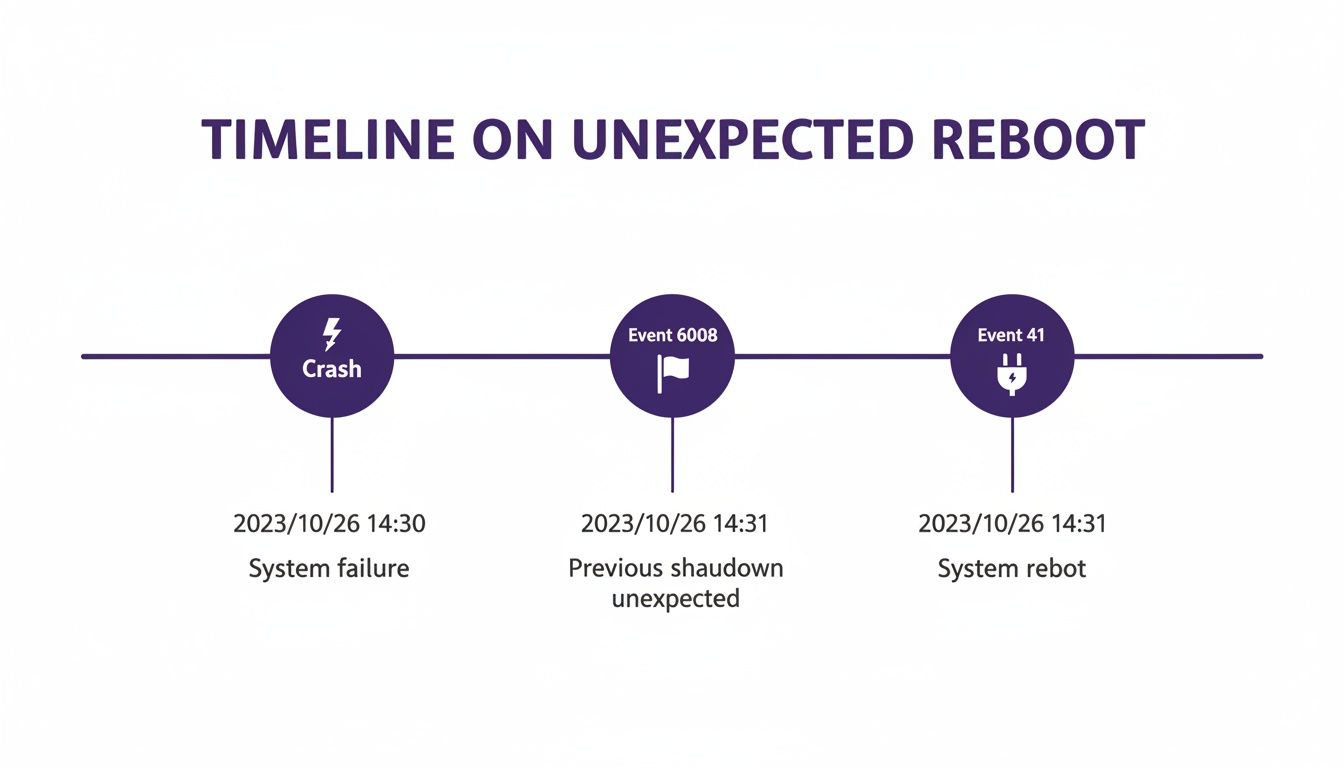
While planned reboots are easy to track, the real headaches start when a server reboots without warning. This is where your investigation shifts to the more alarming signals in the Event Viewer, starting with the critical Event ID 41 (Kernel-Power). This event is the system's way of shouting that something went terribly wrong—it's the digital equivalent of someone yanking the power cord out of the wall. Unlike the orderly shutdown logged by Event ID 1074, ID 41 signifies a 'dirty' reboot. The Windows Server restarted without a clean shutdown process, which can be triggered by a sudden power failure, a hardware glitch, or a Blue Screen of Death (BSOD). When you see this event viewer id for reboot, it's a red flag that demands immediate attention.
Event ID 41 is a strong signal, but to get the full picture, you should pair it with Event ID 6008. This event is logged shortly after the system comes back online, explicitly stating that the previous shutdown was unexpected. It confirms a crash definitely occurred. By looking for both, you create a definitive timeline of the incident. This pairing is your go-to diagnostic tool for unexpected outages, providing the proof you need to escalate a support ticket with your cloud provider or justify a hardware replacement. Instead of saying "the server went down," you can say, "The server logged Event ID 6008 at 03:15 UTC followed by Kernel-Power Event ID 41, indicating a host-level failure." That level of detail dramatically speeds up the resolution process. Discover more insights about Windows Server event logs.
Building Timelines with Startup and Shutdown Logs
To truly understand a server's behavior, you need to track its uptime with precision. This is where Event IDs 6005 (Event log service started) and 6006 (Event log service stopped) come in. Think of them as reliable bookends, marking the exact moments a server starts up and shuts down cleanly. Using these logs lets you build incredibly accurate operational timelines, which is essential for everything from auditing maintenance windows to proving you're meeting SLA compliance.
The real magic happens when you use these two event IDs together. Event ID 6005 is logged the moment the Event Log service kicks off, giving you a precise boot time. On the flip side, Event ID 6006 is logged when the service stops as part of a proper, orderly shutdown. By finding a 6006 event and then locating the next 6005 event, you can calculate the exact duration of a server's downtime. This is invaluable for performance monitoring. You can dig into more of these PowerShell-driven findings. By mastering the relationship between these startup, clean shutdown, and dirty shutdown events, you can build a complete and accurate history of your server’s availability.
How to Automate Reboot Analysis with PowerShell
Clicking through Event Viewer on a single server is a drag, but managing an entire fleet of virtual machines makes it completely unrealistic. This is where automation, specifically PowerShell, becomes your best friend. Instead of logging into GUIs one by one, a simple script can pull reboot data from hundreds of servers at once. The Get-WinEvent cmdlet is your direct line into the Windows Event Log, letting you skip the UI and pull the exact information you need, right from the command line. This transforms a reactive, time-consuming investigation into a proactive, automated workflow.
The real power of Get-WinEvent is in its filtering. Using the -FilterHashtable parameter lets you build specific queries to pinpoint the logs you care about, filtering by log name, Event IDs, and date range. For a solid reboot analysis, you'll want to target all the key Event IDs we've covered: 1074, 41, 6008, 6005, and 6006. Combining these into one query gives you a complete reboot history for any server on your network. From there, it's easy to build a script that hits multiple remote servers and exports the output to a CSV for reporting. For more ways to keep tabs on your servers, check out our guide on how to find Windows uptime.
Common Questions About Server Reboots
When you're digging through event logs trying to figure out why a server bounced, the same questions tend to crop up. Getting a handle on these common queries will make you faster and more confident when troubleshooting. For example, to tell if a reboot was caused by Windows Updates, you should examine the details of Event ID 1074. If a server restarted for patching, you’ll typically find a reason code like 0x80020010 or a clear comment mentioning "Windows Update." To get proactive alerts for an unexpected shutdown, you can use the built-in Windows Task Scheduler to trigger an action, like sending an email, when it sees Event ID 41 or Event ID 6008.
Fortunately, the core event IDs for tracking reboots—1074, 41, 6005, 6006, and 6008—are consistent across all modern versions of Windows Server, from 2012 R2 to 2022. This standardization means the PowerShell scripts and filtering techniques you build will work reliably across a mixed environment. In the world of Windows Event Viewer, "reboot" and "restart" also mean the same thing, triggering the exact same sequence of shutdown and startup events. The real distinction you care about isn't the wording, but whether the shutdown was clean (planned) or dirty (unplanned). If you're curious about how this works in the cloud, you can learn more about if rebooting an EC2 instance resets its IP.