Does Rebooting an EC2 Instance Reset Its IP Address? A Definitive Guide
When managing AWS infrastructure, a common question arises: does rebooting an EC2 instance reset IP addresses? The short, direct answer is no. A simple reboot of your EC2 instance will not change either its public or private IP address. Think of it like restarting your personal computer; the underlying hardware and its network configuration remain untouched, ensuring a seamless and predictable restart for your operating system. This persistence is crucial for maintaining stable connections to your applications and services.
Understanding this core behavior is the first step, but the real challenge lies in distinguishing a reboot from a stop/start cycle, as this is where IP addresses can unexpectedly change, causing significant disruptions. Automating your AWS infrastructure shouldn't be complicated or lead to network headaches. Server Scheduler simplifies the process, allowing you to cut costs by scheduling instance shutdowns without losing control over your network configuration.
Contents
- Understanding IP Persistence During an EC2 Reboot
- Reboot vs. Stop/Start: Unpacking the Key Differences
- Using Elastic IPs to Guarantee a Static Public Address
- Navigating AWS Scheduled Maintenance and Reboots
- Optimizing Costs with Smart IP Management
- Best Practices for EC2 IP Address Management
- Frequently Asked Questions About EC2 IPs
- Related Articles
Ready to Slash Your AWS Costs?
Stop paying for idle resources. Server Scheduler automatically turns off your non-production servers when you're not using them.
Understanding IP Persistence During an EC2 Reboot
When you initiate a reboot on an EC2 instance, you are sending a command to its operating system to restart itself. This entire process occurs on the exact same underlying physical hardware within the AWS data center. Because the instance never leaves its host machine, AWS has no reason to alter its network identity. The instance retains its allocated public and private IP addresses, which is essential for any stable infrastructure. This means your applications, databases, and any other services pointing to that instance can reconnect without any configuration changes after the brief restart. The networking details shown in the AWS console for an instance will remain completely unchanged after a reboot is performed.
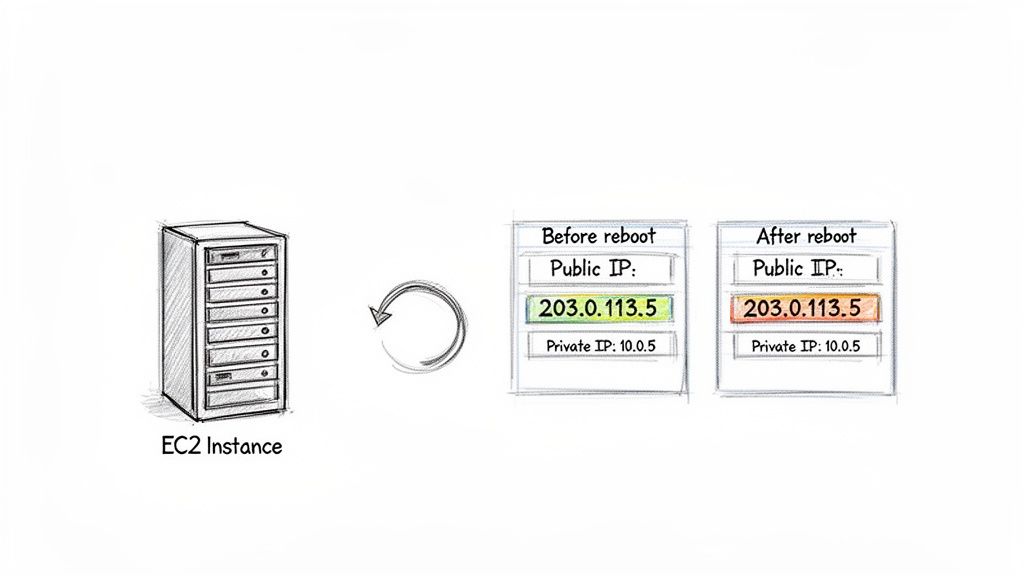
This reliability makes a reboot the ideal action for routine maintenance, such as applying security patches or software updates, where you need to refresh the system with minimal disruption. The key takeaway is that the instance's virtual network card remains logically attached to the same network port, preserving its assigned addresses. It’s a low-impact operation designed for predictability and stability.
Reboot vs. Stop/Start: Unpacking the Key Differences
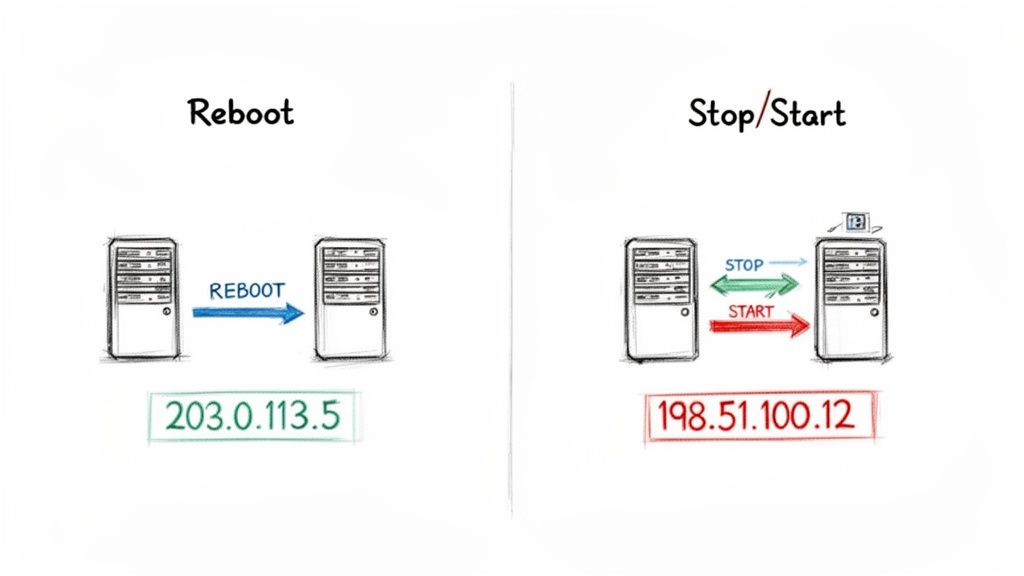
This is where many cloud administrators encounter issues. A reboot is fundamentally different from a stop/start cycle, and confusing the two can lead to broken connections and unexpected downtime. While a reboot is a soft restart on the same physical hardware, stopping an instance is a much more significant action. When you stop an EC2 instance, you effectively release the underlying hardware back into AWS's vast pool of resources. Consequently, when you start it again, AWS will likely provision it on an entirely new physical machine. This migration forces AWS to assign it a new public IP address from its dynamic pool.
To make this distinction clear, the private IP address of your instance is tied to its network interface and will persist through both a reboot and a stop/start cycle. However, the default public IP is ephemeral and only guaranteed to remain during a reboot. Grasping this difference is crucial for automation and maintenance planning. For a deeper dive, we have a detailed guide that covers the nuances between an EC2 reboot vs stop/start.
This fundamental difference also impacts other resources tied to the physical host, most notably the instance store volume. This is temporary block-level storage physically attached to the host machine, perfect for caches or scratch data. Since this data lives on the physical hardware, it is completely wiped clean during a stop/start cycle but remains perfectly intact through a simple reboot. For a more detailed comparison, check out our full analysis of the EC2 stop/start vs reboot processes.
| Feature | On Reboot | On Stop/Start |
|---|---|---|
| Public IP Address | Retained (Does not change) | Released & Reassigned (Changes) |
| Private IP Address | Retained | Retained |
| Instance Store Data | Preserved | Erased (Data is lost) |
| Underlying Hardware | Stays on the same physical host | Migrates to a new physical host |
| Billing | Billed for uptime during reboot | Billed only for storage while stopped |
Using Elastic IPs to Guarantee a Static Public Address
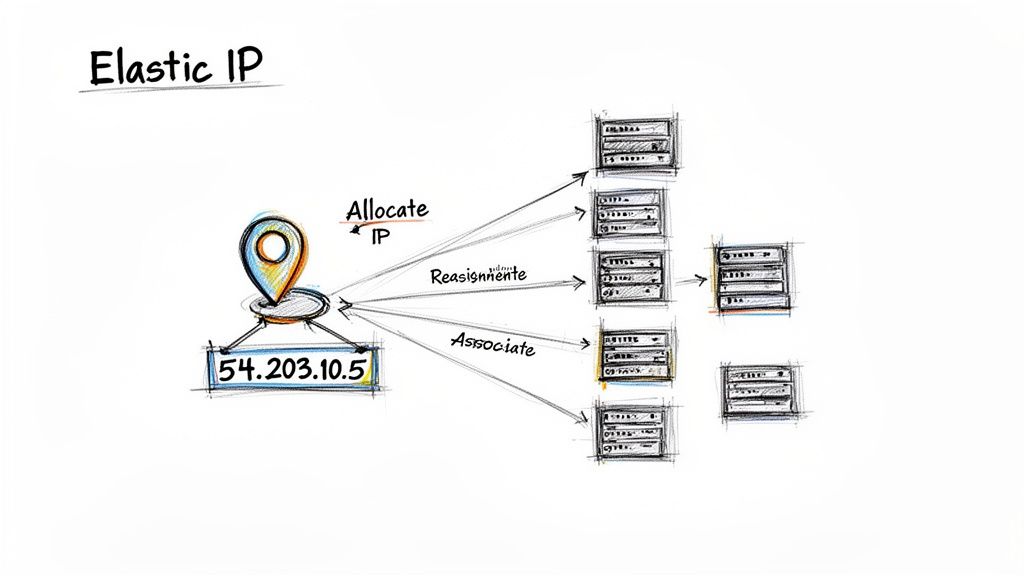
If your application requires a public IP address that never changes, the default dynamic IPs on EC2 instances present a challenge, especially when automating stop/start cycles for cost savings. The solution is an Elastic IP (EIP)—a static IPv4 address designed for the dynamic nature of cloud computing. An EIP is tied to your AWS account, not a specific instance, giving you a permanent public address that you can associate with any EC2 instance. This address persists through reboots, stops, starts, and even instance terminations, providing complete control over your application's public entry point. For a complete overview of the process, see our guide on how to reboot an EC2 instance.
The process is straightforward: you first allocate an EIP from Amazon's pool, and it remains in your account until you release it. Next, you associate that EIP with one of your EC2 instances. This action immediately overrides the instance's dynamic public IP with your static one. Any traffic directed to the EIP is then routed to your instance.
Pro Tip: This decoupling is incredibly powerful for high-availability scenarios. If an instance fails, you can remap the EIP to a healthy replacement instance in seconds, minimizing downtime without requiring any DNS updates from your users.
AWS encourages efficient use of EIPs with a smart pricing model. An Elastic IP is completely free of charge as long as it is associated with a running EC2 instance. If an EIP sits in your account unattached, a small hourly fee applies. This prevents the hoarding of limited IPv4 addresses and makes EIPs a cost-effective choice for production workloads.
Navigating AWS Scheduled Maintenance and Reboots
So far, we have discussed actions you initiate. But what happens when AWS needs to perform maintenance on the physical hardware hosting your instance? During these scheduled events, AWS might need to reboot your server to apply critical updates. The good news is that AWS designed this process to be as non-disruptive as possible. Even if maintenance requires migrating your instance to new physical hardware—an operation that sounds like a stop/start—your IP addresses are preserved. Your private IP, public IP, and any attached Elastic IPs all remain unchanged.
The primary difference you'll notice is the duration of the downtime. A standard, in-place reboot typically completes in about 30 seconds. However, if AWS migrates your instance to new hardware as part of the maintenance, the process can take several minutes. This is a crucial detail for teams managing high-availability systems. For automation tools like Server Scheduler, understanding potential maintenance window durations helps in planning schedules that avoid unexpected service interruptions.
When AWS schedules a system reboot, a feature called reboot migration may be used. By default, this allows AWS to move your instance to new hardware during maintenance, preserving all IPs. You can disable this feature if you prefer faster, in-place reboots. You can find more information on these reboot migration settings in the official AWS documentation.
| Maintenance Action | Impact on IP Addresses | Typical Downtime |
|---|---|---|
| In-Place Reboot | All IPs are preserved | ~30 Seconds |
| Reboot with Migration | All IPs are preserved | Several Minutes |
Optimizing Costs with Smart IP Management
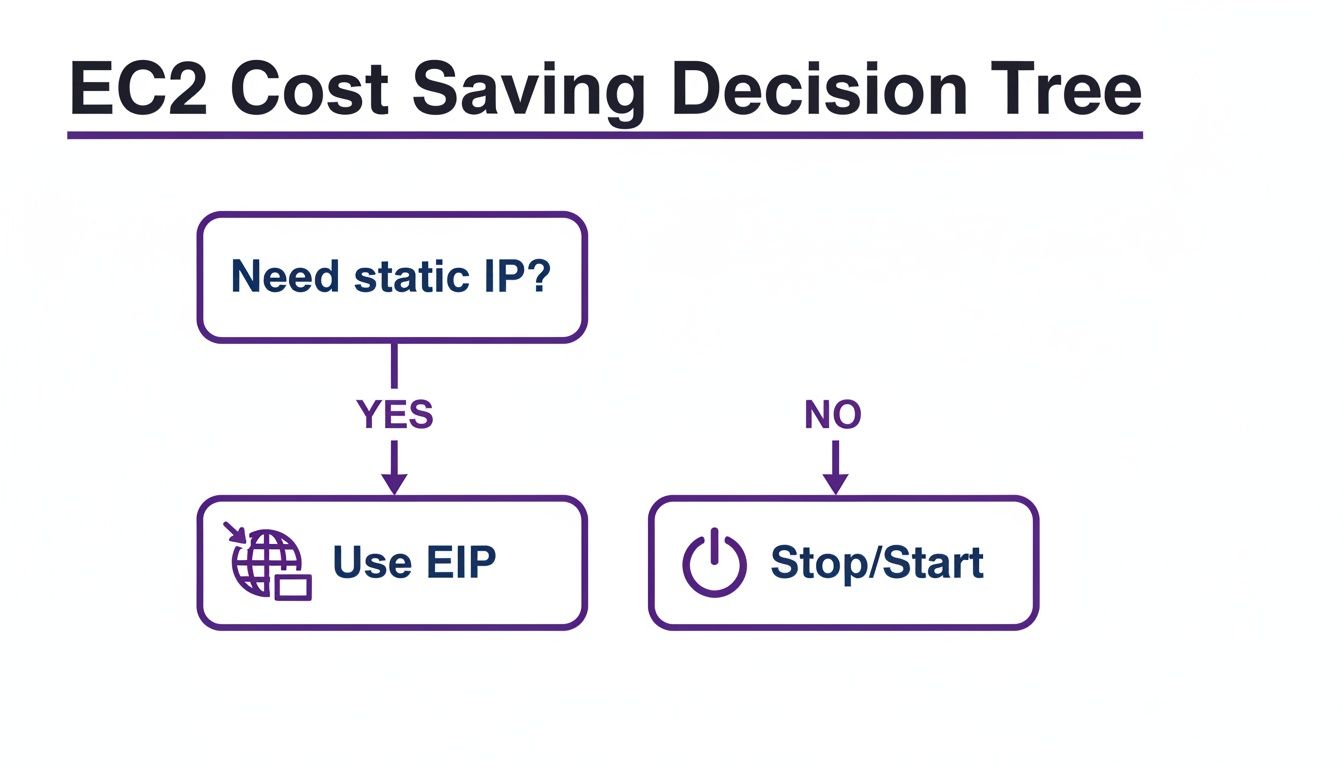
Understanding how an EC2 reboot affects IP addresses is directly linked to cloud cost optimization. One of the most effective strategies to reduce your AWS bill is to shut down non-production environments like development, staging, and QA servers during idle hours. This is precisely what Server Scheduler automates. However, this practice introduces the challenge of a new public IP being assigned each time an instance starts. This can disrupt workflows, forcing teams to update DNS records or configurations manually.
The solution is to combine intelligent automation with smart IP management. By pairing Server Scheduler's simple scheduling with an Elastic IP, you achieve the best of both worlds. Your development environment can power down every night and weekend to stop billing, and when it starts up again, its attached Elastic IP ensures the public endpoint remains consistent. This is the blueprint for maximum cost efficiency without the operational overhead. You can learn more by reading our guide on how to start and stop EC2 instances on a schedule.
 Best Practices for EC2 IP Address Management
A robust EC2 IP address management strategy is fundamental to a stable and cost-effective cloud environment. The first principle is to never hardcode an IP address into your application's configuration files. This brittle practice is guaranteed to cause failures. Instead, use DNS records, such as those in Amazon Route 53, to point to your instances. If an IP changes, you only need to update a single DNS record, with no code changes or redeployments required. For a refresher on server operations, our guide on how to restart an EC2 server is a helpful resource.
For any public-facing server like a web server or API endpoint, an Elastic IP is the industry standard for providing a static, reliable address. It ensures stability through reboots, stop/start cycles, and even instance replacements. Automating this setup with Infrastructure as Code (IaC) tools like Terraform or CloudFormation is highly recommended. You can find practical Infrastructure as Code examples to get started. This approach works seamlessly with tools like Server Scheduler, enabling you to automate cost-saving stop/start schedules without the headache of changing IP addresses.
Frequently Asked Questions About EC2 IPs
We have covered the critical differences between reboots and stop/start cycles, but a few common questions frequently arise. Let's address them to ensure complete clarity.
What happens to the private IP address? The private IP address of an EC2 instance is highly stable. It persists through both reboots and stop/start cycles. It is assigned from your Virtual Private Cloud (VPC) subnet when the instance is launched and remains with it for its entire lifecycle. The only way to change the private IP is to terminate the instance and launch a new one.
Are there any costs for Elastic IPs? Elastic IPs are free of charge as long as they are attached to a running EC2 instance. A small hourly fee is applied only when an EIP is allocated to your account but not associated with a running instance. This pricing model encourages the efficient use of the limited IPv4 address pool.
Does the instance type affect IP behavior?
No, the behavior of IP addresses is consistent across all EC2 instance types. Whether you are running a small t2.micro or a large c7g.16xlarge, a reboot will always retain the public IP, and a stop/start cycle will always reassign it unless an Elastic IP is attached. This predictability is a cornerstone of the EC2 platform.
Ready to stop wasting money on idle cloud resources without the operational overhead? Server Scheduler provides a simple, point-and-click way to automate your EC2, RDS, and ElastiCache schedules. Learn more and start your free trial.