Mastering the Command Prompt Shutdown
Learning how to shut down a Windows machine from the command line is an essential skill for system administrators, developers, and power users alike. While the graphical user interface (GUI) is convenient for daily use, the Command Prompt and PowerShell offer unparalleled speed, precision, and the ability to automate complex tasks. Using the shutdown command, you can do far more than simply power off a computer; you can schedule restarts, force stubborn applications to close, and even manage multiple machines across a network. Mastering this command is a fundamental step toward more efficient and powerful system management.
Ready to move beyond manual commands and fragile scripts? Server Scheduler provides a simple, visual way to automate your entire cloud infrastructure. Cut cloud costs by up to 70% by scheduling your AWS resources in minutes. Learn more and start your free trial today.
Contents
Ready to Slash Your AWS Costs?
Stop paying for idle resources. Server Scheduler automatically turns off your non-production servers when you're not using them.
Mastering The Windows Shutdown Command
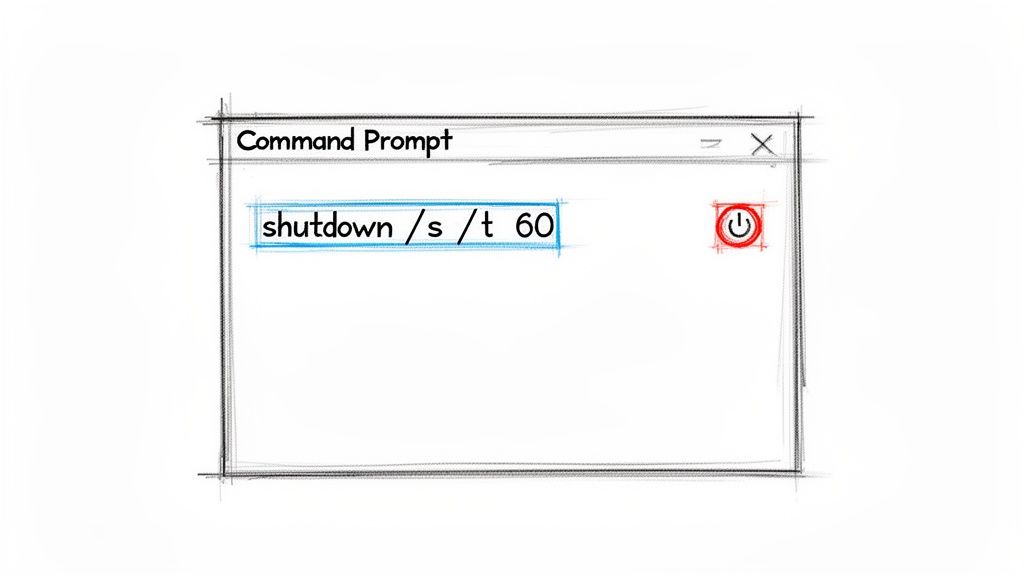
In the Windows ecosystem, the primary tool for initiating a shutdown from the command line is the shutdown.exe utility. This versatile program is accessible from both the classic Command Prompt (CMD) and the more modern PowerShell. Its real power lies in the various flags, or parameters, you can append to the command to specify exactly how the shutdown or restart should occur. For example, the most basic command, shutdown /s, tells the system to perform a full shutdown, but it includes a default 60-second delay to give you time to save any last-minute work. If you need an immediate shutdown, you can use shutdown /s /t 0.
The /r flag is used for restarting the machine, which is particularly useful after software installations or system updates. Just like the shutdown command, it includes a brief countdown by default. You can customize this delay using the /t flag, followed by the number of seconds you want to wait. For instance, shutdown /r /t 120 will schedule a restart in two minutes. Should you change your mind, the /a flag is an essential lifesaver. Running shutdown /a will immediately cancel any pending shutdown or restart, preventing accidental data loss.
Sometimes, an application may freeze and prevent the system from shutting down smoothly. The /f flag addresses this by forcing all running applications to close without prompting the user to save their work. While effective, this command should be used with caution as it can lead to the loss of unsaved data. A common combination for server maintenance is shutdown /r /f /t 0, which forces an immediate restart and closes any unresponsive programs, helping to get a server back online as quickly as possible.
Pro Tip: Combining flags is where you really start to see the efficiency gains. I often use
shutdown /r /t 60to give myself a minute before a restart. It's just enough time for a final check to ensure all my critical work is saved and processes are closed properly.
To make things easier, here is a quick reference table outlining the most common flags for the Windows shutdown command. Mastering these basic parameters will provide a solid foundation for managing your local machine directly from the command line and prepare you for more advanced techniques like remote shutdowns and scripting.
| Flag | Function | Example Usage |
|---|---|---|
/s |
Shuts down the computer completely. | shutdown /s |
/r |
Restarts the computer. | shutdown /r |
/t xxx |
Sets a time delay in seconds (xxx). | shutdown /s /t 300 |
/a |
Aborts a scheduled shutdown or restart. | shutdown /a |
/f |
Forces running applications to close. | shutdown /r /f |
Advanced Shutdown Techniques in Windows
Once you are comfortable with the basic shutdown commands, you can explore the more advanced features that offer greater control, especially within a professional IT setting. The shutdown utility is much more than a simple on/off switch; it is a sophisticated tool for system administrators who need to manage machines remotely, communicate with users, and log system events for auditing purposes. These advanced capabilities are what separate routine system management from precise, professional administration.
A sudden restart in a shared environment can disrupt workflows and cause data loss. The /c switch allows you to add a custom message to the shutdown alert, providing users with a clear warning. For example, an administrator might execute shutdown /r /t 300 /c "System restart in 5 minutes for security updates. Please save your work." This simple message transforms a potentially jarring interruption into a planned, professional announcement. Furthermore, documenting the reason for a shutdown is crucial for troubleshooting and compliance. The /d parameter enables you to log a specific reason code, such as shutdown /s /d p:2:4, which records the shutdown with a "planned" reason code for hardware maintenance. These codes are written to the Windows System Event Log, creating a valuable audit trail.
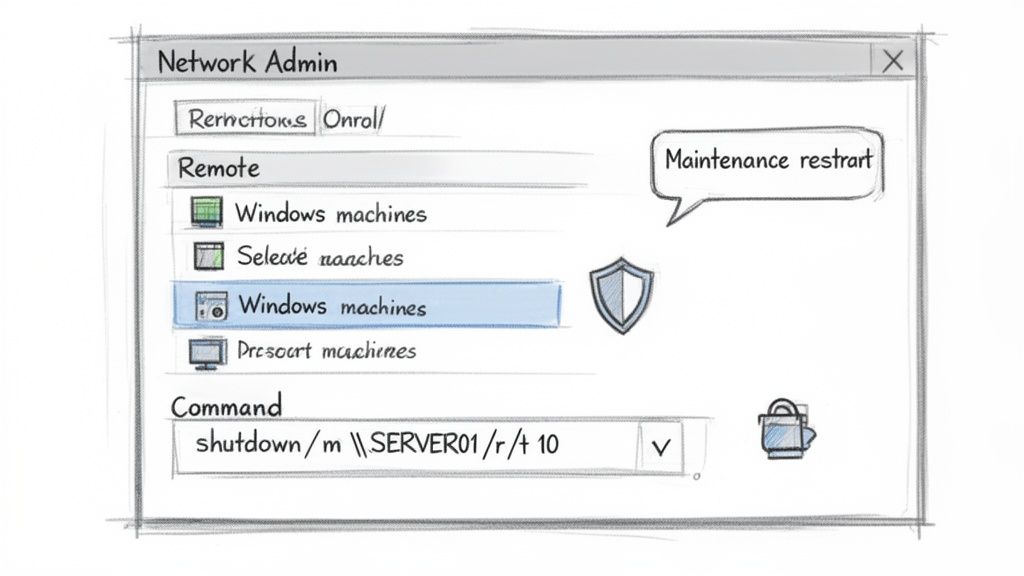
The true power of the shutdown command is revealed when managing machines across a network. The /m \\computername parameter lets you execute shutdown commands on a remote computer, making it a cornerstone of remote systems management. An IT administrator can restart a malfunctioning server from their desk by running a command like shutdown /r /f /m \\FileServer01 /c "Restarting server to apply critical patch." This requires the administrator's account to have administrative privileges on the target machine and the Windows Management Instrumentation (WMI) firewall rule to be enabled. While shutdown.exe is a classic tool, PowerShell offers a more modern alternative with the Stop-Computer cmdlet. The syntax is clean and allows for managing multiple machines at once, such as Stop-Computer -ComputerName "Server1", "Server2", "Server3", making it highly efficient for large-scale maintenance. For admins managing complex domain environments, knowing how to handle computers programmatically is a critical skill. Our guide on how to remove a computer from a domain dives deeper into these kinds of essential management tasks.
Shutdown Commands for Linux and macOS Systems
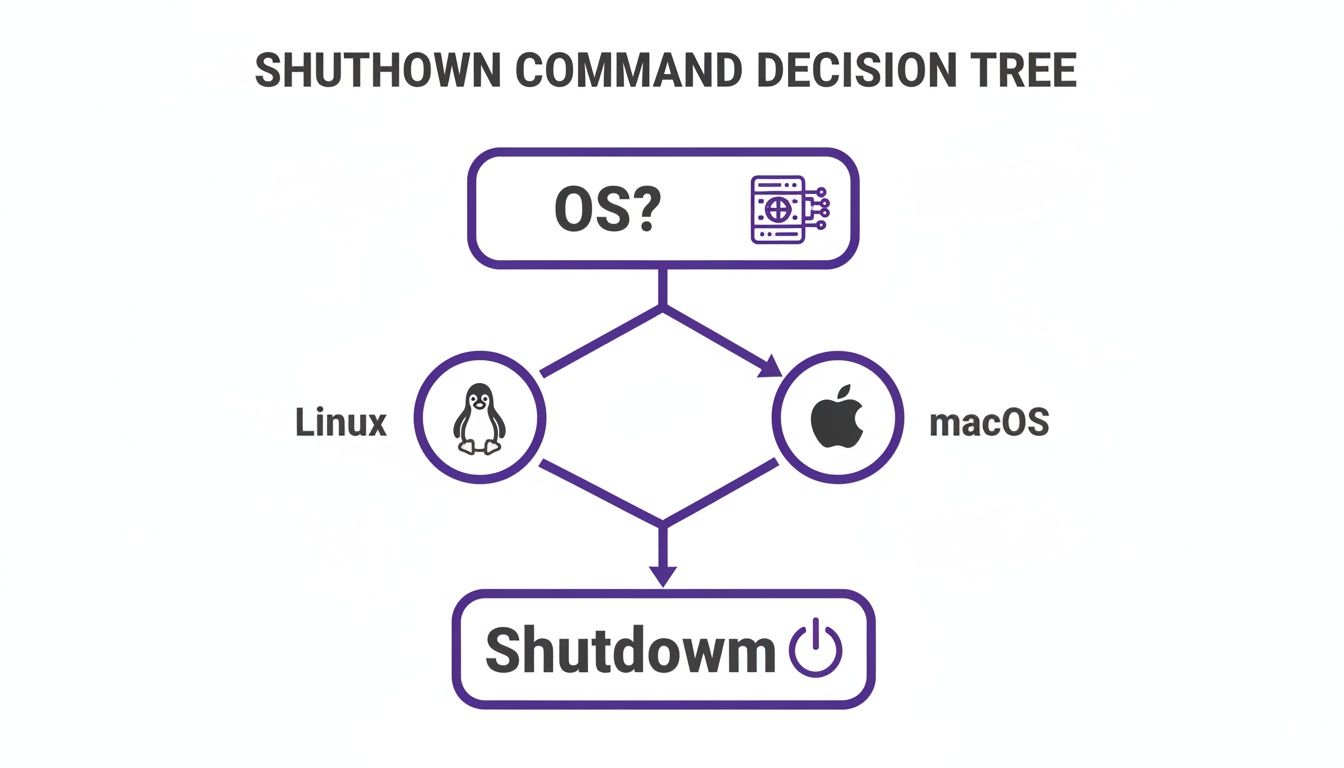
While Windows provides a robust shutdown utility, the command line is the native environment for Linux and macOS. For anyone managing systems on these UNIX-based platforms, mastering terminal commands for power management is a core competency, not just a convenient trick. These operating systems offer powerful, scriptable tools that provide granular control over system power states, which is essential for managing servers and development workstations effectively.
For most modern Linux distributions that use systemd, the systemctl command is the standard for power management. To power off a machine immediately, you can run sudo systemctl poweroff. A reboot is just as straightforward with sudo systemctl reboot. These commands are direct and efficient, making them ideal for quick, manual interventions. However, the classic shutdown command is still widely used and offers greater flexibility, especially for scheduling shutdowns and communicating with logged-in users. This makes it a favorite among seasoned system administrators for planned maintenance tasks.
The traditional shutdown command in Linux provides nuanced control that is invaluable in multi-user environments. For example, you can schedule a shutdown for a specific time, such as 10:00 PM, using sudo shutdown -h 22:00. The -h flag stands for "halt," which powers off the system. You can also schedule a shutdown to occur in a set number of minutes, such as sudo shutdown -h +30 for a shutdown in 30 minutes. One of its most critical features is the ability to broadcast a warning message to all logged-in users. The command sudo shutdown -r +15 "System rebooting for kernel update in 15 minutes. Please save your work." schedules a restart and sends a notification, giving everyone ample time to save their work and prevent data loss.
Since macOS is built on a UNIX foundation, its shutdown commands are nearly identical to those found in Linux. You can execute an immediate shutdown with sudo shutdown -h now or schedule a restart in an hour with sudo shutdown -r +60. This consistency is a significant advantage for developers and administrators who work across both platforms. The real power of the command line, however, is realized through remote management using Secure Shell (SSH). By connecting to a remote server via SSH, an administrator can execute shutdown commands as if they were physically present. A single line, ssh user@server_address 'sudo shutdown -h now', can securely connect to a remote machine and initiate an immediate shutdown, forming a fundamental part of a modern sysadmin's toolkit for remote server maintenance.
Automating Shutdowns for Effortless Maintenance
Executing a single shutdown command is useful, but the true efficiency comes from automation. By scheduling these commands, you can handle routine maintenance, reduce energy consumption, and ensure system stability without manual intervention. This process transforms a simple, one-off command into a reliable, automated workflow that operates seamlessly in the background.
In Windows, the Task Scheduler is the primary tool for automation. This graphical utility allows you to create complex schedules for nearly any command, including shutdown.exe. For example, you could configure a task to run every Friday at 7:00 PM with the command shutdown.exe /s /f /t 0 to power down all machines in a computer lab. For those who prefer the command line, the schtasks command provides the same functionality. The command schtasks /create /sc weekly /d FRI /tn "Weekly Lab Shutdown" /tr "shutdown /s /f /t 0" /st 19:00 creates the same scheduled task without opening the GUI.
On Linux and macOS, the standard for scheduling is cron. This powerful daemon runs in the background and executes commands based on a schedule defined in a file called a crontab. You can edit your crontab by running crontab -e. A cron entry consists of five time-and-date fields followed by the command to be executed. For instance, to schedule a server to reboot every night at 3:00 AM, you would add the line 0 3 * * * /sbin/shutdown -r now to your crontab. This tells cron to run the command at minute 0 of hour 3, every day of the week. If a scheduled task fails to run, our guide on what to do when your crontab is not working can be a valuable troubleshooting resource. Combining a solid shutdown routine with reliable cloud backup solutions is a smart strategy for data protection.
The Hidden Risks of Manual Server Shutdowns
While using a command prompt shutdown is effective for a single machine, its utility diminishes significantly when managing systems at scale. Relying on manual commands across a fleet of servers introduces risks of downtime, security vulnerabilities, and escalating costs. The most prominent danger is human error. A simple typo in a remote shutdown command can have catastrophic consequences. For instance, an administrator intending to restart a staging server might accidentally target a live production machine, triggering a costly outage that impacts customers and revenue.
In cloud environments like AWS or Azure, the financial impact of manual oversight is even more pronounced. A developer might spin up a powerful EC2 instance for testing and forget to shut it down, resulting in hundreds of dollars in charges for idle resources. This issue is widespread and contributes to significant, unnecessary cloud spending. A forgotten server can also disrupt network configurations, as knowing if rebooting an EC2 instance resets its IP address is critical for maintaining service dependencies.
Manual shutdowns also create significant challenges for auditing and security. When an administrator executes a command on a remote server, the action is typically logged only on that machine, if at all. This lack of a centralized audit trail makes it nearly impossible to answer critical questions during a security review, such as "Who shut down this server, and why?" A 2018 survey from the Uptime Institute revealed that 29% of downtime incidents were caused by manual errors during OS-level shutdowns, underscoring the financial impact of relying on manual processes. Without a centralized system, organizations are forced into a reactive mode for troubleshooting and struggle with compliance reporting.
Beyond the Command Line: A Smarter Way to Automate
While the shutdown command offers precise control, its limitations become apparent when managing infrastructure at scale. Maintaining shutdown scripts across various environments is a fragile and time-consuming process. This is where a dedicated tool like Server Scheduler provides a more intelligent solution for managing cloud infrastructure. Instead of struggling with cron jobs or the Windows Task Scheduler, Server Scheduler offers a clean, point-and-click interface to automate your AWS resources. You can create sophisticated start, stop, reboot, and resize schedules for EC2, RDS, and ElastiCache in minutes, eliminating the need for complex scripts and configurations.
This automated approach eliminates the risk of manual errors and can significantly reduce your cloud bill. Idle AWS resources cost businesses over $30 billion globally each year, highlighting the urgent need for better automation tools. The server automation market is projected to grow to $20.98 billion by 2032, as reported by Mordor Intelligence, reflecting this demand. By moving beyond manual commands, organizations can achieve greater reliability, security, and cost-efficiency.
A tool like Server Scheduler also provides essential features for modern IT teams, including comprehensive audit logs, support for multiple AWS accounts from a single dashboard, and localized time zones for global teams. This centralized control offers the visibility and governance required to manage cloud resources effectively and securely. For teams looking to implement reliable start/stop cycles, a purpose-built AWS EC2 scheduler is the logical next step.
Common Questions Answered
How Do I Cancel a Scheduled Shutdown?
If you've scheduled a shutdown in Windows and need to cancel it, open a new Command Prompt or PowerShell window and type shutdown /a. The /a flag will abort any pending timed shutdown or restart, and you will receive a notification confirming the cancellation. This only works if the original command included a time delay set with the /t flag.
What Is the Difference Between Shutdown and Hibernate?
A standard command prompt shutdown (shutdown /s) closes all applications and powers off the machine completely, offering a fresh start. Hibernation (shutdown /h), in contrast, saves the current state of your system—including open applications and documents—to the hard disk before powering down. When you restart, you are returned to your exact previous state, allowing for a much faster return to your workflow.
Why Am I Getting an "Access Is Denied" Error?
The "Access is denied (5)" error is almost always a permissions issue, especially when attempting to shut down a remote machine. First, ensure you are running Command Prompt or PowerShell as an administrator on your local computer. Second, the user account you are using must have administrative privileges on the remote machine. Finally, check the firewall on the target machine to ensure the "Windows Management Instrumentation (WMI)" rule is enabled to allow remote commands.
Related Articles