How to Reboot a Server Safely and Efficiently
Rebooting a server is a fundamental IT task, but it requires much more than simply flipping a switch. A properly executed reboot is a controlled and planned event, designed to apply updates, resolve performance issues, or finalize configuration changes without causing unexpected downtime. Whether you're on a Linux system using sudo reboot or a Windows machine leveraging the shutdown /r command, the core principle remains the same: a graceful shutdown is essential to protect data integrity and ensure service continuity. Treating a reboot as a deliberate maintenance procedure, rather than a frantic last-resort fix, is the key to managing a stable and reliable infrastructure.
Automate your server reboots and cut cloud costs by up to 70%. Try Server Scheduler for free and see how easy cloud operations can be.
Contents
Ready to Slash Your AWS Costs?
Stop paying for idle resources. Server Scheduler automatically turns off your non-production servers when you're not using them.
Why a Server Reboot Is Never Just a Simple Reset
The classic IT advice to "turn it off and on again" might work for a frozen laptop, but for DevOps and platform engineers managing live production environments, this is a dangerously oversimplified approach. A server reboot is a high-stakes maintenance task, a controlled procedure where a single misstep can trigger a cascade of failures and significant downtime. In the highly interconnected world of cloud infrastructure, poorly managed reboots are a common culprit behind major service disruptions. We've seen it time and again: a mishandled update that requires a restart causes unexpected behavior, leading to widespread outages.
The consequences of a botched reboot extend far beyond a few minutes of unavailability. Every server is a component in a larger, complex system. Rebooting a database server without cleanly disconnecting the applications that depend on it is a direct invitation for data corruption. Similarly, restarting a web server within a load-balanced cluster without first draining its connections will abruptly terminate active user sessions, creating a frustrating customer experience. This kind of environment demands precision, as everything is interdependent. A sudden restart can disrupt delicate processes that rely on a specific startup sequence to function correctly. The goal is to shift from reactive, emergency reboots to proactive, scheduled maintenance. This requires a formal process, and once you understand why a reboot is never a simple reset, the value of clear guidelines, such as a well-defined Standard Operating Procedure (SOP), becomes evident.
A planned reboot allows you to control the 'when' and 'how,' turning a risky operation into a predictable and safe maintenance task. It's the difference between firefighting and fire prevention.
By scheduling reboots for security patches, performance tuning, or configuration updates, you minimize business impact. This proactive approach ensures all stakeholders are notified, dependencies are considered, and the system returns to a healthy, fully verified state. This is the cornerstone of reliable infrastructure management.
 Your Pre-Reboot Safety Checklist
Before you execute any reboot command, a few minutes of preparation can be the difference between a seamless restart and hours of painful, unexpected downtime. This isn't merely about ticking boxes; it's about gaining a clear understanding of the server's current state. Taking these preparatory steps protects your data, prevents service interruptions, and transforms a potentially risky action into a controlled and predictable maintenance task. Your first move should always be communication. A surprise reboot appears identical to a system crash to your users and other teams, which can incite unnecessary panic and flood your support channels. Send a clear, concise notification to all affected parties, specifying which server is being rebooted, the exact maintenance window, and the expected duration of the downtime. This simple act of managing expectations prevents widespread confusion.
Next, you need to assess the server's current activity. Is it processing a critical, long-running batch job? Are users actively logged in and working? Forcibly terminating these sessions without warning is a guaranteed way to cause lost work and potential data corruption. On a Linux system, commands like who or w reveal logged-in users, while ps aux provides a snapshot of running processes. For Windows, the PowerShell command Get-Process offers a similar overview. Imagine rebooting a server only to find it fails to come back online, with your last valid backup being a week old. This nightmare scenario is entirely avoidable. Always confirm that your recent backups have completed successfully and are securely stored.
Finally, take a moment to scan the system logs for any unusual errors or warnings. A reboot can sometimes exacerbate an underlying issue that was silently lurking in the background. Investigating strange log entries before you restart can prevent a simple task from escalating into a major troubleshooting headache. You can learn more about how to pinpoint specific events in our guide on finding the event viewer ID for a reboot. Running these checks provides a vital snapshot of the server's stability before you proceed.
| Check | Linux Command Example | Windows PowerShell Example | Purpose |
|---|---|---|---|
| Active Users | who or w |
query user |
See who is currently logged into the server. |
| Running Processes | ps aux |
Get-Process |
Check for critical jobs or applications running. |
| Login History | last |
Get-EventLog -LogName Security |
Review recent user activity. |
| System Health | dmesg \| grep -i "error" |
Get-WinEvent -LogName System |
Scan for recent system-level errors or warnings. |
Executing a Clean Reboot on Any Platform
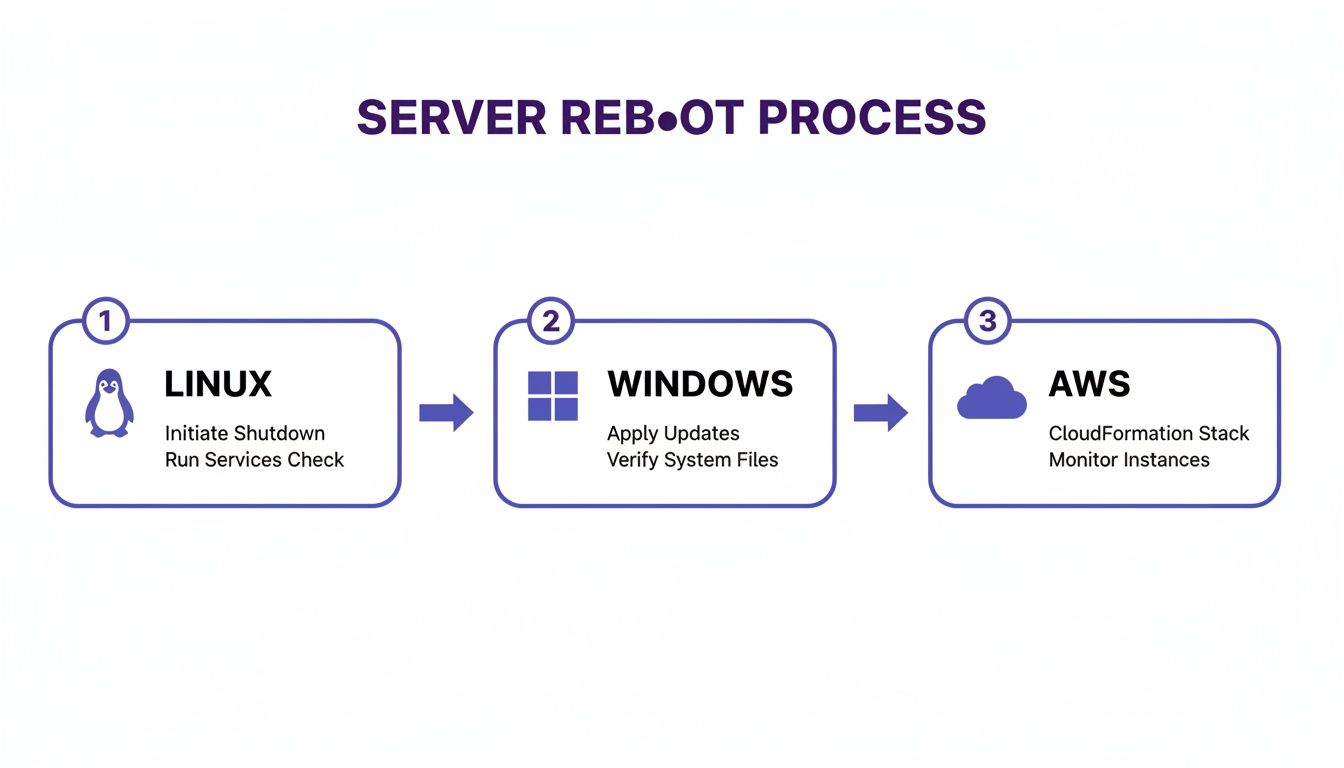
While the command to reboot a server may seem simple, the context of the environment changes everything. Executing a safe restart requires knowing the correct commands and, more importantly, understanding the unique characteristics of each platform—from a standalone Linux server to a managed database in the cloud. The ultimate goal is always a graceful shutdown, which allows services to terminate cleanly, preventing data corruption and saving you from a major headache later. For most Linux distributions, the standard command is sudo reboot. It is direct, effective, and immediately initiates the restart sequence. However, a more controlled alternative is sudo shutdown -r now. The -r flag specifies a reboot, and now instructs the system to begin immediately. The key distinction is that the shutdown command is designed to notify all logged-in users that the system is going down—a small but critical best practice in any multi-user environment.
On the Windows side, while using the GUI is common, PowerShell provides a much more powerful and scriptable method for restarting a Windows Server. The primary command you'll want to use is Restart-Computer. This cmdlet is invaluable for automation and remote management, enabling you to reboot an entire fleet of servers with a single script. For those who prefer the command line, we offer a detailed exploration of other options in our guide to command prompt shutdown commands.

aws ec2 reboot-instances command. It's important to remember that rebooting an EC2 instance is analogous to a soft reboot on a physical server; the underlying hardware remains unchanged, and the instance retains its public and private IP addresses. Things become more delicate with managed services like Amazon RDS or ElastiCache. Rebooting these can trigger a failover event in a Multi-AZ setup, where AWS automatically redirects traffic to a standby instance to minimize downtime. While this is a powerful feature for high availability, an unplanned failover can cause unexpected performance dips if your application is not prepared.
Maintain Uptime with Rolling Reboots
For any system designed for high availability, rebooting all servers simultaneously is not maintenance—it's a self-inflicted outage. This is precisely where the rolling reboot strategy becomes essential. It is a methodical approach that allows you to apply updates and perform restarts one server at a time, ensuring your application remains online and responsive to users throughout the entire process. The core concept is simple yet powerful: treat each server in your cluster as a component that can be safely taken out of service for a short period. The process involves gracefully removing an instance from its load balancer pool, which stops new traffic from being routed to it. Once isolated, you can perform the reboot, apply patches, or complete any other necessary maintenance without affecting live operations.
After the server is back online, it doesn't immediately rejoin the pool. A critical step is to run a series of automated health checks to verify that it is fully functional and ready to handle production traffic. Only after passing these checks is the server added back into the load balancer pool to take its share of the workload. This cycle is then repeated for the next server in the cluster until all have been updated. Of course, the real world presents challenges. One of the biggest is ensuring your remaining cluster has enough capacity to handle the full application load while one or more servers are offline. Capacity planning is crucial to avoid overwhelming the active instances and degrading performance. Another common issue is the "thundering herd" problem, where a freshly rebooted server is flooded with new connections, potentially overwhelming it. Implementing strategies like a gradual warm-up, where traffic is slowly reintroduced, can mitigate this risk.
A successful rolling reboot isn't just about restarting servers in sequence. It's a carefully choreographed dance of traffic management, health verification, and capacity awareness.
The risk of manual errors during these complex procedures is significant. Recent data from PagerDuty reveals that 58% of downtime incidents are tied to procedural lapses, often during ad-hoc server restarts. This is why scripting and automation are not just conveniences but necessities for reliable operations. By codifying the process, you eliminate human error and ensure every reboot follows the same safe, validated procedure.
Automating Reboots to Eliminate Human Error
Let's be candid: manual reboots are a recipe for disaster. We have all witnessed it—a late-night, ad-hoc reboot takes down a critical service because someone missed a step or acted in a panic. Shifting to a scheduled, automated maintenance strategy is one of the most significant improvements you can make for infrastructure reliability. It is how you transition your team from constant firefighting to calm, predictable operations. There is a vast difference between a planned reboot during a quiet maintenance window and a frantic one at peak hours. The data supports this; a recent analysis found that a staggering 58% of avoidable downtime resulted from simple procedural failures, such as an unscheduled reboot gone wrong. You can explore the full 2025 outage report analysis for more details. Automation is the antidote, enforcing consistency and removing the human error factor from the equation.
Modern cloud environments are complex, and managing reboots across different time zones, instance types, and multiple AWS accounts with cron jobs or manual scripts is a minefield. It's not a matter of if a mistake will happen, but when. This is where modern tools can completely change the game. Imagine a simple, visual dashboard where you can schedule reboots for EC2, RDS, and ElastiCache instances with just a few clicks. This point-and-click approach makes server maintenance accessible to the entire team, allowing engineers to set up reliable schedules on a calendar grid in minutes. This replaces brittle, hard-to-maintain scripts with an intuitive graphical interface that is far more resistant to human error. Beyond convenience, automation tools bring much-needed standardization to your maintenance workflows. Every single reboot follows the exact same predefined, approved process, which is a huge win for security and compliance audits. A centralized audit log provides an immutable record of every scheduled action, which is essential for standards like SOC 2 or ISO 27001.

Common Server Reboot Questions Answered
Even with the best automation and documented procedures, questions inevitably arise. Rebooting a server touches many different parts of an infrastructure, so it is natural to have specific concerns. Here, we address some of the most common questions engineers face, providing direct answers to help you handle any reboot scenario with confidence. When a server hangs during a reboot and refuses to come back online, the first suspect is almost always a failed service or a corrupted file system. The very first step you should take is to gain console access. Whether it’s a physical KVM, a virtual machine console, or the EC2 serial console, this direct access allows you to observe the boot process in real-time. Look for error messages that provide the critical first clues you need to begin troubleshooting.
A frequent question is how often servers should be rebooted. There is no magic number; the right frequency depends on your environment and security posture. However, a common best practice is to reboot monthly to align with "Patch Tuesday" and other major security update cycles. This ensures critical patches are applied promptly and consistently. For less critical environments like development or staging, rebooting quarterly might suffice. The key is to establish a predictable, regular schedule. Another classic point of confusion for teams new to AWS is whether rebooting an EC2 instance changes its IP address. The short answer is typically no. A standard reboot of an EC2 instance retains its public and private IP addresses. The only time an EC2 instance's public IP address changes is if you stop and then start the instance. For critical applications, the best practice is to assign an Elastic IP address, a static public IP that you control.
It’s also crucial to understand the distinction between a reboot and a shutdown, especially in the cloud where the implications differ significantly.
| Action | reboot (or shutdown -r) |
shutdown (or shutdown -h) |
|---|---|---|
| End State | System powers down and immediately starts back up. | System powers down and remains off until manually started. |
| Primary Use | Applying updates, clearing memory, or resolving software glitches. | Physical hardware maintenance, decommissioning, or long-term power-off. |
| Cloud Impact | In AWS, an EC2 instance reboot keeps the instance on the same host hardware. | An EC2 instance stop-start may move it to new host hardware and will change the public IP. |
Ready to move beyond manual reboots and eliminate human error? Server Scheduler provides a simple, visual way to automate reboots, shutdowns, and resizes across your entire AWS infrastructure. Try it for free and discover how easy reliable cloud operations can be.