A Practical Guide on How to Restart EC2 Instance
 Take control of your EC2 instances today.
Contents
Ready to Slash Your AWS Costs?
Stop paying for idle resources. Server Scheduler automatically turns off your non-production servers when you're not using them.
Understanding When and Why to Restart an EC2 Instance
Before you initiate a restart, it is crucial to understand the context. A restart, often called a reboot, is frequently the simplest solution for a range of common issues. If an application becomes unresponsive or your instance's performance degrades for no apparent reason, a quick reboot can often clear the memory and restore normal operations. It is also a mandatory step after applying certain OS updates or security patches that require a full system restart to take effect.
However, a simple reboot isn't a one-size-fits-all solution. It is vital to distinguish between a reboot and a full stop/start cycle. While they may sound similar, their impact on your instance is profoundly different. Misunderstanding this distinction can lead to significant problems, including unexpected data loss, configuration changes, or network connectivity issues. A reboot is a soft restart of the operating system while the instance continues to run on the same physical host. In contrast, a stop/start cycle is like physically power-cycling a server; when stopped, the instance is de-provisioned, and upon starting, it may be launched on entirely new hardware.
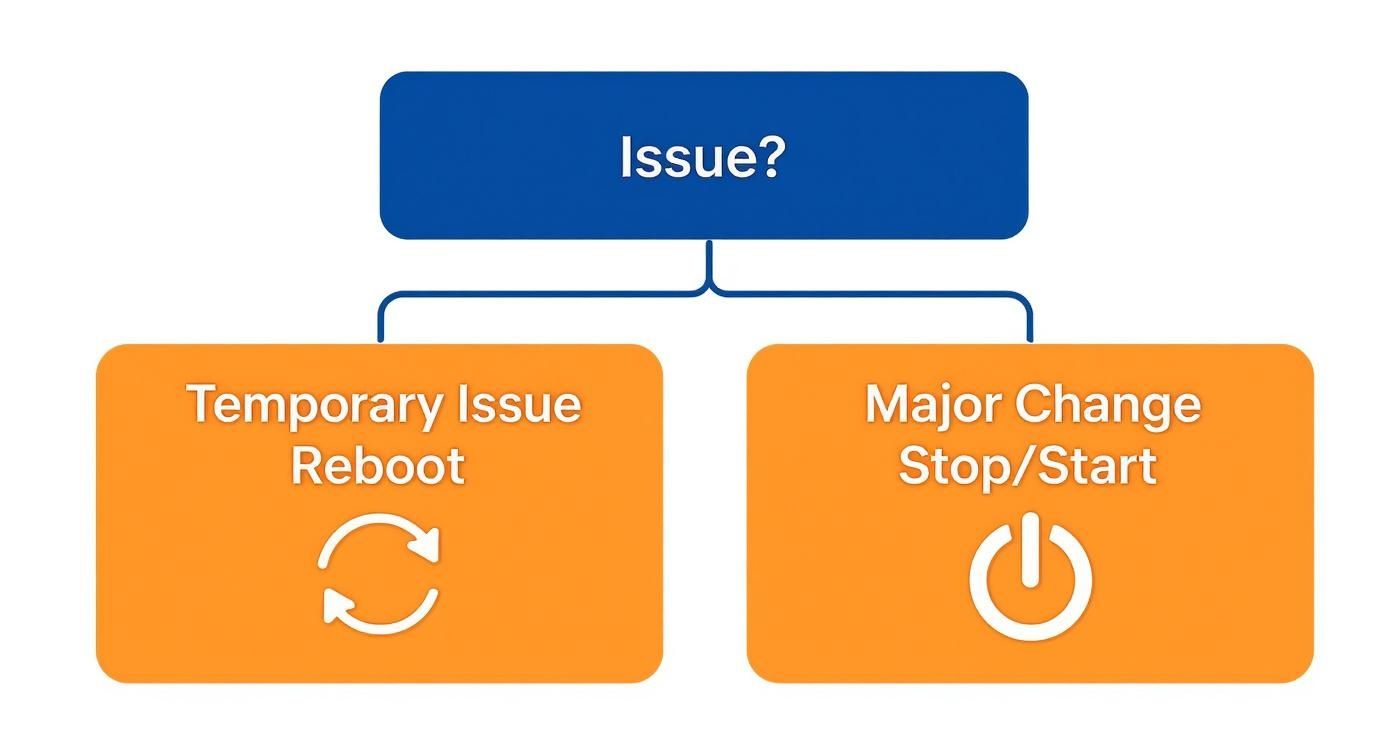
A restart on an Amazon EC2 instance typically completes in just a few minutes. This action preserves important attributes like the public DNS name, private IPv4 address, and, most importantly, any data stored on instance store volumes. Furthermore, a reboot does not trigger a new billing hour; per-second billing continues without interruption. This contrasts sharply with a stop/start cycle, which can alter network details and always initiates a new one-minute minimum billing charge when the instance restarts. For more details, you can consult the official AWS documentation.
To clarify the differences, the following table provides a side-by-side comparison of the two actions.
| Attribute | Reboot (Restart) | Stop and Start |
|---|---|---|
| Public IP Address | Retained (unless it's an Elastic IP) | A new one is assigned |
| Private IP Address | Retained | Retained |
| Instance Store Data | Retained | Deleted |
| EBS Volume Data | Retained | Retained |
| Billing | Continues uninterrupted | Stops when instance is stopped |
| Underlying Host | Remains the same | May change |
The most critical takeaway from this comparison is the ephemeral nature of instance store volumes. This data is permanently lost during a stop/start cycle. Therefore, you must always ensure that any critical data resides on a persistent EBS volume before stopping an instance.
Restarting an EC2 Instance Through the AWS Console
For users who prefer a graphical interface, the AWS Management Console offers the most direct method for restarting an EC2 instance. This point-and-click approach is ideal for quick, single-instance reboots or for individuals who are not regularly working with command-line tools. The entire process can be completed in just a few steps. If you want to move beyond manual actions, our guide on how to reboot an EC2 instance offers more advanced strategies.
To begin, log into your AWS account and navigate to the EC2 service dashboard. You can do this by typing "EC2" into the main search bar. From there, select "Instances" from the left-hand navigation menu to view a list of all your provisioned EC2 instances. Before proceeding, verify that the target instance is in a "running" state, as you cannot reboot a stopped server. Once you have located the correct instance, select it by clicking the checkbox next to its name. With the instance highlighted, find the "Instance state" dropdown menu at the top right of the dashboard. From this menu, select "Reboot instance." A confirmation dialog will appear, providing a safety check to prevent accidental reboots. After confirming, AWS will send a reboot command to the guest operating system. The instance state will briefly change to "rebooting" before returning to "running."
Using the AWS CLI for Efficient EC2 Restarts
For those comfortable in a terminal environment, the AWS Command Line Interface (CLI) is an indispensable tool for managing cloud resources. It is fast, scriptable, and powerful, making it an excellent choice for restarting EC2 instances, especially for automation and bulk operations. Before you can execute commands, your local environment must be properly configured with the AWS CLI installed and your credentials set up. Crucially, the IAM user or role you are using must have the ec2:RebootInstances permission to avoid "access denied" errors.
To restart a single EC2 instance, you use the aws ec2 reboot-instances command, specifying the target instance ID. For example, to reboot an instance with the ID i-0123456789abcdef0, you would run the following command: aws ec2 reboot-instances --instance-ids i-0123456789abcdef0. A successful command returns a 200 OK HTTP status and an empty JSON object, confirming that AWS has received the request.
The true power of the CLI becomes apparent when managing multiple instances. Instead of manually rebooting each server through the console after a patching cycle, you can restart an entire fleet with a single command by listing all the instance IDs separated by spaces: aws ec2 reboot-instances --instance-ids i-0123456789abcdef0 i-fedcba9876543210f. This capability is a game-changer for administrators responsible for large, distributed systems. To verify a successful reboot, use the aws ec2 describe-instance-status command. You are looking for both InstanceStatus and SystemStatus to report a status of "ok", which confirms the instance is healthy and operational.
Automating EC2 Restarts for Better Reliability
While manual restarts are suitable for isolated incidents, they do not scale and are prone to human error. For routine maintenance, such as applying weekly patches or clearing memory leaks, automation is essential for building a resilient and efficient infrastructure. It shifts the paradigm from reactive, manual intervention to proactive, automated management. There are several ways to automate EC2 restarts, from traditional methods to modern, cloud-native solutions.
One classic approach is to use a cron job on a dedicated bastion host. By writing a simple shell script that calls the aws ec2 reboot-instances command, you can use cron to schedule its execution at regular intervals. For example, a cron entry can be set to run a reboot script every Sunday at 3 AM for scheduled maintenance. For a more cloud-native architecture, you can use AWS Lambda and Amazon EventBridge. This serverless combination eliminates the need for a dedicated management instance. You can write a Lambda function containing the reboot logic and use an EventBridge rule to trigger it on a schedule. This method is highly scalable, cost-effective, and integrates seamlessly with the AWS ecosystem. For those who want the benefits of automation without the complexity of managing scripts or serverless functions, dedicated tools like our EC2 instance scheduler provide a user-friendly interface to configure complex schedules with just a few clicks.
 Troubleshooting Common EC2 Restart Problems
Even a seemingly simple reboot can encounter issues. An instance might get stuck in a "rebooting" state, fail its health checks, or become unreachable after coming back online. Knowing how to diagnose these problems quickly is critical to minimizing downtime. AWS provides essential tools for this purpose: the instance's system log and screenshot. The system log, accessible via the EC2 Console, displays the console output during the boot process and can reveal kernel panics, service failures, or file system errors. If the log is unhelpful, the instance screenshot provides a visual of the virtual monitor, which can show a hung login prompt or an OS-level error screen.
Several common problems can arise during a restart. If an instance is stuck rebooting, a 'Force Stop' followed by a normal start often resolves the issue by moving it to new hardware. If it fails status checks, the system log may point to a corrupted file system or a critical service failure. Network connectivity problems often trace back to misconfigured security groups or OS networking services. Finally, permission errors like "access is denied errors" typically indicate that the IAM user or role lacks the necessary ec2:RebootInstances permission. For a complete audit trail, AWS CloudTrail logs all API calls, helping you identify who initiated a reboot and when.
| Problem | Potential Cause | Recommended Solution |
|---|---|---|
| Instance stuck in 'rebooting' state | An OS-level issue, a misconfigured boot script, or sometimes an underlying hardware fault. | Check the instance screenshot for any hang-ups. If it's completely unresponsive, a 'Force Stop' followed by a normal start is often the quickest fix. This moves it to fresh hardware. |
| Failing status checks post-reboot | A corrupted file system, a critical service that failed to start, or a network misconfiguration. | Dive into the system log to find boot errors. If you suspect file system corruption, you may need to detach the root EBS volume and attach it to a healthy "rescue" instance to run repairs. |
| No network connectivity | Firewall rules (Security Groups or NACLs), an incorrect network interface config, or a failed OS networking service. | Double-check your security group and NACL rules first. Then, review the system log for any network service errors that occurred during boot. |
Frequently Asked Questions About Restarting EC2 Instances
Understanding the subtleties of restarting EC2 instances can prevent common pitfalls. A reboot is a simple OS restart that preserves the instance's IP addresses and instance store data, with billing continuing uninterrupted. In contrast, a stop/start cycle is a full power cycle that moves the instance to new hardware, assigns a new public IP, and permanently erases all data on instance store volumes. Billing pauses when the instance is stopped and resumes upon start.
Data persistence during a restart depends entirely on its location. Data on EBS (Elastic Block Store) volumes is persistent and survives both reboots and stop/start cycles. Conversely, data on Instance Store volumes is ephemeral; it survives a reboot but is lost forever when the instance is stopped. It is imperative to store all critical data on EBS volumes. If an instance becomes unresponsive to a reboot command, first check its system log and screenshot for clues. If these are unhelpful, performing a "force stop" followed by a start can resolve the issue by migrating the instance to healthy hardware.
Related Articles
- EC2 Instance Scheduler A Step by Step Guide: Learn how to automate starting and stopping instances to dramatically cut costs.
- How To Reboot EC2 Instance A Complete Guide: Go deeper into the specific commands and techniques for rebooting your instances.
- Troubleshooting "Access Is Denied" in AWS: A practical guide to fixing common IAM permission errors when managing your AWS resources.