Mastering Cost and Performance: A Guide to Resizing RDS Instances
Resizing an RDS instance is a fundamental task in cloud operations, allowing you to scale your database's compute and memory resources up or down by changing its DB instance class. This simple modification can either slash operational costs or dramatically improve user experience, making it a critical skill for any team managing cloud infrastructure. Getting this process right is not just about avoiding performance bottlenecks; it's a strategic move for the financial health of your cloud environment and a core principle of effective cost management.
Ready to stop resizing manually and start automating? Discover how Server Scheduler can safely automate your RDS start, stop, and resize operations.
Contents
- Why Resizing Your RDS Instance Is a Critical Skill
- Developing Your RDS Resizing Game Plan
- Executing the Resize with the Console and CLI
- Navigating Downtime and Technical Hurdles
- Automating RDS Resizing for Predictable Scaling
- Validating Success and Planning Your Rollback
- Common Questions About Resizing RDS Instances
Ready to Slash Your AWS Costs?
Stop paying for idle resources. Server Scheduler automatically turns off your non-production servers when you're not using them.
Why Resizing Your RDS Instance Is a Critical Skill
Modifying a live database can feel like high-stakes surgery, but in the cloud, resizing RDS instances is a core competency for running an efficient and cost-effective operation. This task is a strategic lever that directly impacts both your application's performance and your monthly AWS bill. When done correctly, your application remains responsive under pressure while your costs stay grounded. The link between right-sizing and your budget is immediate and powerful; over-provisioned instances are a common source of uncontrolled cloud spend. An instance humming along at 10% CPU utilization is little more than an expensive paperweight. Conversely, an under-provisioned database quickly becomes a bottleneck that degrades the user experience, regardless of your application's code quality.
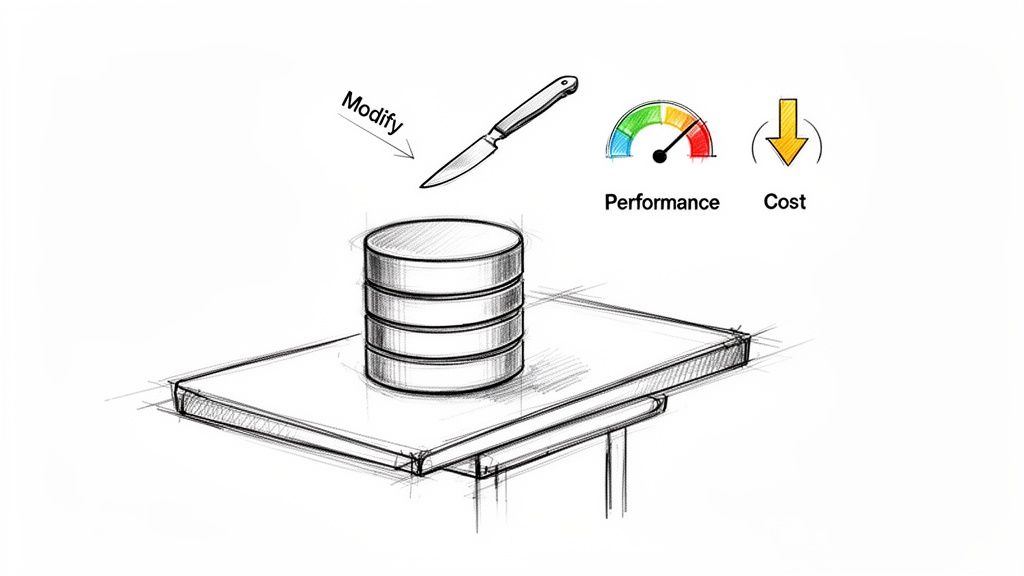
High-performing teams don’t wait for alarms to signal a problem; they build a proactive resizing strategy. This means scaling up resources before a major marketing launch or a predictable holiday traffic surge. It also involves scaling down non-production environments during nights and weekends when they are idle, preventing unnecessary expenditure. The goal is to move from fearing the 'modify' button to confidently using it as a tool for financial governance and operational resilience. This proactive mindset transforms a technical task into a powerful instrument for both DevOps and FinOps. For DevOps engineers, it ensures application stability. For FinOps managers, it guarantees that every dollar spent on database resources delivers value. As we cover in our guide to AWS cost optimization best practices, right-sizing is the bedrock of cloud efficiency.
Developing Your RDS Resizing Game Plan
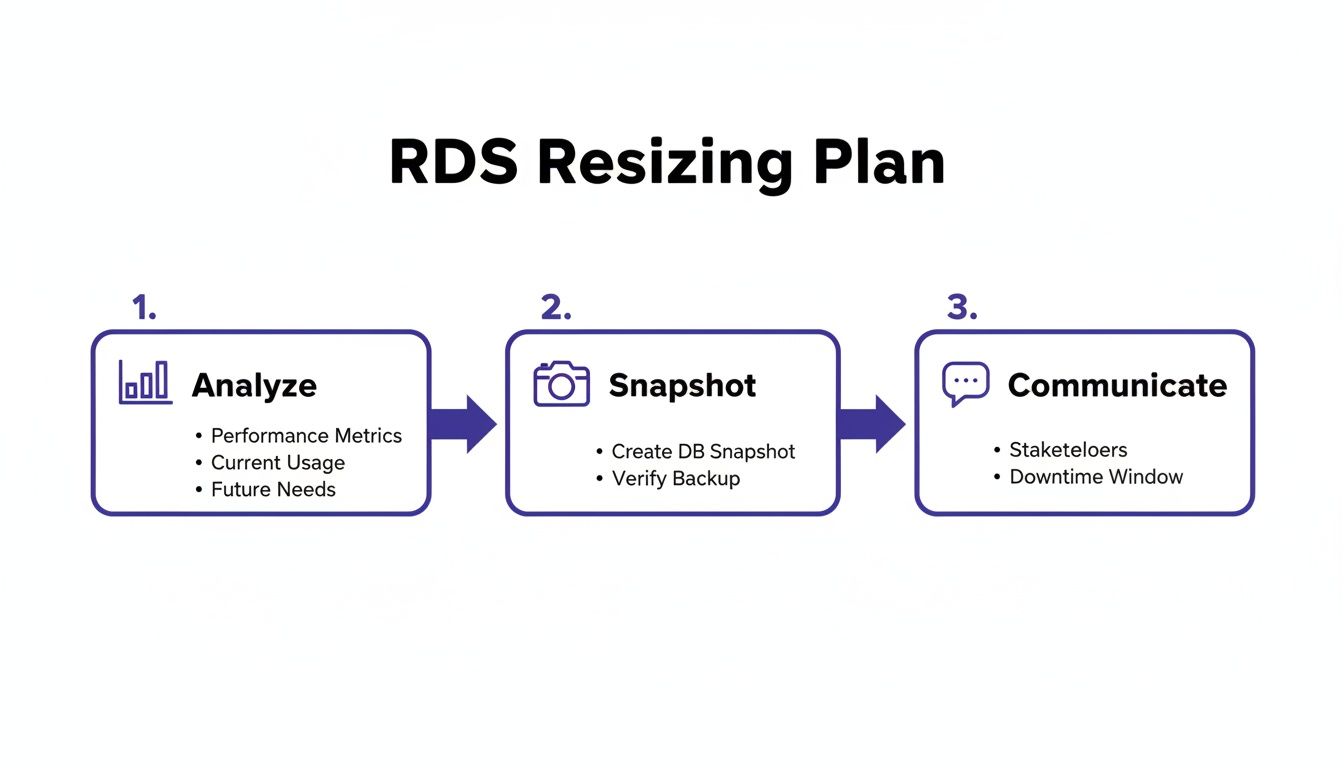
Jumping into an RDS instance resize without a solid plan is a recipe for unexpected downtime, performance degradation, and stakeholder dissatisfaction. A well-structured game plan transforms a high-stakes gamble into a predictable, controlled procedure. It serves as a pre-flight checklist, ensuring all angles are covered before you commit to the modification. This process must begin with data, not intuition. By analyzing key performance metrics, you can make decisions that align your resources with your application's actual needs, avoiding both the waste of over-provisioning and the performance issues of under-provisioning.
Your first destination for data is always Amazon CloudWatch. This is where your database reveals its workload patterns and resource utilization. To gauge your database's health, focus on a few critical indicators. CPUUtilization shows how hard the processor is working; consistently exceeding 80% is a clear signal to scale up, while remaining below 20% suggests a candidate for downsizing. However, CPU is only part of the story. FreeableMemory is equally crucial, as databases rely on RAM for caching to maintain performance. Consistently low freeable memory can lead to slower disk I/O and degraded query speeds. The financial benefit of getting this right is substantial, as smart resource optimization can significantly reduce cloud bills. For a deeper dive, you can explore optimizing your RDS costs on the official AWS blog.
Callout: Data-Driven Resizing Before any resize, analyze at least two weeks of performance data from CloudWatch. This helps distinguish between random spikes and sustained workload patterns, leading to more accurate and effective right-sizing decisions.
The instance family you choose is as important as its size. AWS offers families tuned for different workloads. General Purpose (M-series) instances offer a balanced mix of CPU, memory, and networking, suitable for most databases. Memory Optimized (R-series) instances provide more memory per vCPU, ideal for applications that rely heavily on in-memory caching. Don't overlook Graviton (g-series) instances, as these ARM-based processors often deliver superior price-performance. Before initiating any change, taking a manual database snapshot is non-negotiable. It's your most critical safety net, providing a precise, known-good recovery point if the resize causes issues. Finally, a technical plan must be accompanied by a communication plan. Inform stakeholders about the maintenance window and explain the why behind the change, linking the technical work to business goals like improving user experience or managing costs responsibly. This approach is central to building a strong FinOps best practices culture. Formalizing this process with Standard Operating Procedures ensures consistency and safety.
Executing the Resize with the Console and CLI
With your plan in place, it's time to execute the resize. AWS provides two primary methods: the AWS Management Console and the AWS Command Line Interface (CLI). The Console is user-friendly and ideal for beginners or one-off changes, while the CLI is better suited for scripting and automation. To perform a resize via the Console, navigate to the Amazon RDS dashboard, select your database, and click the Modify button. Scroll to the DB instance class section and choose your new instance type from the dropdown menu. The most critical choice on this page is when to apply the changes: either Apply immediately for an instant change with downtime, or during the next scheduled maintenance window for a planned, low-traffic modification.
For those who prefer the terminal, the AWS CLI offers a faster, scriptable alternative using the aws rds modify-db-instance command. A typical command would look like this: aws rds modify-db-instance --db-instance-identifier your-database-name --db-instance-class db.m6g.xlarge --apply-immediately. The --apply-immediately flag triggers an immediate resize; omitting it queues the change for the next maintenance window. The CLI is particularly powerful for resizing multiple instances or integrating the process into an automated workflow. Regardless of the method used, your job isn't done after initiating the resize. You must monitor the instance's status in the RDS console, where it will change from Available to Modifying. Once it returns to Available, you must proceed with post-resize validation to confirm that your application is connected and performing as expected. Similar principles apply to other AWS services, and you can learn more about how to resize an EC2 instance in our related guide.
Navigating Downtime and Technical Hurdles
The primary concern when resizing an RDS instance is downtime. Any resize that changes the DB instance class will cause a brief service interruption while AWS provisions the new hardware. For a single-AZ instance, this means your application will be unable to connect for several minutes. The exact duration of this outage can vary, so it is crucial to schedule the resize during a planned maintenance window to control its impact. Understanding the mechanics behind this process is key, and our article on what rebooting an RDS instance does provides relevant insights into the underlying operations.
A Multi-AZ configuration is the most effective way to minimize downtime. In this setup, AWS maintains a synchronous standby replica in a separate Availability Zone. During a resize, AWS performs the operation on the standby instance first. Once complete, it initiates a failover, promoting the newly resized standby to the primary role. This process transforms a potential multi-minute outage into a brief failover event, typically lasting only 60 to 120 seconds, which is a significant reduction in user-facing impact.
Beyond downtime, there are technical constraints to consider. After any storage modification, AWS imposes a mandatory 6-hour cooldown period during which no further storage changes can be made. Another critical limitation is that you cannot directly decrease the allocated storage of an RDS instance. To shrink storage, you must perform a manual migration: create a new, smaller instance, transfer the data using a tool like AWS DMS, update your application's connection strings, and then decommission the old, oversized instance. This complex workaround underscores the importance of careful upfront storage planning.
Automating RDS Resizing for Predictable Scaling
Manual resizing is slow, prone to human error, and impractical at scale. For modern teams, automation is the logical next step, transforming a stressful event into a predictable maintenance task. This is especially beneficial for non-production environments (development, staging, QA), which often sit idle outside of business hours. An automated schedule can scale these instances up during the day for testing and scale them down at night and on weekends to save costs. This "set it and forget it" approach eliminates human error, standardizes maintenance, and frees up engineers to focus on more valuable work.
Infrastructure as Code (IaC) tools like Terraform or CloudFormation allow you to define instance types in your code, making a resize as simple as updating a configuration file and running a deployment. When integrated with a CI/CD pipeline, this provides an auditable and repeatable process. However, building scheduled resizing with IaC can become complex, often requiring custom solutions with Lambda functions and EventBridge rules. This is where dedicated scheduling tools excel. They provide a simple, visual interface to define scaling schedules without writing custom code. Instead of managing complex automation scripts, you manage a simple business rule: "This database should be powerful during work hours and cheap at all other times." This approach unlocks predictable, automated scaling without the engineering overhead. You can explore this further in our guide on creating an RDS schedule.
Validating Success and Planning Your Rollback
The resize operation is not complete when the instance status returns to 'Available'. The most critical phase is validation, where you confirm the change delivered the expected benefits without introducing new issues. This step separates a professional, resilient process from a risky gamble. A tool like Server Scheduler can automate this process and provide a clear audit trail. Your first validation step is to verify application connectivity and test core functions. Next, analyze key metrics in Amazon CloudWatch, such as CPUUtilization and DatabaseConnections, to ensure they have stabilized at appropriate levels.
Even with meticulous planning, problems can arise. A pre-defined rollback plan is non-negotiable. Your safety net is the manual snapshot you took before starting the resize. If validation reveals serious performance degradation or application errors, execute the rollback. The process involves restoring from the snapshot to create a new RDS instance, updating your application's connection strings to point to the new endpoint, and decommissioning the problematic instance. Having this plan ready allows you to recover from a failed resize in minutes, turning a potential crisis into a controlled event.
| Validation Step | Description | Key Metric (CloudWatch) | Success Criteria |
|---|---|---|---|
| Connectivity Test | Verify that the application can establish a connection and perform basic operations. | DatabaseConnections |
Connections are stable and at expected levels. |
| Performance Check | Monitor resource utilization to ensure the new instance size is appropriate for the workload. | CPUUtilization, FreeableMemory |
CPU is within target range (not maxed out or underutilized). Memory is stable. |
| Query Latency | Analyze application logs or monitoring tools to check if query performance has changed. | ReadLatency, WriteLatency |
Latency is at or below pre-resize levels. |
| Error Log Review | Check database and application logs for any new or unusual errors post-resize. | N/A (Log Analysis) | No new critical errors related to database connectivity or performance. |
Common Questions About Resizing RDS Instances
Even with a solid plan, questions often arise. A common one is whether a Multi-AZ resize is truly zero-downtime. The answer is almost, but not quite. The process triggers a failover that results in a brief interruption, typically lasting 60 to 120 seconds. It is a significant improvement over a single-AZ outage but still a factor to consider. Another frequent concern relates to Reserved Instance (RI) billing. If you resize within the same instance family, your RI discount is applied proportionally. However, if you switch to a different family (e.g., from m5 to r6g), the RI will no longer apply, and you will pay the on-demand rate. Always check your RI commitments before resizing.
Finally, teams often ask what happens if a resize fails. While rare, RDS will typically attempt to automatically roll the instance back to its original state. However, your definitive safety net is the manual snapshot you created. If the instance becomes unstable, you can immediately restore from that snapshot to a new instance, ensuring a swift recovery.
Stop wrestling with manual resizes and the risk of human error. With Server Scheduler, you can build a simple, visual schedule to automate RDS start, stop, and resize operations, helping you save up to 70% on your cloud bill. Automate your RDS resizing today.