What Does Rebooting an RDS Instance Do? A Guide for AWS Users
Hitting the reboot button on an Amazon RDS instance is a routine part of database maintenance. It's not like restarting the entire server hardware; think of it more like closing and reopening a specific application. In short, the process gracefully shuts down the database engine, cleanly closes all active connections, and then starts it all back up again. This causes a short but total outage where your database is offline, and its status in the console will switch to 'rebooting'.
Tired of manual, late-night RDS reboots? Automate your AWS maintenance windows with Server Scheduler and reclaim your weekends.
Contents
- Understanding the RDS Reboot Process
- How Reboots Differ for Single-AZ vs Multi-AZ Setups
- Common Triggers for an RDS Reboot
- Understanding the Downtime and Performance Impact
- How to Safely Reboot Your RDS Instance
- Automating RDS Reboots to Reduce Manual Work
- Frequently Asked Questions About RDS Reboots
Ready to Slash Your AWS Costs?
Stop paying for idle resources. Server Scheduler automatically turns off your non-production servers when you're not using them.
Understanding the RDS Reboot Process
When you trigger a reboot, you're telling Amazon RDS to stop and restart just the database software (like PostgreSQL, MySQL, etc.) running on its managed virtual server. This is a key distinction from restarting the underlying EC2 instance that hosts your database. It's like closing Chrome on your laptop—your operating system keeps running just fine, but the browser is temporarily gone. This difference is important because it defines the scope of the impact. The hardware, OS, and network settings are almost always untouched. The whole operation is focused squarely on the database engine. If you're new to RDS, getting a handle on the basics of an AWS RDS PostgreSQL setup can be helpful, as these core principles are pretty consistent across all database types.
Behind the scenes, AWS runs through a careful sequence of steps to make sure your database comes back healthy and consistent. The exact playbook can differ slightly depending on the database engine, but the general flow involves terminating new connections, gracefully shutting down existing ones, rolling back any uncommitted transactions, and then restarting the database engine software. As it starts, the engine runs a crash recovery process, reading through its transaction logs to ensure everything is in a consistent state before it finally opens the doors to new connections.
This entire process isn't over in a blink. The downtime can range from a few seconds to several minutes, and the biggest variable is what your database was doing right when you hit the reboot button. If your database was humming along with tons of active connections and long-running transactions, it’s going to take longer to shut down cleanly. The startup recovery phase also takes time, as the engine might have a lot of transaction logs to review. This is exactly why it's always a good idea to schedule reboots during your quietest hours. Many reboots are triggered by configuration changes, and you can learn more about when a parameter change needs a reboot in our detailed guide.
How Reboots Differ for Single-AZ vs Multi-AZ Setups
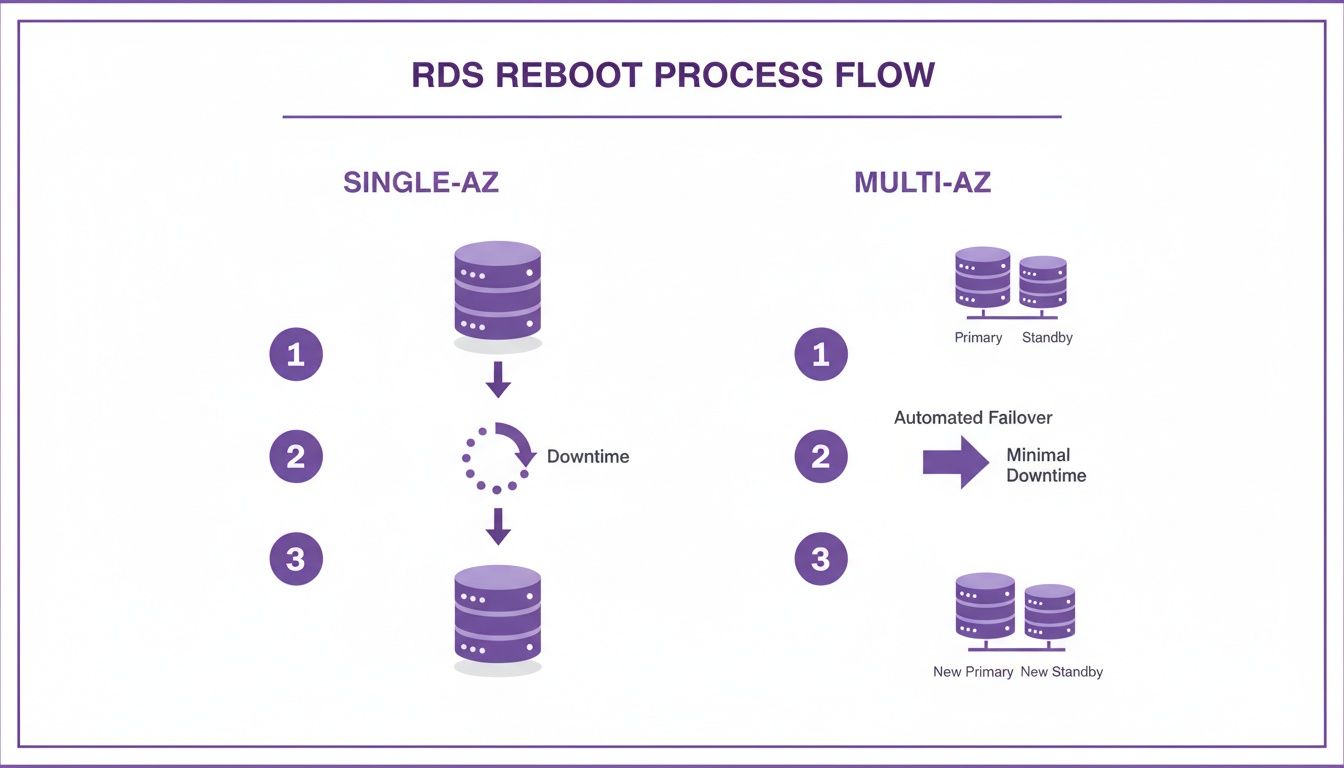
The architecture of your RDS setup is the single biggest factor in how a reboot will impact your application. When it comes to uptime during maintenance, the difference between a Single-AZ and a Multi-AZ deployment is night and day. For a Single-AZ instance, the process is straightforward but jarring. With no standby instance to take over, a reboot means a guaranteed period of complete downtime. Your database becomes totally unreachable from the moment the reboot starts until it's back online and ready for connections.
A Multi-AZ deployment, on the other hand, is built from the ground up to minimize this exact kind of downtime. When you reboot a Multi-AZ instance using the default "reboot with failover" option, AWS triggers an automatic and graceful failover.
The whole point of a Multi-AZ failover is to keep the database available. Instead of taking the primary instance offline and making you wait, AWS promotes the standby replica to become the new primary. This keeps your database service online with only a tiny blip.
During a failover, the standby instance in a different Availability Zone gets promoted to the primary role. AWS automatically flips the DNS CNAME record for your database endpoint, pointing it to the newly promoted primary. This is the magic that redirects your application traffic. While the new primary is already handling queries, the old primary instance begins its reboot cycle in the background. The "downtime" here is just the time it takes for that DNS change to take effect, which is usually only 60-120 seconds. Interestingly, AWS also gives you the option to reboot a Multi-AZ instance without a failover. When you choose this option, both the primary and standby instances are rebooted at the same time, resulting in an outage similar to a Single-AZ instance.
Reboot Behavior Comparison: Single-AZ vs. Multi-AZ
| Attribute | Single-AZ Instance | Multi-AZ Instance (With Failover) |
|---|---|---|
| Downtime | Complete outage for several minutes. | Minimal interruption (typically 60-120 seconds). |
| Process | The instance stops, restarts, and recovers. | Standby is promoted, DNS is updated, old primary reboots. |
| Use Case | Development, testing, non-critical workloads. | Production environments requiring high availability. |
| Impact | Application is fully offline during the reboot. | Application experiences a brief connection dip. |
For any application where uptime is a priority, the Multi-AZ configuration is the clear winner when it comes to handling routine maintenance like reboots. You can always discover more about the RDS reboot process in the official AWS documentation.
Common Triggers for an RDS Reboot
Understanding why you'd need to reboot an RDS instance is as important as knowing what happens. It’s a deliberate maintenance task driven by specific needs, most often falling into one of three categories: configuration updates, critical troubleshooting, and scheduled AWS maintenance. By far, the most common reason is to apply changes to a DB parameter group. While some parameters are "dynamic" and can be changed on the fly, many important ones are static, meaning they only take effect after a full reboot of the database engine. Common examples include memory allocation settings like shared_buffers, connection limits, or default character sets.
Sometimes, the oldest trick in the IT book is still the best one: turn it off and on again. When an RDS instance gets stuck or becomes unresponsive, a reboot can be the fastest way back to a healthy state. A reboot can terminate a rogue process hogging CPU, clear out a suspected memory leak, or recover an instance from a strange state. Finally, some reboots are simply out of your hands. AWS occasionally performs mandatory maintenance on the underlying hardware or operating system. These events are essential for applying critical security patches. AWS will notify you in advance, giving you a chance to trigger the reboot yourself during a preferred, low-traffic window. Understanding standard IT patching procedures helps put this in context; reboots are a fundamental part of keeping systems healthy.
Understanding the Downtime and Performance Impact
Every engineer's first question when a database reboot comes up is always the same: "How long will it be down?" While a typical RDS reboot often wraps up in just a few minutes, that number can be misleading. The biggest variable is the state of your database at the moment of reboot. An instance with heavy traffic and long-running transactions will take longer to shut down gracefully, as the engine must close every connection and roll back uncommitted work.
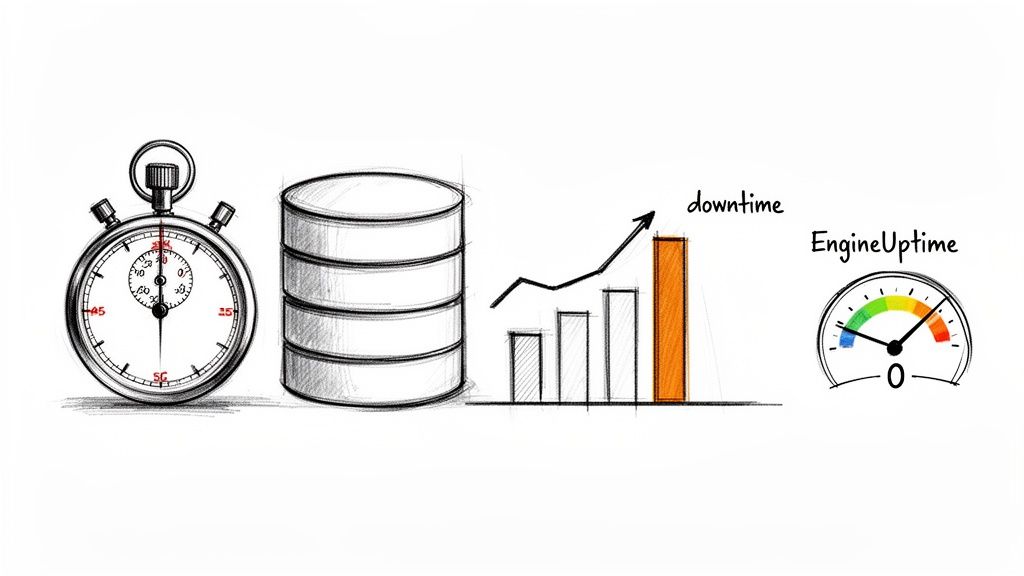
The database engine's crash recovery mechanism is another major factor. When it starts back up, it meticulously scans transaction logs to ensure data integrity. A larger database with a more complex transaction history will need more time for this verification step. You're not flying blind, however. Amazon CloudWatch provides detailed metrics. The most important one to watch is EngineUptime, which tracks how many seconds the database engine has been running. After a successful reboot, EngineUptime resets to zero and starts counting up again. This gives you definitive proof that the reboot finished and lets you accurately measure the service interruption.
A critical best practice is to always quiet down database activity before a planned reboot. By scheduling maintenance during low-traffic windows, you give the instance the best chance for a speedy restart and keep the impact on your users to a minimum.
Automating these schedules can cut down on manual work by 70-85%, freeing up your engineers. The ability to track EngineUptime ensures you can validate that maintenance completed successfully, satisfying both audit requirements and SLA compliance. To learn more, our guide on how to schedule RDS stop and start times can help, and you can always review AWS's official documentation on monitoring reboots.
How to Safely Reboot Your RDS Instance
Pulling off a safe reboot without causing a surprise outage is a methodical process. It demands clear communication, careful timing, and solid verification. There are two primary methods for initiating a reboot: the AWS Management Console and the AWS CLI.
Rebooting from the AWS Management Console
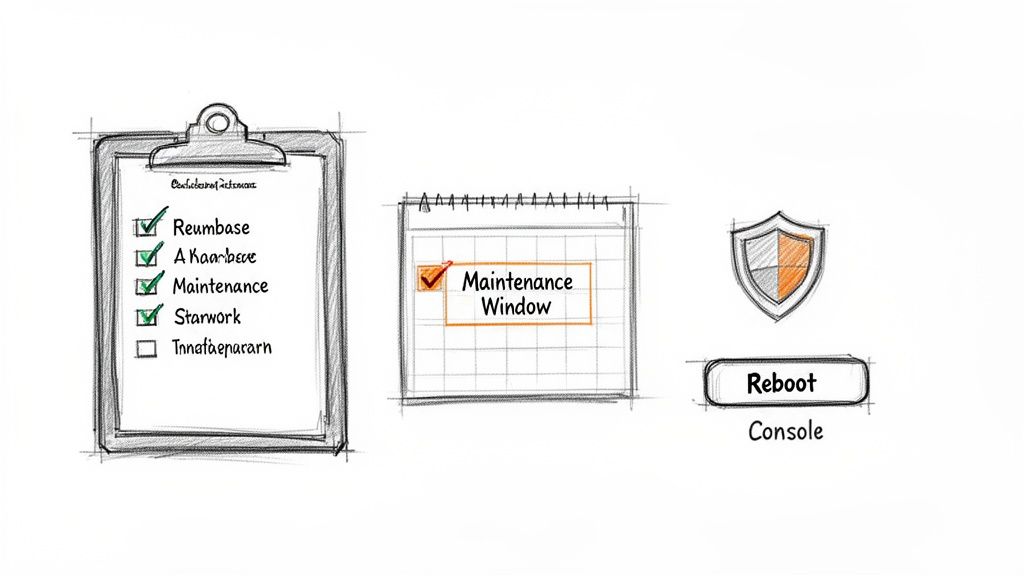
For most users, the AWS Management Console is the simplest path. The visual interface guides you through the process, reducing the chance of error. You simply navigate to the RDS console, select your database, choose the "Reboot" action, and confirm. If you're running a Multi-AZ instance, you'll see a crucial option: "Reboot with failover." For any production system, this is almost always the one you want to pick to keep downtime to an absolute minimum.
Using the AWS CLI for Reboots
If you live in the command line or need to automate tasks, the AWS Command Line Interface (CLI) is your best friend. The reboot-db-instance command puts you directly in control. To trigger a failover on a Multi-AZ setup, just add the --force-failover flag.
aws rds reboot-db-instance --db-instance-identifier your-db-instance-name --force-failover This command tells RDS to do more than just reboot. It first promotes the standby replica to become the new primary, ensuring the service interruption is as brief as humanly possible.
Best Practices for a Safe Reboot
Running the command is the easy part; operational discipline is what ensures safety. Following a simple checklist can turn a potentially nerve-wracking action into a routine maintenance task. Always schedule during off-peak hours, communicate with stakeholders, verify the instance status before and after, and take a manual snapshot before applying major changes. For a deeper look, our guide on how to restart an RDS instance has all the details you need.
Automating RDS Reboots to Reduce Manual Work
A manual approach to reboots doesn't scale. Juggling development, staging, and production databases often means engineers work late nights or weekends just to click a button. This isn't just tedious—it's risky. Human error is always lurking, and one mistake can trigger a major outage. The goal is to shift to a reliable, automated workflow. Instead of getting tangled up in custom cron jobs or Lambda scripts, you can use a dedicated scheduling tool to manage your maintenance windows, taking the human element out of the execution.
Automating your RDS maintenance pays off immediately. It eliminates manual work, enforces consistent policies across all environments, prevents accidental outages, and frees your team to focus on building features, not babysitting routine upkeep. Ultimately, using a tool to schedule reboots shifts your team from a reactive to a proactive maintenance posture. For a step-by-step guide on setting this up, check out our article on how to schedule an AWS RDS reboot. By embracing automation, you can make RDS maintenance a boring, predictable, and safe part of your cloud operations.
Related Articles
- Does Changing an RDS Parameter Group Require a Reboot?
- How to Stop and Start RDS Instances on a Schedule
- A Step-by-Step Guide on How to Restart an RDS Instance
Frequently Asked Questions About RDS Reboots
Here are quick answers to the most common questions about RDS reboots.
Does Rebooting an RDS Instance Delete My Data?
Absolutely not. A reboot only restarts the database engine software and is not a destructive operation. All your data lives on a separate, persistent storage volume (EBS) that isn't touched during the process.
How Can I Minimize Downtime During a Reboot?
The key is a mix of smart timing and good architecture. Always schedule reboots during low-traffic periods. If you’re running a Multi-AZ instance, choose the "reboot with failover" option. This is your best friend for minimizing downtime, usually cutting the outage to just a minute or two.
Will a Reboot Apply All Pending Maintenance?
Not always. A reboot is guaranteed to apply any static parameter group changes that are sitting in a "pending-reboot" state. However, it won't trigger other pending AWS maintenance, like OS updates, unless your reboot happens to land inside the maintenance window AWS has already scheduled for those updates.
Can I Cancel a Reboot Once It has Started?
No, once you hit that button, there's no going back. As soon as the instance status switches to "rebooting," the process is locked in and has to finish. Always double-check you've picked the right instance and are ready for that brief downtime. To get ahead of these manual tasks, set up an automated RDS schedule to handle reboots safely within planned windows.
Stop wasting your weekends on manual maintenance. With Server Scheduler, you can automate your RDS reboots, stops, and starts with a simple point-and-click interface. Try Server Scheduler today and take back control of your cloud operations.