Restart EC2 Instance from SSH: A Practical Guide
Knowing when to restart an EC2 instance from SSH is a critical skill for any cloud administrator. It's often the quickest way to resolve issues like a frozen application or an unresponsive server. While a full reboot isn't always the first solution, it's a powerful tool for restoring an instance to a healthy state when other troubleshooting steps fail. Understanding the right time and the right way to perform a restart is key to maintaining a stable and reliable cloud environment.
At Server Scheduler, we believe in proactive management. Our tool allows you to schedule automated reboots during off-peak hours, ensuring your instances get a regular refresh without manual intervention. This helps prevent common issues before they impact your users.
Contents
Ready to Slash Your AWS Costs?
Stop paying for idle resources. Server Scheduler automatically turns off your non-production servers when you're not using them.
Knowing When an SSH Restart Is the Right Move
Before issuing a reboot command, it's essential to diagnose the problem accurately. A slow server doesn't automatically warrant a full restart. The real skill lies in distinguishing between a single misbehaving service and a systemic failure that requires a more comprehensive solution. A timely reboot can be a lifesaver, but an unnecessary one introduces needless downtime and can disrupt services. Learning to read the signs of system distress will help you make the correct call and minimize impact.
 backing up Linux servers provides actionable steps to protect your environment. Ultimately, careful diagnosis helps you select the appropriate tool for the job, minimizing downtime and restoring services quickly.
Mastering the Essential EC2 Reboot Commands
Once you've determined that a reboot is necessary, it's time to use the Linux commands that execute the restart. Knowing how to properly restart an EC2 instance from SSH is a fundamental skill for anyone managing cloud infrastructure. Properly rebooting an instance is not just about bringing it back online; it’s about doing so safely to prevent data corruption or further complications. While manual intervention is sometimes required, automating routine reboots is the most efficient approach. At Server Scheduler, we built our tool to handle these tasks automatically, allowing you to schedule EC2 reboots and focus on more strategic work.
For immediate manual reboots, sudo reboot is the standard command. It initiates a graceful shutdown, signaling all running services and processes to save their state and terminate cleanly before the system restarts. This is your primary defense against data corruption and is the recommended command for most situations. The sudo prefix is mandatory, as restarting the operating system is a privileged action that requires superuser permissions.
 will broadcast a message to logged-in users and restart the instance in ten minutes. This is invaluable for providing advance notice in a multi-user environment. While useful for one-off tasks, managing recurring maintenance across a fleet of servers is best handled by automation. For Windows users, our guide on how to run PowerShell scripts offers similar insights.
| Command | Shutdown Type | Description | Best Used For |
|---|---|---|---|
sudo reboot |
Graceful | Sends a signal to all processes to terminate cleanly before restarting the system. | Standard, safe reboots where data integrity is key. |
sudo shutdown -r now |
Graceful | An alias for an immediate graceful reboot, functionally identical to reboot. |
Immediate restarts, often used out of habit. |
sudo shutdown -r +m |
Graceful | Schedules a graceful reboot m minutes into the future and notifies logged-in users. |
Planned maintenance with advanced warning for users. |
sudo reboot -f or reboot -f |
Forced | Immediately forces a restart without attempting to shut down services cleanly. | Emergency situations where the system is unresponsive. |
It's important to understand that restarting from the command line is an OS-level reboot. This is beneficial as it typically does not trigger a billing change or assign a new public IP address. Your instance's public DNS, private IPs, and any instance-store data remain intact. While AWS officially recommends using the EC2 console or API for reboots to ensure the event is logged in their system, administrators frequently use SSH for its speed and convenience.
Graceful vs. Forced Restarts: Choosing Wisely
Not all reboots are the same. Understanding the difference between a graceful shutdown and a forced restart is crucial, as your choice directly impacts data integrity and your application's ability to recover smoothly. Getting this right is a fundamental aspect of server management. To streamline these operations, an automation tool like Server Scheduler can schedule necessary reboots during off-peak hours, allowing you to define maintenance windows without needing to log in at 3 AM.
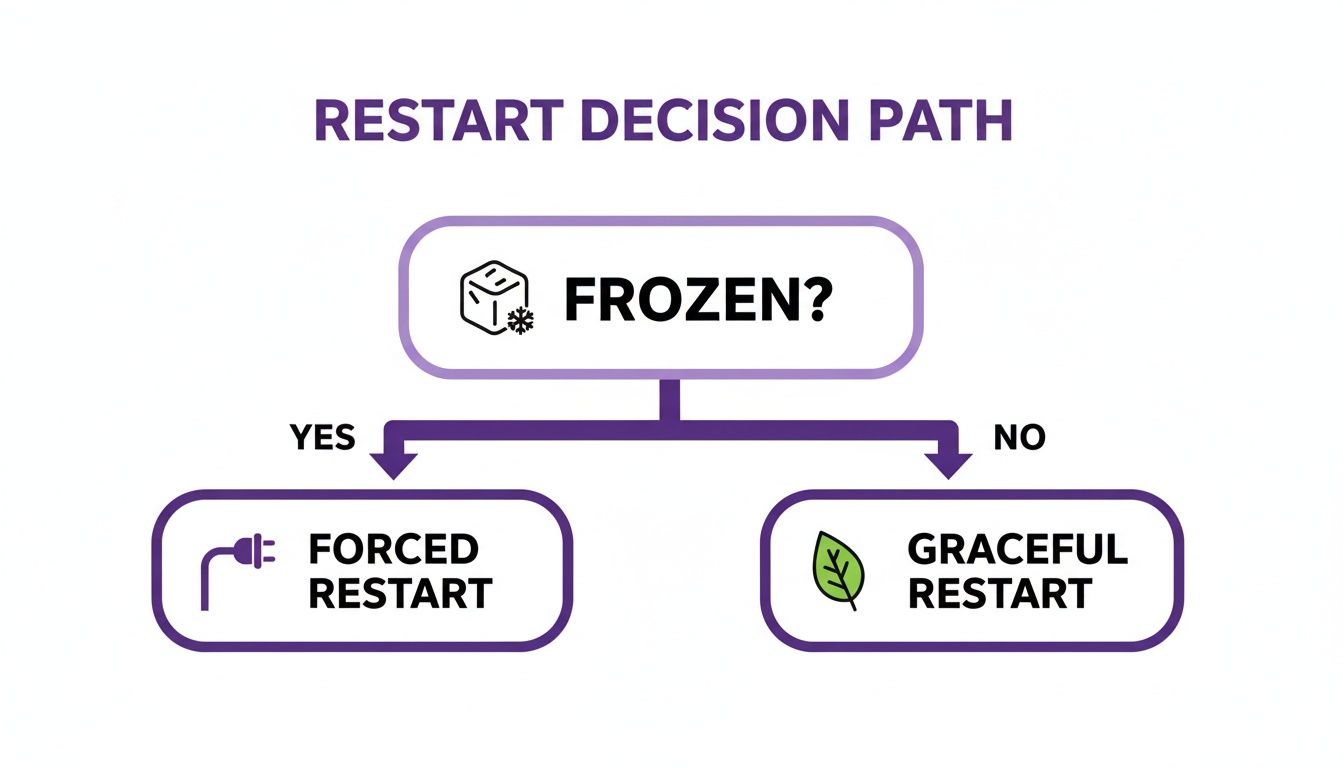
A graceful restart, initiated by a command like sudo reboot, is a controlled and orderly process. The operating system sends a signal to all running applications, allowing them to perform essential housekeeping tasks before shutting down. For example, a database can finish writing pending transactions to disk, a web server can complete active requests, and logs can be properly finalized. This careful sequence is your best defense against data loss and ensures the system returns to a stable state upon reboot.
A forced restart, in contrast, is the equivalent of pulling the power cord. It bypasses all shutdown procedures and immediately terminates the system. This should always be a last resort, used only when an instance is completely unresponsive. If the operating system is frozen to the point where it cannot process a sudo reboot command, a hard reset may be the only way to regain control. This scenario often occurs during a kernel panic or when severe resource exhaustion grinds the system to a halt. The risks associated with a forced reboot are significant. Because applications are terminated instantly, there is a high probability of leaving the system in an inconsistent state.
Callout: A forced reboot can lead to filesystem corruption, incomplete database writes, and critical services failing to start correctly upon boot. The cleanup process can be time-consuming and stressful.
Before attempting any restart, especially a forced one, it is critical to have reliable virtual machine backup solutions in place. After a hard reset, it is also wise to validate your application configurations. For web servers, our guide on how to check your NGINX config provides a useful checklist to ensure everything starts up as expected.
What to Do When You Cannot Connect via SSH
Every system administrator has faced this scenario: you attempt to restart an EC2 instance from SSH, but the terminal hangs, leaving you locked out. When SSH fails, the AWS Console becomes your primary tool for troubleshooting and recovery. Losing SSH access often indicates a deeper issue, ranging from a software crash to a security misconfiguration in a security group rule. Your first step should be to perform a health check in the AWS Management Console.
Navigate to the EC2 dashboard and examine your instance's status, paying close attention to the "Status Checks" column. A failure here indicates an underlying problem with the hardware or software, providing your first major clue. You can gather more information using the "Instance Screenshot" feature (Actions > Monitor and troubleshoot > Get instance screenshot). This shows you what would be on the server's monitor, helping you spot boot errors or kernel panics. The system log is another valuable resource, offering a detailed account of the boot process that might reveal a failed service or network interface issue.
If these basic checks don't resolve the issue, AWS Systems Manager provides a powerful tool called the AWSSupport-ResetAccess runbook. This is your go-to solution for lost SSH keys, accidental user lockouts, or a misconfigured SSH daemon. This automated runbook can reduce recovery time from hours to minutes, allowing you to regain control without a stressful manual fix. By combining manual SSH commands with powerful automated tools, you can build a resilient workflow that minimizes downtime and ensures you can always access your systems.
Automating EC2 Restarts for Proactive Management
Manually rebooting servers is a reactive measure. The goal of modern infrastructure management is to shift from firefighting to proactive, automated maintenance. Instead of waiting for a server to hang, you can automate regular reboots to keep systems running smoothly. This turns a tedious task into a reliable, set-it-and-forget-it policy that prevents problems before they occur. Ready to build a more resilient system? Server Scheduler provides a simple, visual way to create start, stop, and reboot schedules without any scripting.
For many administrators, the classic cron job is the first tool that comes to mind for scheduling tasks. A simple line in your instance's crontab, such as 0 2 * * 0 /sbin/reboot, can trigger a reboot every Sunday at 2 AM. While effective for a few instances, managing cron jobs across a large fleet can become difficult to track and maintain. For a more scalable, cloud-native approach, AWS tools like Amazon CloudWatch Alarms and AWS Lambda functions offer a powerful solution. You can configure a CloudWatch alarm to trigger a Lambda function that automatically reboots an instance when its CPU usage remains at 100% for a set period. This event-driven automation responds to issues as they happen, significantly reducing your mean time to recovery (MTTR).
While these methods are powerful, they still require scripting and infrastructure management. For teams seeking a simpler approach, third-party tools offer a user-friendly interface for creating schedules without writing code. Platforms like our own Server Scheduler were designed for this purpose. They allow you to define start, stop, and restart schedules using a visual calendar, managing schedules across different AWS accounts and regions from a single dashboard. Our post on how to schedule an EC2 reboot provides a step-by-step guide to setting up these policies in just a few clicks.
Common Questions About Restarting EC2 Instances
Even with the commands mastered, a few questions often arise when you need to restart an EC2 instance from SSH. Let's clarify the most common ones to ensure you can proceed with confidence. A reboot is like restarting your laptop; the OS shuts down and boots back up on the same underlying hardware. It's a fast operation, usually completing in minutes. A stop/start cycle, however, is like completely powering down your machine. When you start it again, AWS may place it on new host hardware, a process that takes longer and has significant side effects.
During a reboot, your public IPv4 address is preserved because the instance never fully powers off from an AWS perspective. In contrast, a stop/start cycle will almost certainly assign a new public IPv4 address unless you are using an Elastic IP address.
| Action | Public IP Address | Instance Store Data | Billing |
|---|---|---|---|
| Reboot | Kept | Kept | Continuous |
| Stop/Start | Changes (unless Elastic IP is used) | Lost | Pauses while stopped |
If a reboot fails and the instance doesn't come back online, don't panic. The situation is usually recoverable. Your first step is to check the instance screenshot in the AWS Console, which often reveals the boot error. For issues like a misconfiguration or corrupted file, you can stop the instance, detach its root EBS volume, attach it to a healthy "rescue" instance to fix the problem, and then reattach it to the original instance. This powerful technique makes very few problems truly permanent.
Ready to take control of your cloud costs and operations? With Server Scheduler, you can easily automate EC2, RDS, and ElastiCache schedules to stop resources when you're not using them. Cut your AWS bill by up to 70% and eliminate manual server management. Start your free trial.