Mastering the Amazon EC2 Restart Instance Operation
Knowing when to restart an Amazon EC2 instance is a fundamental skill for anyone managing cloud infrastructure. Think of it like rebooting your own computer—it’s often the quickest way to apply updates or fix a sluggish application. It’s your go-to move for clearing up minor performance glitches or memory leaks without the full downtime of a stop and start.
Tired of manual, late-night reboots? Server Scheduler automates your EC2 restart schedules with a simple, point-and-click grid, ensuring maintenance happens predictably without disrupting your team. Start optimizing your cloud operations and cut costs today.
Contents
- Why Would You Need to Restart an EC2 Instance?
- Restarting an EC2 Instance with the AWS Management Console
- Programmatic EC2 Restarts with the AWS CLI and SDKs
- Navigating AWS Scheduled Maintenance and Forced Reboots
- Automating Reboots for Cost and Operational Efficiency
- Troubleshooting Common EC2 Restart Issues
Ready to Slash Your AWS Costs?
Stop paying for idle resources. Server Scheduler automatically turns off your non-production servers when you're not using them.
Why Would You Need to Restart an EC2 Instance?
Restarting an EC2 instance, often just called a reboot, is a basic but critical maintenance task. While it sounds simple, knowing when a quick reboot will do the job—versus when you need a more involved stop/start cycle—is key to keeping your applications available and running smoothly. The most common reason for a reboot is to finalize operating system updates. Many security patches and kernel updates on both Linux and Windows servers will not take full effect until the system cycles. Scheduling a controlled restart during a planned maintenance window is the best practice for applying these critical updates without causing surprise outages. Another frequent scenario is troubleshooting an unresponsive app or service. If an application starts lagging or hanging, a quick reboot can often be the fastest fix by clearing the system's RAM and forcing problematic services to restart.
It's crucial to understand the difference between a reboot and a stop/start cycle, as they have very different impacts on your instance and your bill. A reboot is a soft reset where the instance stays on the same physical hardware, keeps its public and private IP addresses, and retains any data on its instance store volumes. The process is usually over in a few minutes. In contrast, a stop/start cycle is like completely powering down your machine. When you stop the instance, you stop being billed for compute time. However, upon starting it again, AWS often moves it to new hardware, assigning a new public IP address. To learn more, check out our detailed guide on EC2 stop/start vs. reboot.
Callout: A key distinction to remember is that a stop/start cycle will result in the complete loss of any data on instance store volumes. This data is ephemeral and does not persist when the instance is stopped.
To make the distinction clear, here’s a breakdown of what happens during each action. Understanding these technical and billing differences is essential for effective cloud management.
| Attribute | Reboot (Restart) | Stop and Start |
|---|---|---|
| Public IP Address | Retained | A new public IP is assigned on start |
| Private IP Address | Retained | Retained |
| Instance Store Data | Retained | Deleted (Data is lost) |
| Underlying Host | Remains on the same physical host | May be migrated to a new host |
| Billing | Billing for instance usage continues | Instance usage billing stops when stopped |
The biggest takeaways here are the changes to the public IP address and the complete loss of instance store data during a stop/start. If your application relies on either of these, a simple reboot is almost always the safer and faster option for routine maintenance.
Restarting an EC2 Instance with the AWS Management Console
For those who prefer a visual, hands-on approach to infrastructure management, the AWS Management Console is the most straightforward way to perform an Amazon EC2 restart instance operation. It provides a clean graphical interface (GUI) that lays out the status of all your instances, making it simple to select a specific machine and reboot it without writing any code. This method is perfect for one-off maintenance, troubleshooting a misbehaving server, or for users still getting comfortable with the AWS ecosystem. The console provides immediate feedback, allowing you to watch the instance's state change from 'running' to 'rebooting' and back, which is reassuring when working with production servers.
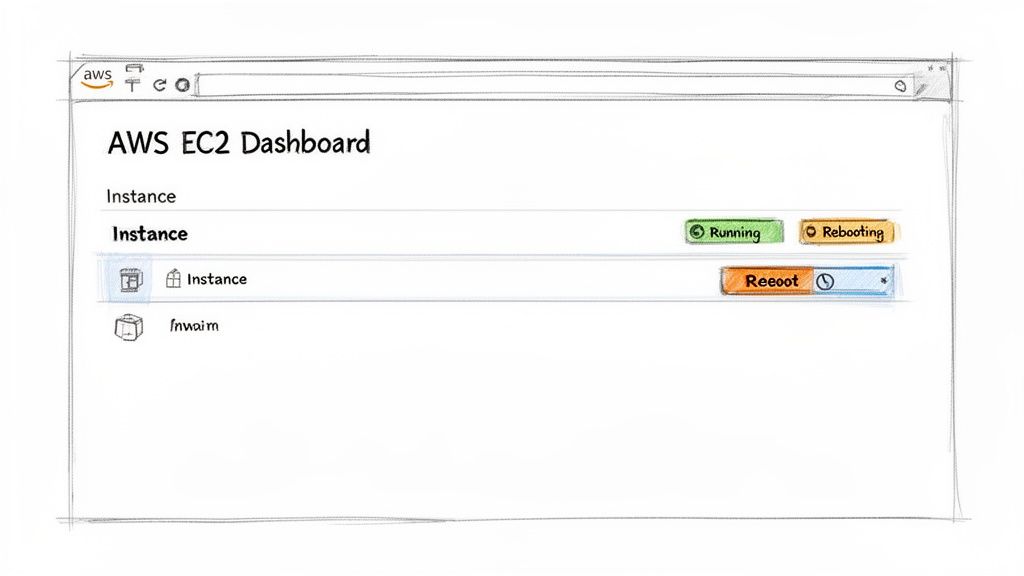
To begin, log into your AWS account and type "EC2" into the main search bar to navigate to the EC2 Dashboard. From there, select "Instances" from the left-hand navigation menu to see a list of all your EC2 instances in the current AWS Region. Be sure to verify you are in the correct region using the dropdown in the top-right corner. Find the instance you wish to restart by its Name tag or Instance ID, and select the checkbox next to it. With the instance selected, click the Instance state button at the top of the list and choose Reboot instance from the dropdown menu. AWS will display a confirmation dialog to prevent accidental clicks. After you confirm, the instance's state will briefly switch to 'rebooting'. The process typically takes only a few minutes. You can monitor its progress by refreshing the instance list until the state returns to 'running' and both status checks have passed.
Programmatic EC2 Restarts with the AWS CLI and SDKs
While the AWS Management Console is excellent for beginners, true operational efficiency is achieved through automation. Integrating the Amazon EC2 restart instance process into scripts and workflows allows for scalable, repeatable, and less error-prone maintenance routines. The AWS Command Line Interface (CLI) is the most direct method for managing resources from your terminal, enabling you to automate tasks that would otherwise require several clicks in the console. The primary command is aws ec2 reboot-instances. To reboot a single instance, you only need its ID. For example, to restart an instance with the ID i-0123456789abcdef0, you would run: aws ec2 reboot-instances --instance-ids i-0123456789abcdef0. This command sends the reboot request directly to the AWS API. You can also target multiple instances by listing their IDs, which is incredibly useful for restarting an entire fleet of servers. The popularity of programmatic actions has grown significantly; AWS has seen over 500 million RebootInstances API calls in a single year. You can find more details in the official documentation for the RebootInstances API call and its parameters.
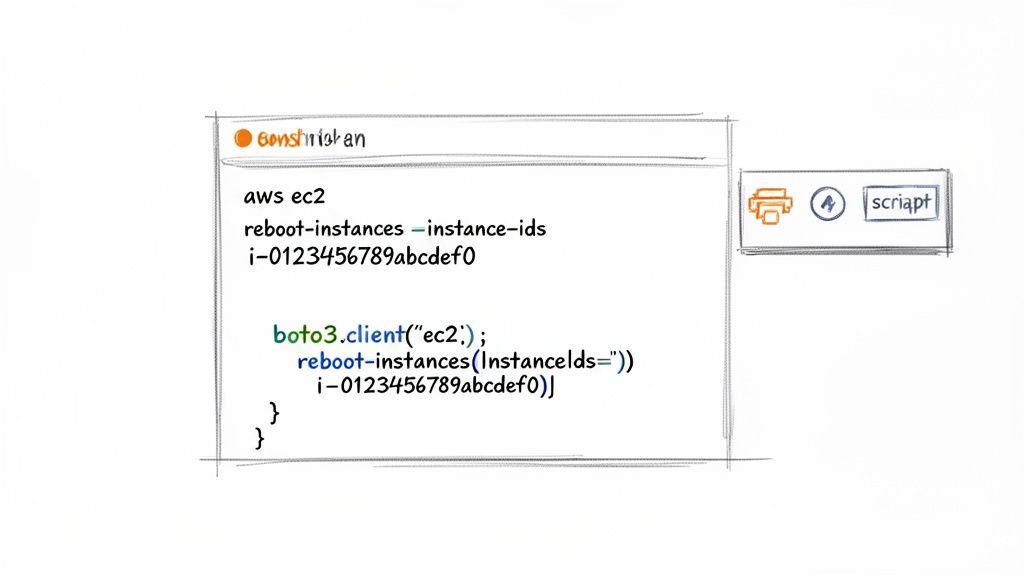
When you need to embed this logic into a larger application or a more sophisticated automation script, AWS SDKs are the ideal tool. For Python developers, this means using the Boto3 library. The SDK allows for advanced possibilities, such as scripting a process to grab all instances with a specific tag and reboot them sequentially while checking their health status before proceeding. For more advanced scheduling logic, our guide on creating an AWS EC2 start/stop scheduler can provide further insight. It is important to remember that the RebootInstances API call is asynchronous. A successful response only confirms that the request was received, not that the reboot is complete. Your scripts should include logic to verify the instance's status afterward to ensure it has fully cycled and is passing health checks.
Navigating AWS Scheduled Maintenance and Forced Reboots
Sometimes, the decision to restart an EC2 instance is made for you. AWS performs essential maintenance on the underlying hardware hosting your instances, which can trigger a mandatory reboot. These events are a critical part of maintaining the security and reliability of the AWS cloud infrastructure. Fortunately, AWS provides advance notification through your Personal Health Dashboard, giving you a window to manage the event proactively. If these alerts are ignored, AWS will eventually restart the instance on its schedule, which might occur at an inconvenient time. The most common event is an instance reboot, which is a simple restart that is typically completed in less than a minute. A less frequent but more disruptive event is an instance stop/start, where the instance is moved to new hardware, resulting in a new public IP address and the loss of instance store data.
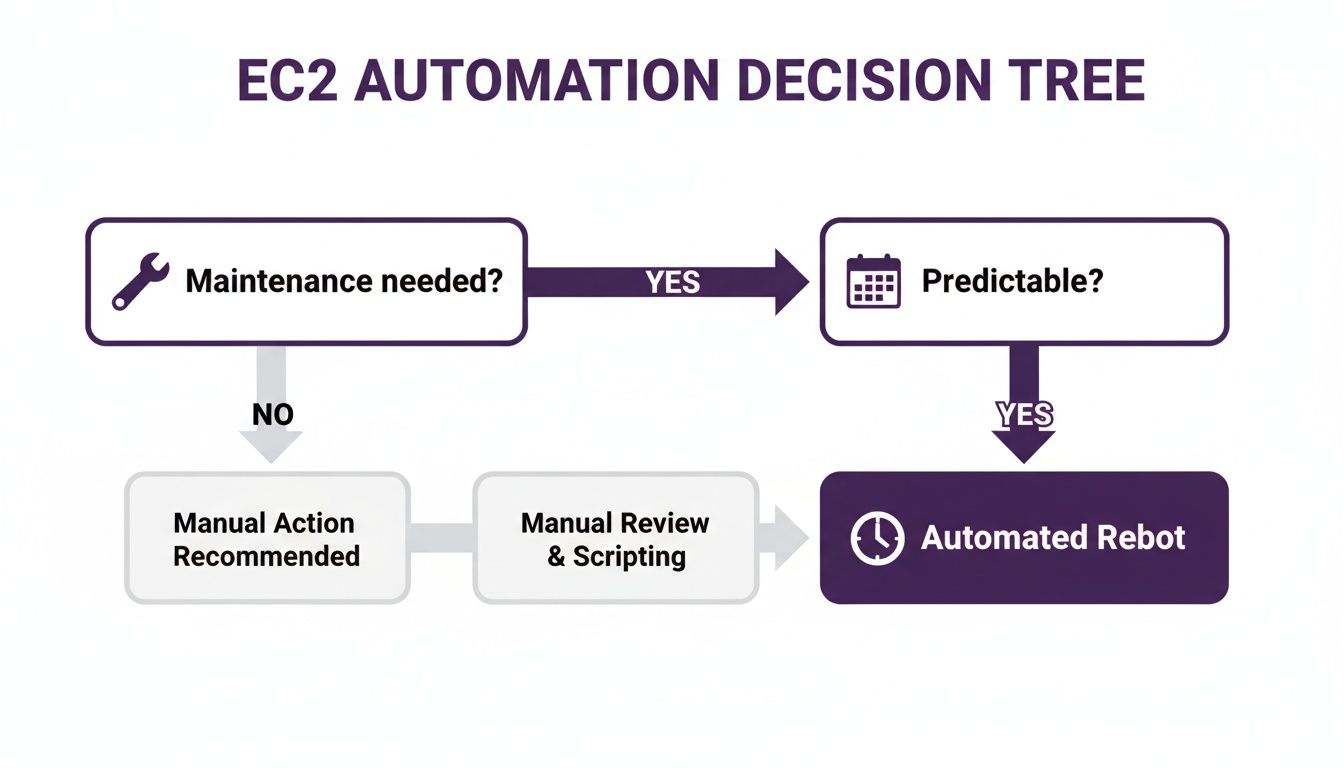
It is vital to read these notifications carefully to understand the required action and the deadline. This allows you to handle the event on your own terms. By taking control and performing the reboot yourself, you can schedule it during a planned maintenance window, turning a potential emergency into a proactive, predictable operation. While these maintenance events are relatively rare, affecting roughly 0.5% to 1% of all EC2 instances annually, their impact can be significant if you are unprepared. One report noted that 32% of organizations experienced unplanned downtime from these events. To learn more, consult the official documentation on AWS scheduled event actions and their impact. This is where automation is invaluable. Using a tool to schedule an EC2 reboot ensures the instance is restarted cleanly and predictably within your maintenance window, eliminating the stress of unexpected service disruptions.
Automating Reboots for Cost and Operational Efficiency
Relying on manual restarts is inefficient and prone to human error. Automating your Amazon EC2 restart instance actions transforms them into a predictable, hands-off part of your operational rhythm. This shift frees up your engineering team from tedious, repetitive tasks, allowing them to focus on innovation. Modern automation tools let you define schedules visually, moving beyond complex cron jobs or Lambda scripts and making it easy to manage maintenance policies at a glance. The goal is to build a reliable, self-managing infrastructure. Automation also unlocks strategies that blend operational stability with cost savings. By combining scheduled actions, such as stopping instances when they are not needed and rebooting them for routine upkeep, you can create a fully autonomous and cost-efficient fleet.
Consider a non-production environment, which often consumes a significant portion of a company's cloud budget. Scheduling a QA environment to automatically stop every night and weekend can slash its compute costs by up to 70%. Additionally, you can schedule an automatic reboot every Tuesday morning to apply the latest security patches. This combined approach ensures the environment is both cost-effective and consistently maintained without manual intervention. For more detailed strategies, refer to our guide on creating an AWS EC2 start/stop schedule. A predictable maintenance cadence reduces the risk of human error and prevents "configuration drift." Automating reboots guarantees that essential maintenance occurs on time, every time, which also simplifies compliance and auditing.
Troubleshooting Common EC2 Restart Issues
Even a simple Amazon EC2 restart instance operation can encounter issues. When a reboot hangs or an instance fails to come back online cleanly, systematic troubleshooting is required. Most problems fall into a few common categories: the instance gets stuck in the 'rebooting' state, it fails status checks after restarting, or it loses network connectivity. Each symptom points to different potential causes, from OS-level glitches to underlying AWS hardware problems. If an instance appears stuck in the 'rebooting' state, the issue is almost always within the operating system, which may be hanging during its shutdown or startup sequence. The Instance Screenshot feature in the EC2 console is an invaluable tool for diagnosing such problems, as it shows what would be displayed on a physical monitor, often revealing OS boot errors or a kernel panic. The System Log also provides OS-level messages that can help identify the cause.
A common post-reboot issue is an instance that comes back online but fails its status checks. It is critical to differentiate between the two types of checks. A System Status Check failure indicates a problem with the underlying AWS hardware, and the quickest fix is usually to stop and start the instance to migrate it to new hardware. An Instance Status Check failure points to an OS-level problem, such as a misconfigured network, exhausted memory, or a corrupted file system.
If basic checks do not resolve the issue, it is time to investigate deeper. The problem might be with the surrounding configuration, so it is always a good idea to review security group rules and network ACLs. For stubborn failures, applying a technique like the 5 Whys method can help uncover the root cause. If the instance is completely unresponsive, you may need to learn how to restart an EC2 instance from SSH as an alternative solution path.