Master Amazon Web Service Cost: An Essential Guide to Cloud Spending
Figuring out your Amazon Web Service cost can feel like trying to solve a complex puzzle with constantly moving pieces. It isn't a single flat fee but a highly detailed breakdown of every resource you use. The entire system is built on a pay-as-you-go model, which functions much like a home utility bill; you are charged for compute time, data storage, and network traffic as you consume them. This granularity offers incredible flexibility but can also lead to surprising bills if not managed carefully.
Ready to stop overpaying for AWS? Discover how automated scheduling can slash your cloud bill by up to 70% with Server Scheduler.
Contents
Ready to Slash Your AWS Costs?
Stop paying for idle resources. Server Scheduler automatically turns off your non-production servers when you're not using them.
Understanding the Complexity of Your AWS Bill
If you’ve ever opened your first AWS bill, you know it can be a bit of a shock. Instead of a simple summary, you are presented with a long, detailed list of services, unfamiliar usage metrics, and charges broken down by region. This level of detail can make it nearly impossible to see the big picture at first glance. The reason for this complexity is that AWS offers over 200 different services, and your bill reflects your exact usage of every single one. This granularity is a double-edged sword. While it’s beneficial because you only pay for what you actually use, it also creates a steep learning curve. Your bill isn’t just an invoice; it's a complete activity log of your entire infrastructure.
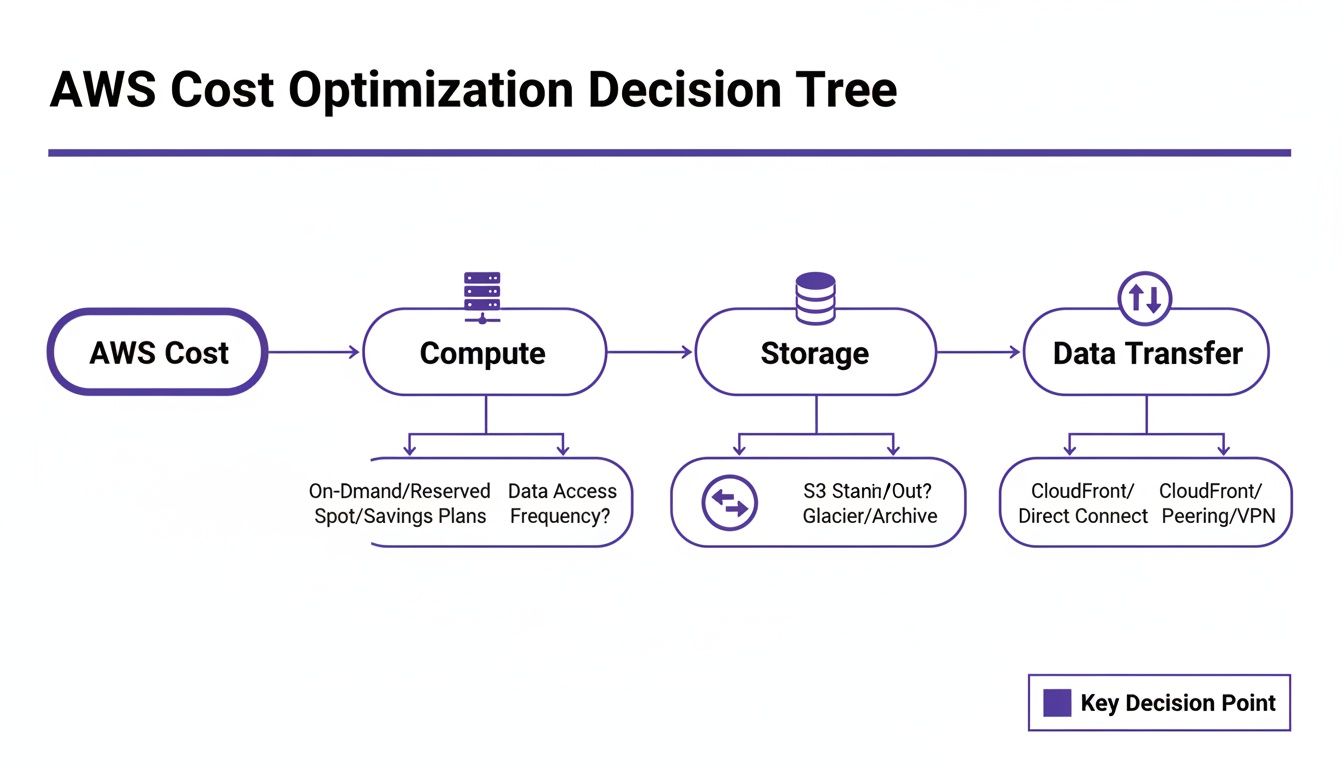
The bulk of your Amazon Web Service cost will almost always boil down to three fundamental pillars: compute, storage, and data transfer. Compute primarily involves your Amazon EC2 instances, the virtual servers running your applications, with costs calculated by the hour or second. Storage costs are associated with services like Amazon S3, where you are billed for the amount of data you store per gigabyte each month. Finally, data transfer costs often catch users by surprise. While moving data into AWS is generally free, moving it out to the internet or even between different AWS regions incurs charges.
Hidden costs often accumulate from interconnected services. An idle development server, for instance, continues to rack up charges beyond just its compute time. It likely has attached storage (EBS volumes) and a static IP address, both of which add to the bill even when the server is inactive. A classic mistake is leaving non-production environments—like development, staging, and testing—running 24/7. These servers are typically needed for only about 40-50 hours a week, yet companies pay for all 168 hours, leading to significant wasted spend. Learning to spot these interconnected costs is the first step toward smart cloud financial management. For more details, explore our guide on AWS cost management best practices.
Choosing the Right AWS Pricing Model
Actively controlling your Amazon Web Service cost involves selecting the right pricing model for each workload. AWS provides several distinct payment options, allowing you to find the perfect balance between cost, flexibility, and performance. The default option is On-Demand, where you pay for compute power by the hour or second with no long-term commitments. This model is ideal for applications with unpredictable or short-term workloads, but it is also the most expensive.
For workloads with consistent usage, Savings Plans offer significant discounts—often up to 75% compared to On-Demand prices—in exchange for a one- or three-year commitment to a certain amount of spend. The discount automatically applies across EC2, Fargate, and Lambda, making it a flexible choice for modern applications. Before Savings Plans, Reserved Instances (RIs) were the primary way to get discounts. RIs require a commitment to a specific instance family in a particular region and are useful when you need to guarantee capacity. Lastly, Spot Instances provide the largest savings, up to 90%, by letting you bid on unused EC2 capacity. However, AWS can reclaim this capacity with a two-minute warning, making it suitable only for fault-tolerant, interruptible workloads.
An effective strategy often involves a mix of these models, such as running a production database on a Reserved Instance, covering baseline web servers with a Savings Plan, and using Spot Instances for data processing jobs. For a deeper dive into managing instances, check out our guide to EC2 cost optimization.
| Pricing Model | Best For | Potential Savings | Commitment |
|---|---|---|---|
| On-Demand | Spiky or unpredictable workloads, dev/test | None | None - pay as you go |
| Savings Plans | Consistent compute spend, but with changing instance types/regions | Up to 75% | 1 or 3-year term based on $/hour usage |
| Reserved Instances | Steady-state workloads needing capacity guarantees | Up to 75% | 1 or 3-year term for a specific instance family/region |
| Spot Instances | Fault-tolerant, stateless, or interruptible workloads | Up to 90% | None - but instances can be reclaimed by AWS |
Using AWS Tools for Cost Visibility
You cannot optimize what you cannot see. Gaining clear visibility into your spending is the first step to controlling your Amazon Web Service cost. AWS provides a suite of native tools to turn your complex bill into actionable data. Your first stop should be the AWS Billing Dashboard, which offers a high-level overview of your month-to-date spending and forecasts. For deeper analysis, AWS Cost Explorer is an essential investigative tool. It allows you to visualize and manage your costs over time, slicing data by service, region, or custom cost allocation tags to understand the "why" behind your bill.
Pro Tip: A recent update extended AWS Cost Explorer's historical data to 14 months at daily granularity and up to 38 months at a monthly level for free, enabling true year-over-year comparisons. You can find details on the official AWS announcement page.
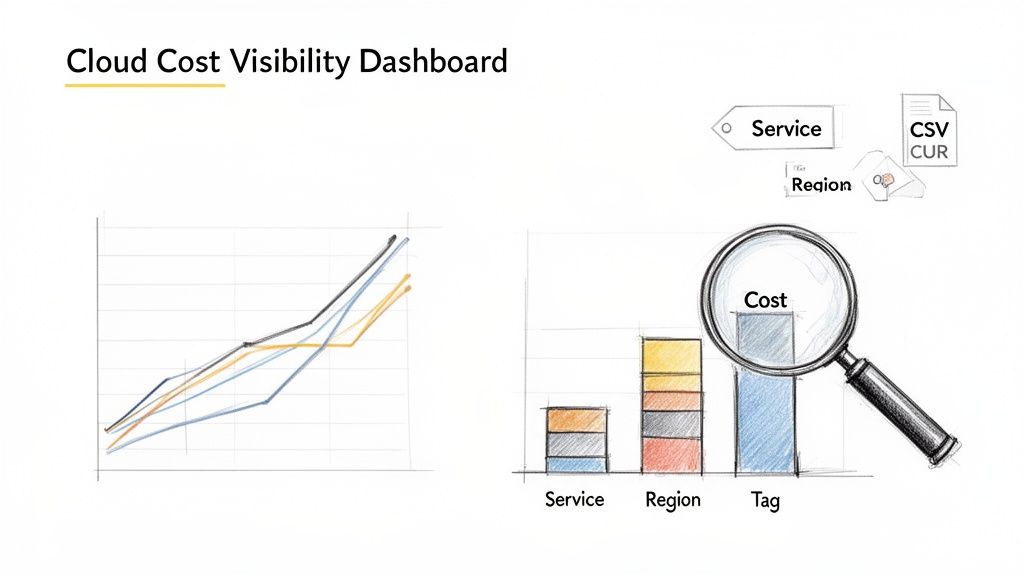
For the most granular data, the AWS Cost and Usage Report (CUR) provides a comprehensive breakdown of your bill, delivered as a CSV file to an S3 bucket. This raw data is perfect for feeding into business intelligence tools for deep, programmatic analysis. By mastering these native tools, you gain the visibility needed to take control of your spending. For more on these and other third-party solutions, review our deep dive on the best AWS cost optimization tools.
Proven Strategies to Reduce Your AWS Costs
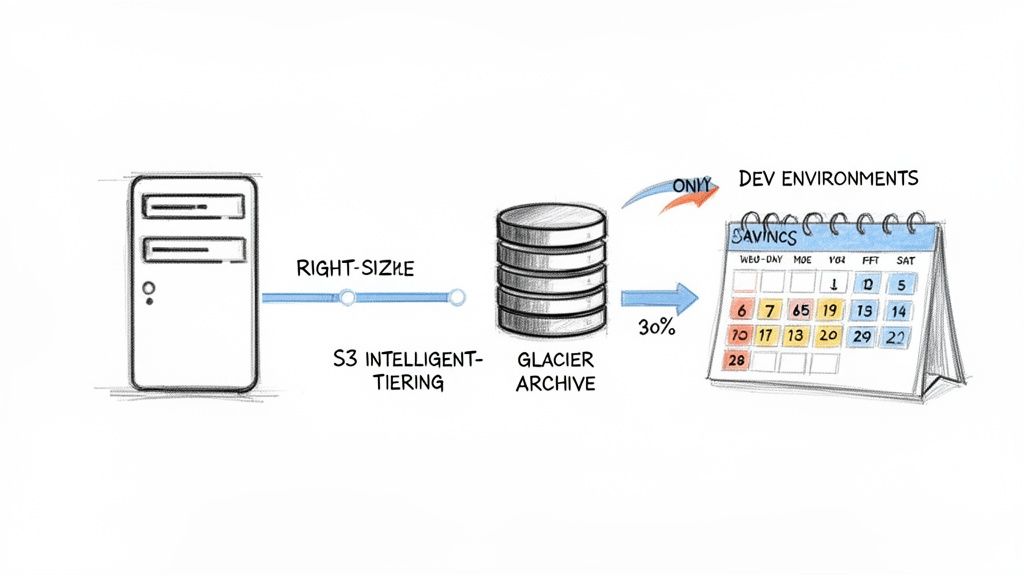
Once you have visibility into your spending, you can implement targeted strategies to lower your Amazon Web Service cost. One of the most effective methods is right-sizing, which involves analyzing performance data like CPU and memory usage to select a smaller, cheaper instance type that still meets your application's needs. Overprovisioning is a common source of wasted spend, and tools like AWS Compute Optimizer can provide data-driven recommendations to eliminate it.
Optimizing storage costs is another critical area. Not all data requires the same level of access speed, so using different S3 storage classes can lead to significant savings. By creating data lifecycle policies, you can automatically move data to cheaper tiers like S3 Intelligent-Tiering or S3 Glacier Deep Archive as it ages. However, the single biggest source of waste for many companies is leaving non-production environments—development, staging, and QA servers—running 24/7. These resources are typically only needed during business hours, meaning you could be wasting money on over 120 hours of idle time per resource every week. Shutting these environments down during nights and weekends can immediately cut their costs by 65-70%. To find even more savings, exploring broader IT cost optimization strategies can provide a comprehensive framework.
How to Automate Cost Savings with Scheduling
Manually stopping and starting servers is an unreliable strategy destined to fail. The key to consistent and scalable cost optimization is automation. Scheduling your resources to eliminate idle time, especially in non-production environments, delivers the most significant impact. Relying on team members to remember to shut down servers daily leads to human error, inconsistency, and lost savings. Automation removes this friction entirely.
By automating the shutdown of EC2 and RDS instances overnight and on weekends, you guarantee you only pay for the hours you actually use them. This principle of "parking" non-essential resources is the most direct way to slash waste. The financial impact is massive, as this simple change can save over 100 hours of runtime costs per resource every week. This is particularly important given that most organizations waste 30-50% on idle servers. An automated scheduler can plug this leaky bucket, routinely delivering cost reductions of up to 70% for non-production infrastructure.
Implementing an automated start/stop schedule for non-production environments is often the single most effective cost-saving initiative a company can undertake in the cloud. It provides immediate, measurable returns with minimal effort.
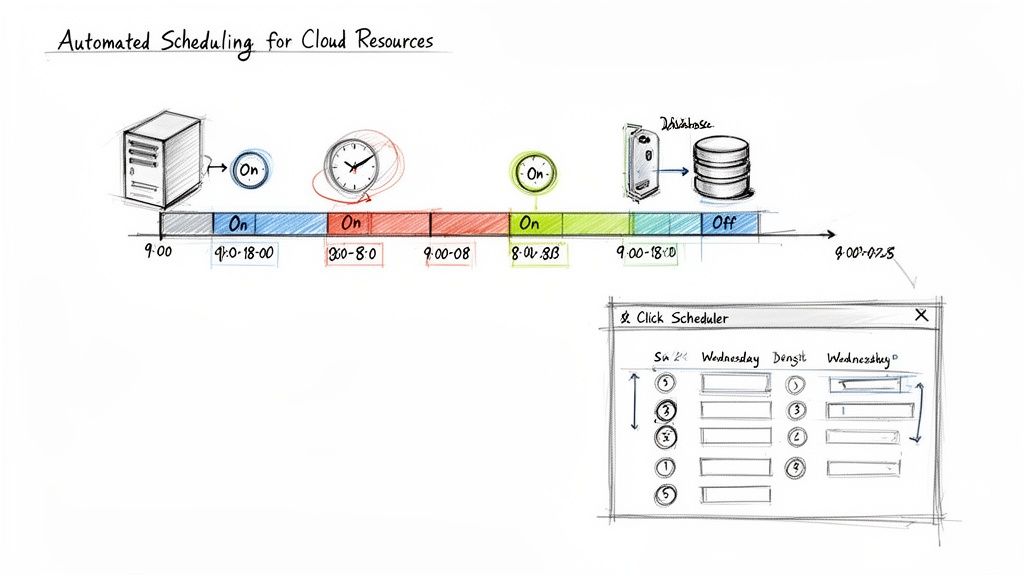 AWS EC2 start/stop schedule provides a detailed walkthrough.
Forecasting and Analyzing Your Future AWS Costs
Managing your Amazon Web Service cost effectively requires looking forward, not just backward. Proactive financial planning, a core tenet of FinOps, involves using advanced techniques to predict and budget your cloud spend accurately. The forecasting engine in AWS Cost Explorer is a powerful tool for this. It analyzes your historical usage to project future costs, providing a forecast and a prediction interval to account for variability. This data is invaluable for setting realistic budgets and making informed infrastructure investment decisions.
Your forecasting becomes even more precise when you properly account for long-term commitments like Reserved Instances and Savings Plans by using amortized costs. Amortization spreads the upfront cost of a commitment evenly over its term, giving you a true picture of your effective daily rate. By switching your Cost Explorer view from "Unblended" to "Amortized," you shift from analyzing cash flow to seeing your normalized operational expense. This is a fundamental step toward mastering FinOps best practices and aligning your cloud spend with your business goals.
Common AWS Cost Questions Answered
When managing cloud spend, several common questions frequently arise. The top reason for a high AWS bill is typically idle or over-provisioned resources, especially non-production EC2 and RDS instances left running 24/7. Data transfer costs are another common culprit that can quickly accumulate. To track costs for a specific project, the best practice is to use AWS Cost Allocation Tags. By applying custom tags to your resources and activating them in the billing console, you can filter your spending in AWS Cost Explorer to see exactly which projects are driving costs.
Many teams also wonder if Savings Plans are better than Reserved Instances. For most modern workloads, the answer is yes. Savings Plans offer significantly more flexibility by applying discounts across different instance types and regions based on a committed hourly spend. While RIs are more rigid, locking you into a specific instance family and region, they can be useful for guaranteeing capacity. However, the adaptability of Savings Plans makes them the preferred choice for most organizations today.
Ready to turn these insights into action? Server Scheduler makes it easy to automate the shutdown of idle non-production resources, delivering immediate and substantial savings on your AWS bill. Stop paying for servers you aren't using and start your free trial today at https://serverscheduler.com.
Related Articles
- EC2 cost optimization
- Understanding AWS Savings Plans vs Reserved Instances
- How to Use AWS Cost Explorer to Find Hidden Expenses