Your Ultimate Bash Script Cheat Sheet for Efficient Automation

In system administration, DevOps, and cloud engineering, mastering the command line is not just a skill—it's a necessity. Bash, the Bourne-Again Shell, is the de facto language for controlling Linux-based systems, managing infrastructure, and orchestrating complex workflows. This comprehensive bash script cheat sheet is designed for engineers and IT managers who need quick, actionable solutions to common challenges without wading through dense documentation. It serves as a practical, hands-on reference for crafting efficient and reliable scripts.
Need a reliable, cloud-native scheduler for your scripts? Server Scheduler offers a managed, centralized platform for all your automation needs, complete with failure notifications and detailed logging. Take the complexity out of scheduling and focus on what matters.
The primary goal of scripting is to create powerful, repeatable solutions. Whether you're managing AWS EC2 instances, processing log files, or setting up scheduled jobs, a well-written script can save countless hours of manual effort. For those looking to deepen their understanding of workflow efficiency, learning how to automate repetitive tasks is a foundational step that turns tedious manual processes into streamlined, error-free operations. This guide moves beyond basic commands to cover essential scripting constructs and best practices. We will explore everything from conditional logic with if-then-else statements and robust error handling with trap, to advanced text processing with grep and sed. You will find practical examples for managing background jobs, manipulating strings, implementing retry logic with loops, and interacting with cloud services via the AWS CLI.
Contents
- Cron Job Scheduling with Crontab
- AWS CLI Commands for EC2 Instance Management
- Conditional Logic and If-Then-Else Statements
- Logging and Error Handling with Tee and Trap
- Variable Expansion, String Manipulation, and Functions
- Process Control and Background Job Management
- Regular Expressions and Pattern Matching with Grep
- Scheduling Delays and Retries with Sleep and Until Loops
- Feature Comparison
- Related Articles
Ready to Slash Your AWS Costs?
Stop paying for idle resources. Server Scheduler automatically turns off your non-production servers when you're not using them.
Cron Job Scheduling with Crontab
For any DevOps or platform engineer, automating repetitive tasks is a core responsibility. The classic, battle-tested tool for this in any Unix-like system is cron. Crontab (cron table) is the configuration file used by the cron daemon to schedule commands or scripts to run periodically at fixed times, dates, or intervals. This makes it an indispensable part of any bash script cheat sheet for managing system maintenance, data backups, and routine checks without manual intervention. The crontab syntax is powerful yet simple, defined by five time-and-date fields followed by the command to be executed: * * * * * command_to_execute. While powerful, cron jobs can be tricky to debug due to their non-interactive execution environment. The environment for a cron job is minimal and does not inherit the shell environment (.bashrc, .profile) of your interactive session. This is a common source of "it works in my terminal but not in cron" issues. Always use absolute paths for both your script and any commands within it, and redirect output to a log file for debugging. If your cron jobs ever fail unexpectedly, troubleshooting guides can help; for a deep dive, you can learn more about fixing crontab issues.
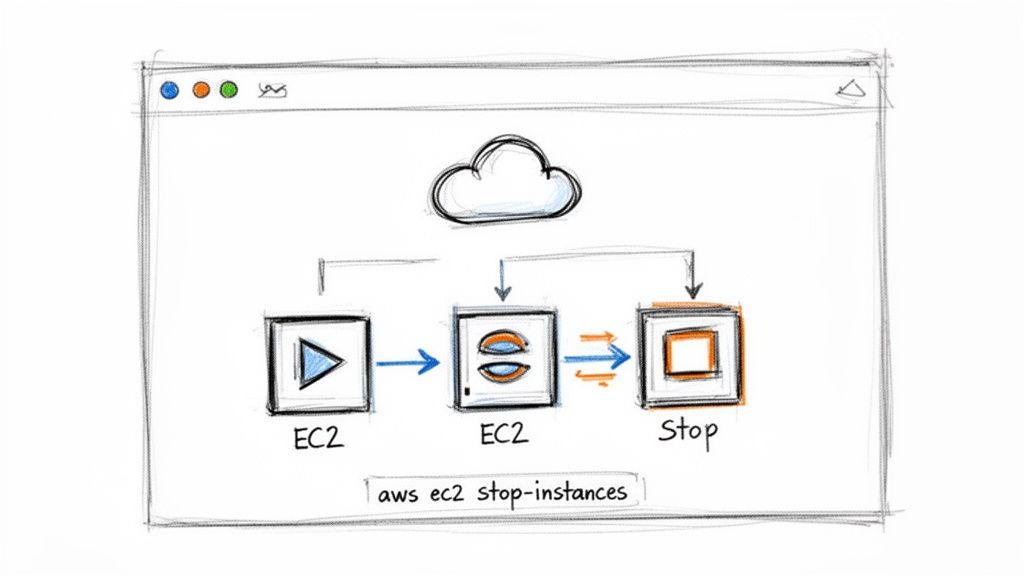
AWS CLI Commands for EC2 Instance Management
For modern DevOps and cloud engineers, managing infrastructure programmatically is not just a best practice; it's a necessity. The AWS Command Line Interface (CLI) is the primary tool for this, offering direct command-line access to all AWS public APIs. Integrating AWS CLI commands into shell scripts allows you to automate everything from resource provisioning to cost management, making it a critical component of any bash script cheat sheet for cloud environments. This approach transforms complex console operations into simple, repeatable, and version-controlled scriptable actions. Executing AWS CLI commands within scripts requires careful handling to ensure they are secure and reliable. Never hardcode credentials directly in your scripts. Instead, leverage IAM roles for EC2 instances or use environment variables (AWS_PROFILE) to switch between configurations securely. This practice drastically reduces the risk of credential exposure. It is also wise to use the --dry-run flag for critical operations to verify a command's impact without actually executing it.
Conditional Logic and If-Then-Else Statements
For DevOps engineers, scripting is not just about running commands sequentially; it’s about creating intelligent automation. Bash conditional statements (if, then, else, case) provide this intelligence, enabling scripts to make decisions and react dynamically to different situations. This logic is fundamental for building reliable automation that can handle variability, making it a critical component of any bash script cheat sheet. Conditional logic allows your scripts to test conditions before taking action, such as checking if a resource exists or verifying its state. This prevents errors and enables sophisticated, context-aware workflows. A key insight is that the double-bracket [[ ... ]] syntax is a modern enhancement over the single-bracket [ ... ]. It offers more intuitive string comparisons and pattern matching, reducing the need for excessive quoting and making your code less error-prone. Always check the exit status of a command with $? after execution; a status of 0 means success, while anything else indicates an error.
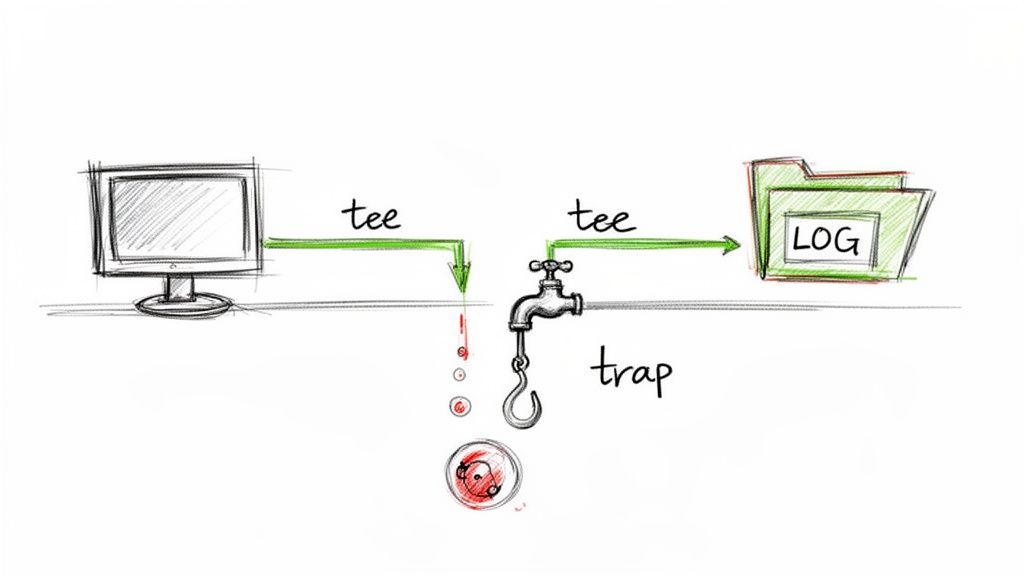
Logging and Error Handling with Tee and Trap
For robust automation scripts, what happens during execution is just as important as the outcome. The combination of tee and trap provides a powerful framework for creating reliable, auditable, and resilient bash scripts. tee allows you to view command output in real-time while simultaneously writing it to a log file, while trap intercepts signals or script errors to execute cleanup code, preventing scripts from failing silently or leaving systems in an inconsistent state. This pairing is a cornerstone of any professional bash script cheat sheet. The tee command reads from standard input and writes to both standard output and files. The trap command defines a command or function that executes when the script receives a specific signal, such as ERR on command failure or EXIT when the script finishes. Define your trap commands at the beginning of your script to ensure they are active before any critical operations begin.
Variable Expansion, String Manipulation, and Functions
To elevate scripts from simple command sequences to powerful, dynamic tools, you must master variable manipulation and modular code. Bash's parameter expansion allows you to modify variables on the fly, providing defaults, extracting substrings, or performing search-and-replace operations. This is crucial for building dynamic resource names, parsing outputs, and handling optional inputs gracefully. Functions bundle this logic into reusable, readable blocks, forming the backbone of any maintainable automation library. These features are fundamental for creating adaptable scripts. Always quote your variable expansions (e.g., "$VAR") to prevent the shell from performing word splitting, which can cause subtle and frustrating bugs. Also, use the local keyword inside functions to declare variables that are only visible within that function, preventing the pollution of the global namespace.
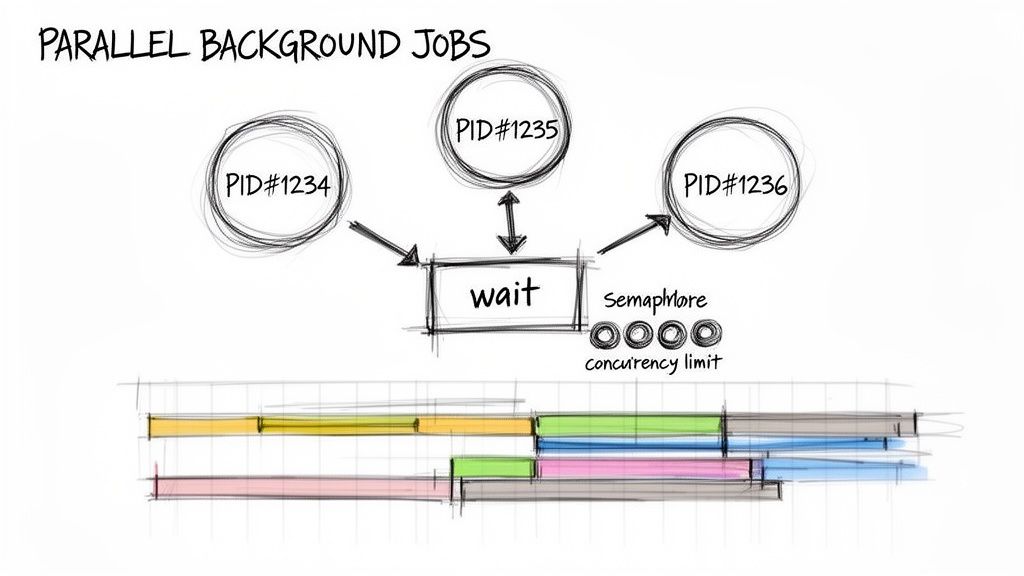
Process Control and Background Job Management
For any engineer automating infrastructure tasks, efficiency is paramount. Bash process control allows scripts to execute operations in parallel by running them as background jobs. Using the ampersand (&) operator, a script can launch a long-running task and immediately continue to the next command without waiting. This is a fundamental technique in any bash script cheat sheet for drastically reducing the total execution time of automation that involves multiple independent operations. The core of this pattern involves launching a process with &, capturing its Process ID (PID) using the $! variable, and then using the wait command to pause the script until background jobs have finished. A common pitfall is resource exhaustion; spawning hundreds of background jobs at once can overwhelm system resources or trigger API rate limiting. To avoid this, implement a semaphore pattern to limit the number of active background jobs.
Regular Expressions and Pattern Matching with Grep
Parsing text, validating input, and filtering command output are daily necessities for DevOps engineers. Regular expressions (regex) provide a powerful and flexible syntax for sophisticated pattern matching. Bash offers robust support for regex through tools like grep and the built-in [[ ... =~ ... ]] conditional operator, making it an essential skill to include in any bash script cheat sheet. Regular expressions define a search pattern for strings, allowing scripts to perform complex validation, extract specific substrings from text, and create dynamic, pattern-based conditional logic. While you can use grep and regex on AWS CLI's text or table output, it's brittle. For JSON output, always prefer using jq for reliable and structured data parsing. When using grep, the -E flag enables extended regular expressions, which provides a more modern syntax without needing backslash escapes. For searching within non-text files, you can learn how to use grep on binary files.
Scheduling Delays and Retries with Sleep and Until Loops
When automating interactions with external services like cloud APIs, transient failures are a fact of life. Network hiccups, rate limiting, or resources being in a transitional state can cause commands to fail intermittently. A robust script must anticipate and handle these issues gracefully. This is where combining sleep with until or while loops becomes a crucial technique in any bash script cheat sheet, allowing you to build resilient, self-healing automation. The core idea is to retry a failing command until it succeeds, with a pause between attempts to give the system time to recover. This approach is fundamental for tasks like polling for resource availability. To prevent a "thundering herd" problem where many clients retry simultaneously, implement exponential backoff with jitter (a small, random delay) to distribute retries over time. Always include a condition to exit the loop after a certain number of failures to prevent infinite loops if the error is permanent.
Feature Comparison
This table provides a quick comparison of the Bash scripting techniques discussed, helping you choose the right tool for your automation needs.
| Feature | Use Case | Key Advantage |
|---|---|---|
| Crontab | Scheduled, recurring tasks like nightly backups. | Simple, ubiquitous, and resource-light. |
| AWS CLI | Managing cloud infrastructure programmatically. | Direct, scriptable access to AWS APIs. |
| If-Then-Else | Creating state-aware and defensive scripts. | Enables intelligent, context-based actions. |
| Tee & Trap | Logging and guaranteed cleanup on exit or error. | Improves observability and script reliability. |
| Functions | Encapsulating reusable logic. | Promotes modular, maintainable code. |
| Background Jobs | Running multiple independent tasks in parallel. | Reduces total execution time significantly. |
| Grep & Regex | Validating input and parsing text output. | Powerful pattern matching without extra tools. |
| Until/While Loops | Polling for status or retrying failed commands. | Builds resilience against transient errors. |