How to Remotely Restart a PC: A Practical Guide for IT Pros
Knowing how to remotely restart a PC is a core skill for anyone managing computers they can't physically touch. Whether you're using command-line tools for a Windows server, SSH for macOS and Linux, or managing a fleet in the cloud, the goal is the same: send a command over the network to trigger a clean reboot. It's the go-to fix for applying updates, clearing system resources, or shaking loose unresponsive software. What used to be a niche IT trick has become a daily operational necessity for system administrators, DevOps engineers, and anyone responsible for keeping digital infrastructure healthy.
Tired of command-line gymnastics just to schedule a server reboot? See how Server Scheduler automates AWS maintenance with a few simple clicks.
Contents
Ready to Slash Your AWS Costs?
Stop paying for idle resources. Server Scheduler automatically turns off your non-production servers when you're not using them.
Why Mastering Remote Reboots Is Non-Negotiable
The global shift to flexible work has poured fuel on the fire for remote management tools. As teams have gone global and work-from-home has become the norm, the ability to fix issues without physical access is what separates a minor hiccup from major downtime. The remote desktop software market, which is central to tasks like this, is projected to explode from $4.63 billion in 2026 to $14.73 billion by 2034. This isn't just a trend; it's a direct response to the demands of remote work and the rise of BYOD (Bring Your Own Device) policies.
Knowing the right way to trigger a reboot from afar ensures your systems stay stable, secure, and performant. It’s a fundamental competency in modern IT and DevOps, turning a potential crisis into a routine task you can handle in minutes.
Your Toolkit for Remotely Restarting Windows PCs
When you need to reboot a remote Windows PC, you've got a surprisingly deep toolkit at your disposal. Your options range from simple point-and-click graphical interfaces to seriously powerful command-line utilities. Picking the right tool for the job can save you a ton of time and hassle. It really comes down to what you're trying to do: are you looking for hands-on control for a single machine, a quick command you can fire off, or a way to automate reboots across your entire server fleet? For anyone who prefers a visual approach, the Remote Desktop Protocol (RDP) is your most direct route. When you start an RDP session, you get the full graphical desktop of the remote machine. From there, it's as simple as clicking the Start Menu and hitting "Restart"—just like you were sitting in front of it. This is perfect for those one-off reboots or when you need to check on a few things before kicking off the restart.
For sysadmins and power users, the command line is where the real speed and efficiency live. The trusty shutdown.exe command has been a workhorse in Windows for ages, and for good reason. Its true power is in the flags you can use to control exactly how and when the reboot happens. You can target a specific computer on your network with the /m \\ComputerName flag. Chain that with /r for a restart and /t 60 to give users a 60-second warning to save their work, and you have a clean, controlled reboot. We've got a full breakdown of all the flags in our guide to the command prompt shutdown command.
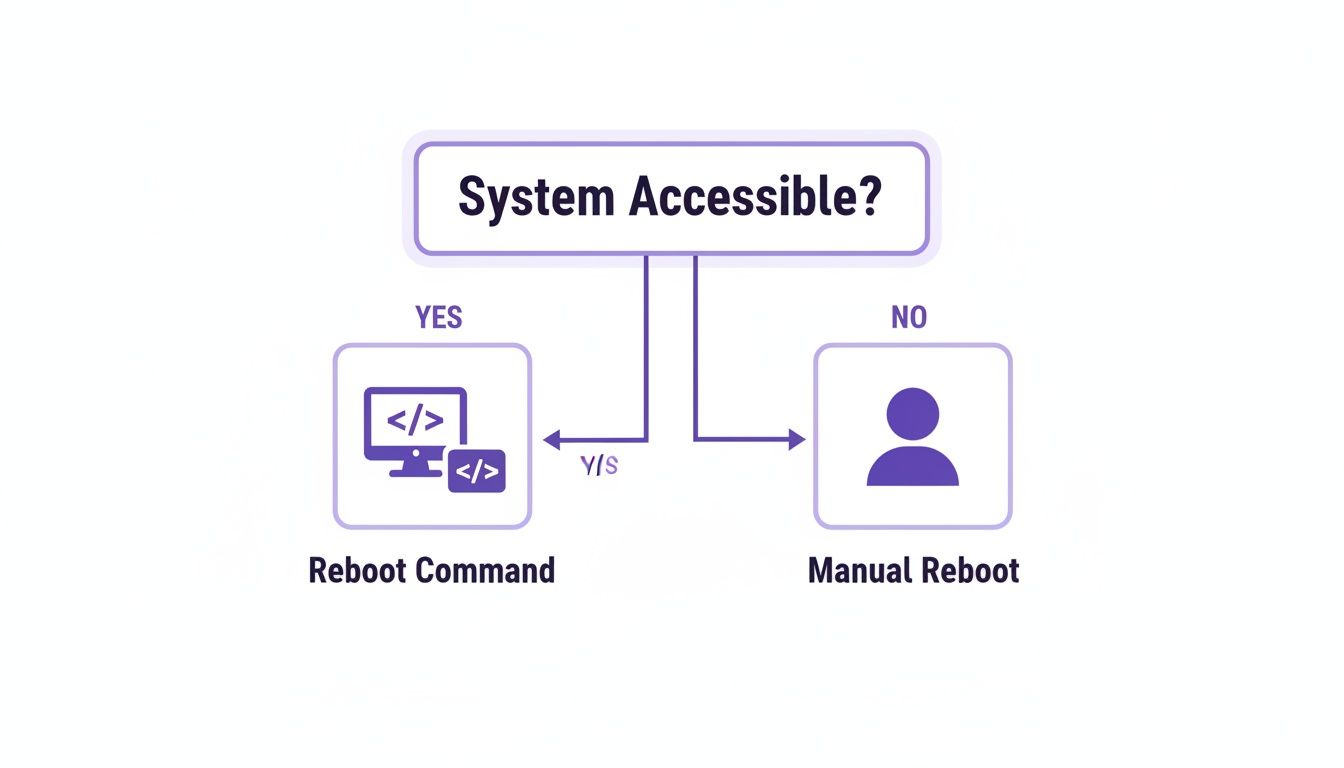
Jumping into more modern tools, PowerShell offers a much more robust and scriptable way to handle reboots. The Restart-Computer cmdlet is your best friend here. The syntax is clean and simple, but the real magic is how easily it plugs into larger scripts. You can write a script to reboot a whole list of servers, either one by one or all at once, making it a must-have for large-scale maintenance. Another killer tool, and a long-time favorite of IT pros, is PsExec from the Microsoft Sysinternals suite. PsExec is awesome because it lets you run commands on remote machines even if they don't have PowerShell Remoting enabled. With it, you can just run shutdown.exe on a remote box as if you were typing it right into its own command prompt.
| Method | Interface | Best For | Requires Setup? |
|---|---|---|---|
| Remote Desktop (RDP) | Graphical | Interactive, one-off reboots with visual confirmation. | Yes, RDP must be enabled on the target machine. |
shutdown.exe |
Command Line | Quick, simple reboots for one or more machines. | Yes, remote registry and firewall exceptions. |
PowerShell Restart-Computer |
Command Line | Scripting and automating reboots for many machines. | Yes, WinRM must be configured. |
| PsExec | Command Line | Executing commands on machines without WinRM enabled. | No, but requires admin share access. |
Ultimately, getting comfortable with these tools will give you a solid playbook for managing your Windows systems remotely. Understanding how to reboot a server safely is critical to avoid accidental downtime or data loss.
Executing Remote Reboots on macOS and Linux
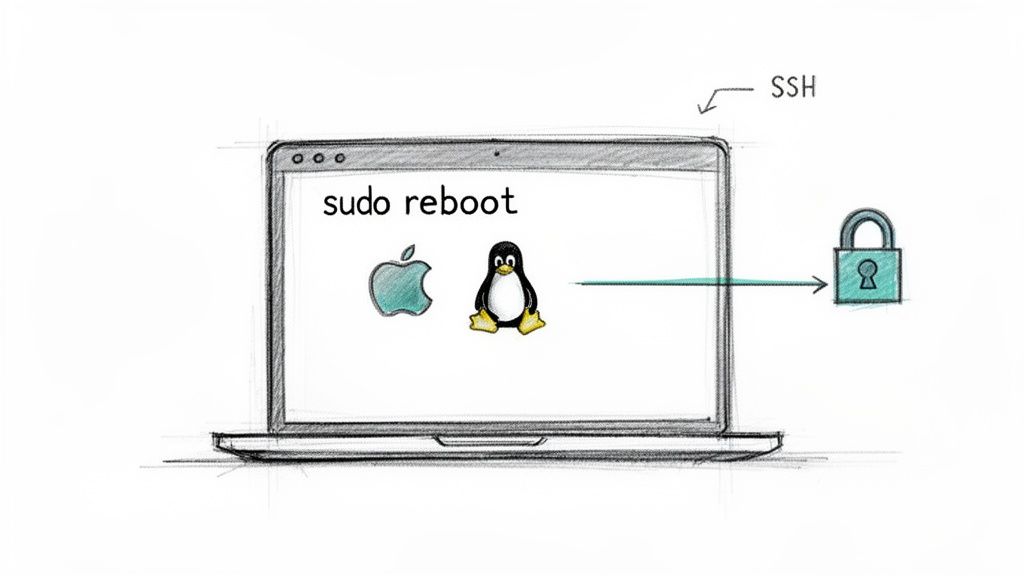
When you step outside the Windows world, the playbook for a remote reboot changes. But the core ideas—secure access and admin rights—are exactly the same. For both macOS and Linux, the undisputed champion for remote work is Secure Shell (SSH). It's an encrypted protocol that gives you a command line on a remote machine, making it feel like you're sitting right there. This is the bread and butter for sysadmins managing anything from a single Linux web server to a render farm packed with Macs. Honestly, knowing how to restart a machine over SSH is a foundational skill. It gives you direct, no-fuss control.
Tired of command-line gymnastics just to schedule a server reboot? See how Server Scheduler automates AWS maintenance with a few simple clicks.
To kick off a remote reboot with SSH, you first have to get a secure connection to the target machine. Once you're in, the most direct command is simply sudo reboot. This tells the system to immediately shut down all processes and perform a clean restart. That sudo part is critical; it stands for "superuser do" and elevates your privileges to the admin level you need to execute a command this big. You can also use sudo shutdown -r now. The -r flag tells it to reboot (instead of just halting), and now means do it immediately. On modern Linux distros running systemd, the more current equivalent is systemctl reboot, which is often the preferred method.
While SSH is the universal tool for the job, admins managing a whole fleet of Macs often reach for something more visual: Apple Remote Desktop (ARD). This is Apple's own desktop management tool, built for environments like schools or creative studios with tons of Macs. ARD gives you a central dashboard to see multiple screens at once, push out software, run reports, and, of course, execute remote restarts. If you prefer pointing and clicking over typing into a terminal, ARD is a seriously powerful alternative.
| Feature | SSH (Secure Shell) | Apple Remote Desktop (ARD) |
|---|---|---|
| Interface | Command-Line | Graphical (GUI) |
| Best For | Scripting, automation, managing mixed OS environments (Linux/macOS). | Managing large fleets of Macs, visual observation, software distribution. |
| Platform | Universal (macOS, Linux, Windows) | macOS only |
| Cost | Free (built-in) | Paid (one-time purchase) |
At the end of the day, SSH offers flexibility that's hard to beat and is an essential skill for any admin. But if you're living exclusively in an Apple ecosystem, ARD can offer a much more integrated and visual experience.
Setting Up Your Systems for Secure Remote Access
Before you can even think about sending a restart command, the target machine has to be ready to listen for it. A remote command sent to a deaf system is just lost data. Getting this initial setup right is the most critical part of learning how to remotely restart a PC securely and reliably. For a Windows machine, this usually means flipping the switch on either Remote Desktop Protocol (RDP) for graphical access or Windows Remote Management (WinRM) if you're using PowerShell. On macOS and Linux, the go-to is enabling the Secure Shell (SSH) daemon.
Tired of manual, insecure reboots? See how Server Scheduler automates AWS maintenance workflows with point-and-click simplicity.
Just enabling a service isn't enough; you also have to tell the system's firewall to allow traffic through to it. By default, a firewall acts like a bouncer, blocking unsolicited network connections. You need to create an exception for the service you're using.
| Service | Operating System | Default Port | Security Note |
|---|---|---|---|
| RDP | Windows | TCP 3389 | High-risk; never expose directly to the internet. |
| WinRM | Windows | TCP 5985 (HTTP) | Better for scripting; secure with HTTPS on port 5986. |
| SSH | macOS & Linux | TCP 22 | Secure, but still a common target for attacks. |
Crucial Security Tip: Opening these ports directly to the public internet is extremely risky. Always place remote machines behind a proper firewall and use a VPN for access.
A better practice than using your main administrator account is to create a dedicated user account with just enough permissions to restart the computer. This is the principle of least privilege. The undisputed industry-standard for secure remote access is a Virtual Private Network (VPN). A VPN creates an encrypted, private tunnel between your computer and the remote network. To keep your remote reboots secure, looking into an essential VPN for remote workers is well worth your time. If you're dealing with secure internal connections, our guide on creating self-signed certificates with OpenSSL is a great resource.
Automating Cloud Reboots with Server Scheduler
Manually rebooting cloud servers one by one just doesn't fly in a modern environment. For DevOps and FinOps teams managing AWS infrastructure, it's a constant juggling act of patching servers on schedule, shutting down idle EC2 instances to slash costs, and keeping everything healthy. This is where a dedicated tool like Server Scheduler completely changes the game. Instead of wrestling with scripts, you get a simple visual interface to set up recurring reboot schedules for your EC2 instances and RDS databases. By automating shutdowns and restarts, you transform the reboot from a reactive chore into a strategic tool for enhancing reliability, ensuring compliance, and directly controlling cloud costs.
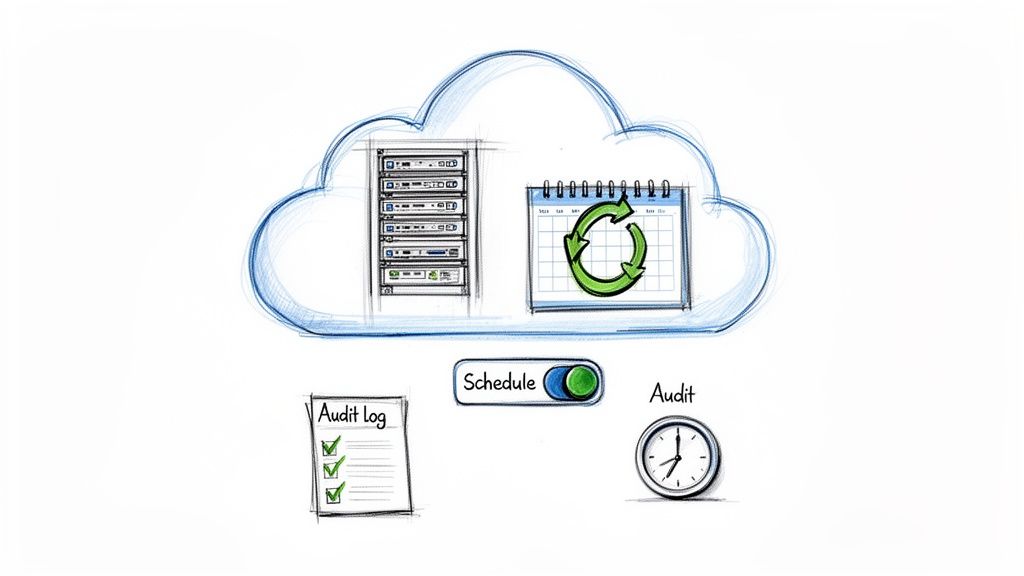
One of the biggest wins with a tool like Server Scheduler is standardization and auditability. Features like localized time zone support mean that a "midnight reboot" happens at midnight for each server, regardless of its location. On top of that, you get comprehensive audit logs showing a complete history of every action. You can see exactly who scheduled a reboot, when it ran, and if it succeeded. This is a lifesaver for security reviews and compliance. Perhaps the most convincing reason to automate is the direct impact on your cloud bill. Manual processes often mean leaving idle resources running, which can inflate cloud bills by up to 70%. Server Scheduler tackles this head-on by automating EC2 and RDS shutdowns. By systematically powering down non-production environments during nights and weekends, companies can see cost savings of up to 70%. For a deeper look, check out our guide on how to schedule an EC2 instance reboot.
Common Questions About Remote Reboots
As you get more comfortable restarting machines from afar, you'll inevitably run into a few quirks. Let's walk through some of the most common questions.
Tired of manually rebooting your cloud servers? Server Scheduler automates your AWS maintenance with a dead-simple visual interface. See how you can schedule reboots in seconds.
A remote restart command is sent to a computer that is already on. Wake-on-LAN (WoL), on the other hand, is used to bring a computer to life from a powered-off state. You can remotely restart a PC on a different network, but the safest way is with a Virtual Private Network (VPN). A VPN creates a secure tunnel from your computer to the remote network. Never expose management ports like RDP (3389) or SSH (22) directly to the internet.
Seeing an "Access is denied" error almost always means you have a permissions problem. The fix is to ensure the account you're using is a member of the local Administrators group on the target computer. The "RPC server is unavailable" error is usually a communication breakdown caused by a firewall blocking traffic. If it's not the firewall, check if the remote PC is online, if essential services like "Remote Procedure Call (RPC)" are running, or if there's a DNS issue. Digging into system logs can also provide clues, a topic we cover in our guide on the Event Viewer ID for a system reboot.
Related Articles
- A Deep Dive into the Command Prompt Shutdown Command
- How to Find the Event Viewer ID for a System Reboot
- A Step-by-Step Guide to Create a Self-Signed Certificate with OpenSSL
Stop wasting time on manual reboots and cut your cloud costs by up to 70%. With Server Scheduler, you can automate your entire AWS maintenance workflow using a simple, point-and-click interface. Start scheduling your servers smarter, not harder.