Grep Binary File Matches: Master Tips for Searching Binary Files

If you’ve ever run a broad grep search across a filesystem, you’ve probably run into this message: Binary file (standard input) matches. This isn't an error, but rather a protective feature of the grep command. At its heart, grep is designed to process plain text. When it encounters characters it doesn't recognize, such as a NUL byte common in binary formats, it stops and issues this warning. This intelligent design prevents it from flooding your terminal with unreadable output from compiled programs, images, or compressed logs. Understanding this behavior is the first step toward effectively handling these scenarios, allowing you to either force grep to process the file or choose a more suitable tool for the task.
Tired of manual server tasks? Server Scheduler automates your start/stop schedules, saving you time and reducing your AWS cloud bill.
Contents
Ready to Slash Your AWS Costs?
Stop paying for idle resources. Server Scheduler automatically turns off your non-production servers when you're not using them.
Understanding Grep's Warning on Binary Files
The core function of grep is to process text line by line, searching for a specified pattern. This simple, powerful approach works flawlessly for source code, configuration files, and logs. However, binary files—such as executables, images, and database backups—do not adhere to this line-based structure. They are composed of data that isn't meant to be human-readable, and this is where the conflict arises.
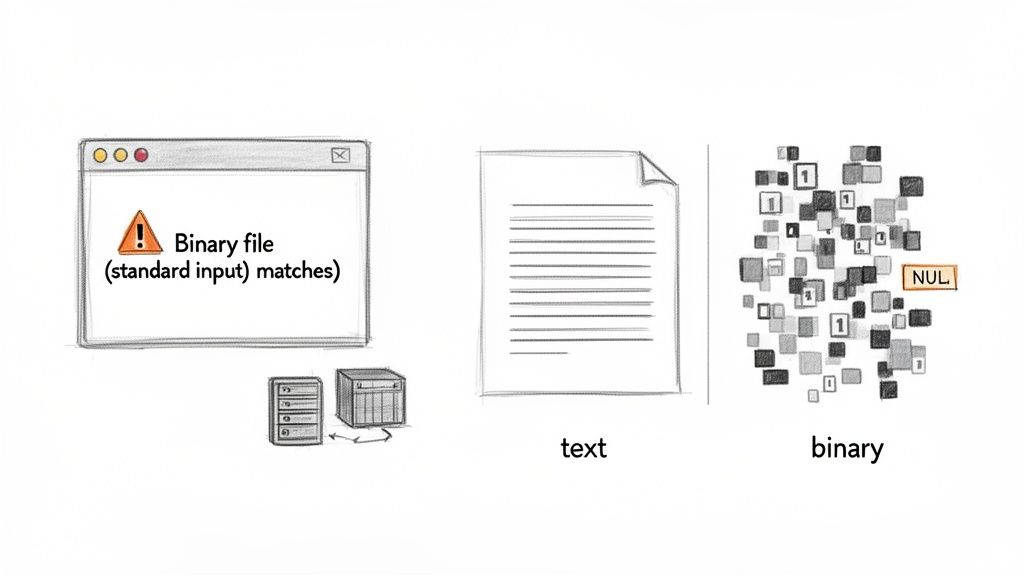
The primary trigger for the "binary file matches" warning is the NUL byte (\0), a character with a value of zero. While almost never present in plain text files, NUL bytes are ubiquitous in binary formats. When grep encounters one, it logically concludes that the file is not text and prints the warning to avoid corrupting your terminal display. While this is a sensible default, for a DevOps engineer or security analyst, that warning can be a significant roadblock. It could mean missing a critical configuration string hardcoded in a Docker image or an important error code hidden within an EC2 instance dump. This behavior has been part of grep since its inception in 1973, and recent data suggests that a significant majority of Linux administrators and DevOps teams managing AWS infrastructure encounter it regularly. To better grasp why grep struggles with these files, it's helpful to understand the fundamentals of how to convert binary to English, which clarifies the distinction between machine-readable data and human-readable text.
How to Force Grep to Read Binary Files
While grep's default behavior is a smart safeguard, there are many scenarios in DevOps and security where inspecting the contents of binary files is essential. Fortunately, grep provides several flags to override its default behavior, giving you direct control over how it handles different file types. The most straightforward method is using the -a or --text flag. This option effectively tells grep to treat any file, regardless of its content, as if it were plain text. This is incredibly useful for locating human-readable strings embedded within compiled executables, shared object libraries (.so), or proprietary log formats that might otherwise be ignored.
Interestingly, grep can sometimes misidentify a file. A known interaction with the Linux kernel feature SEEK_HOLE can cause grep to incorrectly flag sparse files as binary, even if they contain only text. This issue is particularly relevant on systems using cloud storage like AWS EBS volumes. In such cases, the -a flag becomes less of a convenience and more of a necessity for reliable searching. You can read more about this specific grep and sparse file behavior to understand the low-level mechanics. For more granular control, especially within automated scripts, the --binary-files=TYPE option is invaluable. It allows you to specify exactly how grep should behave when it finds a match in a binary file.
Conversely, there are times when you want to completely exclude binary files from your search results. The -I flag is perfect for this. It instructs grep to silently skip any files it identifies as binary. This is extremely useful when performing recursive searches in large codebases, where compiled artifacts, .git objects, and other non-text files would otherwise clutter your output.
| Flag | Long Option | Purpose | Common Use Case |
|---|---|---|---|
| -a | --text | Process a binary file as if it were text. | Finding readable strings in compiled executables or .so files. |
| -I | (none) | Ignore binary files completely. | Searching a source code directory recursively without clutter. |
| --binary-files=TYPE | Specify handling (text, binary, without-match). |
Scripting searches with precise, predictable output control. |
When to Use a Better Tool Than Grep
Forcing grep to read binary files with the -a flag is a useful trick, but it's not always the most effective solution. You are asking a tool optimized for text to interpret a format it wasn't designed for. On very large files, such as multi-gigabyte database dumps or system archives, this approach can be exceedingly slow and consume significant system resources. More critically, it can sometimes fail to find patterns that a purpose-built tool would locate with ease.
Why the Slowdown? The fundamental issue is that
grep's performance relies on its line-by-line processing model. Binary files lack this structure, forcinggrepinto a less efficient, byte-by-byte search that can lead to poor performance or even missed matches.
One comprehensive benchmark on searching binary files highlighted this limitation vividly. In the test, grep completely failed to find a hexadecimal pattern within a large binary, running for over 90 seconds without success. In contrast, specialized tools found all occurrences in under a minute with a much smaller memory footprint. The choice you face when encountering a binary file is straightforward, but knowing which alternative tool to use is key to efficiency.
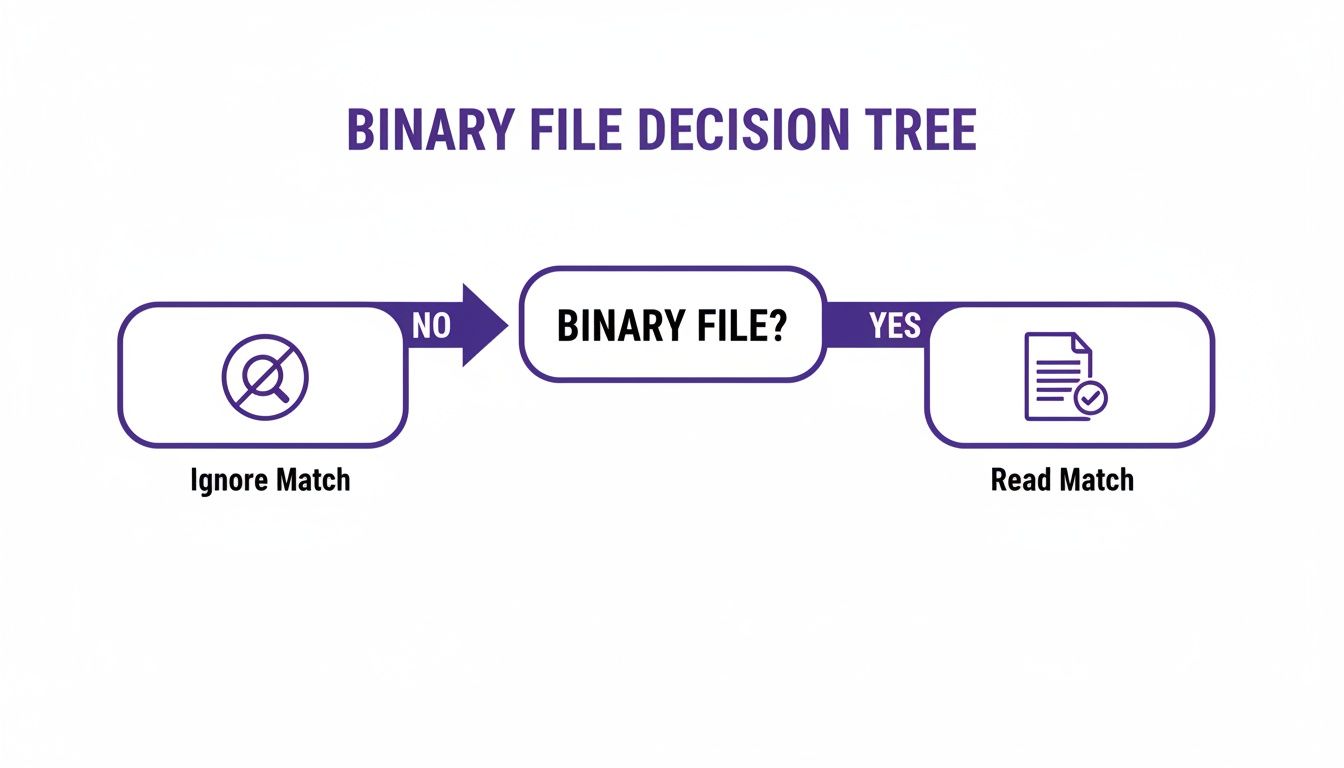
Fortunately, the Linux ecosystem offers excellent alternatives. The classic strings command is often the best first step. It extracts all printable character sequences from a binary file, which you can then pipe into a standard grep command. For more advanced requirements, modern tools like ripgrep (rg) and bgrep are game-changers, built from the ground up for high-performance searching across all file types. If you need to install these tools, our guide on how to install software in Linux provides a helpful walkthrough. While you're at it, you might also find our guide on how to find Windows uptime with command line tools useful.
Practical Recipes for Searching Binary Files
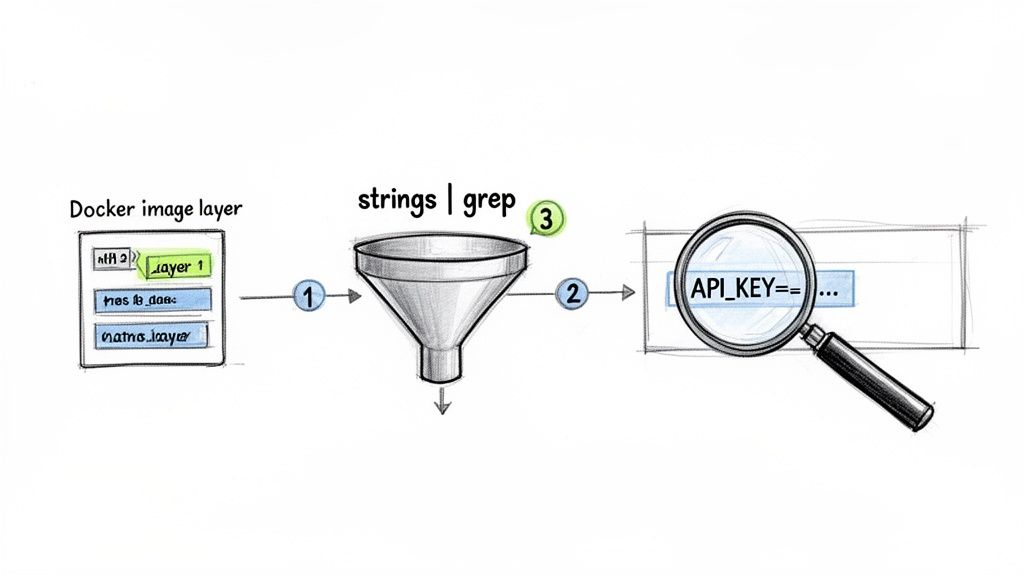
Theory is useful, but practical application is where real learning occurs. Let's explore some copy-paste-ready commands for common binary file search scenarios you might encounter in a DevOps role. Imagine you are debugging an application in a Docker container and suspect an API_KEY was mistakenly hardcoded into a compiled binary. A simple grep -a "API_KEY" would likely return the match surrounded by garbled, unreadable text.
A much more elegant solution is to combine strings and grep.
strings /path/to/your/binary | grep "API_KEY"This classic Unix pipeline is highly effective. The strings command first extracts only the human-readable text from the binary. This clean output is then passed to grep, which can perform a fast and legible search, pinpointing the exact information you need without any of the surrounding noise.
Another common challenge is recursively searching a project directory filled with binary files like .git objects, images, and compiled assets. A naive grep -r will inundate you with "Binary file matches" warnings. This is where combining find with grep -I becomes a powerful strategy.
find . -type f -not -path "./.git/*" -exec grep -I "your-pattern" {} +This command uses find to locate all files while explicitly excluding the .git directory. It then executes grep with the -I flag on the remaining files, ensuring the search is restricted to text-based source code. This approach is not only cleaner but also more performant, as it avoids processing large binary files, which is an important consideration for managing your overall CPU utilization in Linux environments.
Automating Binary Searches in Your CI/CD Pipeline
While manual searches are useful for debugging, the greatest value comes from integrating these checks directly into your CI/CD pipeline. By automating binary file searches, you can proactively catch critical issues, such as hardcoded secrets or outdated library versions, before they ever reach production. This shifts your team from a reactive problem-solving mode to one of proactive quality assurance, a core tenet of modern development practices like Continuous Integration.
You can begin by incorporating simple shell scripts into your build or test stages. For example, a script could scan all compiled artifacts to ensure no secrets like API keys or database credentials have been accidentally included. Another valuable check is to verify library dependencies. If a security vulnerability is announced for a specific library version, a script can scan your binaries to confirm that the vulnerable version is not present anywhere in your build.
Proactive Security The objective is to create an automated safety net. A pipeline that fails because it detected a hardcoded password is a small inconvenience compared to the major security incident it prevents.
Performance is critical in CI/CD environments. A slow pipeline impedes development velocity and frustrates engineers. Because standard grep can become a bottleneck when scanning binaries, using faster, purpose-built tools is essential for maintaining an efficient workflow.
| Tool | Performance | Binary Handling | CI/CD Suitability |
|---|---|---|---|
grep -a |
Slow on large files | Forces text mode | Poor |
ripgrep |
Extremely fast | Native & efficient | Excellent |
Modern alternatives like ripgrep (rg) are significantly faster and handle binary files more intelligently than grep -a. By choosing the right tool, you can implement comprehensive security and quality checks without slowing down your deployment cycle. If you encounter issues with other automated jobs, our guide on fixing a crontab not working may provide useful solutions, and for tracking processes, you can learn more about managing date and time stamps.