A Complete Guide to the Real Cost of Azure Backup
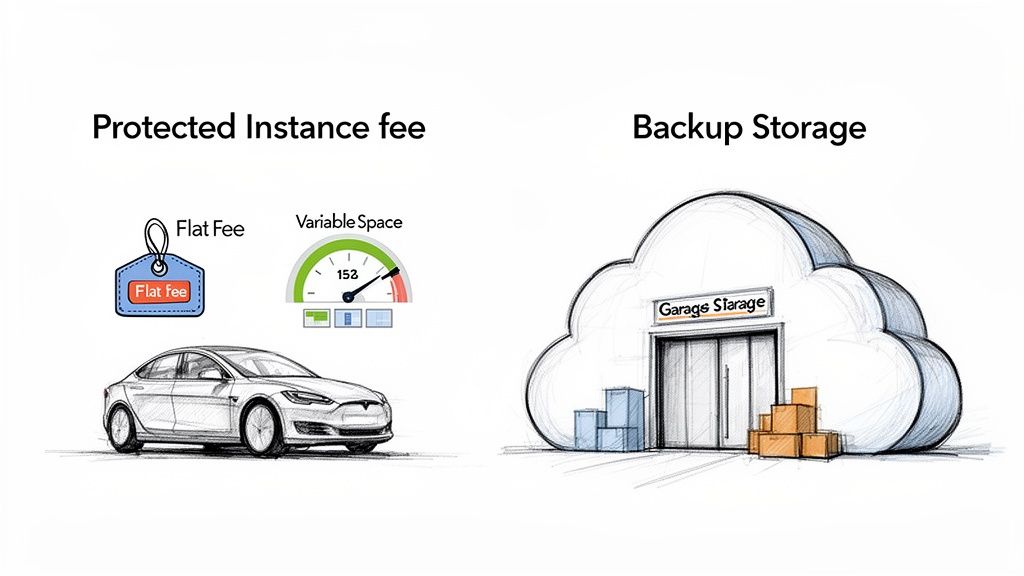
Figuring out the final cost of Azure backup can feel like you're trying to hit a moving target. That’s because the price isn’t just one flat number. Your bill really boils down to two key things: a fixed fee for each resource you’re protecting (that's the Protected Instance fee) and a variable cost for the actual storage your backups gobble up.
Ready to gain control over your cloud spending? Server Scheduler helps teams automate server schedules to cut cloud bills by up to 70%. Learn more and start saving today.
Contents
Ready to Slash Your AWS Costs?
Stop paying for idle resources. Server Scheduler automatically turns off your non-production servers when you're not using them.
Demystifying Your Azure Backup Bill
Staring at an Azure Backup invoice for the first time can leave you scratching your head. But once you break it down, it's actually pretty straightforward. Think of it this way: you pay a fixed "insurance premium" for every server or database you want to protect, and then you pay for the "secure vault" space that all your backup data takes up. It's a lot like insuring your car; you have a set monthly premium just for the coverage, and then you might pay extra depending on how big of a garage you need to store it in. This guide will pull back the curtain on these charges, giving IT managers, FinOps pros, and DevOps teams a solid foundation to predict and control their backup spending.
Before we get into the nitty-gritty, we need to talk about storage redundancy, as this choice has a direct and significant impact on your monthly bill. One of the first big decisions you'll make is how durable you want your backups to be. This choice determines how and where Azure copies your data to keep it safe from everything from a single server failing to an entire region going offline. Your cheapest bet is Locally-Redundant Storage (LRS), which makes three copies of your data in the same data center. A step up is Geo-Redundant Storage (GRS), which creates six copies—three locally and three more in a secondary region hundreds of miles away.
Picking between LRS and GRS isn't just a technical checkbox—it's a financial one. GRS costs more than LRS because you're paying for extra copies and the network traffic to replicate data across regions. For teams trying to keep a lid on costs, especially for non-production environments, sticking with LRS can shave a nice chunk off your bill. This same principle applies across clouds; our article on AWS cost management best practices dives into similar strategies.
The Two Primary Drivers of Your Backup Costs
To get a real handle on your Azure Backup spending, you need to understand the two main levers that control your monthly bill. These two parts work together, but they cover different things—think of it like a phone plan where you have a flat line rental fee plus extra charges for the data you actually use. Nailing this distinction is the key to dodging surprise costs. The first, and most basic charge, is the Protected Instance fee. This is a fixed monthly cost for every single data source you enroll in Azure Backup. You can think of it as your "insurance premium"—a flat rate you pay just for having a resource like a VM or SQL database covered by the service. The critical thing to remember is this fee isn't based on how much backup data you're storing; it’s based on the size of the original data source itself.
This pricing model is tiered, which can sometimes lead to some sticker shock. For example, a 45 GB virtual machine might fit comfortably in one pricing tier, but a slightly larger 55 GB VM gets bumped into the next, more expensive bracket. This is a classic "gotcha" that catches teams off guard when a small increase in source data size unexpectedly doubles the instance fee for that one resource.
The second major piece of your bill is Backup Storage. This is the variable part of your costs, and it directly reflects how much space your backups are actually taking up in the Recovery Services vault. After the first full backup, Azure Backup thankfully stores only incremental changes, which helps keep this cost in check. But your choices here can still have a massive financial impact.
CALLOUT: Your architectural decisions directly translate into monthly expenses. Selecting GRS when LRS would suffice is like paying for global shipping insurance on a local delivery—it provides protection you may not need at a premium price.
Beyond redundancy, Azure also gives you different storage tiers based on how often you'll need to get to the data. The Hot Tier is best for frequently accessed data, while the Cool Tier is for data you touch less often. The Archive Tier is the cheapest option for long-term data you rarely access, like for compliance reasons. By matching your backup policies to the right storage redundancy and access tiers, you can slash your bill. For a deeper dive into this topic, explore our other cloud cost optimization strategies.
Calculating Backup Costs for Azure Virtual Machines
Backing up Azure Virtual Machines is bread and butter for many teams, but figuring out the cost of Azure backup can be tricky. The final bill isn't just about the storage you use. It all starts with a "protected instance fee" that’s based on the VM's total data size before any compression. This is a crucial detail that catches a lot of people by surprise. The pricing for VM backups hinges on the size of the instance you’re protecting. A small VM up to 50 GB costs just $5 per month for the instance fee. But that jumps to $10 for instances between 50 GB and 500 GB, and from there, it's another $10 for every additional 500 GB chunk—all before you pay a dime for the actual backup storage.
This tiered system means you need to be careful when provisioning new VMs or expanding existing ones. Knowing these thresholds is key to avoiding accidental cost hikes.
| VM Instance Size | Monthly Protected Instance Fee |
|---|---|
| Up to 50 GB | $5 per month |
| > 50 GB up to 500 GB | $10 per month |
| Each additional 500 GB | An additional $10 per month |
Let's walk through a real-world example. Imagine you need to back up a production VM with 1.2 TB of total data. First, the protected instance fee would be $30 ($10 for the first 500 GB, $10 for the next 500 GB, and $10 for the remaining 200 GB). Now, let's add storage. Assuming an initial 1.2 TB backup, 2% daily changes, and a 30-day retention, your total storage would be about 1.9 TB. With LRS (around $0.0224/GB), storage costs roughly $42.56. With GRS (around $0.0448/GB), that doubles to $85.12. Your total monthly estimate would be $72.56 with LRS or $115.12 with GRS. This shows how both instance size and redundancy choices determine the final cost.
Analyzing Costs for Other Critical Workloads
Virtual machines are a natural starting point, but a real-world backup strategy has to cover much more ground. The cost of Azure backup shifts dramatically when you start protecting other critical services like Azure Files and SQL Server, each with its own pricing quirks. When it comes to Azure Files, the pricing is refreshingly simple compared to VMs. Azure ditches the tiered instance fees and uses a straightforward, flat-rate protected instance fee instead. For any share over 250 GB, you’re looking at a flat $5 monthly protected instance fee. On top of that, you pay for the snapshot storage it consumes, which quickly becomes the main driver of your monthly bill. You can get more details in this helpful guide on Azure Backup pricing.
Things get a little more complicated when you're protecting SQL workloads. For SQL Server running on an Azure VM, the model feels similar to standard VM backups. You pay a protected instance fee based on the database size, plus the storage costs. But there's a critical, often-overlooked expense: log backups. While full and differential backups are predictable, transaction log backups can quietly eat away at your budget. With managed services like Azure SQL Database, backup is mostly automated and baked into the service price. The catch comes when you need long-term retention beyond the default period, at which point you'll start paying extra for that storage. This all proves that every service demands its own optimization strategy.
Proven Strategies to Reduce Azure Backup Spending
Knowing how Azure Backup pricing works is one thing, but actually putting that knowledge to work is what saves you money. The key to controlling the cost of Azure backup is to be deliberate about your policies. One of the biggest money pits is overly aggressive backup policies. Not all data is created equal, so your retention periods shouldn't be either. Start by auditing your current policies and tailor them to match real business needs, slapping shorter retention periods on dev and staging environments compared to production. This one change can lead to immediate and significant savings.
Another powerful strategy is choosing the right storage redundancy. The choice between Locally-Redundant Storage (LRS) and Geo-Redundant Storage (GRS) directly hits your wallet. GRS costs about double what LRS does. For all your development, testing, and staging environments, making LRS your default is a simple and highly effective cost-saving move. You still get great durability with three copies of your data in one data center, but at a much friendlier price.
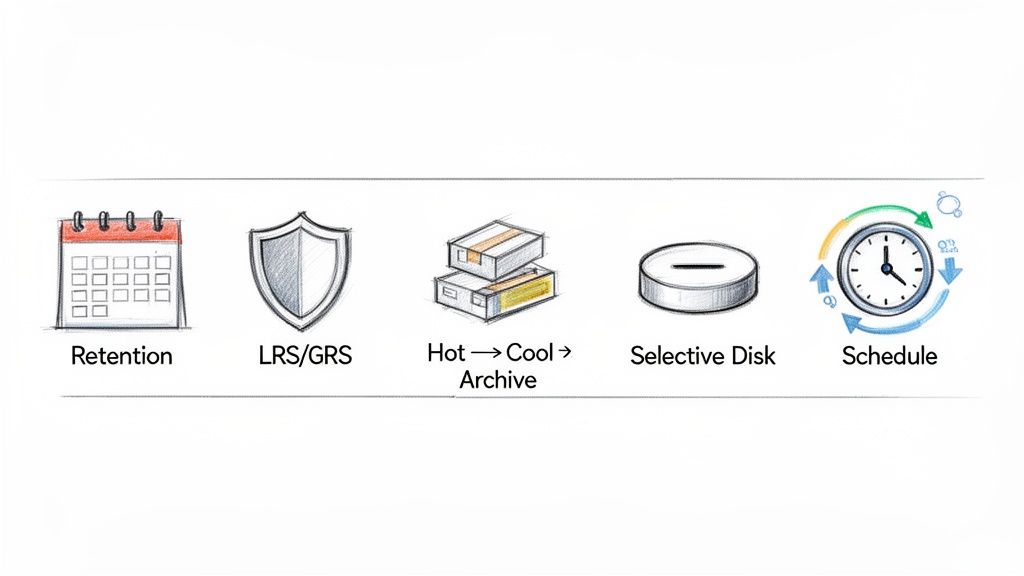
Furthermore, leveraging storage tiers for long-term retention is crucial. If you have to keep data for years for compliance, letting it sit in the standard "Hot" tier is like burning cash. Set up a lifecycle policy that automatically shuffles backups from Hot to Cool and eventually to Archive. Moving 1 TB of backups from the Hot to the Archive tier can cut its monthly storage cost by over 95%. Finally, for VMs, use selective disk backup to exclude temporary or non-critical disks from the job. This trims down both the instance fee and your storage consumption.
Common Questions About Azure Backup Costs
When you start digging into Azure Backup pricing, a few questions always seem to pop up. One of the first things that trips people up is the two main charges. The Protected Instance fee is like a fixed insurance premium based on the original data source size. The Backup Storage cost is a variable fee for the actual space your backups take up. Yes, you pay both at the same time. To accurately forecast your bill, you must add up the instance fees for all resources and then estimate storage consumption based on backup size, data churn, and retention policies. The Azure Pricing Calculator is your best friend for this task.
A massive "gotcha" is that backup charges do not stop automatically when you delete a resource. Azure Backup holds onto existing recovery points based on your retention policy, and the meter keeps running. You must manually go into the Recovery Services vault and choose to "Delete Backup Data" to stop the charges. Make this a non-negotiable step in your decommissioning checklist.
While the cost is mostly straightforward, a few other fees can creep in. You'll face outbound data transfer costs if you restore data to a different Azure region. There are also retrieval fees for pulling data from the cost-effective Archive tier, which can be slow and expensive. Finally, you might see small charges for excess restore operations if you exceed the monthly free quota. Keeping these potential charges on your radar will help you paint a complete picture of your total backup spend.
Ready to slash your cloud costs without complex scripts? Server Scheduler helps you automate server start/stop times with a simple, visual interface, reducing waste and cutting bills by up to 70%. Learn more and start saving today.