Cronjob Every Minute: A Guide to Smart Scheduling

Contents
Ready to Slash Your AWS Costs?
Stop paying for idle resources. Server Scheduler automatically turns off your non-production servers when you're not using them.
Running a cronjob every minute might sound like a quick fix for frequent tasks, but it's often a deceptive one. Using the * * * * * syntax kicks off a task 1,440 times every single day. That relentless cycle can sneak up on you, introducing serious performance risks and hidden costs if you're not careful. The real challenge isn't just setting up the schedule; it's understanding the massive impact it can have on your system's stability and your cloud budget.
Call to Action: Tired of cronjobs causing unexpected server costs? Server Scheduler helps you cut cloud spend by up to 70% by automating when your resources run—no scripts needed.
The Hidden Risks of an Every Minute Cronjob
Scheduling a task to run every minute is a powerful tool, but it walks a fine line between efficiency and disaster. While it’s tempting for high-frequency needs like monitoring or data syncing, the constant execution can easily overwhelm server resources. Each run consumes CPU cycles, memory, and disk I/O. When you repeat those small demands 1,440 times a day, they create a significant cumulative load. This gets especially dangerous when a job's execution time is unpredictable.
The biggest risk here is job overlap. This is where a new instance of the cronjob starts before the previous one has finished. It creates a cascading effect, spawning multiple processes that all fight for the same resources. Before you know it, your server can become unresponsive, leading to outages that are a nightmare to diagnose because the root cause—a seemingly harmless cronjob—is often the last thing you check. This isn't just a theoretical problem. A well-documented incident involving Automattic's Jetpack WordPress plugin serves as a stark warning. Back in 2016, a feature running a cronjob every minute caused catastrophic performance degradation on their AWS EC2 instances.
The constant task execution triggered an overwhelming number of file system operations. According to the detailed report, the system was generating around 600 NFS open operations per second, 600 NFS close operations per second, and an astonishing 1,700 NFS getattr operations per second. This metadata storm, exceeding 10 MB/s, brought production servers to their knees. You can dig into the full technical breakdown of the Jetpack incident on GitHub for all the details.
Key Takeaway: Job schedulers don't care if your system is already overloaded. A cronjob set for every minute will attempt to run every minute, regardless of the server's state, making it a potential catalyst for system failure during high-traffic periods.
This scenario is a perfect example of how quickly an every-minute cronjob can spiral out of control, especially in a cloud environment where every operation has a price tag. Those massive spikes in CPU and disk I/O don't just threaten stability; they translate directly into higher cloud bills. Platforms like AWS track every bit of resource consumption, and a runaway cronjob can inflate your costs without warning. It's critical to know your server's limits; you can learn more about how to check CPU utilization in Linux to stay ahead of these issues. Ultimately, deciding to run a cronjob every minute requires a careful trade-off. It's not just about how to do it, but why you need it and whether your system can truly handle the relentless demand without sacrificing performance or your budget.
Configuring Every-Minute Cronjobs Across Different Systems
Setting up a task to run every minute is a common need, but how you pull it off changes dramatically depending on your environment. Whether you're on a classic Linux box, wrangling containers in Kubernetes, or working with serverless functions in the cloud, each system has its own way of scheduling high-frequency jobs. For decades, the go-to tool for scheduling on any Unix-like system has been the cron daemon, which you manage with a crontab file. Its syntax is incredibly powerful yet surprisingly simple once you get the hang of it. To run a job every single minute, you just use five asterisks. The expression * * * * * is the key. It tells the system to execute your command no matter the minute, hour, day, month, or day of the week.
While crontab is everywhere, most modern Linux distros now lean on systemd timers. They offer much better control and integrated logging. The big difference is that systemd splits the job (the "service unit") from its schedule (the "timer unit"), giving you a cleaner, more structured setup. You create a service file to define the command and a matching timer file to define the schedule using the OnCalendar=*:0/1 directive. When you're working in a containerized world managed by Kubernetes, the CronJob is your native tool for the job. It works by creating a new Job object based on a recurring schedule you define in the familiar cron format. It's perfect for periodic cluster tasks like backups or generating reports.
If your application lives in the cloud, do yourself a favor and use a managed scheduler like AWS EventBridge or Google Cloud Scheduler. These services are built to be highly available and scalable, and they plug right into other services like AWS Lambda or Google Cloud Functions. Going serverless like this means you never have to worry about managing the underlying scheduling infrastructure yourself.
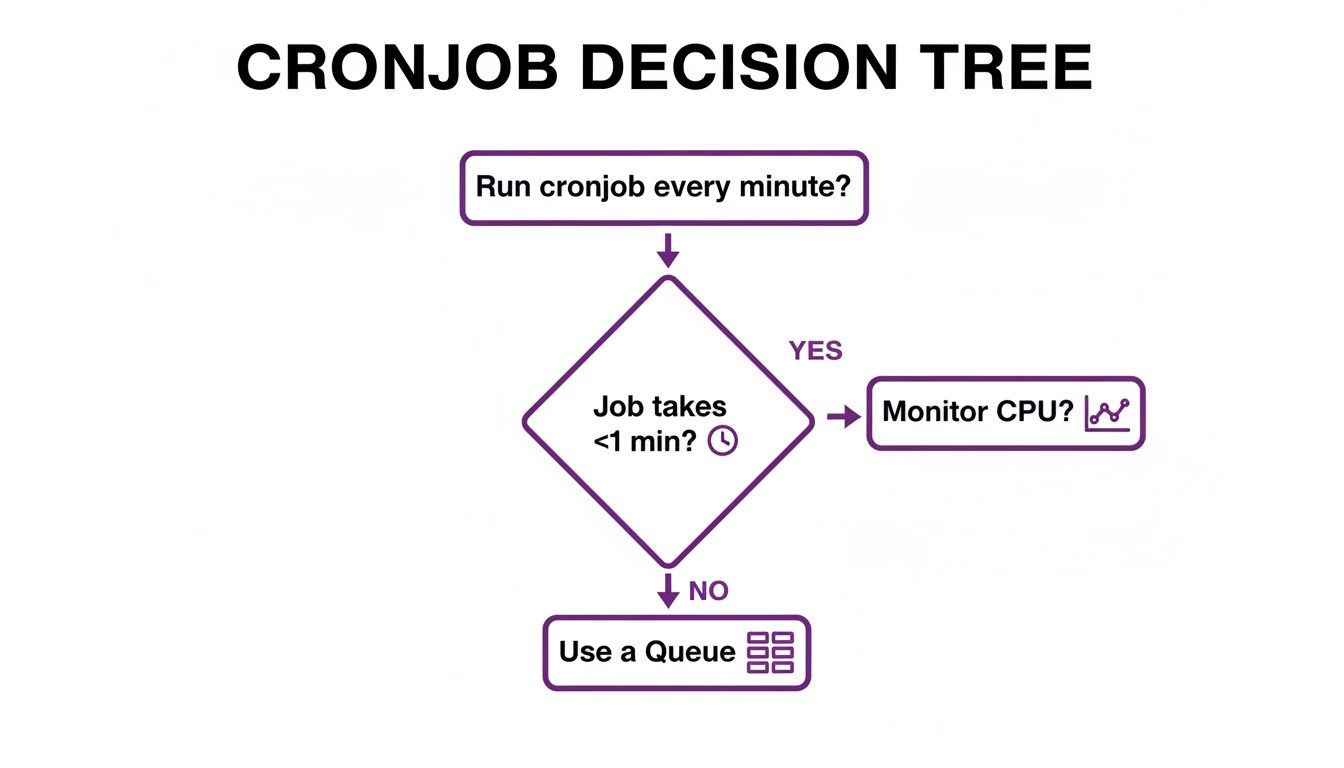
The key takeaway from the chart is that if your job might take longer than a minute to finish, you should seriously consider a queue-based system to manage the workload and avoid messy overlaps. Each platform has its nuances, but the core goal is the same: reliable, high-frequency execution. For a deeper dive into troubleshooting, our guide on why your crontab is not working can help you figure out what’s wrong.
| Platform | Syntax or Configuration Method | Key Consideration |
|---|---|---|
| Crontab | * * * * * /path/to/command |
Redirecting output to a log file (>> /path/to/log 2>&1) is crucial for debugging. |
| Systemd Timer | OnCalendar=*:0/1 in the .timer file |
Requires two separate files (a .service and a .timer) but offers superior logging. |
| Kubernetes CronJob | schedule: "* * * * *" in the YAML spec |
The concurrencyPolicy must be set to Forbid to prevent overlapping jobs. |
| AWS EventBridge | rate(1 minute) |
Integrates directly with serverless targets like Lambda, removing infrastructure management. |
| Google Cloud Scheduler | * * * * * |
Can trigger HTTP endpoints, Pub/Sub topics, or App Engine apps. |
Best Practices for High-Frequency Scheduling
Getting your job to run every minute is just the start. The real challenge is making sure it runs reliably and efficiently without becoming a maintenance nightmare. A poorly managed high-frequency task can quickly spiral out of control, causing silent failures or hogging resources that bring down other critical services. Adopting a few key best practices can be the difference between a stable, predictable system and one that keeps your team patching things together at 3 AM. These strategies are all about making your jobs resilient, transparent, and safe enough to run at one-minute intervals.
Ready to tame your high-frequency jobs? Server Scheduler offers a point-and-click way to manage your infrastructure schedules, helping you avoid complex cron maintenance and reduce cloud costs.
A cron job that fails silently is a ticking time bomb. Without solid error handling and logging, you might not know a critical task has been failing for hours—or even days. Your script needs to handle transient failures gracefully. For example, if it can't connect to a database, it should log the specific error and exit with a non-zero status code. Comprehensive logging is non-negotiable. Don't just log "success" or "failure"; capture key metrics like execution time, the number of records processed, or API calls made. Nailing your timestamps is also crucial; our guide on proper date and time stamps can help with that.
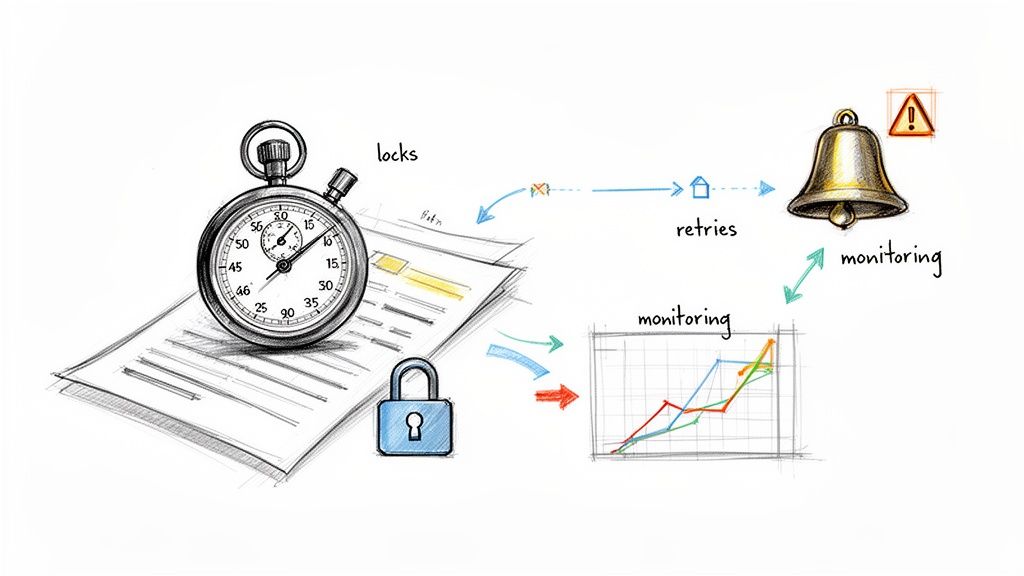
The biggest danger with a cronjob every minute is overlap, where a new job instance kicks off before the previous one has finished. This can quickly exhaust server resources and lead to chaos. The solution is a locking mechanism. A simple but effective method is the classic lock file. Before your script starts its main task, it checks for a specific file, like /tmp/myjob.lock. If that file exists, it means another instance is already running, so the new script should exit immediately. Logging tells you what happened in the past; monitoring and alerting tell you what’s happening right now. You need a system that actively watches your jobs and screams for help when something goes wrong. Tools like Prometheus, Datadog, or even simple "dead man's switch" services are perfect for this. Thinking about the bigger picture, like the various report scheduling benefits, helps you design more robust scheduling and alerting strategies from the start.
Understanding the True Cost of Constant Polling
Setting a cron job to run every minute is basically creating a constant polling loop—a script that endlessly asks, "Is there anything to do yet?" While it sounds harmless, this pattern comes with a surprisingly steep price tag, both in performance and in your monthly cloud bill. Each time that job runs, it consumes resources. When it runs 1,440 times a day, those tiny costs snowball into a serious expense. This relentless checking burns through CPU cycles, memory, and network I/O, even when the job finds absolutely nothing to do. In a pay-as-you-go environment like AWS or Google Cloud, this translates directly into a higher bill. It’s a subtle but significant form of financial waste that's easy to overlook until it's too late.
Every time your cron job kicks off, it spins up a process, grabs some CPU, and might even make a few network calls. Most of the time, these are "empty" runs—it checks for work, finds none, and shuts down. The catch? You're still billed for that brief burst of activity. This inefficiency is glaring in cloud services. For example, using an every-minute cron expression in AWS Application Auto Scaling or EventBridge triggers a jaw-dropping 1,440 executions daily. That’s 525,600 executions a year for a single job.
Analyses of cloud scheduling patterns reveal that a shocking 68% of teams overuse these frequent jobs for tasks that could easily run hourly or daily. This one mistake is why 50-70% of resource spend is often completely idle. For anyone in a FinOps or CTO role trying to get cloud costs under control, this is a massive red flag. For a deeper look at getting these expenses under control, check out our guide on EC2 cost optimization.
The financial drain is just one side of the coin. This constant polling also creates a low-level but persistent drag on your system's performance. It's like having a constant background noise that your server always has to deal with. Every minute, your system has to context-switch to run your cron job, stealing resources away from serving actual user requests or other critical processes. This can introduce latency and drag down the overall throughput of your application. Challenging inefficient polling and pushing for smarter, event-driven architectures isn't just a technical debate—it's a critical step toward building more efficient and cost-effective systems.
A Smarter Approach to Cloud Cost Management
Running a cronjob every minute just to check for work is a classic sign of an inefficient, reactive model. What if, instead of constantly poking your servers, you focused on managing the resources themselves? This flips the script on scheduling, moving you from micro-managing individual tasks to macro-managing entire cloud environments. It’s a strategic shift from asking "How do I run this task?" to "When does this resource actually need to be active?" This simple question gets to the heart of cloud waste: idle infrastructure. This isn't about throwing out cron entirely; it's about adopting a far more intelligent strategy to boost efficiency and slash your cloud bill.
Ready to stop wasting money on idle cloud resources? Server Scheduler provides a simple, point-and-click way to automate your infrastructure schedules, slashing cloud bills by up to 70%.
The core idea is powerful because it's so simple. Instead of letting your non-production servers, databases, and caches burn money 24/7, you just schedule them to power down during off-hours—nights, weekends, and holidays. That one change can produce some seriously dramatic savings. AWS's own documentation highlights that a single EC2 instance used only 10 hours a day, five days a week, wastes 118 hours of compute time every single week. By simply stopping those instances after business hours, you can see savings of up to 70%. The waste is real. Globally, 32% of cloud costs are tied up in idle non-production environments. You can learn more about these cost-saving insights from AWS.
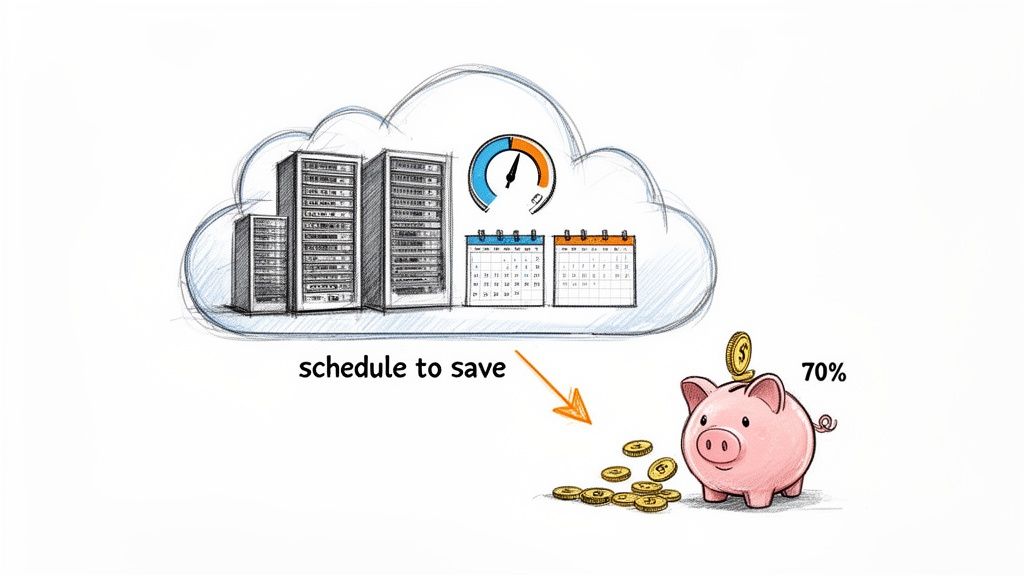 cloud computing vs. on-premise infrastructure is critical for long-term operational costs. No matter which model you choose, intelligent resource management is key to keeping those costs under control. For a deeper dive, check out our guide on effective cloud cost optimization strategies. By shifting your mindset from task-level cronjobs to environment-level scheduling, you move from a reactive, high-cost polling model to a proactive, cost-efficient operational strategy.
Every Minute Cronjobs: Your Questions Answered
When you get into high-frequency scheduling, the same questions pop up time and again. Let's tackle the most common ones our team hears about running a cronjob every minute, from the basic syntax to the real-world performance hits. To run a command every single minute, the universal crontab syntax is * * * * * /path/to/your/command. Each asterisk is a wildcard for a time field: minute, hour, day of the month, month, and day of the week. Using five asterisks essentially tells the cron daemon, "Don't worry about the specific time, just run this every minute." This adds up to a surprising 1,440 executions every single day.
Can a cronjob running every minute wreck your server? Yes, absolutely. One of the biggest dangers with every-minute jobs is "job overlapping," where a new instance of your script kicks off before the last one has finished. This can quickly spiral out of control, creating a cascade effect that eats up CPU, memory, and I/O. If your application lives in the cloud, using a managed service like AWS EventBridge or Google Cloud Scheduler is almost always a smarter move than a classic crontab on a lone server. These services were built for high availability and plug seamlessly into other cloud resources, giving you far superior logging and built-in retry logic.
By default, the cron daemon tries to email any output from your job, but a much more robust approach is to redirect all that output to a dedicated log file. You can do this by tacking >> /var/log/myjob.log 2>&1 onto the end of your cron command. This gives you a persistent, time-stamped record of every run, which is invaluable when you need to debug a problem or just monitor how the job is performing over time.
Related Articles
- Why Your Crontab Is Not Working (And How to Fix It)
- Top Cloud Cost Optimization Strategies for 2024
- A Practical Guide to EC2 Cost Optimization
Stop wrestling with cron scripts and start saving on your cloud bill. Server Scheduler offers a simple, point-and-click way to automate your infrastructure schedules, helping you avoid complex maintenance and reduce cloud costs by up to 70%. Try it out and see how much you can save.