A Guide to Understanding AWS WorkSpaces Cost
Staring at an AWS WorkSpaces bill can feel like trying to decipher a cryptic puzzle. You see all these different line items for hardware, hourly rates, and various monthly fees, but the final number often feels like a complete surprise. The truth is, your AWS WorkSpaces cost boils down to two critical decisions: the billing model you pick (monthly vs. hourly) and the hardware bundle you give to your users.
Ready to take control of your cloud desktop spending? Server Scheduler helps teams cut AWS costs by up to 70% by automating when resources like EC2 and RDS run. Find out how much you can save.
This guide is designed to pull back the curtain on WorkSpaces pricing. We're moving past the generic definitions to give you real, practical control over your virtual desktop infrastructure (VDI) spend. We won't just explain what the costs are; we'll show you how to manage them effectively. Our journey starts by breaking down the fundamental choices that directly shape your monthly invoice. Every single decision, from billing frequency to the type of instance, has a direct financial impact.
Contents
Ready to Slash Your AWS Costs?
Stop paying for idle resources. Server Scheduler automatically turns off your non-production servers when you're not using them.
Decoding Your AWS WorkSpaces Bill
At its core, the AWS WorkSpaces cost model is built around a few key elements. Think of it like building a custom PC—each component you select adds to the final price tag. Your bill is mainly a mix of the billing model, the hardware bundle, and the operating system. The billing model is your choice between AlwaysOn (monthly) for a flat fee or AutoStop (hourly) for pay-as-you-go, which is often the single biggest driver of your final cost. The hardware bundle represents the vCPU, memory, and storage you assign to the virtual desktop, with options ranging from lightweight "Value" bundles to powerful "Graphics" bundles. Finally, your choice between Windows and Amazon Linux 2 also plays a role, as Windows bundles typically have the license cost baked in, making them more expensive.
Many IT managers get blindsided by unexpected charges, and the most common culprit is a mismatch between the chosen billing model and how users actually work. For example, putting a part-time contractor who only works 15 hours a week on a fixed-cost monthly plan is a classic overspending trap, as you're paying for full-time access they simply don't need. Other hidden costs can also creep in and inflate your bill. Things like extra storage added to user volumes, licenses for third-party software like Microsoft Office, and even price differences between AWS regions can all add up. Getting the full picture of your cloud spend is critical, and you can learn more about general Amazon Web Service cost management in our other guides.
Choosing Your Billing Model: Monthly vs. Hourly
The single biggest factor driving your AWS WorkSpaces cost is the choice between two core billing models: AlwaysOn (Monthly) and AutoStop (Hourly). Getting this decision right is the first and most critical step in controlling your cloud desktop spend. Think of AlwaysOn as a fixed monthly phone plan—you pay one predictable price for unlimited access, ensuring the desktop is always ready the moment a user needs it. This model is the perfect choice for employees who work a standard 40-hour week or more. The killer feature here is instant access; since the WorkSpace is always running, there’s zero startup delay.
In contrast, AutoStop is more like a pay-as-you-go plan. You pay a small base fee to keep the desktop's storage intact, plus an hourly rate for every moment it's actively in use. This model is engineered for intermittent usage, where paying for 24/7 availability would be a waste. After a configurable period of inactivity, the WorkSpace automatically stops, and the billing clock pauses. This makes AutoStop the champion of cost-efficiency for non-continuous workloads, such as part-time employees, contractors with project-based needs, or development teams who only need to spin up test environments for specific windows. For a deeper dive, check out this detailed breakdown of AWS WorkSpaces billing structures.
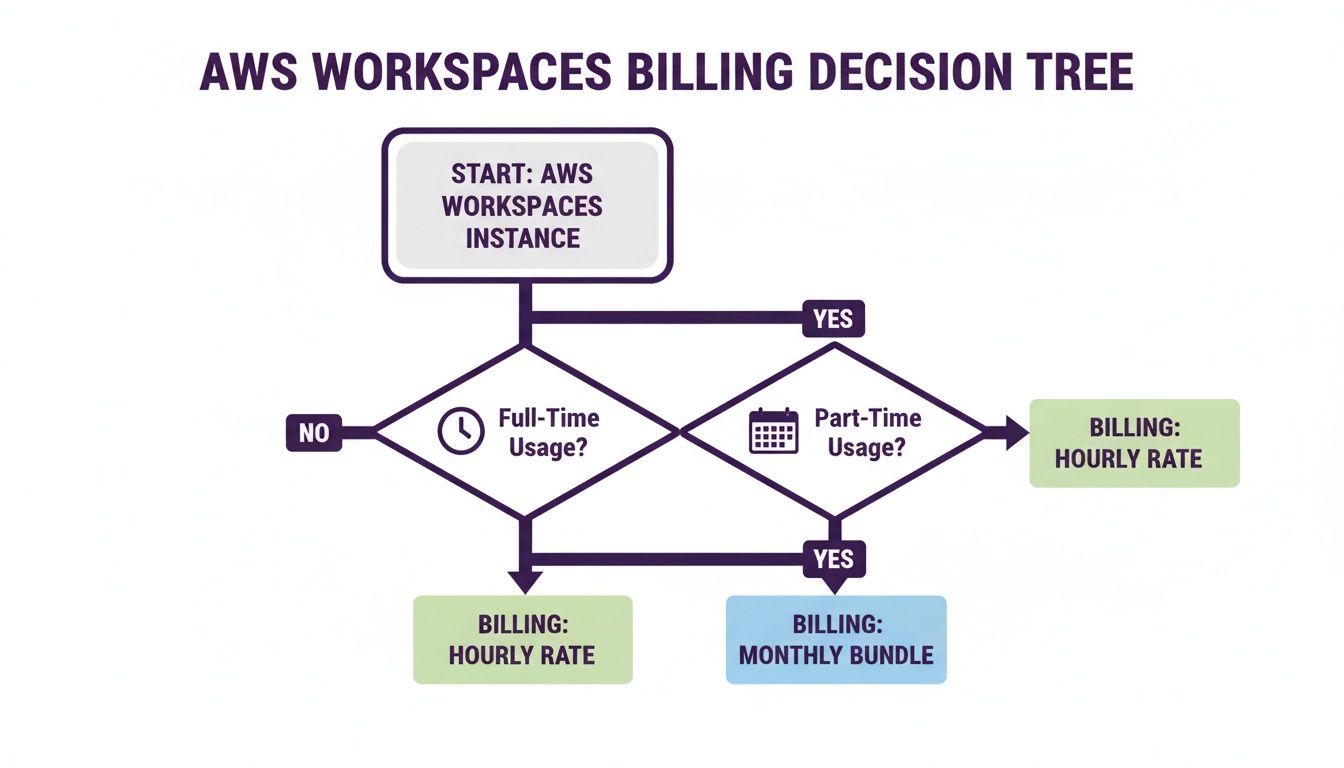
Your choice of hardware bundle and operating system also directly impacts your final cost, regardless of the billing model. A Windows WorkSpace will always cost more than an equivalent Linux one because the Windows license fee is bundled into the price. This applies to both the monthly fee for AlwaysOn and the hourly rate for AutoStop.
| Feature | AlwaysOn (Monthly) | AutoStop (Hourly) |
|---|---|---|
| Best For | Full-time employees, consistent 40+ hour/week usage | Part-time workers, contractors, QA/dev teams |
| Cost Structure | Fixed monthly fee for unlimited usage | Small monthly fee + per-hour usage charge |
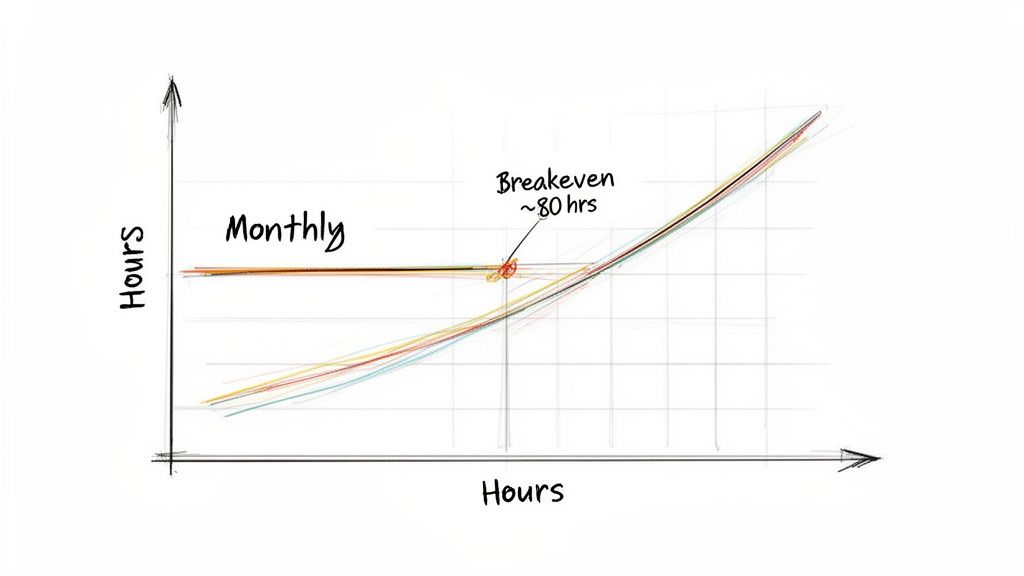
| Breakeven Point | Cost-effective for usage over ~80 hours per month | Cost-effective for usage under ~80 hours per month |
| User Experience | Instant access, always running | May have a brief startup delay after an idle period |
Ultimately, choosing the right billing model comes down to analyzing each user's specific work habits. By aligning the billing model with actual usage, you can stamp out one of the most common sources of overspending.
Finding the Financial Tipping Point
Knowing the difference between AlwaysOn and AutoStop is one thing, but the real magic happens when you can pinpoint the exact moment one becomes cheaper than the other. This is your financial tipping point—the specific number of hours per month where the hourly cost of AutoStop equals the flat monthly fee of AlwaysOn. Nailing this calculation is the key to mastering your AWS WorkSpaces cost. For the first few dozen hours of use each month, AutoStop is a no-brainer. But as usage climbs, those hourly charges add up, and eventually, they'll blow past the fixed price of the monthly plan.
Breakeven Hours = (AlwaysOn Monthly Cost - AutoStop Monthly Base Fee) / AutoStop Hourly Rate
Let's walk through a concrete example. Say you need a Windows PowerPro bundle (8 vCPU, 32 GB RAM) in the eu-west-1 (Ireland) region. The AlwaysOn cost is $127/month, while the AutoStop model costs $8/month plus $1.53/hour. Using the formula, the breakeven point is ( $127 - $8 ) / $1.53 ≈ 77.7 hours. Any usage below that mark makes AutoStop the winner. For instance, if that WorkSpace runs for a full-time equivalent of 400 hours in a month, the AutoStop bill would be a shocking $620, while the AlwaysOn model locks the cost in at a predictable $127. You can dig into more examples on the official AWS WorkSpaces pricing page. For those looking to save even more, exploring different AWS cost optimization tools can open up new ways to cut spending.
Uncovering Hidden Costs in Your VDI Environment
Your final AWS WorkSpaces cost is almost never just the bundle price plus usage fees. To build an accurate forecast, you have to shine a light on these often-overlooked costs. One of the most common extra costs comes from storage. While every WorkSpace includes a default root and user volume, users frequently need more space—and every extra gigabyte adds to your monthly bill. It’s billed as additional Amazon EBS storage, tacking on a recurring monthly charge that can accumulate significantly across hundreds of users.
Another surprising factor is regional pricing. The exact same WorkSpace bundle can have a different price depending on the AWS Region you deploy it in. For instance, a Standard Windows WorkSpace in US East (N. Virginia) might be over 30% cheaper than the identical setup in Asia Pacific (Tokyo). These differences are driven by local operational costs and taxes. For large deployments, picking the most cost-effective region that still meets your latency needs is a critical optimization step.
| AWS Region | AlwaysOn (Monthly) Cost | AutoStop (Hourly) Cost |
|---|---|---|
| US East (N. Virginia) | $31 | $7.25 + $0.28/hr |
| EU (Ireland) | $35 | $8.00 + $0.32/hr |
| Asia Pacific (Tokyo) | $41 | $9.00 + $0.38/hr |
Finally, third-party application licenses are another huge—and often underestimated—expense. If your users need software like Microsoft Office, you're on the hook for those licensing fees, which are typically billed per user, per month and are completely separate from the WorkSpace bundle price. Don't forget about network data transfer fees. While data transferred into your WorkSpace from the internet is free, data transferred out to the internet is not. Thinking about other ways to automate your AWS infrastructure for cost savings? Learn how to automatically start and stop EC2 instances on a schedule to prevent unnecessary spending.
Proven Strategies to Reduce Your WorkSpaces Spend
Knowing the moving parts of your AWS WorkSpaces cost is a great start, but the real savings kick in when you take action. One of the quickest wins for lowering your WorkSpaces bill is right-sizing. This just means matching the hardware bundle (CPU, RAM, storage) to what a user actually needs, instead of using a one-size-fits-all approach. Overprovisioning is an incredibly common and expensive mistake. To right-size properly, you need to look at real user data from tools like Amazon CloudWatch to see which users are barely touching their assigned hardware. You can then safely move them to a smaller, cheaper bundle.
For anyone using the AutoStop (hourly) model, the single biggest savings opportunity is automated scheduling. This strategy is all about programmatically stopping WorkSpaces during predictable downtimes like nights and weekends. As soon as a WorkSpace is stopped, the hourly billing clock pauses. To solve this manually, AWS provides the Cost Optimizer for Amazon WorkSpaces, a solution that automates the whole decision-making process. The tool crunches usage data for all your WorkSpaces and automatically converts each one to the most economical billing model. By deploying the Cost Optimizer, you can ensure every WorkSpace is always on its most economical billing plan without any manual intervention.
Expert Tip: Regularly run reports to find WorkSpaces that haven't been touched in 30 days or more. These are perfect candidates for termination. Enforce tagging policies to ensure every WorkSpace is tagged with a user or department for clear cost allocation.
Finally, smart cost management isn't a one-and-done project. Building a culture of continuous auditing is what really works. This means regularly using tools like AWS Cost Explorer and CloudWatch to stay on top of your spending. These principles, paired with consistent auditing, turn cost management from a reactive chore into a proactive discipline. And if you're looking for more ways to trim your AWS bill, our guide on EC2 cost optimization is a great next step.
Mastering Your Cloud Desktop Budget
Getting a handle on your AWS WorkSpaces cost isn’t about penny-pinching; it's about eliminating waste. The real goal is to stop just paying the monthly bill and start actively managing it. This means shifting your mindset from reacting to a surprisingly high bill to building a system that prevents overspending in the first place. This turns cost management from a monthly headache into an ongoing, data-driven habit. For a broader perspective, our guide on AWS cost management best practices can help you control your entire cloud spend.
The path to a lean and efficient VDI environment boils down to a few core principles. Nailing these gives you real, sustainable control over your budget. First, always match the billing model—AlwaysOn vs. AutoStop—to how each person actually works. This is the single biggest lever you can pull. Second, constantly review your hardware bundles to ensure you’re not overprovisioning. Resources should always match what your team actually needs. Third, use schedulers and tools like AWS Cost Optimizer to automatically shut down idle resources. Don't let forgotten WorkSpaces drain your budget overnight and on weekends.
By applying these strategies, you can build a predictable and efficient cloud desktop environment. This is about making smart, informed choices that align your cloud spending directly with business value. Ultimately, putting these principles into practice empowers you to build a cost-effective virtual desktop setup that keeps your team productive without breaking the bank.
Related Articles
- A Complete Guide to EC2 Cost Optimization
- How to Start and Stop EC2 Instances on a Schedule
- The Top 5 AWS Cost Optimization Tools You Should Know
Common Questions Answered
When you're digging into AWS WorkSpaces cost, a few key questions always seem to pop up. Let's clear the air and give you the straightforward answers you need.
Can I Switch a WorkSpace Between AlwaysOn and AutoStop? Yes, you absolutely can. AWS makes it simple to flip a WorkSpace's billing model anytime you want. The change kicks in for the next billing cycle. This flexibility is a core part of managing your costs effectively, allowing you to adapt on the fly if an employee's work schedule changes.
How Does the AutoStop Feature Actually Work? Think of AutoStop as a smart, automated money-saver. It keeps an eye on user activity and, after a set period of idleness (the default is one hour), it automatically stops the WorkSpace. Once it's stopped, you're off the hook for the hourly compute charges. When the user logs back in, their session resumes right where they left off.
What Is the Most Common WorkSpaces Pricing Mistake? The single biggest mistake is putting everyone on the default AlwaysOn (Monthly) plan without a second thought. Many organizations overspend by paying a flat monthly rate for part-time staff or contractors who only need a desktop for a few hours. The best defense is to regularly check each user's breakeven point and flip their billing model to match their actual usage.
Are There Data Transfer Fees with AWS WorkSpaces? Yes, and this is a classic "hidden cost." Data coming into your WorkSpace from the internet is free. However, data going out from your WorkSpace to the internet gets billed at standard AWS data transfer rates, which differ by region. This can add up quickly if you have users who frequently download large files from their virtual desktop to their local computer.
Ready to stop overpaying for idle cloud resources? Server Scheduler helps teams cut AWS costs by up to 70% by automating when your EC2 and RDS instances run. No scripts, no hassle—just a simple, visual schedule. Find out how much you can save.