A Guide to the Batch File Wait Command for Perfect Script Timing
A well-placed batch file wait command is one of the most important tools for building automation that actually works. It simply tells your script to pause for a specific amount of time before moving on. This little delay is the secret to preventing a whole class of frustrating errors, like a script trying to read a file that's still downloading or connecting to a service that hasn't finished starting up. While there isn't a single, universal "wait" command from the old MS-DOS days, the modern and reliable way to do this is with the TIMEOUT command, which gives you precise, second-based control over your script's pacing.
Building robust automation means more than just pausing; it's about managing timing and dependencies intelligently. If you're ready to move beyond fragile batch scripts, a tool like Server Scheduler offers a point-and-click solution designed to replace complex scripts with reliable, visual scheduling for your entire cloud setup.
Contents
Ready to Slash Your AWS Costs?
Stop paying for idle resources. Server Scheduler automatically turns off your non-production servers when you're not using them.
Why Precise Timing in Batch Scripts Is a Game Changer
Ever run a script that fails for no obvious reason, only to work perfectly when you try it again a minute later? That's almost always a timing issue. One part of your script is simply moving faster than a system it relies on. This is exactly where a batch file wait command goes from a nice-to-have to an absolute must for dependable automation. File processing is probably the most common place you'll see this problem. Imagine a script that downloads a big report and then immediately tries to import it into a database. Without a pause, the import step might kick off before the download is finished, leading to a corrupted file or an outright script failure.
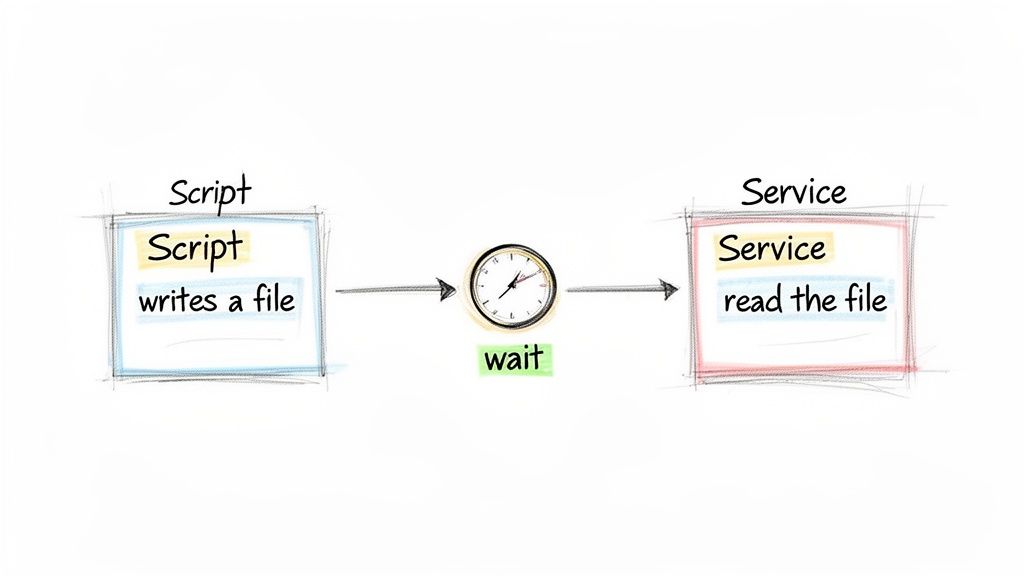
By inserting a simple delay after the download command, you give the file transfer the breathing room it needs to finish cleanly. This small pause is the critical link that ensures the integrity of your entire workflow.
This same principle applies everywhere: log file rotation, data backups, or any task where one process writes a file that another process needs to read. A short, strategic wait takes the guesswork out of the equation. Starting services is another classic timing trap. When a script starts a database or a web server, that service isn't instantly ready to handle connections. It needs a moment to load its configuration and initialize. A script that immediately tries to connect to a service it just started is almost guaranteed to fail. A TIMEOUT command acts as a buffer, giving the service the crucial seconds it needs to become fully operational. In more complex scripts, wait commands can help manage system resources. Firing off hundreds of commands in rapid succession can spike your CPU or overwhelm a network connection. By sprinkling short delays between heavy operations, you can smooth out the load and prevent performance bottlenecks. This is especially true when working with APIs that have rate limits, where a simple pause is often all you need. Managing these interactions often involves logging when things happen, which is where timestamps become critical. You can learn more about how to create and use date and time stamps in your scripts for better logging and control.
The Original Workaround Pinging for a Pause
Long before Windows gave us a proper batch file wait command, system administrators had to get creative. In the MS-DOS and early Windows days, the solution everyone landed on was a clever, if slightly clunky, hack: the PING command. The idea was simple: you'd tell the PING command to send a few packets to your own machine (localhost or 127.0.0.1). Since PING waits about one second between each attempt, you could create a surprisingly effective, albeit imprecise, timer. A typical command to create a pause looked something like this: @ping -n 6 localhost > nul. Every piece of that line had a job to do, working together to create a quiet, roughly five-second delay.
The -n 6 flag is the heart of the trick, telling PING how many echo requests to send. To get a delay of X seconds, you had to send X+1 pings because the actual pause happens between each ping. The > nul redirect is crucial for a silent wait, sending all output to the Windows equivalent of /dev/null so the user never sees it. This workaround was popular for its universal availability; PING has been baked into Windows since the beginning. However, it came with serious drawbacks, which is exactly why better tools were eventually created.
| Feature | Assessment |
|---|---|
| Accuracy | Poor. The one-second delay isn't guaranteed and can be affected by system load. |
| Reliability | Moderate. It depends on the local networking stack being enabled and configured. |
| Resource Use | Inefficient. It generates pointless network activity just to kill time. |
| Clarity | Low. -n 6 doesn't clearly communicate "wait for 5 seconds" to someone reading the script. |
This technique was incredibly common. It's estimated that in the Windows XP era, over 80% of complex batch files that needed a pause relied on this exact method. You can find more on batch file sleep commands and their examples online. While the PING hack is a neat piece of scripting history, its flaws highlight why dedicated commands were a necessary evolution for reliable automation, especially for tasks that require precise timing, like those discussed in our guide on how to set up a cron job to run every minute.
The Modern Solution Using the Timeout Command
After years of relying on the clever but clunky PING workaround, Windows finally gave us a proper, dedicated tool for pausing scripts: the TIMEOUT command. This is the official and vastly superior way to create a delay in any modern batch file, delivering the accuracy and clarity the old hack could never provide. At its core, the TIMEOUT command is incredibly simple. You just use the /t switch to specify how long you want to wait, in seconds. For example, timeout /t 30 tells your script to stop everything and wait for exactly 30 seconds. When you run it, you'll see a countdown timer in the console. However, by default, a user can press any key to interrupt the countdown.
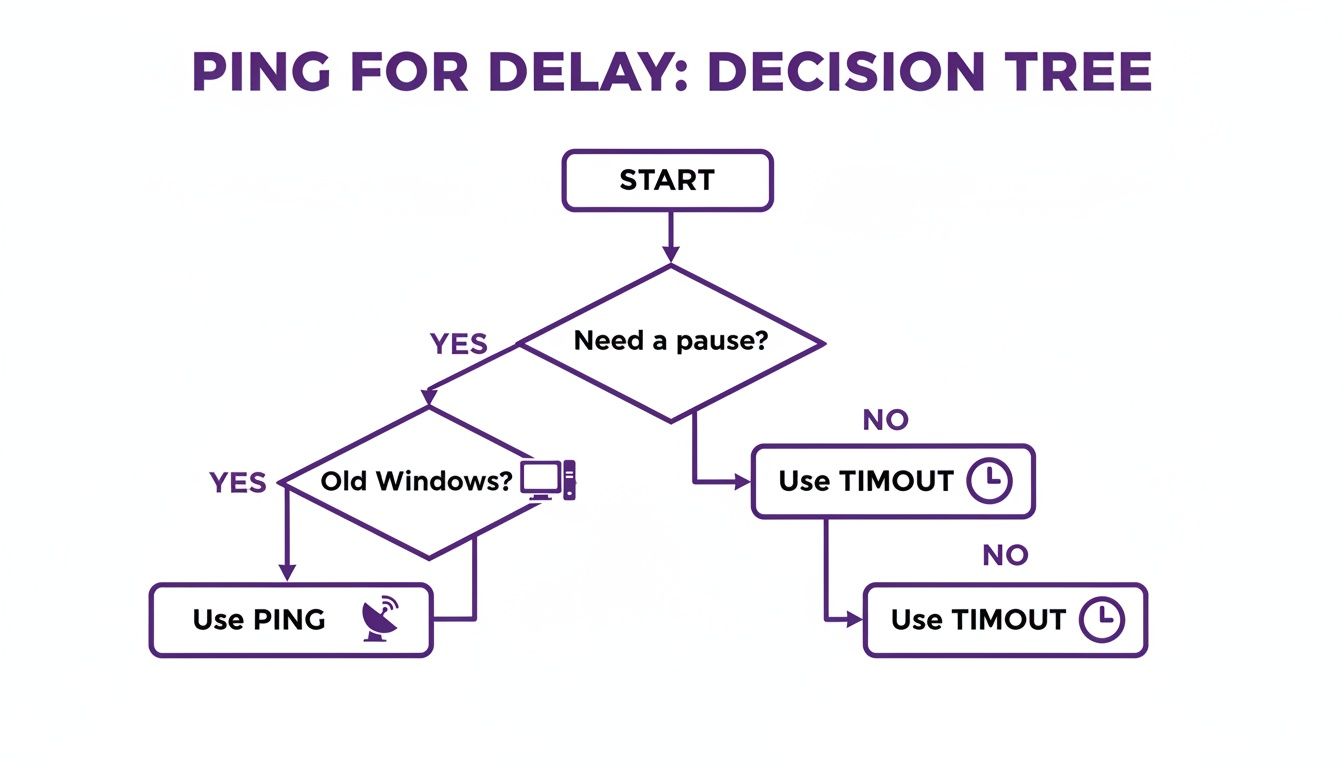
In a production environment, letting a user accidentally skip a critical delay is a recipe for disaster. This is where the /nobreak switch becomes your best friend. When you run timeout /t 60 /nobreak, you create a rock-solid, uninterruptible 60-second wait that ignores all keyboard input. This is essential for any automated process where timing is critical. The TIMEOUT command first appeared with Windows Vista in 2007 and was a game-changer for scripting. It is superior in every practical way, from resource efficiency to simply making scripts easier to read.
The
TIMEOUTcommand is more than a convenience; it's a tool for building professional-grade automation. Its accuracy and reliability are fundamental to writing scripts you can trust to run correctly, every single time.
| Method | Accuracy | CPU Usage | Interruptible? | Best For |
|---|---|---|---|---|
| TIMEOUT | High (second-level precision) | Negligible | Yes (controllable with /nobreak) |
Modern Windows systems (Vista and newer) |
| PING | Low (unreliable timing) | Low (but uses network stack) | No (cannot be skipped) | Legacy systems (Windows XP/Server 2003) |
Ultimately, TIMEOUT is the only logical choice for contemporary scripting. This need for precise control is a common theme in automation, just like when using the command prompt shutdown tool to schedule specific system events. For automation needs that grow beyond simple delays, a professional tool like Server Scheduler can replace fragile local scripts entirely.
Creating Interactive Delays with the Pause Command
While automated timers like TIMEOUT are great for scripts running in the background, sometimes a script needs to stop and wait for a human. This is where the classic PAUSE command comes in. It’s a simple but vital tool for creating interactive scripts that need a user's green light to continue. Unlike TIMEOUT, which just counts down the seconds, PAUSE brings everything to a screeching halt, displaying the message "Press any key to continue . . ." and freezing the script until someone hits a key. This makes it the perfect batch file wait command when you absolutely need to make sure a person has read a message or finished a manual step.
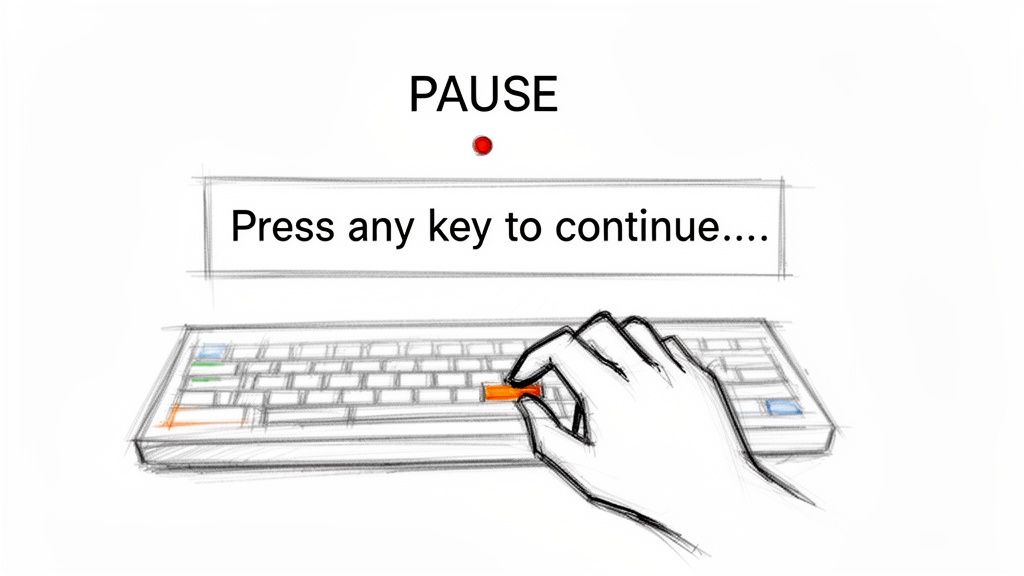
The PAUSE command shines when your script is more of a guided assistant than a fully autonomous process. For example, before a script deletes a folder of old logs, you could use ECHO to display a warning message and then use PAUSE. This gives the user a final chance to review and confirm. However, the very thing that makes PAUSE useful is also its biggest pitfall. If you include PAUSE in a script that runs on a headless server or as a scheduled task, the script will hang indefinitely, waiting for a key press that will never happen. This is a critical distinction: PAUSE is for scripts with a person at the keyboard, while TIMEOUT is for scripts that run by themselves. Misusing PAUSE in server environments became such a liability that a 2012 Forrester report pinned 22% of scheduled batch failures on scripts stuck on a PAUSE command. You can learn more about the history of batch file commands and how they’ve evolved.
| Command | Primary Use | Wait Duration | Interruptible? |
|---|---|---|---|
PAUSE |
Interactive scripts requiring user confirmation. | Indefinite (until a key is pressed). | N/A (requires a key press to continue). |
TIMEOUT |
Automated scripts needing a fixed, non-interactive delay. | Fixed (specified in seconds). | Yes (unless /nobreak is used). |
When to Move Beyond Batch File Automation
Batch files are fantastic tools for simple, on-the-box automation. But as soon as your infrastructure gets serious and moves to the cloud, the cracks in a batch-driven strategy start to show. Relying on a patchwork of .bat files to run production workflows is a fragile system that just doesn't scale. This is the natural point to graduate from local scripts to a proper scheduling solution. For anyone managing critical resources on a platform like AWS, a centralized scheduler like Server Scheduler isn't just a nice-to-have; it’s a core component for building automation that’s reliable, visible, and cost-effective.
The biggest problem with batch files is that they are decentralized and have zero awareness of the larger system. A script on one server has no idea what’s happening on another. A professional scheduling tool swaps this brittle network of isolated scripts for a single, unified command center. This move brings immediate, game-changing benefits for any team managing cloud infrastructure.
Relying on local scripts for cloud automation is like trying to conduct an orchestra where each musician has a different sheet of music. Centralized schedulers act as the conductor, ensuring every part works in perfect harmony.
| Feature | Batch File Approach | Centralized Scheduler Approach |
|---|---|---|
| Execution | Dependent on the local machine being online and correctly configured. | Guaranteed execution from a reliable, managed platform. |
| Visibility | No central dashboard. Requires logging into individual machines to check status. | A single pane of glass provides a complete overview of every scheduled task. |
| Time Management | Prone to errors from local time zone settings and clock drift. | Manages time zones automatically, ensuring tasks run correctly globally. |
| Logging | Requires building logging into every script, often inconsistently. | Provides comprehensive, searchable audit trails for all actions out of the box. |
Moving to a centralized scheduler is about more than just convenience—it’s about making your entire operation more resilient and much cheaper to run. A tool like Server Scheduler unlocks powerful cost-saving strategies that are next to impossible with batch files. Imagine visually scheduling entire environments to power down during nights and weekends. This simple change can slash cloud bills by up to 70%. If you want to see what's truly possible, check out our guide on tools for automating cloud infrastructure.
Common Questions About Batch File Waits
As you get deeper into writing batch scripts, you'll run into the same questions about delays and pauses that everyone else does. Getting these details right is the difference between a reliable script and one that causes frustrating errors. For mission-critical automation, though, leaning on local scripts is a risky game. A professional tool like Server Scheduler can replace those fragile batch files with a reliable, visual platform for managing your entire cloud infrastructure.
How can I create a pause shorter than one second?
Unfortunately, native batch commands like TIMEOUT and PING weren't built for that kind of precision. The smallest unit of time the TIMEOUT command can handle is one full second. If your script truly needs millisecond-level timing, you have to look outside of native commands. The most effective route is to call a more advanced scripting language, like PowerShell or VBScript, from within your batch file to achieve these super-short, precise pauses.
Can a user accidentally skip an important wait command?
Absolutely, and this is a huge risk. If you just use a standard timeout /t 30 command, any key press will instantly break the countdown. To bulletproof your script, you must use the /nobreak switch. A command like timeout /t 30 /nobreak creates an uninterruptible delay, guaranteeing the full pause happens, no matter what.
Is the PING method still useful today?
While TIMEOUT is better in almost every way, the old PING trick does have one last advantage: universal compatibility. It works on extremely old Windows systems—like Windows XP—where the TIMEOUT command might not exist. For any modern system (Windows Vista and newer), you should always use TIMEOUT. It’s more accurate, efficient, and makes your code much easier to read. Understanding your system's quirks, like how to check the uptime of a Windows server, can be a real lifesaver when debugging on older hardware.
If your automation needs have outgrown what simple batch files can offer, it’s time for an upgrade. Server Scheduler provides a robust, visual platform to schedule and manage your cloud resources, eliminating the fragility of local scripts and unlocking serious cost savings. Learn more at https://serverscheduler.com.
Related Articles
- Mastering the Command Prompt Shutdown Command for Windows
- A Step-by-Step Guide to Finding Windows Server Uptime
- How to Create and Use Date and Time Stamps in Batch Scripts